
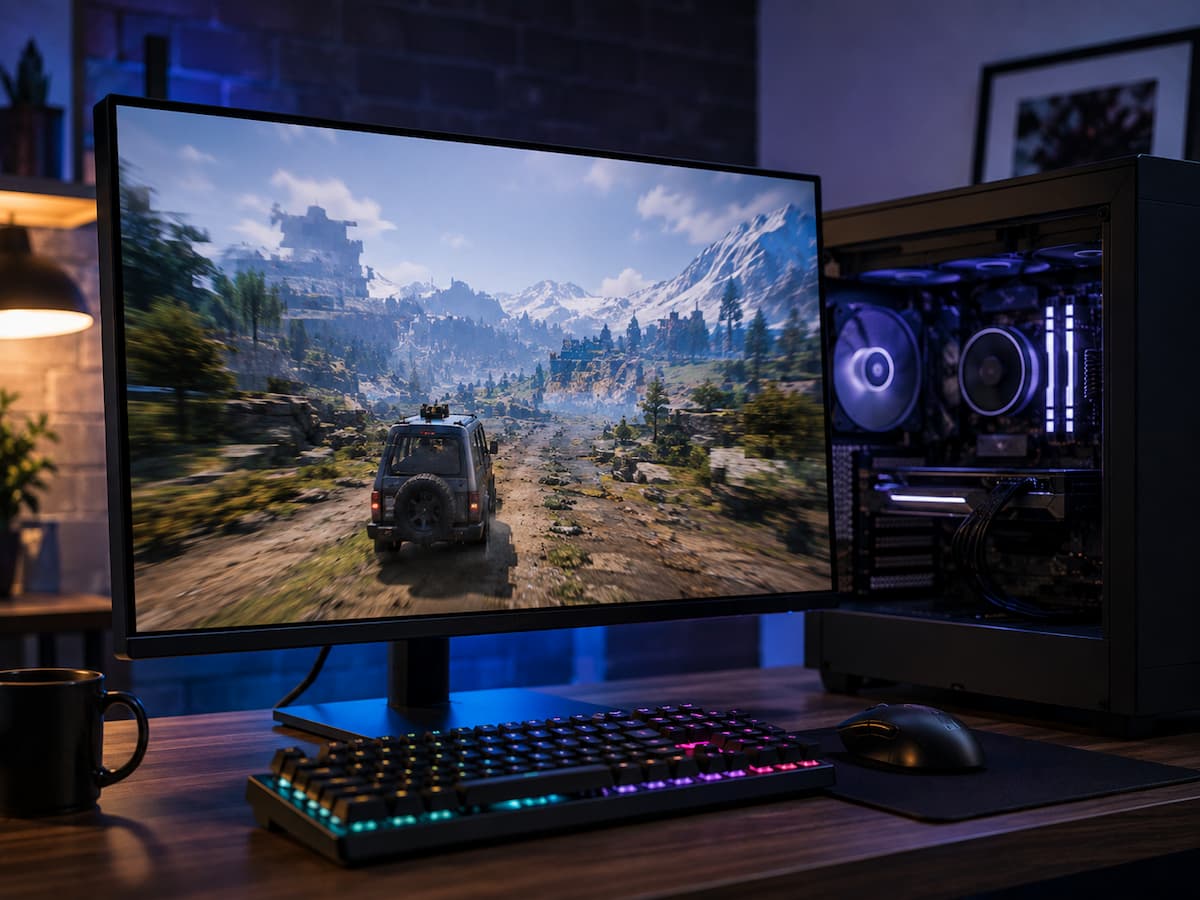
This often happens when the game needs to load, prepare, compile, or manage new data. Textures, models, sounds, shaders, map information, and other elements often pass through multiple system components before rendering. A problem in any of these phases can cause frame drops. This guide explains why stutters occur during fast movements or when loading new areas, how to identify potential causes, and what practical steps you can take to improve the situation. You will also learn which common solutions are worth trying and which are often misunderstood.
Why Stutters Often Appear During Fast Movement
Fast movement creates more work for a game because the player reaches new content more quickly. Imagine walking slowly through a large city. The game has time to prepare nearby buildings, textures, characters, sounds, and other information before you reach them. Now imagine driving at high speed across the same city. New assets may enter the scene much faster, which gives the game and your computer less time to prepare them.
This is why a game can feel smooth while standing still but suddenly hitch when you turn around or move into a new area. The problem is not always the rendering of the scene currently visible on screen. Occasionally the system is busy preparing the next part of the world.
Open-world games are especially likely to show this behavior, but the issue can also appear in racing games, large multiplayer maps, games with detailed environments, and titles that compile shaders while you play. A sudden stutter is different from consistently low FPS. Low FPS usually means the system cannot render frames quickly enough all the time. A stutter is often a temporary interruption that causes one or more frames to take much longer than normal.
How Game Asset Streaming Works
Modern games cannot always keep every asset from the entire world loaded in memory. Large maps may contain thousands of textures, objects, animations, audio files, and environmental details. Loading everything at once would require an enormous amount of RAM and VRAM. Instead, many games use a process called asset streaming. The game loads information when it expects that information to become necessary and removes or reduces data that is no longer needed.
A simplified version of the process can look like this:
- The game predicts which area or assets will soon be needed.
- Data is read from the storage drive.
- The CPU processes and organizes the data.
- Some assets are placed in system memory.
- Graphics-related data may be transferred to VRAM.
- The GPU renders the newly available content.
A delay at any stage can produce a hitch. For example, a fast graphics card cannot instantly solve a problem caused by slow asset delivery from storage. Likewise, a fast SSD cannot prevent a stutter if the system has run out of available RAM and is heavily relying on the paging file.
| Possible Bottleneck | Common Symptom | Often Appears During |
|---|---|---|
| Storage | Hitches when entering new locations | Area loading and fast travel |
| RAM | Increasing stutters during long sessions | Busy scenes and extended gameplay |
| VRAM | Texture-related hitching or sudden drops | New detailed environments |
| CPU | Spikes during movement or busy scenes | Streaming and simulation work |
| Shader compilation | Short freezes when seeing new effects | First-time actions or new locations |
When Storage Speed Becomes a Problem
Storage can play an important role in sudden stutters, particularly when a game constantly loads new assets. Traditional hard drives have much slower access times than solid-state drives. If a game frequently requests small pieces of data from different locations, the delay can become noticeable.
However, simply installing the game on the fastest possible drive does not guarantee perfect frame pacing. The game itself must be designed to use the available storage effectively, and other parts of the system still need to process the data. Before blaming the drive, check whether it is almost full or whether another program is using it heavily. A drive with very little free space can make general system management more difficult, while downloads, file transfers, antivirus scans, or other disk activity can compete with the game.
Useful Storage Checks
- Confirm that the game is installed on an SSD when possible.
- Keep reasonable free space available on the drive.
- Pause large downloads while gaming.
- Check whether cloud synchronization is actively using the disk.
- Look for unusually high disk activity when stutters occur.
Tip: Moving a game from a hard drive to an SSD can reduce loading-related delays, but it may not fix shader compilation, CPU bottlenecks, or insufficient memory.
RAM and Memory Pressure
System RAM gives Windows and your programs temporary working space. Games use RAM for many tasks, including world data, textures, game logic, audio, cached information, and other resources. If available memory becomes limited, the operating system may move some data between RAM and storage through virtual memory. This process is useful, but accessing storage is generally slower than accessing RAM. Heavy memory pressure can therefore contribute to stutters, especially in games that already demand large amounts of memory.
A common mistake is assuming that only the game matters. A browser with many tabs, recording software, chat applications, launchers, RGB utilities, and background tools can all consume memory. Individually, each program may seem harmless. Together, they can reduce the memory available for the game.
If stutters become worse after playing for a long time, memory use is worth investigating. Some games gradually use more memory as new areas are visited, while certain background programs may also continue consuming resources.
VRAM Limits and Texture Loading
VRAM is the memory that is available to the graphics processor. High-resolution textures, shadows, geometry, frame buffers, and other graphical data may occupy significant amounts of this memory. When a game approaches the available VRAM limit, it may need to manage assets more aggressively. This does not always produce a simple reduction in average FPS. Instead, the game may run smoothly for several seconds and then hitch when a new high-detail area appears. Fast movement can make the issue more obvious because the game encounters new textures and objects more frequently.
Texture quality is one of the first settings worth testing because it can directly affect VRAM use. You do not necessarily need to reduce every visual setting. Lowering textures by one step while leaving other settings unchanged can help reveal whether VRAM pressure is contributing to the problem.
Signs That VRAM May Be Involved
- Stutters happen mostly when entering visually detailed areas.
- Lower texture settings improve frame consistency.
- Average FPS remains good, but frame-time spikes occur.
- The problem becomes worse at higher resolutions.
Shader Compilation and First-Time Stutters
Shader-related stuttering is one of the more confusing problems because it can happen even on powerful hardware. Shaders help the GPU perform specific rendering tasks. Depending on the game and graphics system, some shader work may occur before gameplay, while other shader compilation or preparation may happen during play. A common pattern is a brief stutter the first time you enter a location, see a particular visual effect, use a new weapon, or encounter a specific object. The same event may run more smoothly later because the necessary work has already been completed or cached.
Lowering graphics settings does not always fix this type of problem. In fact, dramatically reducing resolution may leave the stutter almost unchanged because the interruption is related to preparation work rather than the GPU’s ability to render pixels. Do not assume every shader stutter means your graphics card is failing. If the stutter happens only during first-time events and then becomes less frequent, the game’s shader handling may be a major factor. Graphics driver updates and game patches can sometimes affect shader caches. After a major update, a game may temporarily behave differently while caches are rebuilt.
CPU Bottlenecks and Background Work
The CPU does far more than calculate a frame rate. It handles game logic, physics, artificial intelligence, draw-call preparation, asset management, background tasks, and communication between different parts of the system. When a new area loads, the CPU may suddenly receive additional work. Average CPU usage can be misleading. A processor does not need to show 100 percent total usage for one important thread to become overloaded. A game may depend heavily on a smaller number of cores for certain tasks, which means a brief spike can still interrupt frame delivery.
Fast movement can expose this weakness. The game may need to process more objects, update visibility, prepare new world information, and handle additional streaming requests. If the CPU is already busy with background applications, there may be less room for those sudden workloads. Close unnecessary programs before testing. This does not mean disabling every Windows process. The goal is simply to remove obvious competition, such as multiple browser windows, recording tools you are not using, large downloads, or resource-heavy background applications.
Why Lower Graphics Settings May Not Fix the Problem
Many players immediately lower every graphics setting when a game starts stuttering. This can improve performance when the GPU is the main limitation, but sudden movement-related stutters often have another cause. For example, reducing resolution lowers the number of pixels the GPU must render. It does not necessarily reduce the amount of data the game needs to load from storage. Similarly, lowering shadows may reduce GPU work but have little effect on a CPU spike caused by world streaming.
A better approach is to change settings based on what you are trying to test.
| If You Suspect | Try Testing | What Improvement May Suggest |
|---|---|---|
| VRAM pressure | Lower texture quality | Memory use may be too high |
| GPU limitation | Lower resolution or demanding effects | GPU rendering load is important |
| CPU pressure | Reduce CPU-heavy settings if available | Processor workload may be limiting |
| Streaming issues | Compare storage drives or loading behavior | Data delivery may be involved |
Change one or two settings at a time. If you change everything together, you may improve the problem without learning what actually caused it.
Background Programs and System Interruptions
Sudden stutters are sometimes caused by something outside the game. A background application may start a scan, download an update, synchronize files, record gameplay, or briefly consume CPU, memory, or storage resources. Overlays can also be worth testing. Game overlays, monitoring tools, chat overlays, and recording features are useful, but temporarily disabling nonessential ones can help isolate a problem. The goal is not to avoid these tools forever. It is to determine whether one of them is contributing to inconsistent performance.
Power settings are another frequently overlooked detail, particularly on laptops. A system running in a restrictive power mode may reduce performance during demanding moments. Thermal limits can also cause inconsistent behavior after the system has been under load for some time.
How to Diagnose Sudden Stutters Instead of Guessing
The most useful troubleshooting habit is observing when the stutter happens. Do not focus only on the FPS number. Look for a repeatable pattern.
For example, ask yourself whether the hitch happens when you enter the same location, whether it occurs only during fast travel, whether it appears after playing for an hour, or whether it happens the first time a new effect appears.
A Simple Diagnostic Checklist
- Does the stutter happen in one game or several?
- Does it occur at the same location repeatedly?
- Does it improve after revisiting the same area?
- Does lowering texture quality help?
- Does the problem get worse during long gaming sessions?
- Is storage activity unusually high during the hitch?
- Did the problem begin after a game, driver, or system update?
Frame-time monitoring can also be more informative than average FPS. A game averaging 100 FPS may still feel unpleasant if occasional frames take far longer to render than normal. Test the same route through a game after every major change. Repeating the same movement pattern makes it easier to see whether a setting actually improved the problem.
A Practical Troubleshooting Process
Randomly reinstalling drivers, changing dozens of settings, and downloading optimization tools can make troubleshooting more confusing. A structured process is usually better.
- Restart the system. This clears temporary processes and gives you a clean starting point.
- Check for game updates. Developers sometimes improve performance, streaming, and shader behavior through patches.
- Install the latest stable graphics driver appropriate for your hardware.
- Verify the game’s files. Corrupted or missing data can cause unusual loading behavior.
- Close unnecessary background applications.
- Check available storage space and drive activity.
- Test texture settings separately from other graphics options.
- Compare behavior in another demanding game.
- Monitor temperatures and resource use during longer sessions.
This process helps narrow the possibilities. If only one game has the problem, the issue may be related to that game’s engine, settings, updates, or shader behavior. If several unrelated games show similar stutters, system-wide causes become more likely.
Long-Term Maintenance for Smoother Gameplay
Not all stuttering problems can be completely resolved, especially if the game itself has known streaming or shader issues. However, basic system management can prevent several avoidable problems.
- Ensure that your primary hard drive has sufficient free space.
- Install important updates for the game and your graphics card when necessary.
- Avoid running unnecessarily large programs while gaming.
- Check the temperature if performance changes during prolonged gaming.
- Use stable system settings instead of regularly changing hardware configurations.
- If multiple applications behave abnormally, check the status of your memory and storage devices.
Furthermore, it is important to avoid unnecessary “optimization” software. Many programs claim to significantly improve the frame rate without explaining what they actually change. Troubleshooting should focus on measurable behavior, not on mysterious one-click solutions. A clean, repeatable testing procedure is often more effective. Implement a change, test it in a familiar environment, and record the results. Over time, you will gain a deeper understanding of whether the stuttering problem is related to storage, memory, graphics card settings, CPU activity, temperature, or the game itself.
Conclusion
Sudden stuttering during rapid movements or loading new areas is difficult to diagnose because multiple computer components can be involved simultaneously. The graphics card is only one part of the process. Storage devices must deliver data, the CPU must process game tasks, RAM and video memory must store crucial information, and the game itself must efficiently manage the streaming and shader workloads.
The best approach is to search for patterns rather than immediately lowering all graphics settings. Observe when the stuttering occurs, repeatedly test the same area, changing only one setting each time, and compare the results with other games. Texture settings can help test video memory load, storage activity can reveal streaming issues, and problems that persist for a long time may indicate memory or temperature issues.
Some stuttering occurs because of limitations in the game design or engine, and developers may need to release patches to improve it. You can reduce other stuttering issues through proper system management and targeted troubleshooting. By understanding what happens when the game loads new areas, you can spend less time trying random solutions and more time identifying the system components that truly need attention.
FAQs
1. Why does my game only stutter during rapid movements?
Fast movements force games to load and prepare new content faster. Textures, models, sounds, and world data may need to be streamed and processed from storage devices before they are rendered. If any part of this process experiences delays, you may notice brief stutters. The problem could lie with storage, RAM, VRAM, CPU activity, or the game’s streaming system itself.
2. Can a solid-state drive (SSD) completely resolve stuttering?
No. While SSDs can improve load and resource access speeds compared to traditional hard drives, many other factors can still cause stuttering. Even if a game is installed on a high-performance SSD, shader compilation, insufficient memory, VRAM load, CPU spikes, background processes, thermal limitations, and issues with the game engine can still cause frame time spikes.
3. Why does my frame rate feel high, yet the game still stutters?
The average frame rate does not reflect the uniformity of frame rendering. A game may render most frames quickly, but occasionally a frame takes too long. Long frames can cause noticeable stuttering. Therefore, frame time stability is crucial. A stable, low frame rate is sometimes smoother than a high average frame rate with frequent spikes.
4. Should I lower the resolution to fix motion stuttering?
It’s worth a try, but it may not work if GPU rendering load isn’t the cause of the problem. Lowering the resolution primarily reduces the number of pixels the graphics card has to process. If the stuttering is caused by shader work, resource streaming, CPU spikes, or memory issues, the improvement may be small or even nil. Why does the game stutter the first time I enter a certain area, but not the second time?