
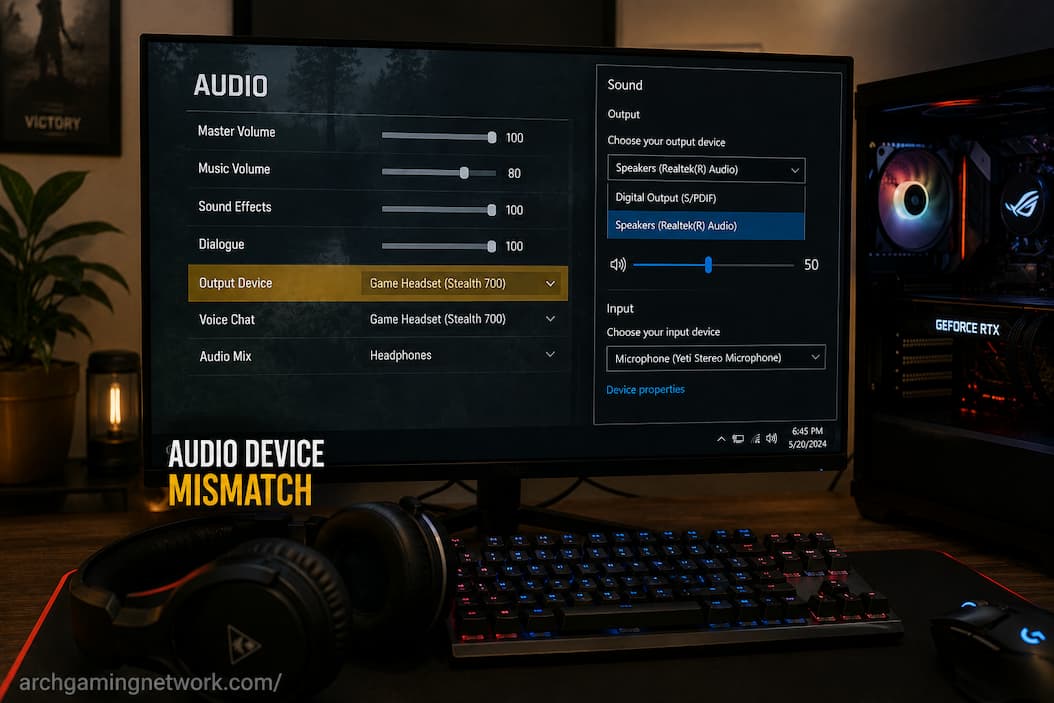
A game can sometimes use a different audio device from the one selected in Windows, even when everything appears correctly configured on the desktop. You may have headphones connected and working normally in music, videos, or system sounds, only to find that a game continues playing through the monitor speakers. In another situation, Windows may show one output as active while the game continues using an older headset, HDMI device, or virtual audio endpoint.
This can be confusing because there isn’t always a single setting controlling where game audio goes. Windows has its default output, applications can have individual audio assignments, and games may remember a device they detected when they were first launched. Audio software can add another layer by creating virtual speakers or routing devices that look like normal outputs.
The result is that two applications can legitimately use different audio devices at the same time. Before reinstalling audio drivers or changing every sound setting available, it is more useful to determine which layer has selected the unexpected device.
The Windows Default Device Is Only Part Of The Story
Changing the default output in Windows doesn’t necessarily force every running application to switch immediately. Some applications follow the Windows default device continuously, while others select an output when they launch and continue using that device until they are restarted.
This is particularly noticeable when you connect a headset after a game is already running. Windows may immediately begin sending new desktop audio to the headset, while the game continues using the device it selected earlier.
A simple first test is therefore to close the game completely after selecting your preferred output in Windows and then launch it again. If the game suddenly follows the correct device, the issue may have been caused by the game retaining the previous audio endpoint rather than Windows selecting the wrong device.
A Quick Comparison
| What you observe | More likely area to check |
|---|---|
| Everything uses the wrong device | Windows default output |
| Only one game uses the wrong device | Game audio settings |
| Game changes output after restarting | Cached device selection |
| Different apps use different outputs | Per-app Windows routing |
| Virtual devices appear unexpectedly | Audio software or drivers |
This comparison helps narrow the problem before you start changing settings that were already working.
Windows Can Assign Audio Per Application
Windows supports per-application audio routing, which means an application can be assigned to a different output from the system-wide default. This is useful when you intentionally want a game, communication application, or media player to use a particular device.
It can also create confusion when an old assignment remains in place.
Open the Windows volume mixer and check the game’s output assignment while the game is actively producing audio. Depending on your Windows version, the relevant controls are available through the sound settings and volume mixer. If the game has been assigned to a specific device, changing the system default alone may not change where that application’s audio is being sent.
This is especially worth checking when your browser and other applications correctly use the headset but one particular game refuses to follow it.
Restarting The Game Can Matter More Than Restarting Windows
Audio devices can be detected when an application starts. If the headset wasn’t connected at that moment, the game may select another available device and continue using it.
For example, suppose a game is launched while your monitor is connected through HDMI and your headset is disconnected. Later, you connect the headset and make it the Windows default output. Windows desktop audio switches correctly, but the game continues sending sound through HDMI.
Closing and reopening the game gives it another opportunity to enumerate the currently available audio devices.
If this consistently fixes the problem, you don’t necessarily have a broken audio configuration. The game may simply not be designed to switch output devices dynamically after startup.
The Game May Have Its Own Output Setting
Many games provide an audio-output selection separate from Windows. Depending on the title, it may appear as Output Device, Audio Device, Playback Device, Speaker Configuration, or a similar option.
If the game provides this control, check it directly rather than relying only on Windows.
Some games offer a specific device name, while others provide options such as “Default,” “System Default,” “Headphones,” or “Speakers.” Selecting the intended device explicitly can sometimes resolve a conflict that remains when the game is set to an older remembered output.
Be careful when testing this setting. Change only the output device first and leave volume, dynamic range, surround options and other audio settings alone. That makes it easier to tell whether the output selection itself was responsible.
Windows Can See More Audio Devices Than You Realize
Modern PCs often have several possible audio outputs. Your motherboard may provide an analog output, your monitor may appear as an HDMI or DisplayPort audio device, a USB headset may have its own endpoint, and wireless headphones may expose additional profiles.
Audio software can add even more virtual devices.
This can make a game display a long list of devices that look almost identical. Selecting the wrong one can produce the impression that the game is ignoring Windows even though it is actually following a different endpoint.
If several devices have similar names, identify which physical device corresponds to each entry before changing anything. Disconnecting an unnecessary audio device temporarily can also make the list easier to understand.
HDMI And DisplayPort Audio Can Be The Unexpected Choice
Graphics cards can provide audio through HDMI and DisplayPort. As a result, a monitor or television may appear in Windows as an audio output even though you normally use headphones.
If the game was previously played through a monitor, it may continue selecting that display’s audio device after you connect headphones.
This is especially common in multi-monitor setups because Windows can detect several display audio endpoints simultaneously. The game may have remembered one of them, while Windows has a different device selected as the current default.
If sound is coming from a monitor instead of your headset, check both the game’s selected device and Windows’ current output before assuming there is a problem with the headset.
Wireless Headphones Offer a Completely New Experience
Bluetooth and wireless gaming headsets can feature multiple audio outputs or operating modes. Some devices separate high-quality playback mode from communication mode. Proprietary wireless software can provide independent virtual outputs.
These features can create the illusion of an inconsistent experience. Headphones might perform well during music playback but behave differently when a game starts.
If your headset’s software supports separate game and chat channels, ensure that game audio is routed to the correct channel. Some manufacturers even add virtual audio devices to explicitly distinguish between game audio and audio from voice chat applications.
The key is to identify the actual playback output, rather than assuming that every entry bearing the headset’s name represents the same audio stream.
Virtual Audio Devices Can Lead to Unexpected Surprises
Streaming, recording, voice communication, and audio mixing applications can create virtual playback devices. These devices reroute audio before it reaches your headphones or speakers.
While useful, they can also complicate troubleshooting.
If your game suddenly outputs audio to an unexpected location after you install or update audio software, check whether Windows has set the new virtual device as the default, or if you have used an audio routing tool to assign the audio device to the game.
You do not always need to uninstall the software. Check if the game is intentionally routing audio through the virtual device. If so, adjusting the routing settings should resolve the issue without altering the underlying drivers.
Check The Game After Changing The Output
A common mistake is testing a running game immediately after changing Windows output settings. The game may have already initialized the audio device before the update.
A more accurate testing method is to close the game completely, select the correct Windows output settings, verify that system audio is playing through the correct device, and then restart the game.
If the game now follows the Windows settings, this strongly suggests that the original issue was related to when the game selected the audio endpoint.
If the game still selects the wrong device, skip the default system settings and go directly to the game’s audio settings. Then, check the audio routing settings in Windows.
Per-App Routing Can Survive A Device Change
Even if you change the default output device, Windows may retain the application’s audio assignment. This is fine if intended; however, it can cause issues if you forget that a game was previously assigned a different output device.
Suppose you previously played a game using USB headphones and have now switched to Bluetooth headphones. Windows recognizes the Bluetooth headphones as the default device, but due to the game’s own audio settings, the sound will still play through the USB connection.
Games do not necessarily ignore Windows settings; Windows may simply be acting according to the application’s settings.
If the game is playing sound, check the volume controls. If the application has selected a specific output device, correct the assignment and test again.
Don’t Change Audio Drivers Too Early
Drivers can be the cause of audio issues, but the fact that Windows and a specific game aren’t working properly doesn’t necessarily mean the driver is faulty.
If you can hear Windows, music apps, and other games through the correct headphones, the basic audio driver is working correctly and is sufficient for audio output.
This makes application audio routing and device selection a more reliable starting point for troubleshooting.
However, the problem becomes more serious when the device disappears completely, Windows displays error messages, multiple applications simultaneously stop producing sound, or system-level audio output frequently cuts out. These symptoms are not simply a matter of selecting the wrong device.
Multiple Games Can Help Identify The Layer At Fault
By quickly testing other games, you can determine whether the issue is limited to a specific game.
If all games send audio to the wrong device, check your Windows settings, application routing, virtual devices, and audio hardware. If only one game exhibits the problem while many others work correctly with the headset, check that specific game’s settings.
Saving time is key; if a game has an outdated output device in its configuration, reinstalling the audio driver won’t solve the issue.
Similarly, if Windows is routing the application’s output to different endpoints via the volume mixer, constantly changing the game settings won’t help.
When The Correct Device Is Selected But There Is Still No Sound
Sometimes, both the game and Windows appear to be using the same output device, yet there is no sound. In that case, check if the application itself is muted or if the volume level in the Windows volume mixer is abnormally low.
Additionally, check the game’s master volume, distinct from the settings for sound effects, music, and voice chat. It is possible to configure the game to use the correct output device while having the master volume set to zero.
If you can hear other applications through the same headphones, do not immediately reinstall the driver. The device works fine elsewhere, which effectively proves that the physical audio output is functioning correctly.
Practical Troubleshooting Steps
Start with the simplest test. Play system sounds (or audio from another program) through the headphones in question to verify that Windows is using them. Next, close the problematic game completely and restart it after selecting the correct Windows output device.
If the game still uses the wrong device, check the game’s own audio output options and then the Windows volume settings. Check for HDMI/DisplayPort outputs, outdated USB devices, and virtual audio endpoints that might be capturing the game audio.
Only after the steps above fail to resolve the issue should you start investigating broader driver or hardware problems. If you experience audio loss across multiple programs, or if your Windows system constantly loses audio, the problem is no longer limited to the game itself and needs to be checked at the system level.
The advantage of this method is that you check one level at a time, rather than adjusting multiple settings simultaneously.
Frequently Asked Questions
Why does my game use the monitor speakers while my Windows system uses headphones?
The game may have selected the monitor’s HDMI or DisplayPort audio device instead of the Windows default device. Check the game’s output settings and the Windows audio routing settings.
Restarting the game can resolve audio device issues. Why?
Some games select an audio device upon startup. If headphones aren’t connected when the game starts, the game might continue using a different output device until you restart it.
Can Windows output to different audio devices?
Yes. Windows offers application-specific audio routing, allowing specific applications to use output devices other than the system’s default.
Why are there multiple versions of my headphones listed in my audio devices?
Some headphones—particularly wireless ones or those with manufacturer-specific software—can make multiple interfaces available. Additionally, virtual audio applications can create extra playback devices.
If only one game uses the wrong device, do I need to replace my audio driver?
That is usually not the first step. If Windows and other applications are working correctly, you should first check the game’s output selection and Windows’ routing settings before considering driver issues.