
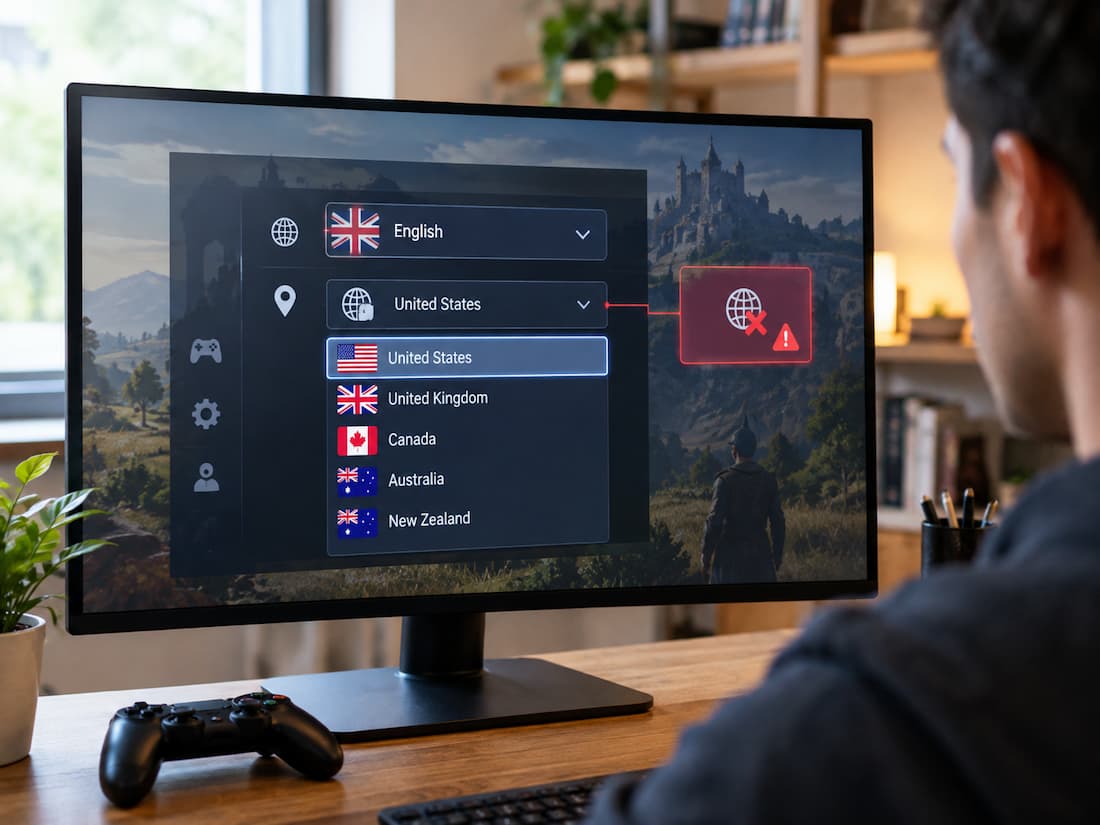
You install a PC game, start it for the first time, and something immediately looks wrong. The menus are in a language you did not choose, the game appears to use a different regional format, or settings seem to match another country. It can be tempting to reinstall the game or start changing Windows settings at random. Usually, that is unnecessary. A game can get language and regional information from several places. Depending on how it was distributed, the game may use its own settings, a launcher preference, Windows configuration, installation choices, or a combination of these. Some games also install several language resources and select one when they first run. The useful first step is therefore not to change everything at once. It is to work out which part of the system is actually making the decision.
The Setting May Not Be Coming From the Game
When a game opens in the wrong language, the visible problem is inside the game, but the setting may have come from somewhere else. Some games have a language selector in their settings. Others read a preference from the launcher before starting. A few use the operating system’s language or regional information when they are installed or launched for the first time. This scenario explains why changing a language in one place may have no effect.
For example, suppose Windows is set to English, the launcher is set to French, and the game has its own language preference. The game might follow the launcher, its configuration, or Windows depending on how its developers designed the software. Regional settings can work in a similar way. A game may use the region to determine date formats, decimal separators, subtitles, available content, servers, or other regional behaviour. That does not necessarily mean the game’s entire interface will change. There is no universal rule that says every PC game gets these settings from the same source.
Start With the Game’s Own Settings
If you can reach the main menu, check the game’s language or regional options before changing anything in Windows. Look in areas such as Settings, Options, General, Interface, Audio, or Language. The exact location varies considerably between games.
Some titles separate different language components. You might see choices for:
- Interface or menu language
- Subtitle language
- Voice or audio language
- Text language
- Region or territory
This distinction matters. If the menus are correct but the spoken dialogue is in another language, changing the interface language may not solve the problem. Likewise, some games require a separate language download before a particular voice pack becomes available. If the game clearly provides the language you want, this is usually the least disruptive place to make the change. After changing it, check whether the game asks you to restart. Some settings take effect immediately, while others are only read when the game starts.
What If the Game Has No Language Option?
A missing language setting does not automatically mean something is broken. Some games choose their language during the first launch and store the decision in a configuration file. Others inherit the setting from the launcher or operating system. A title may also provide language choices only through its distribution platform. In that situation, avoid editing random configuration files just because they contain words such as language, ‘or’. A setting with a familiar name is not necessarily the one the game actually uses. First determine where the game is getting its configuration.
Check the Launcher Before Changing Windows
If the game starts through a launcher, that launcher should be checked. Launchers can have their own language preferences, and some can pass settings to games when they start. The game may therefore ignore a Windows change because the launcher is providing a different preference. Open the launcher and look through its general settings for language or region options. Also check whether the individual game has properties or preferences separate from the launcher’s main settings. This distinction is easy to miss.
A launcher can have one language for its interface while a particular game has another language preference. Changing the launcher interface may therefore change only the launcher, not the game. If the launcher offers a game-specific language setting, that is generally more relevant than changing the entire operating system. After making a change, completely close and restart the launcher before testing the game. Some launchers do not apply configuration changes to an already-running session.
Windows Regional Settings Can Be the Clue
If neither the game nor the launcher explains the behaviour, look at Windows. Windows has several related settings, and they do not all mean the same thing. Display language, preferred languages, country or region, and regional formats can influence software in different ways.
For example, a regional format controls how Windows displays dates, times, numbers, and currency. That does not necessarily tell a game which language to use. Similarly, having a language installed in Windows does not mean every application will automatically use it.
Check your Windows language and region settings and compare them with what the game is displaying. You are looking for an obvious mismatch rather than changing every available option. If Windows is already configured correctly and other applications behave normally, that is useful information. It makes the game or its launcher a more likely source of the problem.
Don’t Change Windows Just Because the Game Is Wrong
Changing the Windows display language or regional format can affect many applications, not just the game you are troubleshooting. That makes it a poor first choice when only one game has the problem. If your browser, other games, documents, and everyday applications are using the expected language and regional format, there is little reason to modify system-wide settings immediately.
A game-specific setting is preferable when one is available.
Installation Choices Can Matter Later
Some games make language decisions during installation rather than waiting until the first launch. An installer may ask which language resources to install, or a distribution platform may download files based on the selected language. If several language packs are available, the game may have been installed with a different combination than you expected. This scenario can produce two different situations.
- In the first, the required language is already installed, but the game selected another one. A setting change may be enough.
- In the second, the language resources you want were never installed. In that case, changing a menu preference cannot create files that are not present.
If the launcher or game’s management screen has an option to add or change installed language content, use it. The wording differs by platform, so there is no single sequence that applies to every title. This is also one reason not to assume that reinstalling is necessary. If the platform can change or download language resources without removing the game, a complete reinstall adds unnecessary work.
Configuration Files Can Preserve an Old Choice
A game can remember its language or regional preference in a configuration file. This is particularly relevant when the game was previously installed, copied between systems, restored from a backup, or upgraded from an older version. A stored preference can survive an installation change and continue influencing the game. The important part is identifying the game’s actual configuration system before editing anything.
There is no universal location or filename. Depending on the game, configuration data may be stored with the installation, in a user profile folder, in a platform-managed location, or somewhere under the Windows user data directories. If the game’s official documentation identifies a configuration file, follow that information. Otherwise, the game’s own settings and launcher options are safer places to start. Before changing a configuration file, make a backup of it. Also avoid deleting unrelated settings simply because they are stored in the same file. You may otherwise reset graphics, controls, accessibility options, or other preferences that have nothing to do with the language problem.
Multiple Language Packs Can Make the Situation Confusing
Having multiple language packs installed does not always mean the game will ask you which one to use every time it starts. Some games have a preferred language and several installed resources. Others select a language based on the launcher or operating system. A game update can also alter which language resources are installed or enabled.
If the game suddenly changes language after an update, compare the current launcher and game settings with what they were previously. Check whether the update changed the installed language content. If only one language is available after an update, look at the game’s installation or content-management options. The missing language may need to be installed again. Do not assume that a missing option means the game is damaged. It may simply mean the corresponding language files are not currently installed.
Store and Account Region Are Related, But Not Identical
Store or account region can sometimes affect what software, content, or language options are presented to you. However, it should not automatically be treated as the explanation for every language problem. A game being purchased through an account associated with one country does not necessarily mean its interface must use that country’s language. Regional availability and language selection are separate concepts, even though a particular game or platform may connect them. If the game is behaving differently from what you expect based on your store or account, check the platform’s documented settings rather than changing your Windows region simply to match the account. This is especially useful when the problem concerns available content or regional options rather than just the language displayed in menus.
A Simple Way to Find the Real Source
When you are unsure which setting controls the game, use the problem itself as a clue.
1. If only one game has the wrong language:
Start with that game’s settings and its launcher. A game-specific configuration is more likely than a Windows-wide problem.
2. If several games from the same launcher behave the same way:
Check the launcher’s language preferences and installed language settings.
3. If many unrelated applications have the wrong language or regional format:
Windows becomes a more likely source.
4. If the game changed after an update:
Check the game’s installed language content and launcher configuration before changing Windows.
5. If the language is unavailable entirely:
Look for an optional language pack or installation component rather than simply changing a preference.
6. If menus use the expected language but dates, numbers, or other formats look unusual:
The issue may be regional formatting rather than language selection.
This approach prevents you from changing settings that were never responsible for the problem.
When Changing One Setting Does Nothing
One of the most frustrating situations is changing a language preference and seeing no difference. That does not necessarily mean the setting failed. The game may be reading its preference from another source. For instance, you might change Windows while the launcher continues supplying its language choice. Or you might change the game’s interface language when the problem is actually caused by a missing voice pack. There can also be a stored configuration value overriding a newer preference. If a change has no visible effect, go back one level and identify the next possible source rather than repeatedly changing the same setting. It is also worth fully closing the game and, when relevant, the launcher. Some applications read language information only during startup.
Reinstalling Should Usually Be a Later Step
A complete reinstall can replace damaged or missing game files, but it is not automatically the right response to a language or region problem. If the game simply selected the wrong preference, reinstalling will not necessarily fix anything. You could install the same files again and end up with the same configuration.
Before reinstalling, check:
- The game’s own language settings.
- The launcher’s game-specific settings.
- Installed language packs or optional content.
- Windows language and regional settings.
- Any documented game configuration that controls language or locale.
- Whether the problem appeared immediately after an update or installation change.
Reinstallation becomes more reasonable when the required language files cannot be installed or repaired through the game’s normal management tools, or when there is evidence that the installation itself is incomplete or damaged. Even then, check whether the launcher offers a repair, file verification, or content-management option first. The exact feature depends on the platform.
What to Check First Next Time
A wrong language or region after installing a PC game can look like a complicated system problem, but the source is often fairly specific. Start with the game itself. If there is no useful setting there, inspect the launcher. If the launcher also looks correct, compare the game’s behaviour with Windows language and regional settings. When the desired language is missing rather than simply unselected, investigate installed language content.
Most importantly, change one relevant setting at a time. That makes troubleshooting much easier because you can see which change actually affected the game. It also keeps you from altering Windows-wide preferences when the problem belongs only to a single title. Once you know whether the game, launcher, or operating system is making the decision, the solution usually becomes much clearer.
FAQs
1. Why does my game use a different language even though Windows is set correctly?
The game may not use Windows as its primary language source. It could have its own language preference or receive one from the launcher. Check those settings before changing Windows again.
2. Why did the game language change after an update?
An update may have changed the game’s configuration or installed language content. Check the game’s language setting and the launcher’s installed content options. If the problem appeared immediately after the update, those areas are worth checking first.
3. Do I need to reinstall a game to change its language?
Usually not. If the desired language is already installed, changing the game’s or launcher’s language preference may be enough. If the language files are missing, the platform may provide an option to download them without reinstalling the entire game.
4. Why does changing the Windows language not change the game’s language?
The game may be controlled by its configuration or by the launcher. Windows language settings do not automatically override every application’s language choice.
5. Can the wrong region affect more than the game’s language?
Yes. Depending on the game, regional information can influence formats, available content, servers, or other region-dependent behaviour. A regional setting is not necessarily the same thing as the game’s interface language, so identify the specific part that is wrong before changing system settings.