
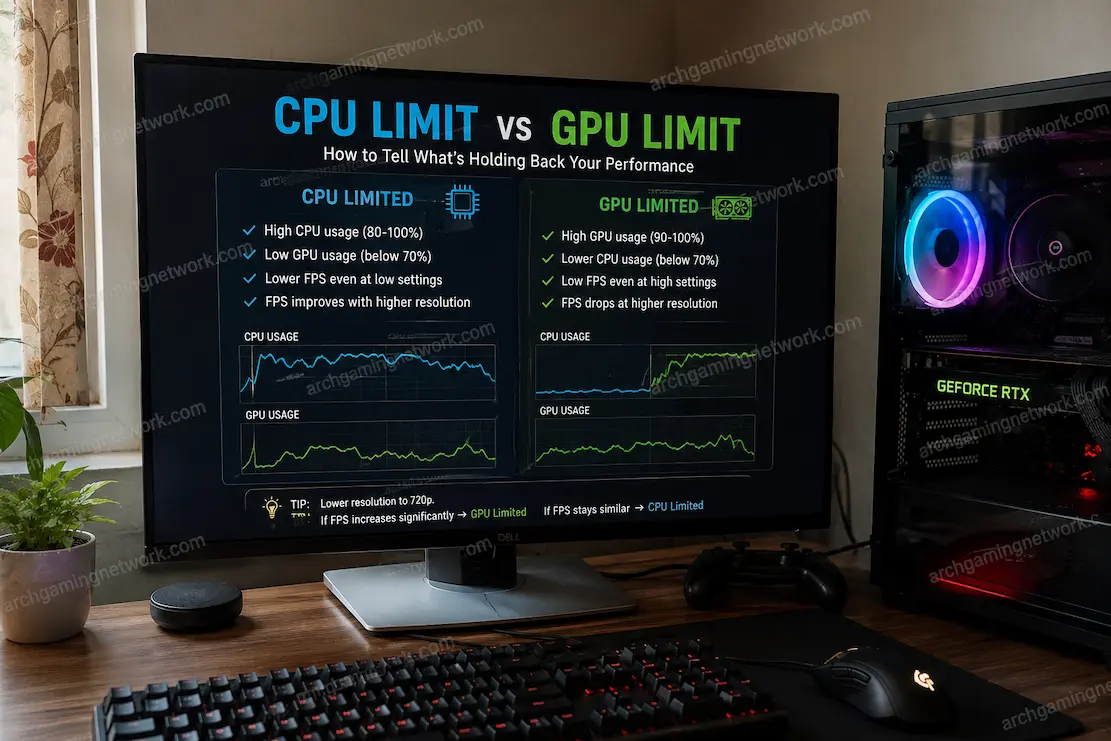
When a game starts running poorly, it is tempting to look at the GPU usage percentage, see that it is below 100%, and immediately decide that the processor must be the problem. The opposite mistake happens just as often: the graphics card reaches very high utilization, so the player assumes every performance issue is automatically a GPU limitation. Neither conclusion is reliable on its own. Modern games divide their workload between several parts of the system, and a bottleneck can move as the scene, resolution, graphics settings, or frame rate target changes.
The useful approach is to search for patterns rather than one number. A CPU limit and a GPU limit tend to respond differently when you deliberately change something that affects one side of the workload. Resolution and GPU-heavy graphics settings can change the amount of work sent to the graphics card, while reducing CPU-intensive game settings can affect processor workload. Frame-time behavior, per-core CPU usage, and GPU utilization can then help confirm what changed.
This makes diagnosis much more useful than simply asking whether the CPU or GPU is “strong enough.” The real question is which component is preventing the game from producing frames more quickly under the conditions you’re testing.
What A CPU Limit Actually Looks Like
A CPU limitation occurs when the processor or a CPU-dependent part of the game engine cannot prepare the next frame quickly enough for the graphics card to remain fully occupied. This doesn’t necessarily mean the entire CPU reaches 100% utilization. A game may depend heavily on a small number of CPU threads while other cores remain comparatively lightly loaded.
That is why total CPU usage can sometimes look surprisingly low during a CPU-limited situation. On a processor with many cores and threads, one heavily loaded game thread can be enough to restrict performance even when the overall utilization percentage appears moderate. The important clue is whether CPU-side work is preventing the GPU from receiving work quickly enough.
CPU limits are more common in situations involving large numbers of game objects, complex simulation, artificial intelligence, physics, world streaming, or very high frame-rate targets. Lowering the resolution may do surprisingly little to improve performance in such a situation because the processor is still responsible for much of the same game-side workload.
Signs That Point Toward The CPU
A few observations become more meaningful when they appear together:
- GPU utilization remains below its normal workload level while frame rate is limited.
- Lowering resolution produces little improvement.
- Reducing CPU-heavy settings noticeably improves performance.
- One or more CPU cores or threads remain heavily loaded.
- Performance becomes more CPU-limited when targeting very high FPS.
- Large crowds, physics-heavy scenes, or busy areas cause disproportionate slowdowns.
None of these proves a CPU bottleneck individually. Together, however, they create a much stronger case.
GPU Limits Behave Differently
A GPU limitation is generally easier to recognize because the graphics processor is being asked to do more rendering work than it can complete within the desired frame time. Increasing resolution, rendering quality, or certain visual effects can increase that workload substantially.
When the GPU is the limiting component, it will often remain heavily utilized while producing frames as quickly as it can. Reducing GPU-intensive settings or lowering the resolution can then reduce the amount of work required and improve frame rate.
This scenario is where controlled testing becomes useful. Instead of changing five settings at once, reduce the resolution or a few graphics options that are known to affect GPU workload. If performance increases significantly while the CPU workload remains similar, the GPU was probably contributing heavily to the limitation. The exact utilization percentage will vary by game and system, so don’t treat a particular number such as 95% or 99% as a universal threshold.
Resolution Is One Of The Most Useful Tests
Resolution is valuable diagnostically because it primarily changes the amount of image-rendering work the GPU has to perform. Moving from a higher resolution to a substantially lower one can therefore reveal whether the graphics processor has enough headroom.
Suppose a game runs at 55 FPS at 1440p and increases to 80 FPS at 1080p using otherwise identical settings. That large improvement suggests that the GPU was doing a meaningful amount of limiting work at the higher resolution.
Now consider a different result: the game runs at 55 FPS at 1440p and only rises to 59 FPS at 1080p. The graphics card has been given considerably less rendering work, yet performance barely changes. That makes a CPU or engine-side limitation more plausible. It still isn’t definitive proof, because games can behave differently at different resolutions, but it is a useful diagnostic experiment.
Don’t Judge The CPU From Overall Usage Alone
One of the most persistent troubleshooting mistakes is watching the overall CPU percentage in Task Manager and deciding that the processor cannot be the bottleneck because it never reaches 100%. Modern CPUs divide work across multiple cores and threads. A game might place a significant portion of its main workload on one or two threads while other cores handle smaller tasks. The total percentage can therefore remain well below the maximum.
Imagine a processor with eight physical cores and sixteen logical threads. If the game heavily loads one important thread while the others remain relatively quiet, total CPU utilization could appear modest even though that heavily loaded thread is restricting frame production.
For diagnostics, per-core or per-thread activity can therefore be much more informative. You’re seeking evidence that an important CPU workload is consistently close to its practical limit during the moments where performance becomes constrained.
GPU Usage Needs Context Too
GPU utilization is useful, but it can be misread just as easily as CPU utilization. A GPU sitting around 70% doesn’t automatically mean the graphics card has plenty of unused performance. It might be waiting for the CPU, limited by a frame-rate cap, affected by synchronization, or simply operating in a workload that doesn’t keep every part of the GPU busy.
Likewise, a GPU at 99% doesn’t automatically mean that the graphics card causes every stutter or hitch. A brief GPU-heavy section can coexist with another problem elsewhere in the system. The better approach is to compare utilization with frame time, FPS, settings, and reproducible changes. A single utilization percentage is a clue. It isn’t a diagnosis.
The Most Useful Test: Change One Side Of The Workload
The cleanest way to separate CPU and GPU limits is to deliberately change a variable that strongly affects one component while keeping the rest of the test as consistent as possible.
For a GPU-focused test, reduce resolution or disable a few graphics options known to have substantial rendering costs. For a CPU-focused test, reduce settings that affect simulation, view distance, crowd density, or other game-world processing where the particular title provides those options. Then compare the result in the same scene.
| Test | Result | What it suggests |
|---|---|---|
| Lower resolution gives a large FPS increase | GPU workload was important | GPU limitation more likely |
| Lower resolution barely changes FPS | Rendering wasn’t the main limit | CPU or engine limitation more likely |
| CPU-heavy settings improve FPS | Processor-side work mattered | CPU limitation more likely |
| GPU-heavy settings improve FPS | Rendering workload mattered | GPU limitation more likely |
| Neither change helps much | Another limitation may exist | Investigate engine, storage, memory, cap or software |
This isn’t a mathematical proof. Games contain many interacting systems, so the same title can switch from CPU-limited to GPU-limited depending on the scene.
Why The Same Game Can Have Both Limits
A game doesn’t have to be permanently CPU-limited or permanently GPU-limited. The limiting component can change from one situation to another. You might be GPU-limited while exploring a visually dense outdoor area at 1440p with high settings, then become CPU-limited in a crowded city section where hundreds of objects and characters need to be simulated.
Changing the graphics settings can move the bottleneck as well. Lowering resolution may free enough GPU capacity that the processor becomes the next restriction. Conversely, increasing visual quality can shift the workload back toward the GPU.
This is why statements such as “this game is CPU-bound” are often too broad. A more useful description is that this particular workload is CPU-limited under these conditions.
Frame Time Gives The Test More Meaning
FPS tells you how quickly frames are produced overall, but frame time shows how consistently the system delivers them. If the game is running at a stable 60 FPS, frame time is roughly 16.7 milliseconds per frame. If the game occasionally jumps to much longer frame times, you may be dealing with stuttering rather than a simple sustained CPU or GPU limitation.
This distinction matters because a game can have adequate average performance while still experiencing severe spikes. A CPU or GPU can both be responsible for sustained low performance, but intermittent spikes can also involve asset streaming, shader compilation, background processes, or other engine activity.
When testing for a bottleneck, therefore, you should not record only the average FPS. Watch how frame time responds to the changes you’re making.
A Useful Comparison
Run the same section of the game with your normal settings and record the performance. Then make one controlled change, such as lowering resolution, and repeat the same section.
If the frame-time baseline drops substantially, the GPU was doing less work, and the system gained meaningful headroom. If the graph barely changes, reducing GPU workload didn’t remove the main restriction. You can perform a similar experiment with CPU-related settings when the game provides them. The important thing is to reproduce the same situation rather than comparing unrelated gameplay moments.
CPU And GPU Temperatures Can Prevent A Misdiagnosis
Thermal behavior can complicate bottleneck testing. A component may initially perform normally and then reduce its operating speed after sustained heat buildup. If performance gets worse after twenty or thirty minutes, compare temperatures and clock speeds rather than assuming the workload suddenly became CPU- or GPU-limited.
For example, a GPU might begin a session at a high clock speed and later reduce its frequency because of thermal or power conditions. The utilization percentage could remain high, but the amount of work completed per unit of time may have changed.
The same principle applies to CPUs. Monitoring temperatures, clock speeds, and frame time together can reveal whether the performance change is actually related to thermal behavior.
Frame Caps Can Make GPU Usage Misleading
A frame-rate limiter can deliberately prevent the GPU from running at full utilization because the system has already reached the selected target. If a game is capped at 60 FPS and your hardware can render 100 FPS in that scene, the GPU may sit below maximum usage because it doesn’t need to produce additional frames.
That doesn’t mean the GPU is weak or that the CPU is limiting performance. Before diagnosing a bottleneck, check whether the game, driver, or display software is applying a frame-rate cap. Also consider synchronization settings and variable-refresh-rate configurations. A controlled test with the cap temporarily adjusted can help determine whether the hardware has additional performance available.
Background Software Can Complicate The Results
A CPU-heavy application running in the background can change your measurements, particularly if the game is already close to a CPU limit. Recording software, browser tabs, file synchronization, system scans, and other processes can all introduce additional activity. GPU monitoring and overlay applications can also affect measurements in some situations.
This doesn’t mean you need to shut down every process on the computer before testing. It simply means that a consistent test environment produces more useful comparisons. If you change several background programs between two tests, a performance difference may have nothing to do with the graphics setting you were investigating.
VRAM And System Memory Are Different Problems
Memory pressure can sometimes look like a CPU or GPU limitation because it affects how smoothly the game can access assets. If VRAM becomes constrained, a game may move or stream data differently, potentially producing stutters or performance changes. Similarly, insufficient system memory can cause additional paging activity and create delays that don’t fit neatly into the CPU-versus-GPU question.
This is why a complete diagnostic view should include memory usage when the symptoms involve hitching, texture problems, or sudden performance changes. A GPU can be powerful enough to render a game at a particular setting but still encounter problems if the selected texture quality or resolution creates excessive memory pressure.
What If Lowering Everything Barely Helps?
When you lower resolution and graphics settings substantially but performance barely improves, don’t immediately conclude that the CPU is definitely defective or underpowered. The game could be limited by its engine, a frame cap, synchronization behavior, background activity, memory pressure, or another software-level issue.
This is where diagnostic discipline matters. If neither CPU-focused nor GPU-focused changes produce a meaningful difference, broaden the investigation rather than forcing the problem into one of two categories.
A good diagnosis can end with “this isn’t clearly a CPU or GPU limit yet.” That is more useful than assigning the wrong cause simply because those are the two options you started with.
A Simple Test Sequence For Real-World Diagnosis
For a practical test, begin with a repeatable section of gameplay that reliably produces the slowdown. Record average FPS, frame time, GPU utilization, GPU clock, CPU utilization, and, where possible, individual CPU-core activity.
Next, lower the resolution significantly while keeping other settings unchanged. If performance rises substantially, GPU workload is likely important. If it barely changes, restore the original resolution and investigate CPU-heavy settings or other system limitations.
Then make one CPU-focused change and repeat the same scene. If that produces a meaningful improvement while the GPU remains underutilized, the evidence for a CPU-side limitation becomes stronger. The goal isn’t to find a single magic percentage. It’s to create a chain of observations where one controlled change produces an understandable performance response.
The Most Reliable Diagnosis Comes From Controlled Changes
Separating CPU limits from GPU limits isn’t about finding a single utilization percentage that acts as a definitive answer. Modern games are too complicated for that approach. A CPU can restrict performance without reaching 100% overall usage, while a GPU can show high utilization for reasons that aren’t directly responsible for a particular stutter.
The more reliable method is to change the workload deliberately and watch what happens. Lowering resolution is a useful GPU-focused experiment. Reducing appropriate CPU-heavy settings can provide a processor-focused comparison. Frame-time graphs then show whether the change actually improved the consistency and speed of frame delivery. When you combine those results with GPU utilization, per-core CPU activity, clock speeds, temperatures, and memory usage, the diagnosis becomes much stronger. You’re no longer guessing based on one number; you’re comparing how the system responds when one part of the workload changes.
And that is the real purpose of gaming diagnostics: not simply finding which component has the highest usage, but identifying which component is actually preventing the game from delivering the performance you want.
FAQs
1. Does 100% GPU usage always mean the GPU is the bottleneck?
No. High GPU utilization often indicates that the GPU is doing substantial work, but it doesn’t by itself prove that the graphics card is responsible for every performance problem. Frame time, FPS, settings, and the behavior after controlled changes provide better evidence.
2. Can a game be CPU-limited with only 50% total CPU usage?
Yes. A game may depend heavily on one or a few CPU threads while other cores remain lightly loaded. Total CPU utilization can therefore look moderate even when a CPU-side workload is restricting frame production.
3. What is the easiest way to test for a GPU limitation?
Lower the resolution substantially while keeping other conditions as similar as possible. If FPS increased significantly, the GPU was likely handling a meaningful portion of the workload. If performance barely changes, investigate other limitations.
4. What is the easiest way to test for a CPU limitation?
Use a repeatable scene and reduce settings that affect CPU-side game processing, such as simulation or crowd-related options when available. If performance improves noticeably while GPU utilization was previously below its normal workload level, that supports a CPU-side limitation.
5. Can the bottleneck change while playing the same game?
Absolutely. A visually demanding scene can become GPU-limited, while a crowded or simulation-heavy scene can become CPU-limited. Resolution and graphics settings can also move the bottleneck from one component to another.
6. Should I upgrade the CPU or GPU based only on one game’s performance?
Not necessarily. Before making an upgrade decision, determine what is limiting performance under the workloads you actually care about. A single game or scene may not represent the behavior of the rest of your library.