
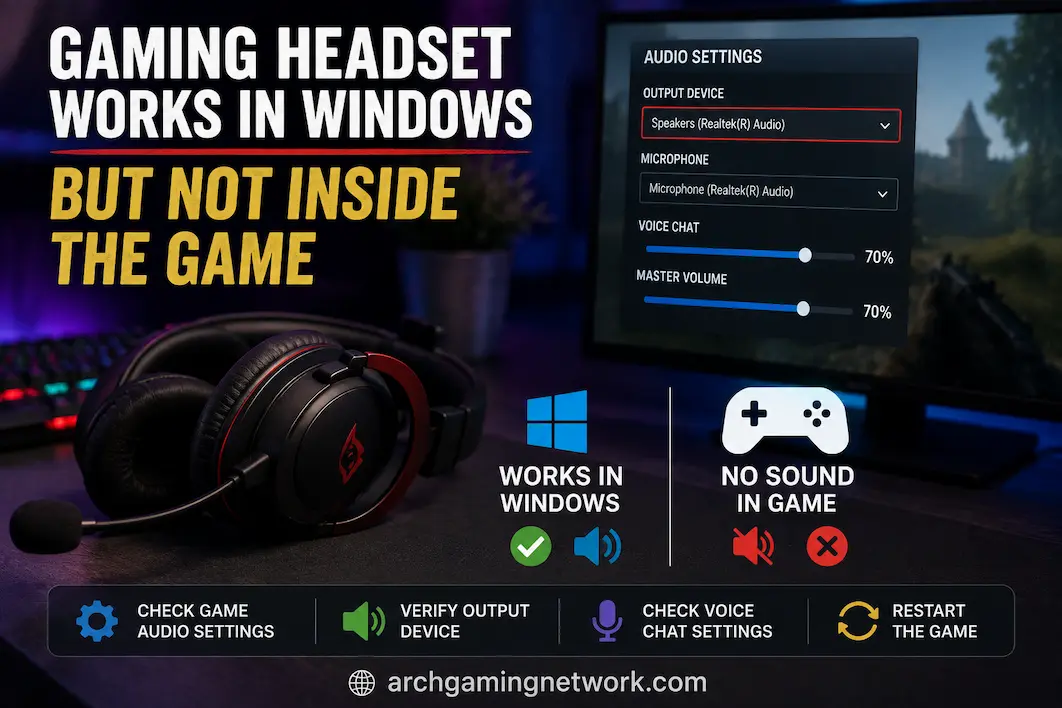
A headset that works perfectly in Windows but produces no sound inside a particular game can be surprisingly confusing. You may hear music from your browser, Windows notification sounds, or audio from another application, yet the game remains completely silent. In some cases, game audio works but the microphone does not. In others, the headset appears correctly connected everywhere except inside the game.
The important detail is that Windows working correctly does not guarantee that the game is using the same audio device. Games can maintain their own output and input selections, remember an older device, use separate communication settings, or interact differently with USB, Bluetooth, and analog headsets. A game can therefore be configured to send audio somewhere other than the headset that Windows is currently using.
Before reinstalling audio drivers or changing system-wide settings, it is worth determining whether the problem is specific to the game’s audio configuration or whether the game is failing to access the headset altogether.
Start With The Game’s Audio Settings
The first thing to establish is whether the problem affects all game audio or only one part of it. If music, sound effects, and dialogue are all missing, the game’s output device or master volume is a logical place to start. If sound effects work but voice chat does not, the problem may involve a separate communication setting. Similarly, if the headset microphone works in Windows but other players cannot hear you, the game may simply be listening to a different microphone.
Open the game’s audio settings and look for options such as Output Device, Audio Device, Speaker Configuration, Voice Chat Device, or Microphone. Some games provide a specific headset selection, while others use a setting such as “Default Device” and rely on Windows to determine where the audio goes. If the game explicitly lists your headset, selecting it directly can be a useful test.
This is particularly helpful when the computer has several possible audio outputs. A monitor connected through HDMI or DisplayPort, motherboard audio, speakers, a USB headset and Bluetooth headphones can all appear as separate devices. The game may simply be using one of them without making the mistake obvious.
Windows May Be Using A Different Device For The Game
Windows can have several audio devices available at the same time, and the device used by one application does not always have to be identical to the system-wide default. This is particularly relevant if you’ve recently changed from speakers to a headset, added a monitor, connected a wireless headset, or installed audio software.
Check Settings → System → Sound and confirm which device Windows currently considers the output. Then open Settings → System → Sound → Volume mixer while the affected game is running. Find the game in the application list and check its individual output device as well as its volume level.
If Windows is generally using your headset but the game is assigned to a monitor, speakers, or another device, you’ve likely found the problem. Correcting that application-specific assignment may restore the game’s audio without requiring any driver changes.
Restart The Game After Changing The Headset
Some games detect audio devices when they launch rather than continuously monitoring every change made in Windows. This means connecting a headset halfway through a gaming session or changing the Windows default output while the game is running may not have the expected effect.
Completely close the game, make sure the headset is connected, select it as the intended Windows output, and then launch the game again. If the game immediately begins using the headset after restarting, the problem may have been related to when the device was detected rather than a permanent configuration problem.
This is especially worth trying after switching between speakers and a headset. It is a simple test that doesn’t modify anything permanently and can eliminate an entire category of possible causes.
Check Whether The Game And Voice Chat Use Separate Devices
Many modern games treat normal game audio and voice communication as separate systems. You may have one device handling gameplay sounds while another is configured for voice chat.
For example, the game might send music and sound effects to your headset but route voice chat to your monitor speakers. The opposite can happen as well, where voice chat works but the normal game audio is silent.
Look for separate controls covering master volume, effects, dialogue, voice-chat volume, voice input and voice output. If only one part of the audio experience is affected, concentrate on that particular setting instead of changing everything.
This distinction can save considerable time. If teammates can hear you but you cannot hear them, your microphone is probably working correctly and the issue is more likely to involve the voice-chat output path.
Multiple Headset Entries Can Cause Confusion
USB and wireless gaming headsets don’t always appear in Windows as a single simple audio device. Some models create separate entries for game audio, chat audio, microphone input or wireless communication.
Certain gaming headsets deliberately provide separate Game and Chat channels. Their companion applications may then control how audio is divided between those channels.
This can produce an unusual situation where ordinary Windows audio works perfectly but a game is assigned to the wrong headset channel. If you see several devices with similar names, don’t switch between them randomly. Check the headset manufacturer’s documentation or software to determine which device is intended for game playback and which one handles communications.
Bluetooth Headsets Can Behave Differently During Voice Chat
Bluetooth introduces another potential complication because a headset can use different audio profiles depending on whether its microphone is active.
A headset may provide a higher-quality stereo playback mode during normal listening and switch to a hands-free communication mode when its microphone is required. The exact behavior depends on the headset, Bluetooth hardware, Windows configuration and the way the game handles voice communication.
If the headset works normally until you enable the game’s microphone or voice chat, that timing is important. Temporarily disabling voice chat can be a useful diagnostic test. If normal game audio immediately returns, the problem may involve the Bluetooth communication profile rather than the game’s basic audio output.
That doesn’t necessarily indicate a defective headset. Bluetooth audio simply has more variables than a straightforward wired connection.
USB Connections Can Also Matter
USB headsets are generally reliable, but they are still separate audio devices from the computer’s built-in sound hardware. A different USB port can also involve a different controller, hub or connection path.
If Windows itself intermittently loses the headset, or the device repeatedly disappears and returns, connecting the headset directly to a motherboard USB port can help determine whether the connection is involved. This is more useful when the headset has problems outside the game as well.
If the headset remains completely stable in Windows and only one game refuses to use it, repeatedly moving it between USB ports is unlikely to solve the underlying problem. In that situation, the game’s configuration or Windows application-level routing deserves more attention.
Headset Software May Be Redirecting Game Audio
Many gaming headsets come with companion software that provides equalizers, surround effects, microphone processing, profiles and game/chat mixing. Some of these applications create virtual audio devices that sit between Windows and the physical headset.
If the problem began after installing or updating the headset’s software, that timing is worth considering. A game-specific profile may be assigning the title to a virtual output while Windows continues to play ordinary applications through the physical headset.
Open the headset software and check whether it has separate profiles for games or individual applications. If it provides game/chat routing, make sure the affected game isn’t assigned to an unexpected output.
Temporarily simplifying the audio path can also provide useful evidence. If the game works when additional virtual routing or processing is disabled, the headset hardware itself is less likely to be the main problem.
When Only One Game Has No Headset Audio
If your headset works normally in several other games but fails in one particular title, that is valuable information. It makes a completely broken headset, Windows audio system or general driver problem less likely.
Focus on the affected game’s audio configuration, saved settings, output selection and communication settings. Some games store configuration information separately from their main installation folder, so reinstalling the game does not always remove every saved setting.
If the game offers an option to reset audio settings, that is generally preferable to manually deleting configuration files. If you do need to modify a configuration file, make a backup first so that you can restore the original settings if necessary.
A game that suddenly loses audio after an update can also retain an old device assignment or develop a configuration problem even though Windows continues to recognize the headset normally.
When Every Game Has The Same Problem
The situation changes if your headset works in Windows but fails inside every game.
At that point, a problem affecting one game’s settings becomes much less likely. Check whether Windows is routing game applications to the same output device used by ordinary applications, then consider the headset’s driver, firmware, companion software, USB connection, or Bluetooth configuration.
Testing another headset can be particularly useful here. If another headset works correctly in games on the same computer, the original headset or its associated software becomes a stronger suspect. If several different headsets fail in games, the focus should shift toward Windows, drivers, application routing, or another system-level configuration issue.
This simple comparison can provide more useful information than immediately reinstalling everything.
Don’t Overlook Basic Game Volume Controls
Game-specific volume settings are independent of Windows’ overall volume. A game can therefore be muted or have one particular audio category reduced even while every other application sounds normal.
Check the game’s master volume and make sure it isn’t muted. Then look at individual controls for effects, music, dialogue, and voice chat if the game provides them.
If the game has a built-in audio test, use it while making changes. A consistent test sound makes it easier to determine whether a setting actually changed the audio path rather than waiting for a particular sound effect to occur during gameplay.
Use These Indicators to Pinpoint the Problem
User behavior can provide clues as to where to start. If audio works fine in Windows but not in games, first check the game’s output device settings and the Windows volume control. If sound effects work but voice chat doesn’t, check your communication settings. If the headset works correctly in other games, check the settings of the problematic game first, rather than immediately changing the Windows driver.
If a different headset works fine in the same game, the issue likely lies with the first headset or its associated software. If the headset doesn’t work in any game, the problem is likely with the Windows system, the driver, or application routing.
This approach is useful because identifying one issue allows you to rule out various other possibilities. If audio returns to normal after enabling the headset within the game, reinstalling a functional audio driver would be pointless.
When Should You Check the Audio Driver?
Checking the driver is particularly useful if the headset fails to work in only one specific game. If the headset frequently disappears from Windows, reports device errors, loses connection, or malfunctions across multiple applications, it is advisable to check Device Manager, Windows Update, and the headset manufacturer’s support software. For some USB and wireless headsets, firmware updates can also help, especially if the manufacturer provides updates addressing audio stability or compatibility issues. However, always verify first whether the issue stems from the headset or the drivers, rather than a game setting.
If your browser, media player, and other games work correctly with the headset, it indicates that the basic Windows audio path is functioning properly. Based on these results, it is more likely to be an application-specific configuration issue than a corrupted system-wide audio driver.
Conclusion
If the headphones work fine in Windows but not in games, the cause is usually a routing or configuration issue rather than a hardware problem. Windows might be using the correct headphones, but the game could be sending audio to a different device due to outdated settings, or game audio and voice chat might be subtly separated.
First, verify whether the issue affects all game sounds, only voice chat, or just a specific game. Next, verify the device the game is using, Windows volume controls, any other available output devices, and any headphone software that creates virtual audio devices.
If the same headphones work correctly in other games, it means the hardware and the standard Windows audio system are functioning properly. If the same problem occurs across all games, drivers, headphone software, USB or Bluetooth connections, and Windows settings become particularly important.
Reinstalling all software every time a problem arises is not the best way to resolve it. It is usually easier to identify the issue once you have determined exactly where the audio path to the headphones is breaking down.
Frequently Asked Questions
My headset works fine in all games except one. Why is that?
The game might be using a different output device, have its own audio settings, or be retaining older device settings. Before changing the driver, check the output settings in the Windows volume control and within the game itself.
Why can I hear game audio but not voice chat?
Many games separate game audio from voice chat settings. Do not change the game’s master volume; instead, check the voice chat output device, voice volume, and communication options.
Can Windows volume settings cause games to use the wrong headset?
Yes, Windows remembers output settings for each application. This means that even if your headset is set as the default output device in Windows, the game might still be using a different device.
Why does my Bluetooth headset still work when the microphone is disabled?
When the microphone is enabled, Bluetooth headsets can switch between different audio profiles. If you have trouble starting voice communication, check the communication profile and the in-game voice chat settings.
If there is no sound in only one game, should I consider reinstalling my sound card driver?
Usually not. The issue may lie with the game’s audio settings, device selection, or other configurations preventing the headset from working correctly. The headset should still work properly on Windows systems and in other games.