
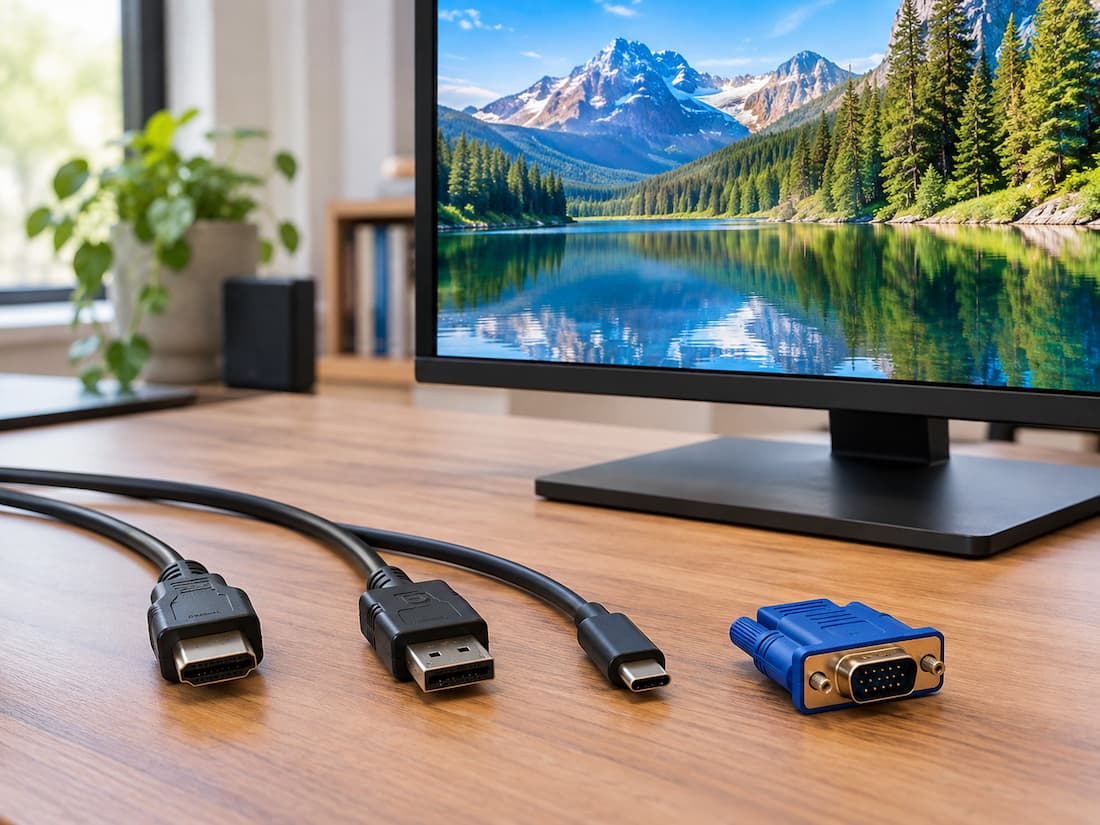
You finally upgrade to a monitor that supports a high refresh rate and a higher resolution. The graphics card in your PC also appears capable of driving it. But after connecting everything, Windows gives you fewer refresh-rate options than expected. The monitor might support 144Hz, yet 120Hz is the highest option available. A 1440p display may work at its native resolution, but only at a lower refresh rate. In some cases, changing one display setting causes another option to disappear.
It is easy to assume that the monitor, graphics card, or Windows is faulty. Often, the missing piece is the connection between them. HDMI and DisplayPort are not simply different-shaped plugs. They display connection standards with different versions and capabilities. The specific port, the standard supported by that port, the cable or adapter in use, and the display settings being transmitted all affect what the PC can actually send to the monitor.
The Connection Has to Carry the Display Signal
A monitor does not receive a simple instruction saying, “Show 2560 × 1440 at 165 Hz.” The graphics card has to transmit a large amount of display data continuously. That data includes the image resolution, refresh rate, colour information, and other timing and display details. As the resolution or refresh rate increases, the amount of data that needs to be transferred generally increases as well. This is why a monitor can advertise several impressive display modes, even though not every mode is available through every connection.
For example, a monitor may have a high-resolution panel capable of a high refresh rate, while one of its inputs supports a different range of modes. The panel’s capability and the input’s capability are related, but they are not the same thing. The graphics card also has its own limitations. A powerful GPU does not automatically make every output on the card capable of every display mode. The actual result depends on the complete connection path.
Resolution and Refresh Rate Are Closely Connected
Resolution describes how many pixels make up the image. Refresh rate describes how many times the display can refresh the image each second. A higher resolution means more pixels have to be represented in each frame. A higher refresh rate means those frames need to be transmitted more frequently. That creates a practical bandwidth problem. Consider a 1440p monitor. It may offer several combinations such as a lower refresh rate at its full resolution and a higher refresh rate at the same resolution. The connection needs enough capacity for the particular mode being selected, not simply enough capacity for “1440p”.
The same applies to 4K displays. A connection that works perfectly at 4K with a lower refresh rate may not provide the same choices at a much higher refresh rate. There are also other factors involved. Colour depth, chroma format, compression methods supported by the devices, and display timing can change the amount of data required or the modes available. So when a particular refresh rate is missing, it is not enough to ask whether the cable supports the monitor’s resolution. The complete combination of resolution and refresh rate matters.
The Port Shape Does Not Tell the Whole Story
A common mistake is looking at the connector and assuming its capabilities. An HDMI port looks like an HDMI port. A DisplayPort connector looks like a DisplayPort connector. But the physical connector does not identify every capability behind it. Different generations of HDMI and DisplayPort have different capabilities. A monitor can also contain several ports with different specifications.
For example, a display might have multiple HDMI inputs but specify different supported modes for each one. One input may support a particular high-refresh mode while another is intended for lower-bandwidth use. The same principle applies to graphics cards. A card may provide multiple display outputs, but the specifications for those outputs still need to be checked. This is why the connector shape is only the starting point.
HDMI and DisplayPort in a PC Gaming Setup
Both HDMI and DisplayPort are widely used for PC displays. Neither should be treated as universally superior. DisplayPort has traditionally been common on desktop PC monitors and graphics cards, particularly for computer-focused display setups. Its different generations provide different levels of display bandwidth, and features such as DisplayPort Multi-Stream Transport can also be useful in certain multi-monitor arrangements.
HDMI is equally important, especially because it is widely used across monitors, televisions, laptops, graphics cards, and other home entertainment equipment. Modern HDMI standards can support demanding PC display configurations as well. The important question is not simply whether the monitor has HDMI or DisplayPort. Instead, check which version and specification apply to the particular port, graphics-card output, and required display mode. A statement such as “this monitor has HDMI” does not tell you enough to determine whether a specific high-resolution, high-refresh combination will work.
Different Versions Can Change What Is Available
HDMI and DisplayPort have both evolved through multiple versions. Older standards may provide enough bandwidth for common resolutions and refresh rates but become restrictive as display requirements increase. Newer standards can provide substantially more bandwidth and support newer display capabilities. However, version numbers should not be treated as the only thing that matters.
A monitor manufacturer may specify exactly which modes are supported through each input. The graphics-card manufacturer provides specifications for its outputs. The cable also needs to be suitable for the required signalling standard. For instance, a graphics card that supports a newer HDMI specification does not automatically mean that every monitor connected through HDMI will provide all of those capabilities. The monitor’s input has to support the relevant standard too.
The reverse is also true. A monitor may support an advanced display mode, but an older output on the graphics card may not be able to provide it. The weakest relevant part of the connection can become the limitation.
The Cable Itself Still Matters
There is an important distinction between the connector and the cable. A cable can physically fit the port while not being appropriate for every mode supported by the connected devices. Cable specifications and certification can matter when operating at higher data rates. This does not mean that buying the most expensive cable automatically improves picture quality. Digital display connections generally do not work like analogue cables, where a more expensive cable simply produces a cleaner picture.
The concern is whether the cable and connection can reliably carry the required signal. For that reason, a cable should be considered alongside the specifications of the ports on both devices. The correct connection is a complete chain: graphics-card output, cable, monitor input, and the display mode being requested.
Adapters and Docks Add Another Layer
Adapters can make otherwise incompatible connections possible, but they can also make troubleshooting more difficult. Suppose a desktop graphics card is connected to a monitor through an adapter rather than directly. The adapter has its own technical limitations. It may support fewer display modes than the original ports on the two devices.
Docks can introduce similar restrictions. A laptop might support a particular display mode through one direct output while a dock uses a different internal display interface or shares bandwidth with other connected devices. There can also be differences between passive and active adapters, depending on the connection being converted. This is why removing an intermediate device is a useful diagnostic step. If a monitor suddenly exposes additional resolution or refresh-rate options when connected directly to the graphics card, the adapter or dock becomes an important part of the investigation.
Why the Monitor Specification Matters as Much as the GPU
Graphics-card specifications are often the first thing people check because the GPU is responsible for producing the game image. But the monitor has its own input limitations. A monitor might have a panel capable of 180Hz while a particular input supports a different maximum combination of resolution and refresh rate. Manufacturers sometimes list supported modes separately for HDMI and DisplayPort.
The monitor’s manual or technical specifications are therefore especially useful when troubleshooting. Look for information about each input rather than relying only on the headline specifications on the product page. It is also worth checking whether the monitor requires a particular connection for a certain advertised mode. Some displays expose their highest refresh rates through one input but not another.
Why Windows May Show Fewer Options
Windows does not invent every possible display mode. It receives information from the connected display and graphics system about the available modes. As a result, the list in Windows can be shorter than expected. If a monitor is supposed to support 165Hz but Windows only offers 60Hz and 120Hz, that does not necessarily mean Windows is malfunctioning. The current connection may be reporting only those usable modes.
The graphics driver and display configuration can also affect what appears. A useful first step is to open the display settings and confirm that Windows has identified the correct monitor and is running it at its native resolution. Then check the available refresh-rate options. If the desired mode is missing, changing random settings is usually less useful than tracing the connection.
A Practical Way to Find the Limitation
When a resolution or refresh rate is missing, work through the setup from one end to the other.
1. Check the Monitor Specifications
Start with the display itself. Confirm its native resolution and the refresh rates it supports. Then look for details about individual inputs. If the manual says a particular refresh rate is available only through a certain connection, that immediately narrows down the problem. This step matters because the monitor’s advertised maximum is not necessarily available through every input.
2. Check the Graphics Card Outputs
Next, identify the exact outputs on the graphics card. Do not stop at “my GPU supports 4K” or “my GPU supports DisplayPort”. Check the specifications for the actual HDMI or DisplayPort outputs. This establishes what the source device can send.
3. Identify the Port Being Used
Look at where the cable is plugged in. If the monitor has several HDMI or DisplayPort inputs, verify which one is being used and what the monitor documentation says about it. A different input can sometimes provide a different set of supported modes.
4. Check the Cable and Connection Standard
Once the two ports are known, consider the cable connecting them. If the desired mode requires a particular signalling capability, make sure the cable is suitable for that connection. This is particularly important when moving into higher-bandwidth display configurations. The goal is not to find the most expensive cable. It is to establish whether the existing cable is appropriate for the required connection.
5. Look at Windows Display Settings
Confirm the resolution and refresh rate currently selected in Windows. If the desired option is completely absent, that is useful information. It suggests that the system is currently presenting that mode as unavailable rather than simply running it at the wrong setting. Also check the graphics driver’s display controls when appropriate, as some settings are also available there.
6. Remove Adapters and Docks Temporarily
If the signal passes through a dock, adapter, receiver, or another intermediate device, test a direct connection when possible. This isolates another potential limitation. If the direct connection exposes the missing mode, the intermediate device or its configuration deserves closer attention.
7. Test Another Supported Connection
If both the graphics card and monitor provide another suitable connection, testing it can help identify where the restriction lies. For example, if one connection provides the expected refresh-rate options whereas another does not, compare the specifications of those two paths. This means you can narrow down the problem instead of just guessing.
A Cable Upgrade Is Not Always the Answer
It is tempting to solve every missing refresh-rate problem by replacing the cable. Sometimes that works, particularly when the existing cable is unsuitable for the required connection. But a new cable cannot overcome a limitation in the monitor’s input or graphics-card output. If the monitor’s particular HDMI input does not support the desired combination, replacing the HDMI cable does not change the input’s capabilities. Likewise, a newer cable does not upgrade an older port into a newer standard. The useful question is therefore not “Which cable is the fastest?” It is “What connection standard is required by both devices for the display mode I want?”
Think of the Setup as One Complete Chain
A gaming monitor’s resolution and refresh rate are not determined by the panel alone. The final display mode depends on the monitor, its specific input, the graphics-card output, the connection standard, the cable, and any adapters or docks between the two. Software and drivers then determine how those capabilities are presented to the operating system. That is why two computers connected to the same monitor can sometimes show different available display options. When a desired mode is missing, tracing the entire connection is more useful than assuming one component is at fault. Once each part of the chain has been checked, the limitation usually becomes much easier to understand.
Conclusion
HDMI and DisplayPort are not simply different plugs. Their versions and implementations determine how much display data a connection can carry and which combinations of resolution, refresh rate, colour settings, and other features can be used.
A monitor’s advertised capabilities also do not guarantee that every input can support every mode. The graphics card, monitor port, cable, adapters, docks, and operating system all play a role.
When a high refresh rate or resolution is missing, verify the complete signal path rather than immediately replacing hardware. Identifying the exact port and standards on both ends often reveals the limitation without any unnecessary changes to the setup.
FAQs
1. Can HDMI support high refresh rates?
Yes. HDMI can support high refresh rates, but the available combination depends on the HDMI version, the monitor input, graphics-card output, cable, resolution, and other display requirements.
2. Is DisplayPort always better than HDMI for gaming?
No. Both can support demanding PC display configurations. The relevant specifications of the particular ports and devices matter more than the connector name alone.
3. Why does my monitor support 165Hz, but Windows only shows 144Hz?
The 165Hz mode may depend on a particular input or connection standard. Please check the monitor’s specifications, the graphicscard output, the cable, and any adapters or docks in the signal path.
4. Can a new cable increase my monitor’s maximum refresh rate?
A suitable cable can enable a display mode beyond the reliable capability of the existing connection, but it cannot increase the capabilities of a monitor input or graphics-card output unsupported by that mode.
5. Why do adapters sometimes reduce available resolution or refresh rate?
An adapter has its own supported standards and bandwidth limitations. It can become the limiting part of the connection, even when the original graphics-card output and monitor input support a higher display mode.