
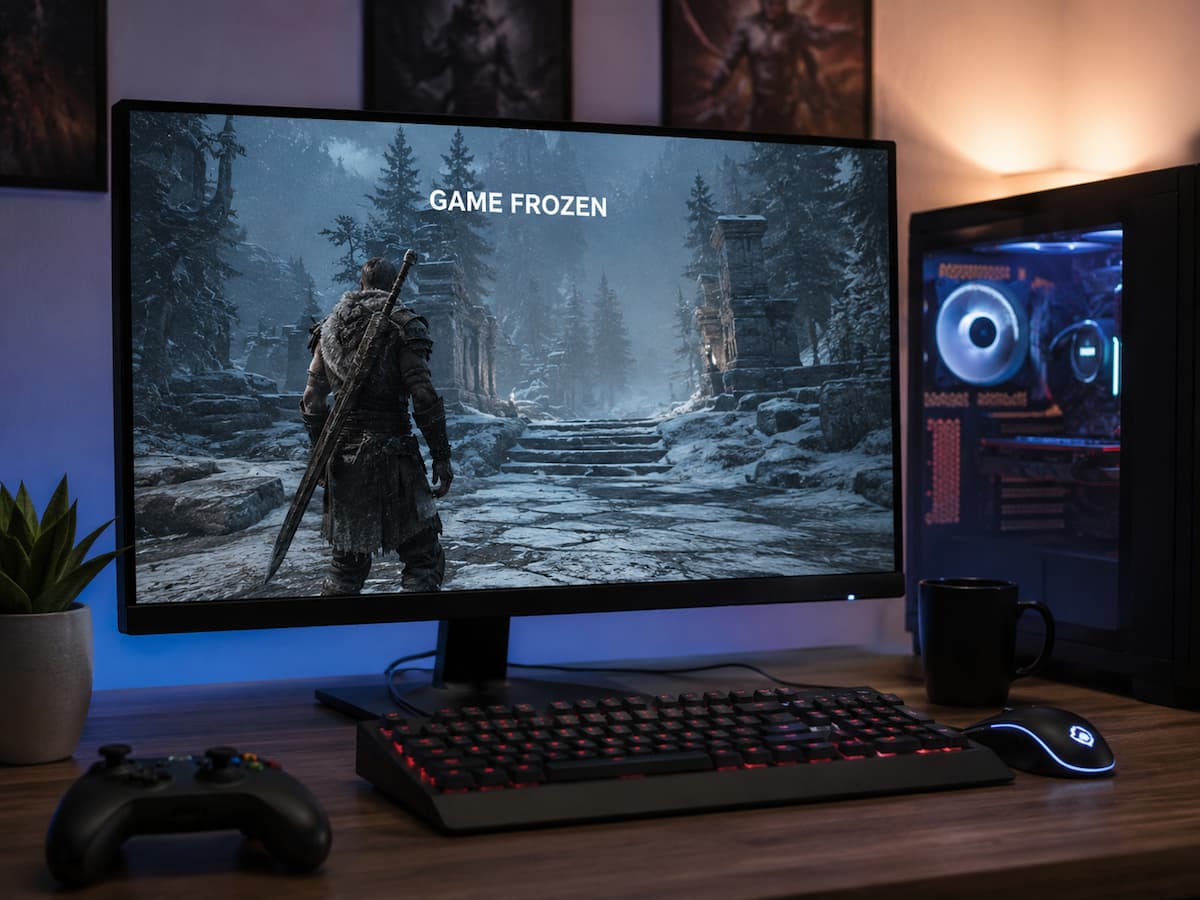
Not Every Freeze Means the Same Thing
Start by separating a game-only freeze from a system-wide freeze. This simple distinction can change the entire troubleshooting path. If the game stops responding but Windows still works, the problem may be limited to the game, its graphics workload, an overlay, or a related driver component. You may be able to press Alt + Tab, open Task Manager, or interact with another application.
If the entire computer becomes unresponsive, the investigation becomes broader. A system-wide freeze can involve the graphics stack, memory, CPU, storage, power delivery, thermals, drivers, or hardware stability.
| What You Experience | Where to Look First |
|---|---|
| Game freezes but Windows responds | Game files, overlays, GPU workload, CPU threads |
| Screen freezes but audio continues | Graphics pipeline or game process |
| Audio loops repeatedly | Possible deeper application or system hang |
| Black screen but PC remains active | Graphics driver, display connection, GPU |
| Mouse moves but game is frozen | Game or rendering subsystem |
| Everything stops responding | System-level hardware, driver, or resource issue |
| PC restarts or shuts down | Power, temperature, hardware stability, or severe system failure |
There is no need to jump to the worst explanation. A game freezing for a few seconds while Windows remains usable is very different from a computer that requires a complete reset every time the problem occurs.
What to Check the Moment the Game Freezes
When the screen freezes, resist the urge to immediately hold the power button. If the computer is still responding, a few quick observations can provide useful information. First, wait briefly. Some operations genuinely take time. A game may be compiling shaders, loading a large asset, accessing storage, or waiting for another process. A temporary pause that resolves after several seconds is different from a permanent lockup.
Next, try Alt + Tab. If Windows switches to another application, the operating system is still functioning. You can then open Task Manager and see whether the game is using unusually high CPU, memory, disk, or GPU resources.
If the display itself appears stuck, Windows’ graphics recovery mechanisms may sometimes restore the desktop. Microsoft documents a Windows feature called Timeout Detection and Recovery, or TDR, which detects when the GPU takes longer than expected to complete certain work and attempts to recover the graphics system. A short freeze that recovers by itself should be investigated differently from a computer that completely locks up. The difference provides an important diagnostic clue.
When the Graphics System Stops Responding
Gaming places a much heavier workload on the GPU than ordinary desktop use. A graphics card can spend long periods processing demanding scenes, shaders, textures, lighting, and other rendering operations.
If the graphics system stops responding, the screen may appear frozen even though Windows itself has not completely stopped. Microsoft explains that Windows uses Timeout Detection and Recovery to detect certain GPU hangs and attempt to reset the affected graphics system. The standard timeout for GPU scheduling set by Microsoft is two seconds.
This is important because a frozen image does not automatically mean the GPU has physically failed. A driver problem, unstable graphics settings, excessive workload, insufficient cooling, power problems, or hardware instability can all be associated with graphics-related hangs.
Look for patterns. Does the freeze happen only in one game? Does it happen when entering a particular area? Does lowering graphics settings change the behavior? Does it appear after the computer has been running a demanding game for an hour? If the problem affects several unrelated games, the graphics driver or broader system stability becomes more interesting. If only one title freezes, game-specific software is more likely.
A Useful GPU Comparison
| Pattern | What It Suggests |
|---|---|
| One game freezes | Game-specific software or configuration deserves attention |
| Many games freeze | Driver, GPU stability, temperature, or system issue becomes more likely |
| Freeze follows a driver update | Driver compatibility should be investigated |
| Freeze follows GPU overclocking | Return to known-stable settings |
| Freeze happens under heavy GPU load | Thermals, power, and graphics stability deserve attention |
CPU Bottlenecks and Stalled Game Threads
A game does not need to use 100 percent of the CPU to experience a serious CPU-related issue. Modern processors contain multiple cores and logical processors, while games divide their work among different threads. One important game thread can become heavily loaded even when the overall CPU percentage looks moderate. A freeze can occur when the game is waiting for a particular task to finish. That task might involve game logic, physics, asset processing, shader preparation, file access, or communication between different parts of the engine.
This is why CPU troubleshooting should not focus exclusively on the large percentage shown in Task Manager. Look at individual logical processors when possible and compare CPU behavior with the exact moment of the freeze. Background applications can make the situation worse. A browser, recording program, antivirus scan, synchronization service, or update process may briefly compete for CPU resources. The key question is not simply, “Is the CPU at 90 percent?” It is, “What was the processor doing when the game stopped responding?”
How RAM Problems Can Look Like Game Freezes
Memory-related problems can be especially deceptive because the game may appear to freeze rather than crash. A demanding game can use several gigabytes of RAM, while Windows and background applications consume additional memory. If available memory becomes limited, the operating system has to work harder to manage data between physical memory and storage.
A game can also experience problems when a specific application has a memory leak. The application may slowly consume more memory during a long session until the system begins behaving differently. Watch for a pattern such as this: the game runs perfectly for twenty minutes, becomes less responsive after an hour, and eventually freezes. If restarting the game temporarily fixes the issue, memory usage becomes worth investigating.
Hardware memory instability is another possibility. Unstable RAM settings can cause crashes, corrupted data, application errors, or freezes. If the problem affects many different applications rather than one game, testing system memory becomes more important. Do not assume that having plenty of installed RAM automatically rules out memory problems. Available memory, application behavior, virtual memory, and physical RAM stability are separate issues.
Storage Delays Can Make a Game Appear Frozen
Games constantly move data between storage, system memory, and video memory. Modern games can be particularly demanding because large environments may require frequent asset loading. If the game is waiting for data from storage, the screen may appear unchanged until the required information becomes available.
This does not automatically mean the SSD or hard drive is failing. A background download, antivirus scan, cloud synchronization task, indexing process, or another application can also create storage activity at the wrong moment. Storage becomes more suspicious when you notice repeated pauses accompanied by unusually high disk activity, very slow file operations, or problems outside the game.
| Observation | Possible Direction |
|---|---|
| Short pauses while entering new areas | Asset loading or storage activity |
| Long freezes with disk at high activity | Storage workload or possible drive issue |
| Game freezes while another program copies files | Resource contention |
| Other applications also become slow | Broader storage or system issue |
Before replacing a drive, check whether another program is simply using it heavily.
Heat and Long Gaming Sessions
Temperature is worth investigating when freezes become more common during long gaming sessions. A PC can behave normally during the first few minutes and become unstable only after heat has accumulated inside the case. The CPU and GPU may respond to temperature by changing their operating behavior, while severe thermal or hardware problems can lead to crashes or system instability.
The important clue is consistency. If a game freezes after roughly the same amount of heavy use every time, monitor temperatures and clocks during a session. Do not assume that a single temperature reading taken after the freeze provides a complete picture. Temperatures can change quickly after the workload stops. Check temperatures while the game is running normally and compare them with the period immediately before a freeze. Also consider airflow. Dust buildup, blocked vents, a poorly positioned laptop, or a failing cooling component can change thermal behavior without changing the game’s graphics settings.
Graphics Drivers and Recent Updates
Drivers sit between the operating system and hardware, so a driver problem can produce symptoms that look like ordinary game crashes or freezes. Pay particular attention to what changed immediately before the problem appeared. If the game worked for months and began freezing after a driver update, that update deserves investigation. If the freeze started after a game patch while the driver remained unchanged, the game update may be more relevant.
Microsoft documents several graphics-related timeout and recovery conditions. A successful TDR recovery can restore the desktop, while repeated or unsuccessful recovery can result in more serious system errors. This scenario is one reason you should not automatically modify Windows registry values related to TDR after reading an online gaming guide. Microsoft specifically states that TDR registry keys are intended for testing and debugging during driver development and that end users should not manipulate them. For ordinary users, the safer approach is to investigate driver updates, return unstable hardware settings to normal, monitor temperatures, and determine whether the problem affects other games.
Background Programs and Overlays
Sometimes the game itself is not the only thing changing when the freeze occurs. Gaming PCs often run launchers, chat applications, browser tabs, recording software, performance monitors, RGB utilities, cloud storage tools, and security programs at the same time. Most are harmless, but each adds another component that can interact with the game.
Overlays are particularly worth testing because they can interact directly with the game’s rendering or presentation process. If a game freezes only while a particular overlay is active, you have a strong lead. The correct next step is to update or reconfigure the affected application rather than disabling every background service on the computer.
Try a Cleaner Test Session
Close unnecessary applications and temporarily disable optional overlays. Then launch the game and reproduce the same situation. If the freeze disappears, re-enable background applications one at a time. This creates a simple process of elimination and helps identify the actual conflict. Do not make ten changes at once. If the problem disappears after you change everything, you still do not know what caused it.
Game Files and Configuration Problems
A game can freeze because one of its files is damaged or because a configuration setting has become problematic. File corruption can happen after interrupted updates, storage problems, unexpected shutdowns, or failed installations. Game platforms commonly provide a file verification or repair feature, and this method is one of the safest troubleshooting steps. Configuration problems can be less obvious. A game may store graphics, input, shader, display, or controller settings separately from the main installation.
For example, suppose you changed several graphics options and the game began freezing afterward. Returning to the default configuration may solve the problem without touching the installation itself. Do not delete a game’s configuration folder without checking what it contains. Some games store saves, screenshots, custom controls, or other important files alongside configuration data.
Unstable Hardware and Overclocking
If unstable hardware actually causes a game freeze, changing the game’s settings may only hide the problem temporarily. CPU overclocks, GPU overclocks, undervolting, memory profiles, and other performance adjustments can be stable in one workload but fail in another. A system can pass a simple benchmark and still freeze in a particular game.
If you recently changed BIOS settings, memory timings, GPU clocks, voltage settings, or processor settings, return the system to known-stable defaults as a diagnostic step. Microsoft’s documentation on graphics timeout problems lists hardware conditions such as overclocked components, incorrect memory configuration, insufficient cooling, insufficient power, and defective components among possible causes of graphics stability problems.
This does not mean a freeze automatically proves your hardware is faulty. It means hardware stability should become part of the investigation when software-only explanations do not fit the pattern.
Finding Evidence After the Freeze
A silent freeze may not produce a friendly pop-up, but Windows can still record information about system events. Microsoft recommends reviewing application and system event logs when investigating Windows freezes. The logs can contain application errors, service failures, and other events surrounding the time of the problem.
Reliability Monitor can also be useful because it presents failures and system changes along a timeline. The goal is to find something that happened at approximately the same time as the freeze. Look for graphics-driver errors, application failures, hardware-related warnings, unexpected shutdowns, or other unusual events. Do not treat every warning as the cause. Windows logs many routine events, and some warnings are unrelated to your game. Timing and repetition matter.
What Makes a Log Entry More Useful?
- It occurs at the exact time of the freeze.
- It appears every time the freeze happens.
- It references the affected game or graphics system.
- It began appearing after a recent system change.
- It also occurs when other games show the same problem.
A single unrelated warning is weak evidence. A repeated event that appears every time the game locks up is much more valuable.
A Step-by-Step Troubleshooting Method
When a game freezes without an error message, the best approach is to move from easy observations to deeper tests.
- Determine whether Windows still responds. Try Alt + Tab or Ctrl + Alt + Delete.
- Record when the freeze happens. Note the game, location, duration, and what you were doing.
- Check whether it affects other games. This separates game-specific problems from broader system issues.
- Verify the game files. Use the platform’s official repair function.
- Disable optional overlays. Test the game without unnecessary monitoring and recording software.
- Check temperatures and clocks. Watch the system while reproducing the problem.
- Review CPU, RAM, GPU, and disk activity. Look for unusual changes immediately before the freeze.
- Review recent updates. Consider game patches, Windows updates, and graphics driver changes.
- Return overclocked or modified hardware to stable settings.
- Check Windows logs. Look around the exact time of the freeze.
This order prevents you from making complicated changes before understanding the problem.
Things You Should Not Change Randomly
Internet troubleshooting guides often recommend aggressive changes because they sound technical. That does not make them good advice. One example is changing TDR registry settings to make Windows “wait longer” for a graphics card. Microsoft explicitly documents those registry settings for testing and debugging purposes and advises end users not to manipulate them.
Another poor approach is disabling every Windows service you do not recognize. Services can have dependencies, and removing them from the startup process can create unrelated problems. Disabling antivirus protection permanently is also unnecessary. If security software is genuinely blocking a game component, look at its logs and use its supported exception or recovery mechanism.
Finally, avoid assuming that a freeze automatically means the GPU is dying. Graphics problems can come from drivers, game software, settings, thermals, power, background applications, or hardware. Good troubleshooting separates these possibilities instead of jumping straight to a hardware replacement.
Conclusion
A game freezing without error messages can be frustrating, but even without warnings, there are clues. The specific symptoms of a freeze are often more valuable than general crash notifications.
First, check if your Windows system is still responding. Next, search for patterns related to the GPU, CPU, memory, storage, temperature, drivers, UI overlays, and recent software changes. If the problem occurs with only one game, focus on checking that game’s files, settings, and software environment. If multiple games freeze under similar conditions, expand your investigation to graphics card drivers and overall system stability.
Do not ignore the diagnostic information provided by Windows itself. Microsoft offers documentation on GPU timeouts and recovery behavior and recommends consulting system and application logs when investigating freezes. Most importantly: avoid making random registry changes and drastic system changes. A step-by-step troubleshooting process may take longer, but it will yield something far more valuable than temporary solutions: a clear insight into the actual cause of the freeze.
FAQs
1. Why does my game freeze but not crash?
A frozen program means that it may still be active but is no longer performing valid operations or is unresponsive. The game may be waiting for CPU tasks, memory operations, graphics operations, or other resources. Problems with the graphics card drivers can also cause the screen to freeze. In that case, Windows attempts to repair the graphics system. Since no crash dialog box appears, it is important to check if other parts of the computer are functioning correctly. If Windows remains responsive, the problem may lie with the game or the graphics subsystem.
2. What should I do if my entire computer freezes while playing a game?
First, check if the system can repair itself. If so, log the repair process and then check the Windows logs. If the entire computer freezes and no longer responds to normal input, a forced restart may eventually be necessary. However, repeatedly performing a forced shutdown should not be used as a troubleshooting method. If the system continues to freeze, the investigation should be expanded to graphics card drivers, temperature, memory stability, power supply, storage, and hardware configuration, and not just to the game itself.
3. Can GPU overheating cause games to freeze?
Yes, overheating can cause graphics instability, but temperature alone is not sufficient to determine this. A useful clue is whether the stuttering only occurs after prolonged, intensive gaming and whether there are significant changes in GPU temperature or frequency before the problem occurs. Check the temperature while playing, not just after the stuttering has occurred. Also check the airflow, the cooling fans, the presence of dust, and whether the graphics card is running on normal settings.
4. Can a faulty graphics card driver cause stuttering without error messages?
Yes. Problems with graphics card drivers sometimes manifest as a frozen screen rather than a normal application crash. Windows includes timeout detection and recovery mechanisms designed to detect specific GPU freezes and attempt to repair the graphics system. According to Microsoft documentation, a successful recovery can restore the desktop, while a failed recovery can lead to more serious errors. If stuttering occurs after changing the driver, the driver should be investigated.
5. Why does lowering graphics quality sometimes resolve stuttering issues?
Lowering graphics settings reduces the load on the GPU and changes the amount of memory, shader processing, and rendering the game requires. If the stuttering disappears after lowering the load, this is a useful clue, but it does not point to the exact cause. The underlying problem may stem from thermal limitations, driver instability, overclocking instability, insufficient power supply, or game-specific rendering issues. Consider this change as a clue, not proof of a specific cause.
6. Can memory cause stuttering in games?
Yes. Memory issues can be related to insufficient available memory or unstable physical memory. Running high-load games and multiple applications simultaneously can strain the system’s memory, and unstable memory settings can cause various programs to freeze and stop.