
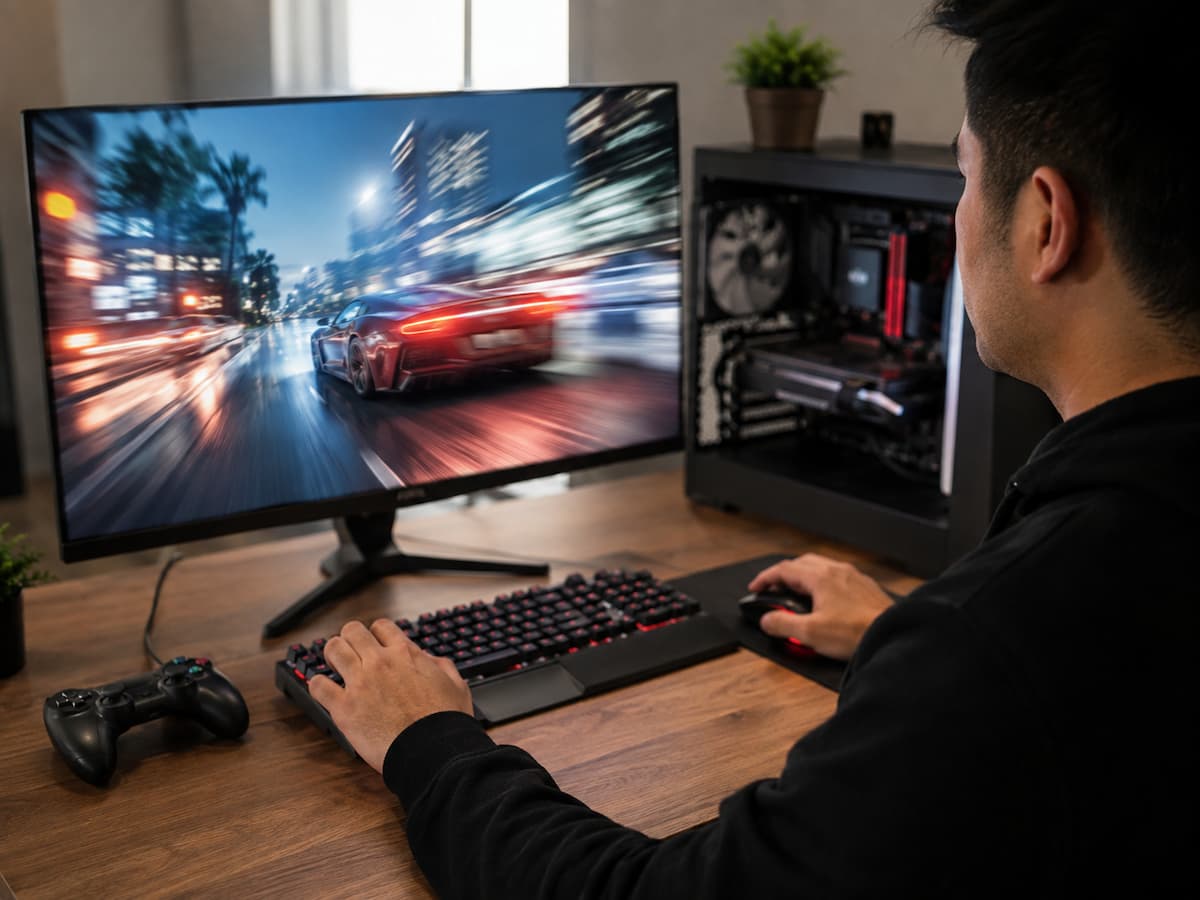
A game can display 120, 180, or even 300 FPS and still feel strangely unpleasant to play. The camera may seem to hitch when you turn, movement may look uneven, or the game may occasionally pause for a fraction of a second despite the FPS counter showing numbers that should indicate excellent performance. This creates a common misunderstanding: high FPS is not exactly the same thing as smooth gameplay.
FPS tells you how many frames are being produced over time, but it does not tell the whole story about when those frames arrive, how evenly they are displayed, whether the monitor can present them smoothly, or whether the game is experiencing short interruptions that an average FPS number barely reveals.
The missing piece is usually somewhere between frame production, frame delivery, and frame presentation. In other words, your computer may be producing plenty of frames while still delivering them unevenly enough for your eyes and hands to notice. Understanding where smoothness is lost makes troubleshooting much more effective. Instead of endlessly lowering graphics settings in search of a higher FPS number, you can look at the actual causes of stutter, uneven motion, and inconsistent responsiveness.
FPS Is an Average, but Your Eyes Notice Individual Problems
Suppose a game has an average frame rate of 120 FPS. At first glance, the calculation seems simple: the system generates 120 frames per second. However, the time intervals between these 120 frames are not necessarily exactly equal. Ideally, 120 FPS means approximately one frame every 8.33 milliseconds. If every frame arrives roughly within this interval, the image usually looks smooth.
Now imagine a scenario where the frame rate is less stable. Several frames arrive quickly, then there is one frame that is delayed for a long time because the CPU suddenly has to process more tasks. The subsequent frames may then arrive quickly again. The average frame rate may still be close to 120 FPS, but the delayed frames will cause noticeable stuttering in the image. This is why the average frame rate masks the problem.
Consider these two simplified examples:
| Performance Pattern | Average FPS | Frame Delivery |
|---|---|---|
| Consistent | 120 FPS | Frames arrive at nearly even intervals |
| Uneven | 120 FPS | Most frames are fast, but occasional frames take much longer |
Both systems can report the same FPS. They will not necessarily feel the same.
The measurement that helps expose this problem is frame time. Rather than counting how many frames were produced in a second, frame time measures how long it took to produce each individual frame. When frame times remain stable, gameplay tends to feel smooth. When they spike unpredictably, you may experience stutter even while the FPS counter remains high.
Frame Pacing Is Often the Real Problem
Frame pacing describes how evenly frames are delivered over time. Think of it like traffic. A highway can move a large number of cars per hour while still experiencing sudden stop-and-go congestion. The total number of cars moving does not describe how smoothly each individual car travels.
High FPS works similarly. A system producing 200 frames per second is not automatically producing a visually consistent experience. If the GPU or CPU delivers frames in bursts, the monitor receives an uneven stream of updates. Poor frame pacing can create several familiar symptoms:
- Small but noticeable camera hitches.
- Uneven movement during slow panning.
- Brief interruptions when entering a new area.
- Gameplay that feels less smooth than the FPS number suggests.
- A game that appears smooth while standing still but stutters during action.
Frame pacing problems can originate from the game engine, CPU scheduling, background processes, shader compilation, storage activity, synchronization settings, or other parts of the rendering pipeline.
This is why increasing the FPS limit sometimes makes the problem worse rather than better. If the system is working at maximum capacity to chase the highest possible frame rate, there may be less performance headroom available when the game suddenly needs extra resources. A slightly lower but more consistent frame rate can feel smoother than an uncapped frame rate that constantly fluctuates.
Your CPU Can Cause Stutter Even When the GPU Is Not the Problem
Many players assume that choppy gameplay automatically means the graphics card is too weak. That is not always true. Modern games divide work between the CPU and GPU. The CPU may handle tasks such as game logic, physics, artificial intelligence, world management, draw-call preparation, and communication with the graphics pipeline. The GPU then renders the visual result. If the CPU occasionally falls behind, the GPU may be forced to wait.
This can produce an unusual situation: GPU utilization may not remain at 100%, FPS may look reasonably high, and yet the game still experiences noticeable frame-time spikes. Open-world games can demonstrate this particularly clearly. Walking through an empty area may feel perfectly smooth, while entering a busy town suddenly causes uneven movement. The graphics card may not have become dramatically slower.
Instead, the CPU may now be processing more characters, objects, physics calculations, and world data. A CPU bottleneck also does not always mean that every CPU core is fully utilized. A game may depend heavily on one or several threads, so an overall CPU usage figure can hide a limitation affecting the game. Lowering graphical settings may improve performance in some situations, but it may do very little when the actual bottleneck is CPU-related.
High FPS Cannot Override Your Monitor’s Refresh Behavior
Your monitor determines how often it can refresh the image. A 60 Hz display refreshes up to 60 times per second. A 144 Hz display refreshes up to 144 times per second, while a 240 Hz display refreshes more frequently. If your computer produces 200 FPS on a 60 Hz monitor, the GPU is still rendering far more frames than the display can present as separate full refreshes.
That does not mean the additional frames are completely useless. They can sometimes reduce input latency or provide a newer frame at the moment the display refreshes. However, high FPS alone does not guarantee perfectly smooth visual output. Without proper synchronization, the display may show parts of more than one frame during a refresh cycle. This is commonly considered screen tearing.
Traditional V-Sync can prevent tearing by coordinating frame presentation with the monitor’s refresh cycle, but it may introduce additional latency or cause other performance behavior when the frame rate falls below the refresh target. Variable refresh rate technologies take a different approach by allowing compatible displays to adjust their refresh timing within a supported range. The goal is to better match frame delivery to the display’s refresh behavior. The important point is that the relationship between FPS and refresh rate matters. A very high frame rate does not automatically translate into equally smooth motion if frame presentation is poorly synchronized.
Microstutter Can Be Hidden Behind an Excellent FPS Counter
Some performance problems are brief enough that a traditional FPS counter barely reveals them. Imagine a game running at approximately 144 FPS. Most frames may take around 7 milliseconds, but occasionally one frame takes 40 milliseconds. That single interruption may be enough to create a visible hitch. Because the slow frame is surrounded by many fast ones, the average FPS may still look excellent.
This is why performance analysis often uses measurements such as the following:
- Frame-time graphs.
- 1% low FPS.
- 0.1% low FPS.
- Minimum or percentile performance measurements.
These figures can provide more context than average FPS alone. For example, a game averaging 160 FPS with frequent drops and frame-time spikes may feel worse than a game averaging 110 FPS with stable frame delivery. The goal should not always be the largest FPS number visible on the screen. Consistency matters.
Shader Compilation and Asset Streaming Can Interrupt Gameplay
Some stuttering problems occur because the game needs to prepare something new while you are already playing. Shader compilation is one example. Shaders are programs used by the GPU to create lighting, materials, effects, and other visual elements. Depending on the game and rendering system, compiling or preparing shaders during gameplay can contribute to noticeable stutters when a new effect, object, or area appears. Asset streaming can create a similar pattern.
Large modern games often load textures, geometry, audio, and world information dynamically instead of keeping everything in memory from the beginning. When you move quickly through a game world, the system may need to retrieve and prepare new assets. If this process does not complete smoothly, the result can be a brief hitch.
This type of problem can be especially confusing because lowering resolution may have almost no effect. The issue may not be that the GPU is struggling to render pixels. The interruption may be related to CPU work, storage performance, memory management, shader processing, or the game’s own streaming behavior. If a game consistently stutters when entering the same location, encountering the same visual effect, or performing the same action for the first time, that pattern can provide an important clue.
An Uncapped Frame Rate Can Sometimes Make Gameplay Less Consistent
It is tempting to assume that removing the FPS limit is always the best choice. Occasionally it is. In other situations, allowing the GPU to render as many frames as possible keeps the system operating at or near its maximum capacity. When a demanding scene appears, there may be little remaining headroom.
For example, a game might fluctuate between 220 and 300 FPS in simple scenes but drop sharply when an explosion, crowded area, or complex effect appears. A frame-rate cap below the system’s maximum sustainable performance can sometimes create a more stable experience.
The exact cap depends on the game, display, hardware, synchronization method, and personal preference. There is no single number that works for every system. The useful principle is simple: a stable target can be more valuable than an unstable maximum. Before setting an arbitrary cap, observe how the game performs in demanding areas rather than using only the FPS you see while standing in an empty location.
Background Activity Can Interrupt Frame Delivery
Games do not run in complete isolation. Operating system tasks, application updates, browser tabs, recording software, RGB utilities, overlays, cloud synchronization, antivirus scans, and other background processes can compete for CPU time, memory, storage access, or other system resources.
The effect may be intermittent rather than constant. A game might run smoothly for several minutes and then experience a brief hitch when another process becomes active. This does not mean every background application must be closed. Modern systems are designed to multitask. The more useful approach is to investigate obvious sources of interruptions when stuttering appears without a clear in-game explanation.
Common examples worth checking include:
- Multiple game overlays running simultaneously.
- Background downloads or updates.
- Browser tabs using significant system resources.
- Recording or streaming software.
- Cloud backup or synchronization activity.
- Unnecessary utilities that launch with the operating system.
Testing one change at a time is usually more useful than disabling everything simultaneously. Otherwise, you may improve performance without discovering what actually caused the problem.
Storage, Memory, and VRAM Problems Can Look Like Graphics Problems
When a game runs out of easily accessible memory resources, performance can become uneven. System RAM is used for many aspects of the game and operating system. VRAM stores graphics-related data required by the GPU. If available resources become constrained, the system may need to move or reload data more frequently. This can create pauses that are especially noticeable when moving through new areas or loading detailed scenes.
Running out of VRAM does not always produce a simple FPS decline. It can cause inconsistent frame times, texture issues, or sudden performance interruptions depending on how the game manages memory. Similarly, storage performance can matter when a game needs to stream new data during play. However, an SSD upgrade is not a universal solution to every stuttering problem. If CPU limitations or shader compilation cause frame-time spikes, faster storage may provide little improvement.
Symptoms should guide troubleshooting. If lowering texture quality significantly improves consistency, VRAM pressure becomes a more reasonable suspect. When new areas load, the game only stutters, which may indicate that asset streaming and storage deserve investigation. If performance drops during CPU-heavy action regardless of resolution, the CPU may be the more important factor.
A Practical Way to Find Where Smoothness Is Being Lost
Instead of changing ten settings at once, work through the problem systematically.
1. Start by looking beyond average FPS
If possible, use a performance overlay that can show frame times as well as FPS. Look for spikes that occur at the same moment you feel a hitch.
2. Check whether the problem is repeatable
Does the stutter happen in the same location? During the same animation? When opening the map, Only after playing for an hour?
Repeatable behavior often provides more useful information than random testing.
3. Test a sensible FPS cap
Try a frame-rate limit that your system can maintain consistently in demanding scenes. Compare how the game feels rather than judging the result solely by the average FPS counter.
4. Review synchronization settings
Test the game’s available V-Sync or variable refresh rate options according to your monitor’s capabilities. Changes in synchronization can affect tearing, frame pacing, and input responsiveness.
5. Identify the likely bottleneck
Watch CPU, GPU, RAM, and VRAM behavior while reproducing the problem. No single utilization number provides a complete diagnosis, but the overall pattern can help narrow the possibilities.
6. Change one variable at a time
If you lower resolution, disable overlays, change the FPS cap, update the game, and adjust synchronization simultaneously, you will not know which change helped.
A controlled approach takes longer initially but usually produces a clearer answer.
The Smoothest Game Is Not Always the One With the Highest FPS
The central mistake in performance troubleshooting is treating FPS as a complete measure of smoothness. It is not. FPS describes how many frames are produced, but smooth gameplay depends on a larger chain: the game must prepare each frame, the CPU and GPU must complete their work consistently, the operating system must schedule resources without disruptive interruptions, and the display must present frames in a way that produces stable motion.
A problem at any point in that chain can make a high-FPS game feel choppy. When a game reports excellent performance but does not feel smooth, stop asking only, “How can I get more FPS?” A better question is, “Which frames are arriving late, and why?”
That shift changes the troubleshooting process. Instead of blindly reducing graphics quality, you can investigate frame-time spikes, CPU limitations, shader and asset behavior, memory pressure, background interruptions, synchronization, and refresh-rate compatibility. The highest number is not always the best result. Consistent frame delivery is often where smoothness is actually won.