
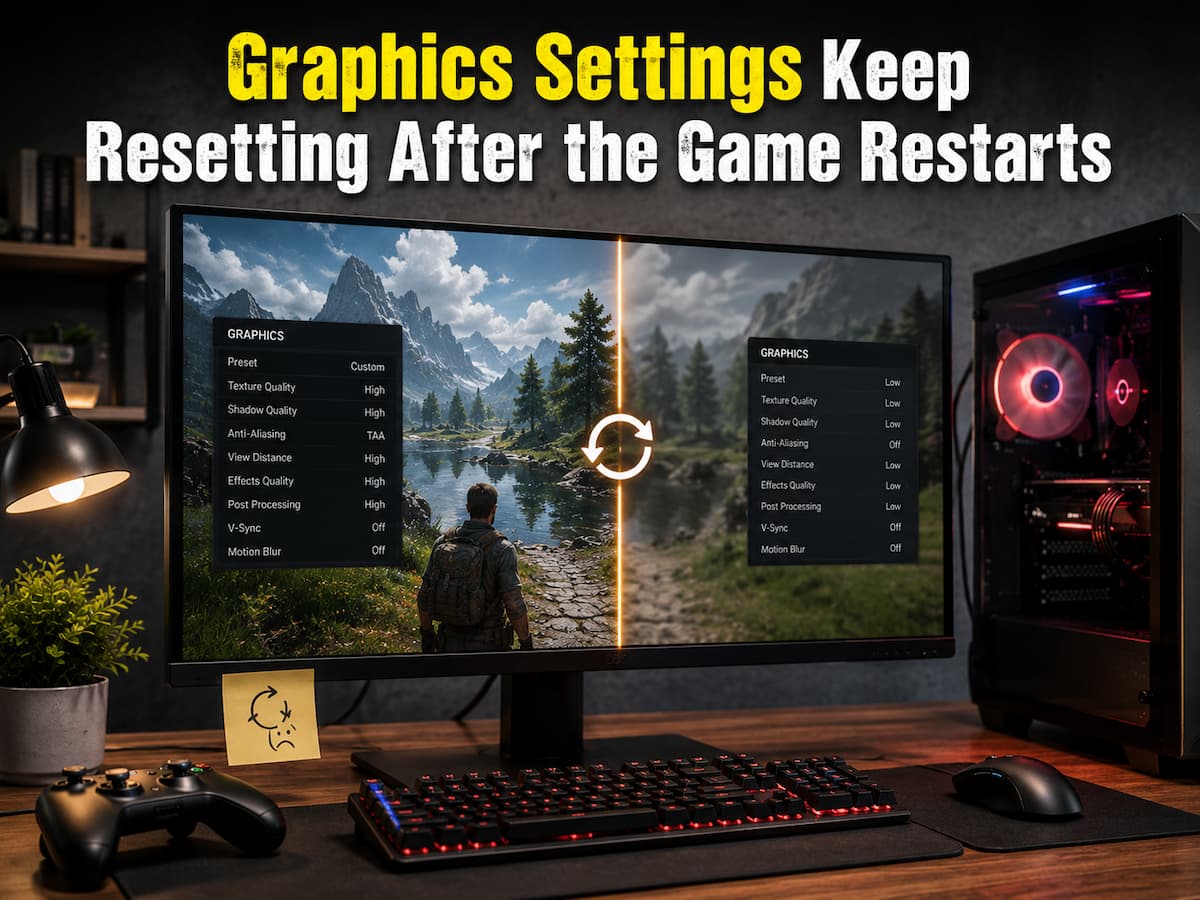
PC game configuration should be easy, especially changing graphics settings. Choose a resolution, texture quality, display mode, performance choices, and play. It’s aggravating when the game resets on the following launch after everything seems fine. Resolution, fullscreen, quality settings, or a graphics preset may be restored. Repeating modifications is not typical, and reinstalling the game is rarely the best first step.
The game frequently fails to write, read, or apply its configuration data when graphics settings don’t persist. The configuration file may be secured, kept in an unexpected location, controlled by another application, synchronized incorrectly, or overwritten when the game quits. Some games isolate graphics settings from other preferences, so stored progress can work while the display options are reset. Thus, determining if the problem is caused by the game, Windows file permissions, cloud synchronization, graphics software, or a broken configuration file is helpful.
First Determine Exactly What Is Being Reset
Before modifying files or reinstalling, see what happens after restarting. The game may not save its setup if all graphical options are set to default. If only the resolution changes, display detection or an improper game configuration value may be the cause. The game may detect a display or starting problem if fullscreen regularly switches to borderless-windowed mode. A compatibility or configuration issue may be present if texture quality and other graphic settings remain unchanged while one setting continues reverting.
Timing matters too. Apply a change, exit the game, then launch it again. If the setting stays after a restart but disappears after a reboot, it may be starting software, not the game. The game may reject the selected value if the setting resets shortly after leaving the graphics menu. Something may be overwriting the configuration on shutdown or startup if it stays correct until the following launch. Identifying this pattern simplifies troubleshooting because you no longer regard all settings-reset issues the same.
Ensure the Game Saves Changes
Some games need you to confirm or apply visual changes before saving. Changes in resolution or display mode often cause the game to briefly switch to the new setup and wait for confirmation. Default settings may be restored if the confirmation is rejected. Other games save modifications when you quit the settings or when you quit normally. Close the game in Task Manager, shut down the computer, or quit the process after making changes to avoid writing the configuration.
A game that accepts a setting during gameplay may never have saved it. Changing one parameter, applying it, playing briefly, and then quitting the game is a useful test. Restart the game to see if that change survived. It could have been caused by how the game was closed or by a setting that disagrees with the rest of the settings. If the change did not survive, continue investigating how the game stores its configuration.
Check for Read-Only Configuration Files
PC games sometimes save visual options in configuration files instead of the main executable. Based on the game and platform, these files may be in the installation directory, Documents, AppData, Saved Games, or another game-specific place. If the configuration file is read-only, the game may read existing settings but not save new ones. This is confusing because everything works until the game is restarted. The previous configuration stays on disc, but the new settings are temporarily in memory.
Check the game’s configuration file’s Windows properties for read-only status. Do not change unfamiliar files just because they have graphics-related names. Use the game’s documentation or a trustworthy support source to locate the configuration file. If the game or management program purposely restricts the file, removing it without understanding why may cause another issue.
Windows Permissions Can Prevent Saving Settings
A game needs permission to write to its configuration file. Modern Windows restricts access to specific directories and adds security mechanisms. The game may reset settings after every restart if it can read but not edit a configuration file. A game installed in a protected directory with odd permissions can block normal writing. It can also happen when configuration files inherit tight permissions or security software prevents programs from altering protected directories.
Instead of automatically running the game as administrator, find the configuration file and check whether the game has normal access. Running programs with elevated rights can hide the problem without explaining why the configuration couldn’t be written normally. A permanent solution is better than using administrator mode every game launch.
Cloud Synchronisation Overwrites Local Settings
Cloud synchronization helps maintain game data between devices, but it also complicates configuration. When a gaming platform synchronizes configuration files, local and cloud settings may differ. The platform may restore an older configuration after the game starts or stops depending on how it resolves synchronization issues. When the settings reset after opening the game from another machine or reinstalling Windows, the configuration file is worth checking. This is also relevant if the problem starts immediately after enabling synchronization or restoring an older game installation.
Avoid deleting cloud saves or disabling synchronization without knowing what data the service owns. Unnecessary data deletion can cause problems with game saves and graphics configuration. Check the platform’s documentation to see how that game synchronizes and if it resolves conflicts.
Gaming Settings Can Be Affected By Graphics Driver Software
Modern graphics drivers come with software to optimize games, apply profiles, manage overlays, and modify performance parameters. These excellent features can cause confusion when the game’s setup and an external profile try to regulate the same behavior. Check a driver program for a game-specific profile if graphics settings change frequently after launch. Pay attention to options that affect resolution, scaling, image quality, frame-rate restrictions, synchronization, and performance modes.
We don’t want to disable all visual features. Instead, verify if another piece of software is overriding the game’s settings. If the problem arose after a driver update or graphics profile change, then time is crucial. Restoring the game’s profile to default can help diagnose issues before making more complex adjustments.
Check Out Overlays and Optimisation Programs
Gaming overlays and system optimization tools can also affect game launch and behavior. Recording, performance tweaking, launcher, and third-party game managers can apply settings immediately when an executable starts. Such tools can cause a game setting to be reset after you depart because another software application applies its preferred settings during the next launch. Disabling game-specific profiles or automatic optimization features in several game-interacting tools can help isolate the issue. Not everything must be removed from the computer. Testing one suspected application at a time is safer and yields more root cause evidence.
A Damaged Configuration File Can Revert Settings
Sometimes configuration files are corrupted or contain game-unacceptable values. An update, hardware change, driver change, interrupted shutdown, or application changes can cause these issues. The game may detect an invalid setting during starting and replace it with a default. This is why a settings problem can appear abruptly after the game has operated fine.
Resetting graphical settings or regenerating the game’s configuration file is usually better than manually altering unfamiliar values. Be careful when deleting or renaming a configuration file per official troubleshooting recommendations. Renaming a configuration file instead of removing it allows for easier restoration if needed. The actual location and filename vary between games; therefore, there is no universal configuration file to erase from every installation.
Game Updates Can Change Settings Storage.
Developers sometimes alter rendering systems, configuration formats, display detection, or supported options, which can affect graphics settings. Updates can invalidate previous configuration files. Record the timing if the resetting problem started immediately after a patch. For visual settings, display modes, configuration files, and starting behavior issues, refer to the game’s patch notes and support materials. Do not assume the problem is hardware-related because it emerged after an upgrade. If numerous players experience the same behavior after a patch, the cause may be software-related and require a developer update rather than PC adjustments.
Resolution Resets May Not Be Quality Settings.
Resolution requires special consideration because it affects Windows display settings, monitor recognition, scaling modes, aspect ratios, and display setups. A game may intentionally revert to a supported resolution if it cannot detect the prior display setup. Utilizing several monitors, switching displays, changing refresh rates, connecting or disconnecting monitors, or utilizing a TV instead of a PC monitor might make the issue more visible. The game may launch before the display environment settles and change configuration.
Compare Windows’ native resolution to the game’s selected resolution if only the resolution resets. Check if the display mode changes simultaneously. A game that switches from exclusive fullscreen to borderless mode may perform differently. This is why tweaking all graphical settings at once is useless. Instead of changing texture quality, shadows, lighting, and other settings, isolate the display configuration if resolution alone is the issue.
Wait to Reinstall the Game
Reinstalling may be clean, but it may not resolve the configuration issue. Games may save user settings outside the main installation location. Reinstalling the game may resolve the problem if the configuration file is in Documents, AppData, or another user folder. A better troubleshooting sequence is to determine where the settings are stored, check if the game can write to that location, check cloud synchronization, inspect game-specific profiles, and look for recent update issues. Reinstalling is useful when the game’s installation is damaged or when official troubleshooting instructions encourage it. It shouldn’t be the initial step for every settings-reset issue.
Test a Clean Setup
When the cause is unknown, a new setup can help diagnose it. The technique varies every game, but the goal is to let the game create a new settings file. Before doing this, check which file contains graphics settings and other critical preferences. If a game lacks a reset option, it’s wise to back up the setup.
After creating a new configuration, adjust a few options and restart the game. If the settings survive, the previous setup likely broke or had incompatible values. If the settings are reset, check permissions, synchronization, the external profile, or the game for possible issues. This test is significantly more informative than continuously reinstalling the same software without changing the setup environment.
Graphics Settings Reset After Crash
If the settings reset only after the game crashes, the issue may be different from a usual failure to save. A crash can prevent the latest configuration from being written or can cause the game to restore a previously known-good configuration during its next launch. If this happens repeatedly, investigate the underlying crash as well as the settings problem. A graphics driver issue, unstable hardware settings, damaged game files, or an application incompatibility could be producing both symptoms. Do not assume the settings reset is the root reason because it is the most evident symptom. If every crash is followed by a configuration reset, fixing the crash may fix the settings issue.
A Simple Troubleshooting Order Saves Time
Starting with minimally intrusive checks is more efficient. You should apply the adjustments appropriately and quit the game normally. Check if the issue affects all graphical settings or just one. If anything is affected, please check the configuration and permissions. If just resolution or display mode is affected, consider the display surroundings. Check the game’s support if the issue arose after an update. If synchronization is enabled, check if the cloud copy restores prior settings. Finally, verify external graphics profiles, overlays, and optimization utilities that may change game settings.
The order matters since each stage answers a different question. You are not randomly fixing things until they work. You are gradually identifying the settings’ loss locations. Knowing whether the game fails to save, read, or save correctly but overwrites the settings simplifies the solution.
Conclusion
Graphics settings that reset after every restart are usually configuration issues, not hardware or game reinstallation issues. The settings’ disappearance is the most important clue. If they die during a routine restart, the game may not write its configuration. If they reset after a crash, the crash may prevent the settings from being stored. Only resolution or display mode changes may indicate a monitor or display settings issue. Driver profiles, overlays, permissions, broken configuration files, cloud synchronization, and recent game upgrades can cause similar symptoms.
Methodical solutions are safest. Identify which settings are reset, establish that the game is closing normally, find its configuration, and see if another software program or service is changing it. Avoid rash file deletion or permission changes. Instead of entering the same graphical options every time the game starts, identify the source of the settings loss and correct it.
FAQs
1. Why do my graphics settings reset every time I start the game?
The game may not be able to save its configuration, the configuration file may be read-only or inaccessible, other programs may be overwriting settings, or cloud synchronization may be restoring old configurations. A corrupted configuration file can also cause the game to regenerate default values upon startup.
2. Why does my resolution keep changing after I restart the game?
The display mode, monitor recognition, Windows display settings, multi-monitor configuration, and the game’s own configuration file can all affect the resolution. If only the resolution changes, check your display settings first before changing other graphics options.
3. Why does the game save some settings but not others?
Different settings can be saved or processed in different ways. Resolution and display mode can be separate from texture quality, shadows, or other visual options. A problem with a specific configuration value does not necessarily mean that the entire settings system is corrupted.
4. Can Steam or other game launchers reset the graphics settings?
Launchers or cloud synchronization systems can restore configuration data, depending on how the game synchronizes. Before deleting synchronization files, always consult the latest documentation for the launcher and the game settings or support information.
5. Should I delete the game configuration file?
You should only delete it if you know which file contains the relevant settings and what other information is stored in it. If possible, back up the file or rename it instead of deleting it immediately. Games may use the same file to store controls, preferences, or other data.
6. Will a graphics card driver update cause the settings to be reset?
Yes. Driver updates can change compatibility behavior, configuration files, display detection, or rendering capabilities. If a reset occurs after a driver update, check the game’s support information and your graphics card driver’s current settings.
7. Why do my settings reset after a game crash?
Crashes can prevent the latest configuration from saving correctly. Some games can also revert to previous configurations after an abnormal shutdown. If consistent resets occur after crashes, investigate the crash itself rather than treating the settings issue as a standalone problem.
8. Does reinstalling the game resolve the issue of graphics settings not being saved?
Not necessarily. Some games store configuration files outside the installation folder, meaning reinstalling the game might not affect the problematic configuration file. Before deciding whether to reinstall the game, it is important to determine where the configuration files are stored.