
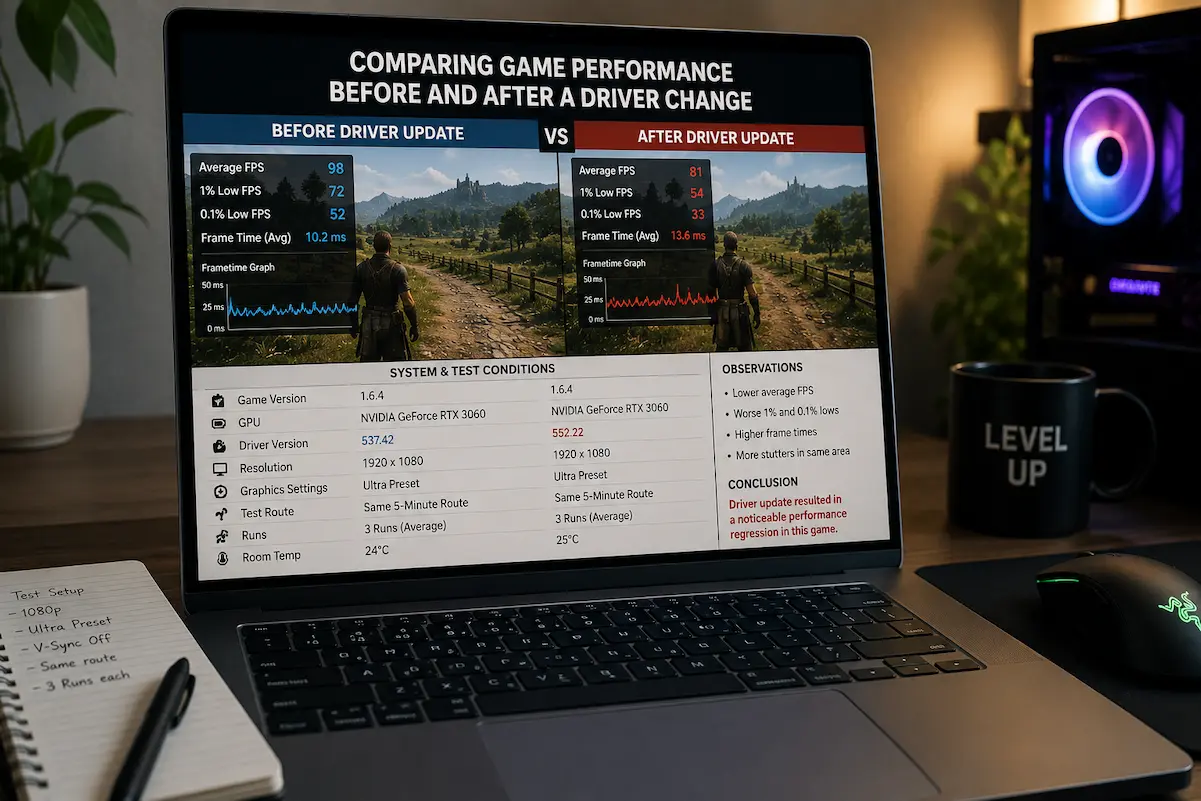
Updates to graphics card drivers can accelerate, slow down, optimize, or alter game performance without warning. Such variability makes diagnosing driver performance issues extremely difficult. If a game ran well last week but no longer works properly after an update, the cause is likely a driver problem. However, memory instability or other factors can also cause issues. Windows updates, game patches, changes to the shader cache, changes to graphics profiles, or changes to the gaming scene can all have similar effects.
Driver changes must be evaluated through controlled comparisons, rather than relying solely on intuition. Similar test conditions must be simulated, where key game parameters are kept constant and above-average frame rates (FPS) are recorded. Drivers can alter the consistency of frame time, shader compilation, GPU scheduling, power usage, or rendering characteristics without affecting average performance.
The goal, therefore, is not to prove that a new driver is better but to assess whether the driver change consistently affects game performance. If there are indications of an impact, further investigation is needed, rather than simply stating, “The new driver feels worse.”
Same Test, Different Memory
Driver comparisons are problematic because people rarely test under exactly the same conditions. They might remember that a game ran at 100 FPS, but after installing a new driver and starting from a different region, the framerate turns out to be only 85 FPS. Such comparisons are meaningless because the scene, background activity, game version, shader status, temperature, and other variables can all change.
Repeatable game segments are the best choice for comparison. These can be save points, benchmark sequences, training areas, replays, matches, map segments, or open-world routes. The game itself determines the test method, but you must simulate the same workload before and after changing the driver. Keep key variables constant during testing. Unless explicitly stated otherwise, resolution, graphics presets, key personal settings, framerate limits, display modes, and synchronization methods must remain unchanged.
Keep The Comparison Consistent
| Variable | Before driver change | After driver change |
|---|---|---|
| Game version | Same | Same if possible |
| Resolution | Same | Same |
| Graphics settings | Same | Same |
| Frame-rate limit | Same | Same |
| Display mode | Same | Same |
| Test location | Same | Same |
| Background applications | Similar | Similar |
| Power mode | Same | Same |
| Monitoring method | Same | Same |
Perfectly identical conditions aren’t always possible, but the closer they are, the more useful the comparison becomes.
Average FPS Is Only One Piece Of Evidence
Average FPS is useful for identifying broad performance changes, but it can hide problems that matter more to how the game actually feels. A driver change might leave average FPS almost unchanged while introducing occasional frame-time spikes. Conversely, a small FPS increase can also lead to smoother frame delivery, which makes the game feel noticeably better.
Frame time shows how long individual frames take to arrive. If the game normally produces frames consistently and the newer driver introduces repeated spikes, that can indicate a regression even when the average FPS number looks similar. This is especially relevant when the complaint is “the game feels less smooth” rather than “my FPS dropped by 20.”
Minimum or low-percentile FPS figures can also provide useful context, depending on the monitoring software. They help describe the slower portions of a run rather than only summarizing the entire session with one average.
Record More Than One Number
For a useful comparison, consider recording:
- Average FPS
- Low-percentile FPS where available
- Frame-time behavior
- GPU utilization
- GPU clock speed
- GPU temperature
- VRAM usage
- CPU utilization or relevant CPU-core activity
- Any visible stutter or unusual pauses
You don’t need to record every metric for every test. Start with FPS and frame time, then look at hardware measurements if the results show a meaningful difference.
Driver Changes Can Affect One Game Without Affecting Others
A driver isn’t simply a switch that makes every game faster or slower. Different games use different graphics APIs, rendering techniques, shader systems and driver optimizations. A driver update can therefore improve one title while having little effect on another.
This is particularly important when investigating a suspected regression. If only one game changes behavior after the driver update, that doesn’t automatically mean the driver is faulty across the board. The problem may involve a particular rendering path, shader compilation behavior, game profile or driver interaction specific to that title.
Testing a second game can help provide context, especially if it uses the same GPU but a different engine or graphics API. If several unrelated games show a similar performance change after the same driver update, the driver becomes a stronger suspect. If only one game changes, investigate the game’s own updates and configuration as well.
A Game Patch Can Confuse The Comparison
A driver update and a game update can happen close together, making it difficult to determine which one changed performance. Many games update automatically, and players may not notice that the executable or rendering system changed between two testing sessions.
This is one reason the exact game version matters. If the game received a major patch between your two measurements, you aren’t really comparing “old driver versus new driver.” You’re comparing two different combinations of software.
If possible, note the game version before testing. For games that maintain detailed patch notes, check whether a recent update changed rendering, shaders, performance or graphics settings. Even when the game patch isn’t directly responsible, it may alter the workload enough to make the two tests incomparable.
Separate The Two Changes When Possible
If you can reproduce the issue using the same game version, the comparison becomes much stronger. If you can’t, please document the game update as another variable instead of assuming the driver was the only change. This is especially important for long-term troubleshooting. A useful record might say:
Driver X + Game version A → 110 FPS average
followed later by:
Driver Y + Game version B → 103 FPS average
That doesn’t prove the driver caused the decline because the game version changed too.
Shader Compilation Can Make A New Driver Look Worse
Shader behavior is another reason a freshly updated system can behave differently during the first few launches. Games may compile shaders or rebuild caches after a driver change. Depending on the title, this can produce temporary stuttering, longer loading times or unusual CPU activity. A first run after a driver installation therefore isn’t always a fair representation of the driver’s long-term behavior. If the game stutters during the first few minutes and then becomes smoother after the relevant shaders have been compiled or cached, repeating the test later can produce a different result.
This doesn’t mean every post-driver stutter is shader compilation. Some games handle shaders differently, and persistent stuttering across multiple sessions deserves further investigation. The important point is to avoid declaring a driver regression based solely on the first run after installation.
Give Repeated Tests More Weight
If the same benchmark or gameplay sequence produces similar results across several runs, confidence in the comparison increases. A one-off hitch is much weaker evidence than a repeatable pattern. For example, if the new driver produces a frame-time spike at the same point during three separate runs while the previous driver did not, that is far more useful than noticing one unexplained hitch during a single session.
Driver Settings May Not Be The Same Anymore
A driver installation can sometimes affect existing graphics profiles or reset particular settings. This matters because you may believe that you’re comparing two driver versions while actually comparing two different configurations. Check the driver control panel and the game’s own graphics settings after the update. Look particularly at synchronization options, power-management preferences, shader-related settings, scaling options and application-specific profiles.
You don’t need to reset everything blindly. In fact, doing so can make troubleshooting harder because you introduce even more changes. Instead, compare the settings that are relevant to the game’s rendering behavior and restore the intended configuration before running the performance test.
GPU Clocks And Power Behavior Can Explain A Difference
Suppose the old driver produced 2,400 MHz during your test while the new driver holds a noticeably different clock under the same workload. The difference in performance may have something to do with power management, temperature, voltage behavior or driver scheduling rather than the game’s graphics settings.
This is why GPU utilization should be interpreted alongside clock speed and temperature. A lower utilization number by itself doesn’t prove that the new driver is underperforming. If another part of the system limits the GPU, utilization can fall even though the driver isn’t directly causing a problem. Likewise, a higher clock doesn’t automatically mean better performance. Modern GPUs constantly adjust their operating behavior based on workload and power conditions. The useful evidence is a repeatable change in performance under comparable conditions.
Test The Driver Change With A Repeatable Route
A good real-world test doesn’t need to be complicated. Pick one section of the game that reliably produces a representative workload and run through it several times. Keep the camera movement, graphics settings and frame-rate target as consistent as practical.
If the game has a built-in benchmark, that can be even easier because it reduces differences between runs. But an in-game benchmark isn’t mandatory. A repeatable save point or fixed route can work well if the workload is reasonably consistent. Try to avoid making the test too short. A few seconds can be dominated by loading behavior or an isolated frame-time spike. At the same time, there is no need to run an hour-long session when a five-minute repeatable sequence already shows the difference.
A Simple Comparison Record
| Test | Driver A | Driver B |
|---|---|---|
| Run 1 average FPS | Record | Record |
| Run 2 average FPS | Record | Record |
| Run 3 average FPS | Record | Record |
| Frame-time behavior | Observe | Observe |
| GPU clock | Record | Record |
| GPU temperature | Record | Record |
| Visible stutter | Note | Note |
The actual values aren’t important here. Consistency between repeated runs is what gives the comparison value.
Small Differences Don’t Automatically Mean A Regression
Performance naturally varies from run to run. Background processes, temperature, game behavior, and other factors can produce small changes even when nothing has gone wrong. A driver update that changes average performance from 100 FPS to 98 FPS shouldn’t immediately be classified as a regression. If the results fluctuate between 97 and 101 FPS across repeated runs, the difference may simply be normal variation.
A much more convincing result would be a repeatable shift, especially when it appears alongside a change in frame-time behavior or a specific reproducible symptom. The same principle applies to improvements. A tiny increase that appears only once isn’t necessarily evidence that the new driver is faster.
When Rolling Back Actually Makes Sense
Rolling back to a previous driver can be a useful diagnostic step when a problem began immediately after an update and can be reproduced consistently. The purpose isn’t simply to “go back because newer is bad.” It is to perform a controlled comparison between two driver versions. If the problematic behavior disappears with the previous driver while the game version and test conditions remain unchanged, the driver becomes a much stronger suspect.
Before doing this, make a record of the current driver version and the problem you’re testing. That makes it easier to compare the results later rather than relying on memory.
A Good Rollback Test Has A Clear Question
Instead of saying, “I’m going to install the old driver and see if it feels better,” use a specific test:
Does the repeatable frame-time spike at the same location disappear after returning to the previous driver?
That question produces much more useful evidence. If the answer is yes across multiple runs, you have a strong reason to investigate that driver version further.
Don’t Compare Different Graphics Presets
One of the easiest ways to invalidate a driver comparison is to change graphics settings between tests. A new driver may reset a setting, and the player may unknowingly compare different workloads.
Resolution scaling, ray tracing, texture quality, shadows, upscaling modes, and frame rate limits can all affect performance. Even a small change in one important setting can be larger than the performance difference caused by the driver itself. If the driver installation changed something, restore the intended configuration before judging performance. Then run the comparison again.
What A Useful Result Actually Looks Like
A useful result doesn’t necessarily say, “Driver B is 12% faster.” Sometimes the most valuable finding is that the driver made no meaningful difference. For example, if three runs on each driver produce very similar averages and nearly identical frame-time behavior, you can stop investigating the driver as the primary cause. That saves time and directs attention toward something else.
On the other hand, if Driver B repeatedly produces lower low-percentile performance and visible frame-time spikes in the same section, the driver change deserves further investigation. You now have a reproducible observation rather than a vague impression.
Interpret The Pattern, Not Just The Winner
| Result | Sensible interpretation |
|---|---|
| Small FPS difference, normal variation | Probably inconclusive |
| Similar average FPS, worse frame-time spikes | Possible smoothness regression |
| Consistent FPS improvement | Likely performance improvement |
| Consistent FPS reduction | Possible performance regression |
| Only first run is worse | Check shader/cache behavior |
| Several games change similarly | Driver becomes stronger suspect |
| One game changes after its own patch | Check game-side changes too |
This approach prevents small, meaningless differences from turning into unnecessary troubleshooting.
Make The Driver Change Earn The Blame
When a game suddenly stutters, it is all too tempting to blame a driver update, but to make a proper comparison, it is not enough to simply remember yesterday’s framerate (FPS). The strongest evidence comes from repeating the same load with the same game version, graphics settings, and system environment. Do not focus solely on the average framerate. Frametime stability, low percentile performance, GPU clock frequency, temperature, and visible stuttering can all reveal changes that a single framerate value may mask. Before determining whether this anomalous behavior is permanent, give the new driver sufficient time to stabilize normal shader or cache activity.
If the difference persists during repeated tests and disappears after switching back to the previous driver, then the driver is likely the culprit. If performance remains essentially unchanged, you should abandon the idea and stop adjusting your graphics settings. Useful results do not always prove that a driver is better or worse. Sometimes, the most valuable results actually prove that the driver might not be the problem. By carefully checking the comparisons before and after the update, you can get this answer without every new driver release becoming a guessing game.
FAQs
1. Should I run a benchmark before installing a new graphics card driver?
If you value performance comparisons, the answer is yes. Even a single repeatable test before an update can provide a reference point. Multiple tests are better because they show the normal range of performance fluctuations.
2. How often should I run the same test?
There is no single standard, but multiple repeatable tests are more meaningful than a single test. If the performance difference is small, additional testing is especially important before it can be determined whether driver degradation is occurring.
3. Can a driver update cause stuttering without lowering the average frame rate?
Yes. Drivers can affect frame-time stability without significantly changing the average frame rate. This is one reason to include frame-time behavior in comparative tests.
4. Should I immediately revert to an earlier version if game performance deteriorates?
Not necessarily. First, ensure the comparison is fair, repeat the test, check for game updates, and consider changes to shader compilation or settings. If the problem persists, reverting to an earlier version can be an effective method for diagnostic comparison.
5. Why does the game run differently after a driver update, while my settings appear unchanged?
Drivers can affect the operation of certain rendering functions, shaders, profiles, or scheduling behavior. The game itself may have also undergone changes at the same time, so please check both before attributing the problem to the driver.