
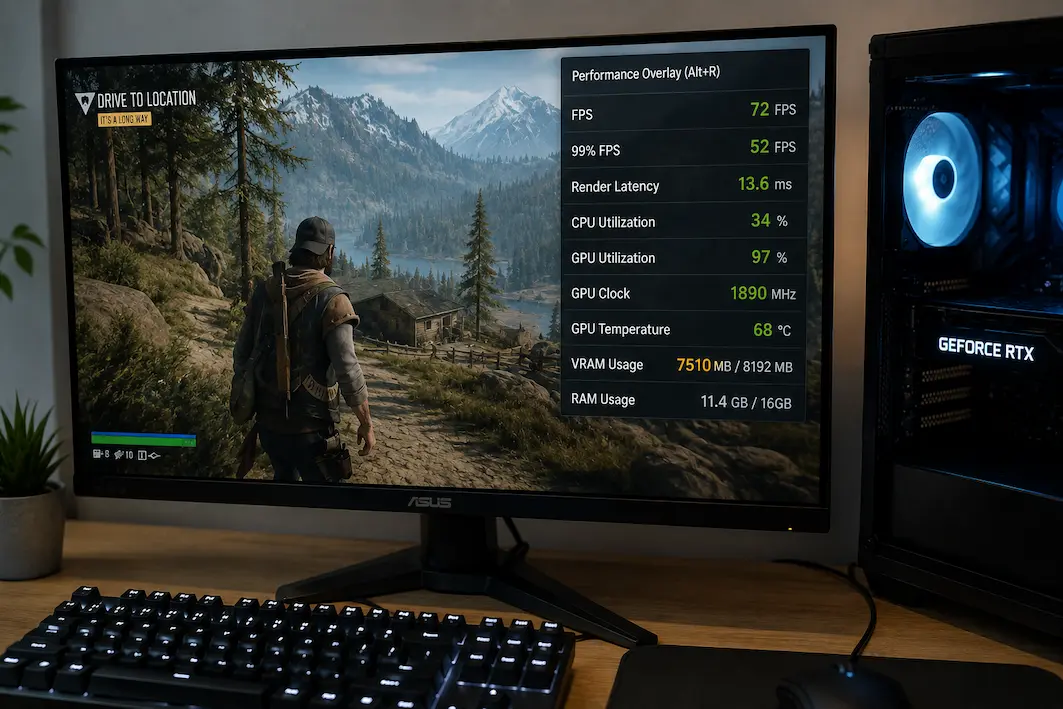
After changing graphics presets, games may exhibit stuttering, blurry textures, slow loading times for graphics elements, or sudden performance drops. People often immediately lower all settings, assuming that a particular game setting is too demanding. Sometimes this is true, but there is another possibility worth considering: video memory (VRAM). A graphics card may deliver sufficient pure rendering performance at certain settings, yet still experience a performance bottleneck due to insufficient data stored in the VRAM.
VRAM is used to store graphics data that the GPU requires immediately, such as textures, framebuffers, geometry, and other resources. The required amount of VRAM depends on the resolution, texture quality, raytracing features, anti-aliasing methods, and the specific game engine. Therefore, two games, even with the same graphics presets, can have drastically different VRAM requirements. This is why presets like “Ultra” or “High” do not necessarily indicate whether the graphics card’s VRAM is actually overloaded. Checking VRAM usage is also no guarantee that insufficient VRAM is the cause of the problem. Games can reserve memory when they do not require all available RAM, and the memory usage reported by the operating system or drivers can vary. A useful diagnostic question is, “Does the VRAM load change simultaneously with the symptoms you are investigating?”
VRAM Is Not The Same As GPU Performance
It is useful to distinguish between these two often confused properties. A graphics card contains a GPU processor for performing rendering calculations and dedicated video memory (VRAM) for storing the data required for these calculations. A graphics card can have a powerful GPU but relatively little VRAM, or conversely, a lot of VRAM but a weaker processor.
This leads to situations where lowering graphics settings does not have the desired effect. Lowering settings that primarily affect GPU calculations can reduce GPU load but have a minor effect on memory usage. Texture quality is a particularly useful example, because higher-quality textures may require more memory, but the increase in shader load may not be proportional.
This distinction is crucial when diagnosing game issues. If GPU performance is sufficient to render the scene but VRAM is insufficient, lowering all graphics settings may not be necessary. More targeted adjustments might resolve the problem while preserving a significant portion of the image quality.
Different Settings Consume Resources Differently
Not every graphics option has the same relationship with VRAM. Some primarily affect rendering calculations, some increase memory requirements, and others influence both.
| Setting | Potential VRAM impact | Other major impact |
|---|---|---|
| Texture quality | High | Memory bandwidth and asset handling |
| Resolution | Moderate to high | GPU rendering workload |
| Ray tracing | Can be significant | GPU workload and acceleration resources |
| Shadow quality | Variable | GPU workload |
| View distance | Variable | CPU, GPU and asset streaming |
| Anti-aliasing | Depends on method | GPU workload |
| Anisotropic filtering | Usually modest | GPU texture sampling |
| Texture streaming quality | Often significant | Storage and asset streaming |
The exact behavior depends on the game engine, so this table should be treated as a diagnostic guide rather than a universal measurement.
Why Texture Quality Deserves Special Attention
Texture settings are often among the first things worth investigating when VRAM becomes a concern. Higher-quality textures contain more visual information and can require more memory when the game keeps them available for rapid access. A game may therefore run at a high frame rate with maximum texture quality until a particular area introduces enough additional assets to push memory usage closer to the graphics card’s practical limit. The result can be inconsistent behavior rather than an obvious crash.
This is also why reducing texture quality can sometimes solve a problem without dramatically changing the appearance of the game. Going from an extremely high texture setting to one step lower may reduce memory pressure while leaving lighting, geometry and other visual characteristics largely intact.
Texture Quality Can Be A Better First Adjustment
If VRAM appears close to its practical limit, consider changing texture-related settings before reducing every visual option. For example, a sensible diagnostic sequence might be the following:
- Record VRAM usage during the problematic scene.
- Keep resolution and most graphics settings unchanged.
- Reduce texture quality by one step.
- Reproduce the same scene.
- Compare VRAM usage, frame time and visible symptoms.
If the stuttering or texture problems disappear while other settings remain unchanged, that provides stronger evidence that memory pressure was involved.
A High VRAM Number Does Not Automatically Mean A Problem
Modern games can deliberately use a large amount of available VRAM when it is beneficial. Seeing a game occupy most of the graphics card’s memory does not automatically mean the memory is exhausted or causing poor performance.
Some games and drivers use available memory as a cache. They may retain textures or other resources because having them readily available can improve responsiveness. If the game has plenty of headroom and performance remains stable, a high utilization figure may simply reflect efficient resource management.
This is why the number should always be considered alongside actual symptoms. A game using 7.5 GB on an 8 GB card isn’t automatically broken, just as a game using 6 GB isn’t automatically safe from VRAM-related problems. The more useful evidence comes from what happens when the workload changes and whether the observed symptoms improve.
Look At VRAM During The Problem, Not Only At The Menu
VRAM usage can change dramatically depending on what the game is rendering. A menu or simple indoor area may use far less memory than a large outdoor environment filled with detailed textures and complex geometry. If you’re trying to diagnose a problem that occurs only in certain areas, monitoring VRAM while sitting in the main menu won’t tell you much.
Instead, reproduce the exact situation that causes the issue. Enter the area where textures become blurry, move through the location where stuttering begins, or repeat the action that triggers the performance drop.
A useful comparison records VRAM usage before, during and after the symptom. That gives you a better idea of whether memory pressure is associated with the problem rather than simply being present somewhere in the game.
Watch Frame Time Alongside VRAM
VRAM usage becomes much more informative when combined with frame-time data. A high memory number by itself doesn’t explain whether the game is actually struggling. Suppose VRAM usage rises from 6 GB to 7.8 GB while frame time remains stable and gameplay continues smoothly. There may be no meaningful problem. In another scenario, VRAM usage approaches the card’s practical limit while frame-time spikes begin appearing whenever new areas load. That relationship deserves much closer attention.
The second situation doesn’t prove VRAM is the sole cause, because asset streaming can also involve system memory, storage and CPU processing. However, it provides a useful lead that can be tested by lowering a memory-heavy setting.
A More Useful Monitoring Combination
When investigating suspected VRAM pressure, watch several measurements together:
| Metric | Why it matters |
|---|---|
| VRAM usage | Shows how much dedicated memory is occupied |
| Frame time | Reveals stutters and inconsistent frame delivery |
| GPU utilization | Shows how heavily the graphics processor is working |
| GPU temperature | Helps identify thermal performance changes |
| GPU clock speed | Shows whether the GPU is maintaining expected clocks |
| System RAM | Helps identify broader memory pressure |
| Disk activity | Can reveal asset-streaming activity |
You don’t need every metric for every problem. The goal is to see whether changes in VRAM usage coincide with the behavior you’re trying to understand.
VRAM Pressure Can Show Up As More Than Low FPS
A graphics memory problem doesn’t always start with a big drop in FPS. Depending on the game and engine, symptoms can include texture quality changing without warning, assets showing up late, freezing for a short time when entering new areas, and frame rates that aren’t stable or transitions that take a long time to load.
Some games handle memory issues well by streaming files in different ways. Others may cause hitching or visual loss that is easier to see. Because of this, VRAM is especially interesting when a game has a good average FPS but still feels shaky. A player might call the problem “random stuttering,” but the real cause is probably something to do with loading or handling graphics resources. The pattern of symptoms is important. A steady low frame rate is a sign of a different kind of problem than short freezes that happen when you enter a new area.
System RAM Can Become Relevant Too
It’s not true that VRAM works by itself. When there isn’t enough specialized graphics memory, the game might have to change how it handles resources, which could mean using system memory or other parts of the storage and memory hierarchy.
That doesn’t mean that system RAM can be used instead of VRAM and work the same way. It doesn’t. When you access resources that are not in the GPU’s specialized memory path, you may experience extra latency and overhead. If a game is using most of the available VRAM and the system RAM is also being used very heavily, you should look into the memory situation more generally instead of just the graphics card.
It’s important to keep the two measurements separate during diagnosis because a game with enough VRAM but not enough system memory can have symptoms that look the same but are caused by different things.
Resolution And VRAM Are Related, But Not Identical
Increasing the resolution can make you need more memory because frame buffers and other resources that go with them need more room. The effect isn’t the same in every setting, though. Even if you change the size, texture quality can still be a big VRAM factor. A game running at 1080p with very high texture settings may still use a lot of memory, while a different game with a higher resolution may use its resources in a different way.
This is why lowering the quality isn’t always the best first step when you think VRAM pressure is present. If you see that memory is the main issue, testing the quality of the texture can be a better experiment. If the problem is with how fast the GPU renders, resolution can make a much bigger difference.
Graphics Presets Can Hide The Real Cause
A game’s preset could change many things at once, including the quality of the textures, the shadows, the effects, the view distance, ray tracing, and more. If the problem goes away when you change the setting from Ultra to Medium, you know that the workload did change, but you might not know which setting made a difference.
That could lead to compromises that aren’t necessary. You might run the whole game at medium when you only needed to change one setting that used a lot of memory. Because of this, individual settings are better than presets for diagnosing problems. Make one change that matters, then do the same problem again and compare the results. This takes more time than just clicking a preset once, but it gives you useful information.
A Controlled VRAM Test Can Narrow It Down
You don’t need special lab equipment to do a good VRAM test. You can use your usual monitoring software and a part of the game that you can play again and again. Start with the settings that cause the issue and write down the numbers that are important. Then lower the quality of the texture by one step and do the same process again. If the issue gets better while the GPU’s workload and resolution stay about the same, VRAM or texture streaming becomes a more likely cause.
If nothing changes, go back to the original setting and try another choice that might use a lot of memory. This way, you won’t have to change the whole graphics settings and lose track of what changed the result. It’s important to compare like with like. Testing different scenes can produce completely different memory behavior and make the results difficult to understand.
When Lowering Texture Quality Doesn’t Help
If VRAM usage looks high but lowering texture quality produces no meaningful change in performance or symptoms, don’t automatically conclude that the monitoring software is wrong. The game might have been reserving memory without truly experiencing memory pressure. Alternatively, the real bottleneck could be CPU processing, GPU shader workload, storage latency, or something else entirely.
This is where the distinction between correlation and causation matters. A high VRAM reading occurring at the same time as a stutter is good evidence, but the strongest test is whether reducing the suspected memory workload changes the symptom. If the symptom remains identical, VRAM may not be the primary limitation.
Drivers And Monitoring Tools Can Report Memory Differently
Different monitoring utilities may show dedicated GPU memory, shared GPU memory, or a combination of numbers. Windows Task Manager, GPU vendor software, and third-party monitoring tools can therefore show numbers that don’t look to match exactly. This doesn’t always mean that one of them is broken.
Before comparing data, make sure you’re looking at the same type of memory metric. Shared system memory is not the same as dedicated VRAM. Windows may let the GPU use shared system memory in some situations. For a consistent diagnosis, use one monitoring method throughout the comparison rather than switching between several tools and treating their results as directly interchangeable.
Don’t Assume Every Stutter Is A VRAM Problem
Many things can cause someone to stutter. Frame-time spikes can be caused by CPU scheduling, asset streaming, background software, storage behaviour, and problems at the driver level. So, VRAM should only be seen as one part of the study and not the only reason why games don’t work well.
There is a lot of evidence that VRAM is involved: memory usage gets close to the card’s practical limit; symptoms show up in scenes with a lot of memory; frame-rate behavior changes at the same time; and lowering the memory-heavy setting makes the symptoms much better. If those pieces don’t fit together, don’t force the diagnosis. Instead, look for other possible reasons.
A Useful Order for Checking VRAM
If a game starts acting weird after you raise the graphics settings, don’t lower everything right away. Instead, watch what happens. First, make the problem happen again and write down how much VRAM, frame time, and GPU are being used. Then check to see if the issue shows up everywhere or just in some places. If it’s specific to a scene, go back the same way and see if VRAM usage goes up when the symptoms start.
After that, lower the quality of the texture by one step and do the test again. If the behavior gets better, look into the memory and image settings more. If nothing changes, go back to the original setting and look for other problems. This keeps the investigation on track and stops the common mistake of mistaking a specific memory problem for a loss of all visual quality.
Check The Evidence Before Sacrificing Image Quality
If a game isn’t running well, dropping all of the graphics settings can make it run better quickly, but it doesn’t tell you why the problem happened. It could also make the quality of your pictures much worse than they need to be. Another way to figure out what the graphics card is actually doing is to check the VRAM first. Keep an eye on memory during the scene where the problem happens and compare it to how it behaves during frame time. Also, notice if the problem always happens in areas with a lot of textures. After that, make a small change that you want to see and do the test again.
If lowering the quality of the textures lowers the amount of VRAM used and gets rid of the stutters or other visual issues, that’s good proof that memory pressure was to blame. Don’t keep blaming VRAM just because the number looked high if nothing changes. Instead, look into the CPU load, GPU rendering load, storage activity, system memory, and other things.
It’s not important that the game uses as little VRAM as possible. The goal is to find out if VRAM is really stopping the game from running before lowering the quality of the graphics to fix a problem that might have a different cause.
FAQs
1. Is the graphics card running out of memory because it’s using almost all of its VRAM?
Not all the time. Games can use free VRAM to store data on purpose, and the stated allocation doesn’t always mean that every occupied megabyte is being used right now. More solid proof comes from real signs and changes seen in controlled tests.
2. If VRAM is almost full, which graphics setting should I turn down first?
Texture quality is often a good first test because it can have a big effect on how much memory is used. Instead of lowering all of the image options at once, lower it by one step and look at the same scene again.
3. Can a game use a lot of VRAM without running into VRAM problems?
Yes. High usage might just mean that the game is making good use of the memory it has. The number itself isn’t enough to tell if there’s a problem if frame times stay the same and there are no other visual or performance issues.
4. How come the game only stutters in some places?
There are places that need more graphics, textures, or other resources than others. If the problem always happens when going to certain places, keep an eye on the VRAM and frame time during those changes to see if memory pressure is a part of the trend.
5. Should I first drop the quality of the texture or the resolution?
It depends on what you want to find out. Resolution is good for checking how much work the GPU has to do when drawing, but texture quality can tell you more about how much VRAM is being used. You shouldn’t use them as if they were the same test.