
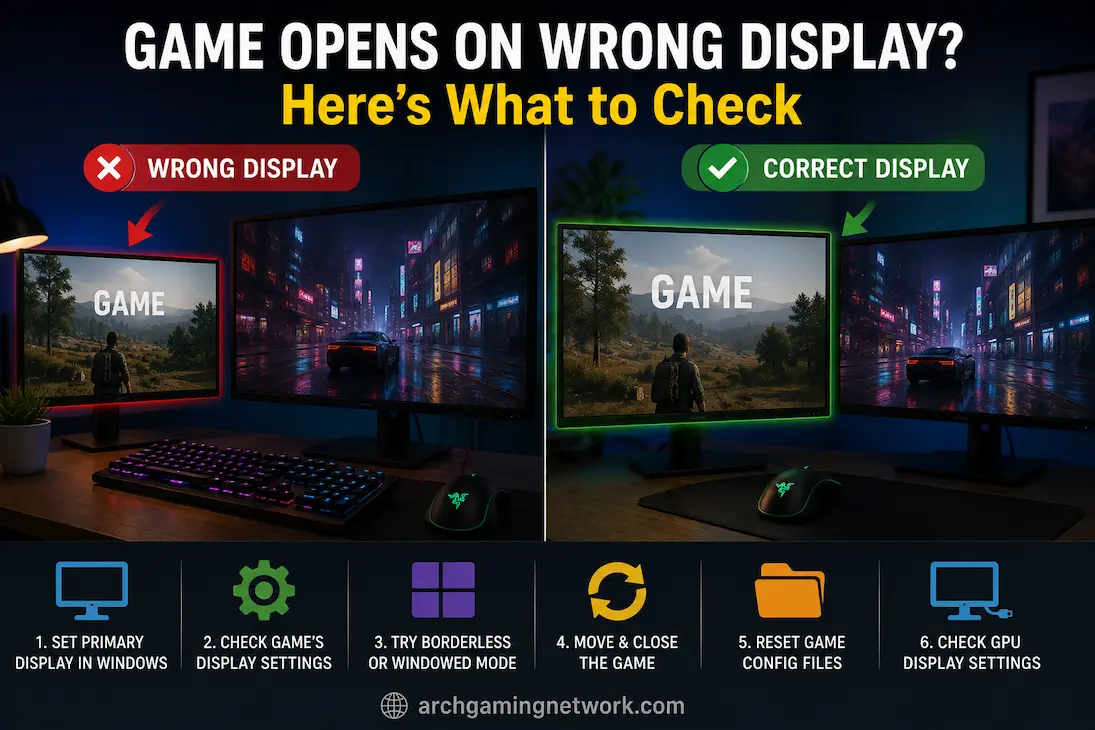
Adding a second monitor can make a gaming setup much more useful, but it can also create an annoying problem that wasn’t there before. A game that previously opened on the correct screen may suddenly appear on the secondary monitor, launch partially off-screen, or switch back to the wrong display every time it starts. This can happen even when Windows correctly identifies the intended gaming monitor as the primary display.
The reason is that Windows and the game do not always agree on which screen to use. Windows has a primary-display setting, while many games remember their monitor selection, resolution, position, or display mode. Some titles also identify monitors through graphics hardware information rather than simply following whichever screen Windows currently calls “main.”
That means repeatedly dragging the game to the correct monitor may only fix the current session. If the game has saved the wrong display information, it can simply return to that screen the next time you launch it.
Check Which Display Windows Considers Primary
Start with Windows because the operating system provides the foundation that games use to identify connected displays.
Go to Settings → System → Display and select Identify. Windows will place a number on each physical monitor, allowing you to confirm which display corresponds to each entry. Select the monitor you normally use for gaming and check whether Make this my main display is enabled.
This doesn’t guarantee that every game will follow the setting, but it removes one common source of confusion. If Windows itself considers the secondary monitor to be the primary display, some games may simply be following that configuration.
It is also worth checking the arrangement shown in Display settings. If Windows thinks the monitors are positioned differently from how they physically sit on your desk, dragging windows between them can behave unexpectedly. That doesn’t normally force a game onto the wrong screen, but it can make diagnosing the problem more confusing.
The Game May Have Its Own Monitor Setting
Some games don’t rely entirely on Windows’ primary-display selection. Their graphics settings may contain a Monitor, Display, or Output Display option that explicitly determines where the game should appear.
If you can reach the game’s settings after moving it back to the correct monitor, look for such an option. A game might list the screens as Display 1 and Display 2, but those numbers don’t always correspond to the physical numbering you expect.
This is particularly important after connecting another monitor because Windows can enumerate the displays differently. A monitor that was previously Display 1 may no longer occupy the same position in the game’s configuration.
If the game allows you to select the intended monitor directly, choose it and apply the setting before closing the game. Some titles only save the change after the display configuration has been applied successfully.
Borderless And Fullscreen Modes Behave Differently
The game’s display mode can influence how it handles multiple monitors.
In windowed mode, the game behaves like a normal application window and can usually be moved freely between displays. In borderless fullscreen, the game occupies the desktop area of the selected monitor but remains closely tied to Windows’ desktop arrangement. Exclusive fullscreen, where supported, can handle display modes differently because the game requests more direct control over the display.
This is why switching between modes can sometimes appear to fix the problem.
If a game consistently opens on the wrong monitor in fullscreen but behaves correctly in borderless mode, that difference is useful information. It suggests the game’s fullscreen configuration or display-mode handling may be involved rather than the second monitor itself being faulty.
You don’t necessarily have to abandon fullscreen permanently. First use the mode change as a diagnostic test to determine whether the display mode is influencing the game’s monitor selection.
Moving The Game Once May Be Enough
Some games remember the position of a window when they close.
If the game opens on the wrong monitor but can be moved normally, drag it to the intended screen, maximize it if necessary, and then close the game while it is still on the correct display.
Launch it again and see whether it returns to the same monitor.
This works with some windowed and borderless games because they save their last-known window position. It won’t work with every title, especially games that maintain a separate monitor assignment, but it is a simple test that doesn’t require changing system settings.
The important detail is to close the game normally after moving it. If the game crashes or is force-closed immediately afterward, it may never save the new window position.
Resolution Changes Can Make The Problem Look Worse
A second monitor often has a different resolution from the primary gaming display. For example, you might have a 2560×1440 gaming monitor beside a 1920×1080 secondary display.
If a game retains the resolution associated with its previous monitor, moving that configuration to another screen can produce unusual results. The game may appear too large, too small, partially off-screen, or positioned in a way that makes it seem as though Windows is refusing to move it.
Check the game’s resolution alongside its selected display.
If the game supports different resolutions for different monitors, make sure the selected resolution actually belongs to the monitor you’re trying to use. A display mismatch can sometimes cause a game to reset its display configuration when it launches.
The GPU Driver Can See The Displays Differently
Your graphics driver maintains information about connected displays independently of the physical arrangement you see on your desk.
After adding a monitor, changing cables, updating a graphics driver, or switching ports on the graphics card, the driver may enumerate the displays differently. This can affect applications that store monitor information based on display identifiers.
This is one reason a game can appear to “forget” the correct monitor after what seems like an unrelated hardware change.
If the problem began immediately after connecting the second display, check whether the graphics driver recognizes both monitors correctly. You don’t need to reinstall the driver immediately. First establish whether Windows and the graphics control software both see the expected displays and resolutions.
HDMI And DisplayPort Changes Can Matter
Changing which physical port a monitor uses can sometimes alter how Windows and the graphics driver identify that display.
For example, when a gaming monitor is moved from one DisplayPort output to another, a game that stores information about the previous display configuration may not interpret the new arrangement exactly as before.
This is especially relevant if the second monitor was added at the same time as other hardware changes.
If possible, keep the intended gaming monitor connected to the graphics output you normally use while troubleshooting. Changing several ports at once makes it much harder to determine which change caused the new behavior.
Games Can Store Monitor Information Outside Their Installation Folder
A common assumption is that reinstalling a game will restore all of its display settings. That isn’t always true.
Many games keep configuration files in locations associated with the Windows user profile rather than inside the main game installation directory. These files can contain resolution, window position, display mode and other graphics settings.
That means a reinstall may leave the same problematic configuration behind.
If a game continues opening on the wrong display after you’ve corrected Windows and the in-game settings, look for the game’s documented configuration-reset method. If the developer provides a way to reset display settings, use that rather than deleting random files from AppData or other Windows directories.
Before changing configuration files manually, make a backup. Some files can contain settings unrelated to the display problem, and deleting the wrong one can create additional issues.
Steam And Other Launchers Don’t Always Control Display Placement
The launcher used to start a game is not necessarily responsible for choosing the monitor.
Steam, Epic Games Launcher and other platforms primarily handle installation, updates, authentication and launching. The game itself generally controls its graphics configuration once it starts.
That means changing the launcher window to the correct monitor won’t necessarily make the game launch there.
However, some games support launch parameters that can influence window mode, resolution or display selection. Whether these options exist and which ones are supported depends on the individual game.
If the game has official documentation for display-related launch parameters, those are preferable to relying on undocumented commands found in random configuration guides.
Temporary Monitor Disconnection Can Reveal The Cause
One useful diagnostic test is to disconnect or disable the secondary monitor temporarily.
With only the intended gaming display available, launch the game and see where it opens. If it consistently appears correctly, reconnect the second monitor and test again.
This doesn’t prove that the second monitor is defective. It simply tells you that the game’s behavior changes when multiple displays are available.
If the game works correctly with one monitor but chooses the wrong screen whenever the second is connected, the investigation should focus on monitor enumeration, the game’s saved display preference, Windows’ primary-display setting and the game’s multi-monitor handling.
What If The Game Opens On The Correct Monitor But Keeps Switching Back?
This usually points toward a saved configuration rather than a physical display problem.
If you repeatedly move the game to the correct monitor and it returns to the wrong one after every launch, something is likely telling it to use that display.
First, check the game’s monitor selection. Then check Windows’ primary display and any configuration or profile software associated with your graphics card or monitor.
If the game has recently been updated, also consider whether the update reset or changed its graphics configuration. A game update can sometimes modify configuration files or introduce changes to how displays are enumerated.
The timing matters: if the behavior began immediately after an update, compare the game’s current display settings with the settings it used before the update rather than assuming the new monitor is the only cause.
Laptop And External Monitor Setups Are A Little Different
Laptop users may encounter additional issues because the built-in screen and external monitors can be connected via different graphics interfaces.
Depending on the laptop’s hardware configuration, an external monitor might be driven by the integrated graphics card, a dedicated graphics card, a USB-C port, an HDMI output, or other display methods. Some laptops also offer graphics mode settings that allow you to change how the internal screen is connected.
If the game consistently launches on the laptop’s built-in screen—even when your preferred gaming display is an external monitor—check your Windows primary display settings and the game’s display configuration.
Physical connections can also be a factor. If switching the external monitor from USB-C to HDMI (or another output interface) changes which screen the game uses, there is an issue with the graphics interface.
A Practical Troubleshooting Method
Instead of changing all settings at once, try making a single, controlled adjustment first and observe the result.
Start by selecting the gaming monitor you wish to use in Windows and setting it as the primary display. Then, launch the game and check if the display settings recognize the correct monitor. If not, try changing the settings and restarting the game.
If the game still opens on the wrong monitor, try switching between full-screen mode and borderless mode. If the issue is resolved after switching, the problem lies in how the game handles display modes.
If the problem persists, try temporarily disabling the second monitor. This helps determine whether the issue is specific to multi-monitor configurations. This method is far more effective than constantly reinstalling graphics card drivers or swapping connectors (without knowing exactly what you are testing each time).
Frequently Asked Questions
Why do my games always open on the second monitor?
The game may have saved its own monitor preferences, remembered the previous window position, or used a monitor enumeration order that changed after the second monitor was connected. Check your Windows primary monitor settings and the game’s monitor settings.
Will setting my gaming monitor as the primary monitor solve the issue?
Yes, especially for games that rely on the Windows primary monitor setting. However, some games maintain their own monitor settings and may continue to use other screens.
Why does the game open correctly in borderless mode but not in full-screen mode?
Full-screen and borderless modes handle the display differently. If switching modes affects which monitor is used, the issue likely lies with the game’s full-screen display settings.
The Second Monitor Usually Isn’t The Real Problem
If the game appears on the wrong monitor after connecting a second one, it is usually because the second monitor is using a configuration the game did not previously recognize. Windows only recognizes the concept of a “primary monitor,” whereas games can save their monitor selection, window position, or display mode settings.
First, check your Windows display configuration and the game’s own display settings. Next, consider the differences between full-screen mode and borderless windowed mode, as well as saved configuration files and changes in the graphics driver’s display enumeration. If the game works normally after disconnecting the second monitor, the issue likely lies in how the game handles multi-monitor setups.
Reinstalling all drivers is usually unnecessary. First, identify the component that is incorrectly selecting the screen; this increases the likelihood that the final solution addresses the root cause rather than simply resetting unrelated parts of your system.