
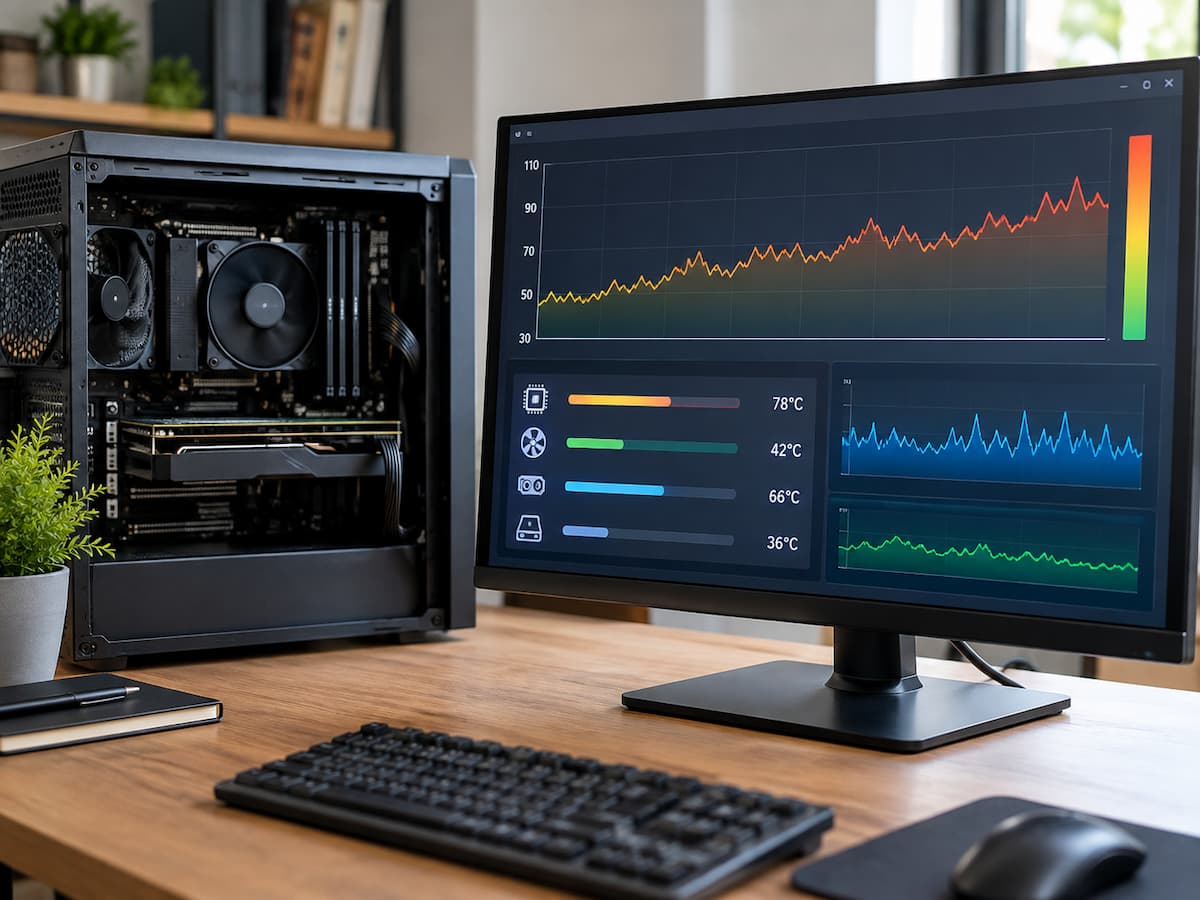
A game can run perfectly when you first launch it and then start behaving differently 30 or 60 minutes later. Frame rates may fall, movement can feel less smooth, or a game that was stable at the beginning may start showing stutters. Sometimes the problem disappears after you stop playing for a while and returns when the system gets warm again. That pattern is worth investigating.
CPU temperature can provide an important clue because heat changes as the processor works, and the cooling system may behave differently after sustained gaming. But a temperature reading by itself does not tell you why a game is slowing down. A processor can run at a high temperature without causing the particular problem you are seeing, while a seemingly reasonable temperature can appear alongside another issue. The useful approach is to compare temperature with what the CPU and game are doing at the same moment.
Start With the Timing of the Problem
Before opening a monitoring programme, pay attention to when the performance change happens. Suppose a game begins at a stable frame rate and remains smooth for the first 20 minutes. After extended play, frame-time spikes become more frequent, and the game feels less responsive. If you close the game, let the computer sit for several minutes, and then start again, the original performance returns.
That pattern does not prove overheating, but it suggests that temperature should be investigated. Now consider a different situation. The game stutters immediately after launch, even when the computer is cool. The problem does not become noticeably worse after an hour, and restarting the game makes no difference. Recording the temperature may still be useful, but it provides a weaker explanation for the timing.
This distinction matters because diagnostics work best when you compare what changed immediately before the problem appeared. A useful investigation therefore starts with a simple question:
Does the performance problem develop at roughly the same time that the CPU’s thermal behaviour changes?
Why CPU Temperature Changes During a Gaming Session
A CPU does not maintain one fixed temperature while you play. Temperature can rise when the processor handles heavier workloads, and it can fall when the workload becomes lighter. The cooling system also responds to those changes. Fans may speed up, heat may build up inside the case, and the cooler may become less effective at removing additional heat as the session continues.
Room temperature matters too. A computer operating in a cool room can behave differently from the same computer operating in a much warmer environment. The game itself also affects CPU workload. One section of a game might require relatively little CPU processing, while another area may involve more simulation, artificial intelligence, physics, background streaming, or other tasks. That means a temperature increase during gaming is not automatically a warning sign. A short rise during a demanding scene is different from a temperature that remains unusually high while the processor’s clock behaviour and game performance change at the same time.
A Spike Is Not the Same as Sustained Heat
One of the easiest mistakes in temperature monitoring is treating the highest number seen during a session as the entire story. Modern processors can change their operating behaviour very quickly. A demanding task can produce a short temperature spike, followed by a reduction when the workload changes. That can be normal behaviour for the particular processor and cooling system. A more useful question is whether the temperature stays elevated for a meaningful period and whether something else changes with it.
Imagine two monitoring results. In the first, the CPU briefly reaches a high temperature while loading a demanding area. The game remains smooth, the processor continues operating normally, and the temperature drops shortly afterward. In the second, the CPU temperature gradually rises during sustained play. Around the same time, the CPU clock behaviour changes, and frame times become noticeably worse. After the game is closed and the system cools down, the original behaviour returns.
The second pattern provides much stronger evidence that thermal behaviour deserves further investigation. It still is not proof of a cooling problem. It is simply a more useful correlation.
Establish a Baseline Before Chasing the Problem
A baseline gives you something to compare against. Start by observing the computer during a gaming session when the game is performing normally. You do not need to record every possible sensor. Focus on a few measurements that help explain the relationship between heat and performance:
- CPU temperature
- CPU utilisation
- CPU clock speed
- Frame rate
- Frame-time behaviour
The exact monitoring software is less important than consistency. Use the same monitoring method for the normal session and the session where the problem occurs. Also record roughly when the performance changes.
For example, you might notice that the game is smooth during the first half hour and begins stuttering after extended play. That timing becomes part of your evidence. A baseline does not have to be a perfect scientific measurement. Its purpose is to answer a practical question: What does normal behaviour look like on this particular computer, with this particular game and workload?
Temperature, CPU Usage, and Clock Speed Tell Different Stories
These measurements are related, but they are not interchangeable.
- CPU temperature tells you how warm the processor is at a given moment.
- CPU utilisation tells you how much of the processor’s available processing capacity is being used. A high utilisation reading does not automatically mean the CPU is overheating, and low overall utilisation does not guarantee that the CPU is irrelevant to a game problem.
- CPU clock speed describes the operating frequency of the processor. Modern CPUs can change clock behaviour depending on workload, temperature, power limits, firmware settings, and other conditions.
That is why looking at temperature alone can be misleading. Suppose temperature increases but CPU clocks remain consistent and the game’s frame times do not change. There may be no useful connection between the temperature increase and the performance complaint.
On the other hand, if temperature rises around the same time, the processor’s clock behaviour changes and the game develops longer frame times; the relationship becomes more interesting. The important word is around. A graph showing several measurements over the same period is much more informative than a single temperature number.
Frame Rate Can Hide the Problem
Average frame rate is useful, but it does not provide a complete picture Imagine a game that reports a similar average FPS before and after a 40-minute session. You might conclude that performance has not changed. Yet the game could feel less smooth because occasional frames are taking much longer to complete.
This is where frame time becomes useful. Frame time represents how long the system takes to produce an individual frame. A stable sequence of frame times generally feels smoother than a sequence containing occasional large spikes.
For a temperature investigation, this matters because the question is not simply:
“Did FPS decrease?”
It is also:
“Did frame-time behaviour change when the CPU’s thermal behaviour changed?”
If longer frame times begin appearing at roughly the same point where CPU temperature becomes sustained at a higher level, that is useful evidence to examine further. If frame-time spikes occur while CPU temperature and clock behaviour remain broadly unchanged, temperature becomes a less convincing explanation.
Why a Game Can Change After Running for a While
The delayed nature of some problems is what makes them difficult to diagnose. A desktop may begin a session with relatively cool internal components. As the game continues, the CPU and other components repeatedly produce heat. The case airflow then has to continuously remove that heat.
Dust buildup can also affect airflow over time. A cooler with restricted airflow may behave differently from a clean system. The same applies to a laptop, where cooling space is limited and the system’s design is very different from a desktop tower.
Ambient temperature can shift the entire thermal picture. A computer that behaves normally in a cooler room may have less thermal headroom on a hot day. Workload is another variable. A later game area may simply put more sustained demand on the processor than the opening area did. These possibilities can produce similar symptoms, which is why timing and comparison are more valuable than a single temperature reading.
Look for Cooling-Related Clues
Temperature becomes more suspicious when several observations point in the same direction. For example, you may notice that the problem appears after prolonged CPU-heavy gaming, temperatures remain elevated rather than briefly spiking, and CPU clock behaviour changes around the same period. You might also observe that the problem becomes more noticeable when the room is warmer.
Another useful clue is repeatability. If the same game produces normal performance when the computer starts cool, develops the same performance change after extended play, and returns to its earlier behaviour after cooling down, the pattern is worth investigating. Physical observations can add context as well. Fans that become increasingly loud during the session are not automatically a sign of failure; they may simply be responding to higher temperatures. However, unusual fan behaviour, restricted vents, heavy dust, or poor airflow can provide additional reasons to inspect the cooling system.
For desktops, case airflow and cooler installation can influence how efficiently heat leaves the system. For laptops, ventilation and the surrounding surface can matter because the cooling system has much less physical space. Do not assume that a desktop and laptop should produce the same temperature readings under similar gaming conditions. Their thermal designs, power limits, coolers, and intended operating behaviour can be very different.
Different CPUs Have Different Thermal Behaviour
There is no single temperature number that can be used to judge every processor. Different CPU models have different thermal specifications and power characteristics. Motherboard firmware can also affect how aggressively a processor uses available power, while the cooler determines how effectively that heat is transferred away. The workload matters just as much.
A processor performing a heavy sustained task is not in the same situation as one handling a short burst of activity. Ambient temperature, fan settings, case design, laptop chassis design, and other system factors all influence the result. For that reason, avoid treating an internet temperature number as a universal pass-or-fail test. A better comparison is between your system’s normal behaviour and its behaviour when the problem occurs, while also considering the specifications and design of the particular CPU.
When Temperature Looks Suspicious but Isn’t the Cause
Correlation can be misleading. A CPU temperature may rise during the same period that a game starts stuttering simply because the game workload changed. The CPU could be getting warmer because something else in the game became more demanding, rather than the temperature causing the stutter. CPU usage can also change for reasons unrelated to thermal behaviour.
For example, a background process might begin using CPU resources during your gaming session. A game launcher, operating-system task, update process, recording application, browser activity, or another program could alter CPU load. There are also situations where the graphics processor, memory, storage, drivers, or the game itself deserves attention. A temperature increase does not eliminate those possibilities.
This is why a useful diagnosis looks for several matching signals instead of selecting the most noticeable sensor. If CPU temperature rises but frame times remain stable, clocks remain consistent, and the perceived problem does not line up with the temperature change, there is little reason to treat temperature as the main explanation.
What Makes Temperature Useful Evidence?
Temperature becomes a stronger diagnostic clue when the same sequence happens repeatedly. A useful pattern might look like this:
The game starts normally. CPU temperature gradually increases during sustained play. At approximately the same time, CPU clock behaviour changes. Frame-time spikes become more frequent, and the slowdown is repeatable in another session under similar conditions. That does not prove that the CPU is overheating. It does, however, give you a clear reason to investigate the cooling system, processor behaviour, power settings, and relevant hardware information more closely. The opposite pattern is equally useful.
If the game performs poorly from the beginning, the CPU temperature stays similar throughout the session, and the slowdown does not improve after the system cools, the temperature theory loses its strength. Effective diagnostics are not only about finding evidence that supports an idea. They are also about recognising evidence that makes an idea less convincing.
When Further Investigation Is Worthwhile
Further investigation makes sense when the performance problem is repeatable and time-related. Try to reproduce the same type of gaming session under similar conditions. Watch the measurements before the slowdown, during it, and after it. If possible, note the approximate time when the change occurs rather than relying only on the maximum values recorded. Then compare the events.
- Did temperature rise first?
- Did CPU usage change?
- Did clock behaviour change?
- Did frame times become worse at the same point?
- Did the issue disappear after the system cooled?
No single answer settles the diagnosis. The value arises from their relationship. If the evidence repeatedly connects sustained thermal changes with altered CPU behaviour and worsening frame times, the cooling path deserves closer attention. If those measurements remain unrelated, it is sensible to investigate other parts of the system rather than repeatedly checking the same temperature reading.
A Better Way to Think About CPU Temperature
CPU temperature is most useful when treated as one piece of a timeline. A single number taken from a monitoring window tells you what the processor was doing at that instant. It does not explain what happened five minutes earlier or why the game suddenly became less smooth.
A timeline can. Watch the game while it is behaving normally. Record the approximate temperature, CPU load, clock behaviour, and frame-time pattern. Reproduce the problem and observe what changes. Then compare the two periods rather than judging either one in isolation.
That approach also helps separate normal thermal variation from a genuine performance clue. The goal is not to find the highest temperature your computer reached. The goal is to determine whether the processor’s thermal behaviour changes in a repeatable way at the same time as the gaming problem.
Conclusion
A gaming slowdown that appears only after extended play is worth investigating differently from a problem that exists immediately after launch. CPU temperature can help reveal whether sustained heat might be part of that pattern, but temperature should not be treated as a diagnosis by itself. The strongest evidence comes from comparisons. Establish what normal performance looks like, reproduce the slowdown, and watch temperature alongside CPU utilisation, clock behaviour, FPS, and frame times.
If those measurements change together in a repeatable pattern, cooling and thermal behaviour become reasonable areas for further investigation. If they do not, the temperature reading may simply be reflecting a change in workload rather than causing the problem.
That distinction can save a lot of unnecessary troubleshooting. Instead of asking whether a particular temperature number is “too high”, you can ask a more useful question: what changed when the game stopped behaving normally?
FAQs
1. Can CPU Temperature Cause Gaming Performance to Get Worse Over Time?
It can contribute to performance changes when sustained thermal conditions affect how the processor operates, but temperature alone does not establish the cause. Compare temperature with CPU clock behaviour and frame-time changes to determine whether the events occur together.
2. Is a Short CPU Temperature Spike a Sign of a Problem?
Not necessarily. A short spike can occur during a brief burst of processor activity. What matters more for this type of investigation is whether elevated temperature is sustained and whether a related change in CPU or game performance occurs at the same time.
3. Should Laptop CPUs Have the Same Temperatures as Desktop CPUs?
No. Laptop and desktop systems use different cooling designs, power limits, chassis layouts, and operating conditions. Their temperature behaviour should be considered in the context of the specific processor and computer rather than compared using one universal expectation.
4. Why Check Frame Time Instead of Only FPS?
FPS shows how many frames are produced over time, while frame time shows how long individual frames take. A game can maintain a similar average frame rate while developing occasional long frames that make gameplay feel less smooth.
5. What If CPU Temperature Looks Normal but the Game Still Slows Down?
A normal-looking temperature does not rule out a performance problem. If temperature, CPU clocks, and CPU load do not change when the slowdown appears, temperature becomes a weaker explanation. Other system or game factors may need to be examined instead.