
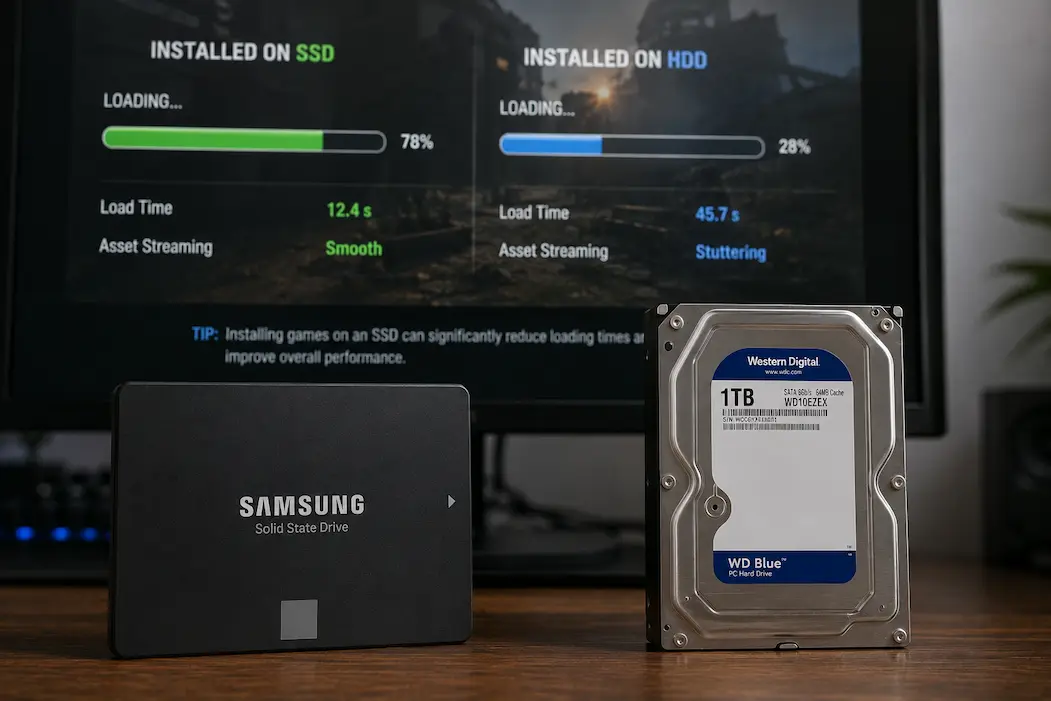
Moving a game between an SSD and a traditional hard drive can change much more than the time it takes to launch. A game may install quickly on one drive but appear to pause repeatedly on another; updates can take surprisingly long, and the download speed shown by the launcher may fluctuate even though the internet connection itself hasn’t changed. In some cases, the game runs normally after installation but takes much longer to patch or verify files.
The reason is that game installation isn’t simply a matter of downloading a large file and placing it on the drive. Modern launchers may download compressed packages, unpack them, create thousands of smaller files, verify existing data, replace modified files, and reorganize large amounts of storage. SSDs and hard drives handle those workloads very differently.
This doesn’t mean that every game needs an SSD or that a hard drive is automatically unsuitable. The difference depends on the game’s file structure, the type of installation or update being performed, the condition of the drive, and what else the computer is doing at the same time.
An Installation Has More Than One Bottleneck
A launcher can spend time downloading data, processing it, writing it to storage, and verifying what was written. Those tasks don’t necessarily happen at the same speed.
An SSD can usually handle random reads and writes much more efficiently than a mechanical hard drive. This becomes important when an installer is working with many small files or repeatedly accessing different parts of the game installation. A hard drive has to physically move its read/write heads between locations, so workloads involving scattered files can take considerably longer.
That is why a game can appear to have a fast internet connection but still install slowly. The network may finish transferring data before the storage device has finished processing and writing it.
| Installation activity | SSD | Hard drive |
|---|---|---|
| Large sequential writes | Generally fast | Usually slower |
| Many small file operations | Usually handles them well | Can become significantly slower |
| Random reads | Very fast | Mechanical seek time adds delay |
| Game verification | Usually quicker | Can take much longer |
| Large patch operations | Often faster | Can involve long periods of disk activity |
The actual difference varies by drive model and workload, but the pattern explains why installation speed doesn’t always match download speed.
Why A Hard Drive Can Make The Launcher Pause
Mechanical hard drives are built around spinning platters and moving read/write heads. When a launcher needs to access data scattered across the drive, the hardware may have to move between different physical locations repeatedly.
A modern game can contain thousands of files, and some installation or update processes can generate a large number of storage operations. Instead of continuously writing one large stream of data, the launcher may repeatedly read existing files, modify them and write the results back.
During those moments, the network graph may drop even though nothing is wrong with the internet. The launcher is simply waiting for the storage operation to finish before it can continue processing the next portion of the installation.
This is one reason an older hard drive can make a download appear inconsistent. The network isn’t necessarily slowing down; the storage side of the installation is temporarily becoming the limiting factor.
SSDs Are Especially Helpful With Random Access
The biggest advantage of an SSD isn’t simply that it has a higher maximum transfer speed. Its lack of mechanical movement gives it much lower access latency, which is valuable when software needs to read many different pieces of data.
Game launchers can perform exactly these kinds of operations during installation and updates. A launcher might need to locate existing files, compare them with downloaded data, unpack content and then write modified sections back to the drive.
On an SSD, those small operations can generally be completed with much less waiting. On a hard drive, the same workload can involve repeated physical movement.
This difference becomes more noticeable with large modern games than with a small application consisting of a handful of straightforward files.
The Type Of SSD Still Matters
Not all SSDs perform identically. SATA SSDs and NVMe SSDs both eliminate the mechanical seek behavior of hard drives, but NVMe drives can offer substantially higher throughput and lower overhead in some workloads.
For game installations, however, the difference between a hard drive and any reasonably healthy SSD is often more important than the difference between a SATA SSD and a high-end NVMe model.
In other words, you don’t necessarily need the fastest PCIe drive available just to make game installations reasonable. Moving a game from a mechanical hard drive to a decent SSD can already remove a major storage bottleneck.
The exact benefit depends on what the launcher is doing and whether another component, such as the network connection or CPU, is already limiting the process.
Download Speed And Installation Speed Are Different Measurements
A launcher can report a high download speed while the installation itself progresses slowly. This is not necessarily contradictory.
Imagine that the launcher downloads a compressed package at high speed but then has to unpack it and write the resulting files to the destination drive. During that processing stage, network activity may fall while disk activity rises.
Some launchers make this easy to see because their download graph fluctuates dramatically. Others combine downloading and installation into one progress display, making it harder to tell which stage is responsible.
If you’re trying to diagnose a slow installation, open Task Manager → Performance and watch the network and destination drive at the same time. A busy disk accompanied by low network usage is strong evidence that storage is limiting the process.
Game Updates Can Be More Storage-Intensive Than Fresh Installs
A fresh installation and a game update don’t necessarily stress the drive in the same way.
An update may need to modify large existing files instead of simply adding a collection of new ones. The launcher might download a relatively small amount of compressed data and then spend considerable time rebuilding or rewriting files already stored on the drive.
This is one reason a small update can sometimes take much longer than expected.
A hard drive can struggle particularly badly with this type of workload because the launcher may repeatedly read and write data across different locations. An SSD can generally handle the random-access component more efficiently, although a large update can still consume significant time on a fast drive.
A Nearly Full Drive Can Change The Experience
Available free space matters during installation because the launcher may need temporary working space in addition to the final size of the game.
A game advertised as requiring a certain amount of storage doesn’t necessarily mean that amount is all the launcher will need during installation or patching. Temporary files, unpacked data and replacement files can require additional capacity.
If the destination drive is almost full, installation may fail, slow down or behave unpredictably depending on how the launcher handles temporary data.
Keeping reasonable free space on the installation drive also gives the operating system and SSD controller room to perform their normal storage-management tasks. You don’t need to leave half the drive empty, but operating with only a tiny amount of free space isn’t ideal.
SSD Temperature Can Matter During Long Installations
Fast NVMe SSDs can generate substantial heat under sustained workloads. Some drives reduce their performance when temperatures rise high enough, a behavior commonly known as thermal throttling.
This isn’t usually the first thing to investigate when a game installs slowly, especially if the computer uses a basic SATA SSD. But it becomes more relevant when an NVMe drive starts very fast and then settles into a significantly lower speed during a long installation.
The important clue is the pattern. If performance drops after sustained heavy disk activity rather than being slow from the beginning, temperature may be worth checking.
You can monitor the drive using the manufacturer’s software or a reputable hardware-monitoring utility. Don’t assume that every slowdown is thermal throttling simply because the drive is an NVMe model.
Hard Drive Health Can Change Installation Performance
Two hard drives can behave very differently depending on their age and condition. A healthy mechanical drive can still be slower than an SSD, but a drive developing errors or struggling with damaged sectors can become dramatically slower.
If game installations have recently become much slower on a drive that previously behaved normally, look beyond the normal SSD-versus-HDD difference.
Unusual clicking noises, repeated retries, disappearing files, Windows disk errors or unusually high active time at very low transfer speeds are warning signs that deserve attention.
Before continuing to use a questionable drive for important game data, check its health using appropriate diagnostic software and make sure important files are backed up. Performance troubleshooting shouldn’t come at the expense of data safety.
Background Disk Activity Can Distort The Comparison
The drive may not be dedicated to the game installation. Windows could be indexing files, an antivirus application could be scanning newly created game data, or a cloud-storage application could be synchronizing other folders at the same time.
On a hard drive, competing workloads can be particularly noticeable because random access already carries a larger performance penalty.
If an installation seems unusually slow, open Task Manager and check which processes are using the destination drive. If another application is constantly reading or writing data, that activity may be contributing to the slowdown.
The comparison between SSD and HDD should ideally be made under similar conditions. Otherwise, you may attribute a slowdown to the storage technology when the actual difference is simply background activity.
Antivirus Scanning Can Add Extra Work
Game installations create a large number of new files, and security software may inspect some or all of them as they appear.
On a fast SSD, that additional activity may be difficult to notice. On a mechanical drive, repeatedly scanning newly created files can add more contention while the launcher is already reading and writing data.
This doesn’t mean you should permanently disable antivirus protection during installations. Instead, if you’re investigating a dramatic storage-related slowdown, check whether security software is generating unusually high disk activity.
Use the security software’s documented settings and avoid creating exclusions unless you understand the security implications and have a legitimate reason to do so.
Installing To An External Drive Adds Another Variable
An external hard drive can behave differently from an internal one because the connection itself becomes part of the storage path.
USB speed, cable quality, the enclosure’s controller, and other devices sharing the same USB connection can influence sustained performance. An external SSD can also perform below expectations if connected through a slower interface or a problematic hub.
If the game is installed on an external drive, check whether the drive remains consistently connected and whether Windows reports the expected connection type.
A direct connection to the computer can provide a useful comparison when troubleshooting. If the installation becomes significantly more consistent after removing a USB hub from the path, the drive itself may not have been the problem.
A Game’s File Structure is Crucial
Not all games prioritize storage performance in the same way. Some games consist of large, sequentially written files, while others contain countless small files.
For games with large, sequentially written files, the difference between a solid-state drive (SSD) and a hard disk drive (HDD) might not be noticeable during certain installation steps. However, for games that require repeated access to thousands of small files, the difference in access latency can be much more significant.
This explains why some games install without issues on HDDs, while others seem never to complete the installation process.
Check the storage requirements on the game’s store page to see how much space it occupies. The store page does not explain how the game launcher utilizes disk space efficiently during installation or upgrades.
Moving A Game From HDD To SSD Can Change More Than Loading Times
Players often choose SSDs for faster loading, but the installation and upgrade processes also run more smoothly.
When a game is stored on an SSD, the launcher can verify files faster, apply patches more quickly, and process large sets of files more efficiently. The specific performance gain depends on the game and the target drive. However, simply moving the game won’t automatically speed up the entire process; if the download server is slow, the network connection remains the bottleneck. Furthermore, if the CPU is busy decompressing data, storage speed might not be the primary bottleneck.
The real performance benefit lies in the fact that storage speed was previously the limiting factor.
How To Tell Whether The Drive Is The Bottleneck
The fastest way to troubleshoot is to observe your computer’s behavior during the installation process, rather than just watching the launcher’s progress bar.
Open Task Manager and check usage in the “Network,” “CPU,” and “Disk” areas. If network usage is low but the target disk is still heavily active, the launcher may be processing or writing data. If CPU usage is high but disk activity is low, the disk might be decompressing data.
If both CPU and disk usage are low but the download speed remains slow, storage may not be the primary bottleneck. This likely means you need to closely examine the launcher or your network connection.
A better approach is to run a test: try installing the same game—or other games of similar size—on a known-good hard drive to see if performance is linked to the storage medium.
Conclusion
Installing games on a solid-state drive (SSD) offers advantages over a hard disk drive (HDD) beyond just faster transfer speeds. Game installation involves downloading and decompressing files, reading existing files, adding new data, verifying files, and repeatedly accessing various parts of the storage medium.
This workload is highly beneficial for SSDs, as their extremely low access latency minimizes the overhead associated with these distributed storage operations. While HDDs are still perfectly suitable for storing games, their performance limitations become more apparent when the launcher needs to perform a large number of small or random operations. If the installation is proceeding slowly, check network, CPU, and disk activity simultaneously. A heavily utilized hard drive on a low-traffic network is a very different scenario from a slow network connection paired with a properly functioning hard drive.
Troubleshooting is crucial here. Do not simply assume that SSDs are faster or that the HDD is faulty. Identify the actual bottleneck in the installation process. Understanding whether the bottleneck lies in storage, processing, or downloading makes it easier to explain the differences between the two drives.