
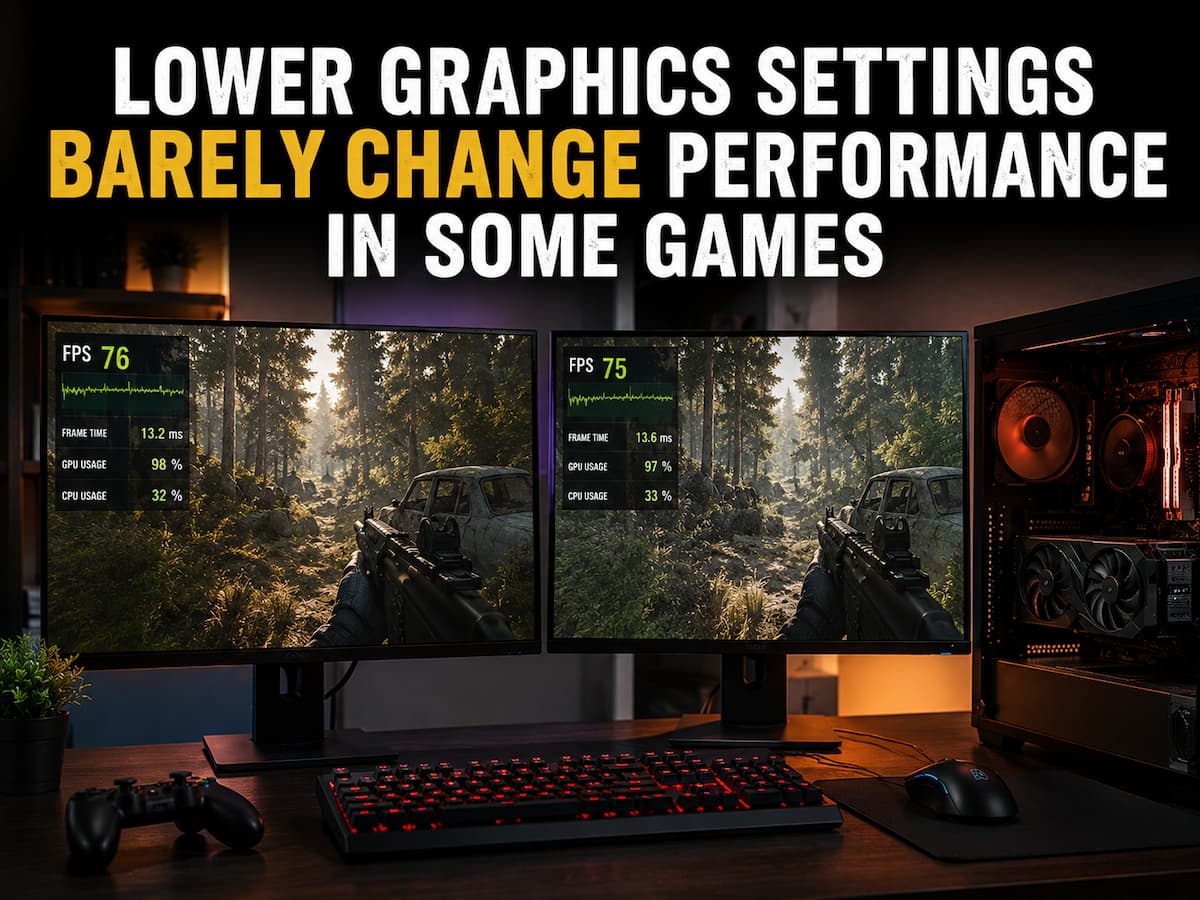
Most players start by lowering graphics settings when a game is operating poorly. Reduce the visual workload, giving the graphics card less to render, and FPS should rise. Occasionally, that happens. After decreasing resolution, shadows, reflections, and other demanding elements, a 45 FPS Ultra game may reach 80 FPS. Sometimes the difference is quite tiny in other games. From Ultra to Low, you can lower resolution, disable effects, and gain a few frames per second. These changes may make the graphics settings seem inactive, but the graphics card was not the major issue. Games are more complicated than GPU-only processes. The CPU, game engine, memory, storage, graphics driver, and GPU prepare and display frames. Making the image less demanding may barely affect the frame rate if one of those steps is restricting.
Graphics Settings Only Improve FPS
The most crucial point is that lowering graphics quality does not speed up the entire game. Graphics settings mostly minimize rendering labor, such as processing more pixels, calculating lighting, drawing precise shadows, handling reflections, and adding visual effects. Reducing GPU workload when it’s already overworked can boost FPS. Lowering graphics settings offers the GPU additional idle time if it renders each frame rapidly and then waits for the CPU or another system component. Imagine a game with a CPU that can prepare 90 frames per second in a challenging scene. At high settings, the GPU may render 85 FPS, so decreasing graphics quality may boost performance to 90 FPS. The GPU may be able to do more after that, but the system is still only providing 90 FPS. Despite a large GPU workload change, Low and Ultra settings yield practically equal frame rates. This may not be a game or graphics card issue. It means the performance limit has moved.
A CPU Bottleneck Can Keep FPS Nearly Identical Across Different Settings
For various reasons, the CPU can limit game performance, which is why decreasing graphical settings scarcely increases FPS. The processor does more than start games. It may handle AI, physics, animations, player input, object placements, world simulation, networking, audio, and rendering instructions, depending on the title. In quiet indoor areas, the CPU may have less work, letting the GPU choose the frame rate. In a busy metropolis, a massive multiplayer match, or a complicated setting with characters and objects, CPU demand might rise drastically. AI processing and game object management do not decrease with lower resolution. The FPS may remain practically unchanged even when the graphics card is generating a simpler image. Overall CPU use may not reflect 100%, which can be confusing. A game may depend on one or more processing threads; thus, one may be near its limit while other CPU cores are less busy. Seeing only the total CPU % can hide CPU-side performance limits.
Resolution Changes Can Show If GPU Is Slowing Performance.
A simple method to investigate this issue is to compare performance at very different resolutions. Resolution directly impacts the number of pixels the GPU must compute, so a large reduction can indicate the bottleneck. If a game plays at 55 FPS at 4K, 85 at 1440p, and 120 at 1080p, the GPU is certainly limiting performance. Reducing graphics workload boosts frame rate. Alternatively, picture a game running at 78 FPS at 1440p and 82 FPS at 1080p, then maintaining 83 FPS at a lower resolution. Although the GPU burden has decreased, the frame rate has hit a limit that another portion of the system cannot surpass. This does not prove that the CPU is always the issue, but it strongly shows that GPU work reduction no longer boosts performance. In another game or in a different part of the same game, the same computer may behave differently. PC performance bottlenecks are not permanent designations. They vary by workload, game engine, scene, and settings.
Some Graphics Settings are Easier than They Sound
Not every High, Ultra, Medium, or Low setting improves performance, which is another reason gamers sometimes experience little gain. The visual labels of a game’s options menu don’t indicate how much labor each choice adds. Texture quality can considerably increase VRAM requirements without drastically changing FPS, especially if the graphics card has enough memory. Lowering textures from Ultra to Medium may change memory usage but boost frame rate slightly. In other games, other settings may be more demanding. Resolution, ray tracing, reflections, volumetric effects, shadow quality, and some anti-aliasing methods may strain the GPU. Even then, engine performance varies. Due to changes in rendering technology and scenario design, a 20 FPS setting may not matter in another game. Setting all options to low is inefficient for game optimization. You may sacrifice image quality by reducing settings that slightly affect performance while ignoring those that use many resources.
The Game Engine May Limit GPU Performance Before Its Full Potential
Visual settings cannot significantly reduce demands in some games. Large simulations, sophisticated physics, elaborate AI systems, high object counts, draw-call overhead, and world management can all set boundaries independent of image quality. A strategy match with thousands of active units may become CPU-limited. When processing many people and things at once, a huge multiplayer game may struggle. Open-world games may use a lot of CPU to manage traffic, characters, and environments. Lowering shadows or resolution can make the image easier for the GPU to render, but it may not lessen game simulation work. The FPS remains consistent between graphical presets. This phenomenon may also explain why strong graphics cards occasionally use little power. The GPU can produce more frames, but the game engine cannot prepare fresh work quickly enough to keep it busy. When possible, reduce CPU-heavy settings, minimize background activity, alter game-specific variables, or accept that a game engine has a practical performance ceiling on the current hardware.
Frame Rate Limits Can Hide Performance Gains
Consider whether a game is purposely limiting FPS before believing it’s CPU-limited. An in-game frame limiter can keep the game at a target even if the hardware can produce more frames. V-Sync can also alter frame presentation depending on the display’s refresh behavior, and graphics driver settings or external software may limit it. Due to the system’s ability to maintain the cap, a game runs at 60 FPS on high settings and at 60 FPS when every graphic level is dropped. This is a basic but sometimes overlooked circumstance. Unused hardware performance may have increased, but the FPS counter won’t show it. Similar issues can occur at 120, 144, or other frame-rate levels. If the frame rate stays close to one number despite considerable resolution and graphics quality changes, verify the game’s FPS limiter, synchronization settings, driver controls, and any external frame rate management applications. A constant number does not necessarily indicate a bottleneck. Sometimes the system only follows the configured performance limit.
Memory, VRAM, and Asset Streaming Can Cause Issues
Performance issues aren’t always FPS-related. Some games run smoothly most of the time but drop or stutter while accessing new sections, turning to new map areas, or triggering events. These issues may involve asset streaming, memory management, shader preparation, storage, or CPU work that lowering graphical quality cannot solve. An open-world game may load fresh graphics, models, sounds, and environmental data as the player advances. Even if the graphics card can render the scene quickly, frame time can increase if the game fails to prepare that information. Lowering texture quality may help if VRAM utilization is causing pressure, but reducing resolution may not assist if the disruption is elsewhere. The problem pattern matters. If a game stays at 60 FPS, debugging is different than if it runs at 120 FPS but drops to 35 FPS when entering a new area. Both circumstances include low performance, although they may have different causes or solutions.
GPU Usage Can Drop After Lowering Settings
Lowering graphical settings reduces GPU consumption but barely improves FPS, which can be confusing. Such a drop. Such a drop may indicate that the graphics card is functioning better, but it may not. At higher settings, the GPU may render every frame at full capacity. Once parameters are decreased, it can do graphical work faster. If another portion of the system limits the game, the GPU waits longer for the next frame. Its utilization percentage drops while its FPS stays steady. For instance, a game may operate at 95 FPS with 98% GPU utilization on high settings. After decreasing graphics settings, the GPU may use 65 percent and the frame rate 100 FPS. Graphics card performance was unaffected. Instead, the bottleneck moved. The GPU has spare capacity, but the CPU or pipeline is preventing the game from producing more frames. This is why 100% GPU utilization should not always be the goal. The key is whether the game has the frame rate and smoothness you need, and if not, which system component is limiting it.
Background Activity May Cause Performance Issues
A game does not control the computer alone. OS, browser tabs, recording, streaming, cloud synchronization, overlays, hardware utilities, security, and background updates may take system resources. Most current systems can handle several of these tasks without much trouble. Background activity becomes more important when a game nears a CPU, memory, or storage limit. A process with minimal visible consequence may cause frame-time spikes or lower game performance. Such scenarios can make graphics settings seem ineffectual because the true constraint is not graphical burden. The problem is more likely to occur if the game performs similarly on Low and High settings but improves after you close a particular application. Individually testing modifications works best. Closing all background apps may boost efficiency, but it doesn’t indicate which one caused it. A more controlled technique lets you repeat a game scenario, modify one variable, and compare the results without confusion.
Try the Performance Limit Instead of Randomly Changing Settings
When lowering graphics settings has only a minimal effect on FPS, don’t keep lowering quality until the game looks noticeably worse. Try testing the system repeatedly. Select an area with consistent performance issues and record frame rate, GPU use, and frame-time behavior. Reduce the resolution drastically instead of somewhat. If FPS spikes, the GPU is certainly a factor. If GPU utilization drops but frame rate scarcely changes, examine CPU behavior, frame-rate constraints, memory pressure, background processes, and game-specific demands. It helps to compare game performance across sectors. A crowded area may be CPU-limited since the game must process more objects and simulation activities, while a quiet place may be GPU-limited. If stuttering only occurs when entering new areas, consider asset streaming or another temporary workload. Changing one variable at a time simplifies interpretation. Randomly changing resolution, graphics settings, driver parameters, power modes, and background apps may boost performance, but you won’t know why.
Your Bottleneck Determines the Best Graphics Settings.
No graphics preset works best on all computers. Game limitations at the time of the problem determine the right changes. Reducing resolution or expensive rendering features might boost performance when the GPU is the bottleneck. When the CPU is slowing performance, decreasing graphical settings may not help, but CPU-heavy gaming choices or background workloads may. Low settings and greater average FPS do not always fix frame-time spikes caused by streaming or memory behavior. Stable, sustainable performance targets can avoid excessive fluctuations and prevent the system from continually functioning at its limit, making frame-rate caps advantageous in some cases. Thus, reducing every setting should not be the goal. It should be to determine which parameters meaningfully affect your system’s workload and maintain visual quality where cutting it doesn’t improve performance.
Conclusion
If decreasing graphics settings scarcely affects performance, your graphics card may not be faulty or the game settings broken. The GPU was rarely the main reason the game couldn’t deliver extra fps. When you reduce the graphics workload, another constraint becomes apparent. The CPU may be unable to prepare frames quicker, a game thread may be slowing performance, the engine or simulation workload may limit the game, memory or streaming behavior may be interfering, or an FPS cap may be controlling the final frame rate.
The best test is a big GPU workload reduction and careful monitoring of what happens subsequently. If resolution drops significantly, FPS scarcely moves, and GPU utilization lowers, stop focusing on graphics quality. Instead, examine the performance chain. Track frame times, CPU behavior, memory consumption, synchronization settings, and performance-changing situations. Games can only run as quickly as their slowest required stage; therefore, making the graphics card’s job easier won’t resolve other issues. Understanding that distinction reduces image quality loss and improves performance debugging.
FAQs
1. Why do I achieve virtually the same frame rate at low and ultra-high graphics settings?
This usually means that the graphics card is not the primary performance limiter. The CPU, specific game threads, frame rate limits, engine behavior, memory activity, or other system components can limit game performance. GPU load can vary significantly, but the final frame rate remains virtually constant.
2. Why does lowering the resolution barely improve the frame rate?
Lowering the resolution primarily reduces the rendering load on the GPU. If the GPU is already waiting for a response from the CPU or other system components, reducing the number of pixels will not yield a significant performance improvement. Significantly lowering the resolution with virtually no increase in frame rate usually indicates that the performance limiter is likely primarily caused by something other than the GPU.
3. Can a CPU bottleneck occur when CPU usage is below 100%?
Yes. Overall CPU usage does not always reflect whether a specific major game thread has reached its performance limit. A game can rely heavily on one or more CPU threads, while other cores are relatively inactive. This can cause a performance bottleneck related to the CPU, even if overall usage appears low.
4. Why does GPU usage drop when I lower graphics settings?
The GPU may simply be completing its work faster and then waiting for the CPU or other game components to prepare for the next frame. If GPU usage drops but the framerate barely improves, the bottleneck may have shifted from the graphics card to other components.
5. Do I always have to lower graphics settings to improve the framerate?
No. Lowering graphics settings is most effective if the GPU is the performance bottleneck. If the game is being limited by the CPU, the framerate is being throttled, resource streaming is stuttering, or there are other bottlenecks, lowering graphics quality may have little effect.
6. Can throttling the framerate make graphics settings seem ineffective?
Yes. If the game’s framerate is throttled to a certain value, lowering graphics settings can yield extra unused performance without increasing the value displayed by the framerate counter. Check the in-game framerate limiter, synchronization settings, graphics card driver settings, and any third-party software that might be limiting the framerate.