
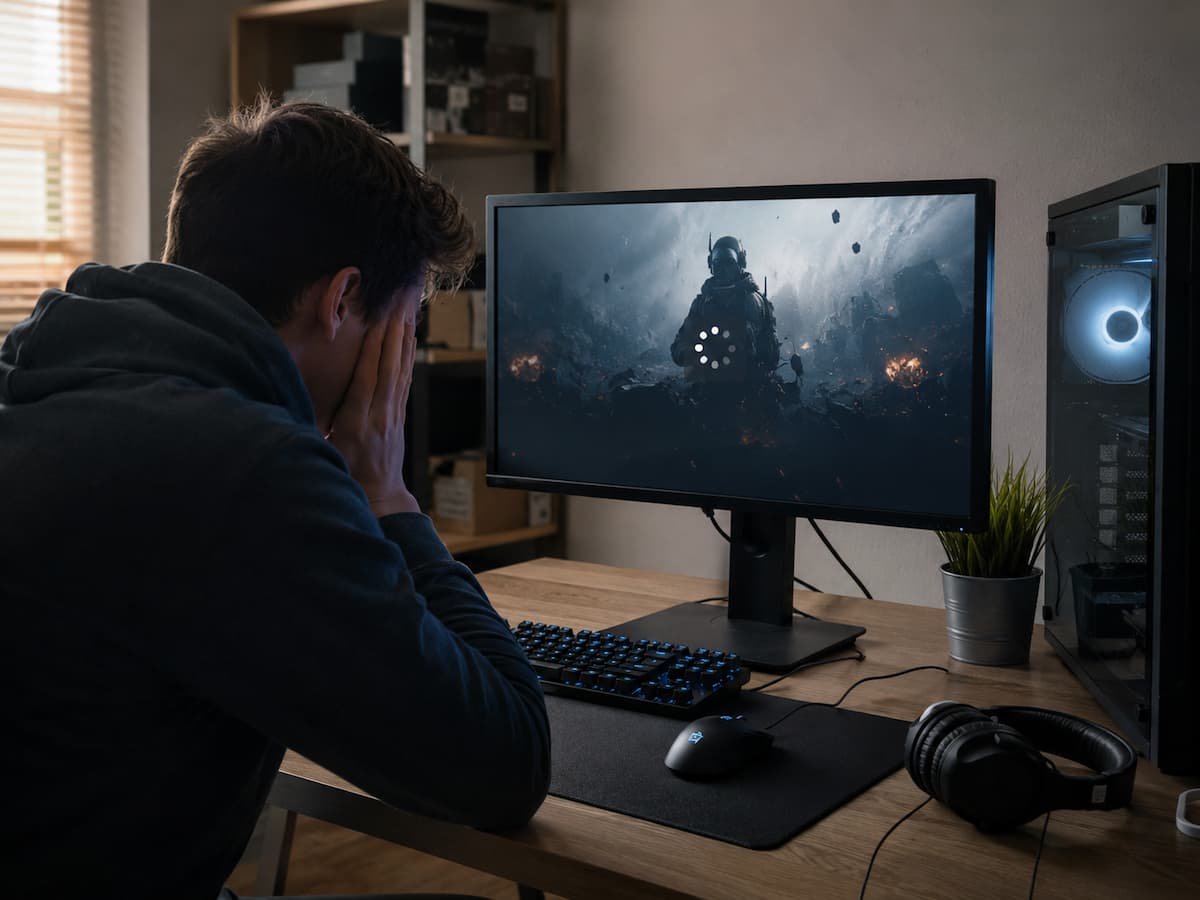
What the Game Is Doing Before the Main Menu
A game does much more than display its first screen when you click its shortcut. The executable has to initialize multiple systems before it becomes ready for normal interaction. Depending on the game, the startup process may involve loading configuration files, initializing the graphics API, detecting the GPU, creating a rendering device, loading shaders, initializing audio, connecting to online services, loading anti-cheat components, checking downloadable content, and preparing user-specific settings.
That means a crash before the main menu does not automatically point to one particular component. The moment when the crash occurs can still narrow the search.
| Where the Crash Happens | Possible Area to Investigate |
|---|---|
| Immediately after clicking Play | Launcher, permissions, dependencies, security software |
| After a publisher logo | Game initialization or configuration |
| During shader compilation | Graphics driver, shader cache, game files |
| When audio begins | Audio driver or device configuration |
| When connecting online | Network service, account, launcher, anti-cheat |
| After changing graphics settings | Configuration or unsupported display settings |
This is why “the game crashes on startup” is not quite enough information. Try to notice exactly what appears on the screen before the crash.
Start by Identifying the Exact Crash Pattern
Before changing anything, launch the game once and observe it carefully. Do not immediately reinstall it. The goal is to establish what is actually happening.
- Does the launcher remain open?
- Does the game create a separate window?
- Does the screen briefly turn black?
- Does the game freeze before closing?
- Does it show a logo? Does it reach a loading screen?
- Does the crash happen only after several seconds?
These details can separate unrelated problems that look identical from a distance. For example, a game that crashes instantly after pressing Play may have a launcher or permission issue. A game that reaches a graphics splash screen before crashing gives more reason to investigate the graphics driver and configuration. A game that reaches an online login stage points toward a different group of possibilities.
Tip: Write down the last visible screen before the crash. It is one of the simplest pieces of troubleshooting information and is surprisingly easy to forget later.
Check for Damaged or Incomplete Game Files
Many ordinary reasons can damage game files. An interrupted update, failed download, storage problem, unexpected shutdown, or incomplete installation can leave a game with files that appear to exist but cannot be used correctly. This can be particularly confusing because the launcher may still recognize the game as installed. The presence of the files does not prove that all of them are healthy.
Most major PC game platforms provide some form of file verification or repair feature. Use the platform’s built-in verification option before attempting a complete reinstall. The repair process may compare installed files against the expected version and replace missing or damaged components. Depending on the platform and game, it may also detect files that have been modified.
Why Verification Should Come Early
File verification is relatively simple and does not require you to change Windows settings, drivers, or security configuration. If it encounters a problem, you have a clear explanation for at least part of the crash. If verification reports everything is fine, that information is also useful. You can move on to other causes instead of repeatedly reinstalling the same game.
Graphics Drivers Can Fail During Initialization
A game can crash before displaying its main menu because it is still initializing the graphics system. During startup, the game may detect the GPU, select a graphics API, create a rendering device, compile or load shaders, and prepare the first rendered scenes. If the graphics driver or the game’s graphics configuration has a compatibility problem, the crash can happen before ordinary gameplay begins.
This is especially worth considering if the problem started immediately after a graphics driver update, Windows update, game patch, or GPU change. However, updating the driver blindly is not always the best first move. If the game worked correctly with an older driver and began crashing immediately after an update, the new driver itself may be part of the problem.
Questions to Ask
- Did the crash begin after a GPU driver update?
- Did you recently replace or upgrade the graphics card?
- Does another game using the same graphics API crash?
- Did the game’s graphics settings change before the problem appeared?
- Does the crash disappear after resetting the game’s graphics configuration?
Looking at the timing can be more useful than automatically assuming that the newest driver must be better.
A Broken Configuration File Can Stop Startup
One of the most overlooked causes is a problematic configuration file. Games often store graphics options, display modes, controller settings, audio preferences, shader information, and other data outside the main installation folder. If one of those settings becomes invalid, the game may repeatedly attempt to start with a configuration it can no longer handle correctly. A common example is changing the resolution, refresh rate, display mode, or graphics option and then discovering that the game crashes every time it starts. In this situation, reinstalling the entire game may not help because the problematic configuration file can remain in the user’s profile or another separate location.
Warning: Before deleting configuration files, verify whether the game stores important key bindings, save data, or other personal settings in the same location. Make a backup first.
Look for the game’s official reset or safe-mode option if one exists. Some games provide startup parameters specifically for recovering from invalid graphics settings. If the developer documents a configuration reset procedure, follow that method instead of deleting random folders.
Overlays and Monitoring Tools Can Interfere
Gaming PCs often run several programs that interact with games. These include performance monitors, chat overlays, recording software, GPU utilities, RGB applications, controller software, and launcher overlays. Most of these tools work perfectly well most of the time, but they can still cause problems. The problem is that a game update can change how it interacts with an overlay or graphics API. A previously stable combination can therefore become unstable after an update.
If the game crashes before reaching the main menu, temporarily disable optional overlays and monitoring features. This is a diagnostic test, not a recommendation to permanently remove useful software. Pay particular attention to software that injects an overlay into the game window or monitors graphics activity.
| Software Type | Why Test It |
|---|---|
| Game launcher overlay | Can interact with rendering or input |
| Performance overlay | Hooks into graphics monitoring |
| Screen recorder | Uses capture and encoding resources |
| Chat overlay | Can interact with the game window |
| RGB or hardware utility | May interact with drivers or system services |
If disabling one tool allows the game to reach the menu, you have found a strong lead.
Missing or Damaged Software Dependencies
Games sometimes depend on components that are not obvious from the game’s installation folder. These can include Microsoft runtime libraries, graphics components, audio components, anti-cheat software, launcher services, or other supporting packages. A missing dependency does not always produce a helpful message. Some applications simply close when an expected component cannot initialize correctly.
This is one reason you should use the game’s official installation or repair mechanism whenever possible. If the game provides installers for required runtime components, use those rather than downloading random copies from third-party websites. The same principle applies to anti-cheat software. If the game uses a separate anti-cheat component and its installation becomes damaged, repairing or reinstalling that component through the game’s supported process can be more appropriate than reinstalling Windows or changing unrelated settings.
Security Software and Permission Problems
Security software can occasionally interfere with a game when it monitors files, blocks an executable, or prevents a component from accessing a location it considers suspicious. Windows and third-party security products protect the system, so you should not permanently disable protection whenever a game crashes. Instead, determine whether the security software recorded a block or warning around the same time as the failure.
Windows Security provides protection history that can help identify blocked or quarantined items. If you find a legitimate game component being blocked, use the security product’s supported method for reviewing or restoring it. Permissions can create similar symptoms. A game installed in a location with unusual access restrictions may behave differently from one installed normally. Avoid routinely running every game as administrator. Administrative access changes the security context and should be used only when there is a specific reason. Look for evidence of a blocked file before changing security settings. Do not weaken system protection based only on a guess.
Connected Hardware and Peripheral Software
A game can also crash while initializing hardware. Controllers, racing wheels, headsets, microphones, capture devices, USB adapters, and specialized input software can all introduce additional drivers and services. This becomes more interesting when the crash starts after connecting or updating a peripheral.
You can perform a simple isolation test by disconnecting non-essential USB devices and launching the game again. Do not disconnect hardware that the system requires to operate. The purpose is to temporarily reduce the number of variables. If the game starts normally, reconnect devices one at a time. This approach is much more useful than disconnecting everything permanently because it helps identify which device or software component is involved.
RAM, Virtual Memory, and Resource Problems
A game that crashes during startup may also be running into a system resource problem. This does not necessarily mean the PC has too little RAM. Other applications can consume memory in the background, while a game may require a large amount of memory during initialization. Browsers, creative applications, virtual machines, recording software, and development tools can all remain active without appearing related to the game.
Examine Task Manager before launching the game. Look at memory usage and the applications currently running. If the system is already under heavy memory pressure, please close any unnecessary programs and test again. Virtual memory also plays an important role in Windows memory management. Avoid disabling the page file simply because a gaming guide claims that physical RAM makes it unnecessary. Windows uses virtual memory as part of its normal memory-management system. If the game crashes only when many applications are open, resource pressure becomes a stronger possibility.
Use Crash Reports Instead of Guessing
When a game repeatedly crashes without an obvious message, Windows may still record information about the failure. Event Viewer, Reliability Monitor, game-specific logs, launcher logs, and crash dump files can sometimes provide clues. Reliability Monitor is particularly useful for beginners because it presents application failures along a timeline. If the game started crashing after another program, driver, or Windows component changed, the timeline can help reveal that relationship.
Look for the exact time of the crash and note the application name, faulting module, or error information when available. Do not assume that the first file name you see is automatically the root cause. A faulting module can be a component where the failure became visible rather than the original reason it happened.
Useful Evidence to Collect
- Exact time of the crash
- Last screen visible before closing
- Recent game updates
- Recent driver updates
- Windows updates installed around the same time
- Recent hardware or peripheral changes
- Crash error codes
- Faulting module information
- Game and launcher log files
Good troubleshooting is largely about collecting evidence. The more accurately you can describe what changed and when the crash happens, the fewer random fixes you need to try.
A Better Troubleshooting Order
Instead of trying every possible fix, work from the safest and simplest changes toward more advanced ones.
- Restart the PC. This removes temporary software states and pending operations.
- Check the game platform for file verification or repair.
- Launch the game without optional overlays.
- Close unnecessary background applications.
- Reset problematic graphics or configuration settings.
- Check Windows Security protection history.
- Check Reliability Monitor or Event Viewer for the crash.
- Review recent GPU driver or Windows changes.
- Test with unnecessary peripherals disconnected.
- Repair supported runtime or anti-cheat components.
- Reinstall the game only after simpler causes have been tested.
This order matters. There is little value in spending an hour reinstalling a game if a corrupted configuration file is the real problem.
When the Basic Fixes Do Not Work
If the game still crashes before the menu after basic troubleshooting, start searching for patterns across other games and applications. If several games crash during graphics initialization, the issue may be broader than one game. Investigate the graphics driver, GPU stability, Windows installation, temperatures, power delivery, and other system-level factors.
If only one game crashes, the problem is more likely to involve that game’s files, configuration, dependencies, launcher, anti-cheat system, or compatibility with a specific feature. Testing another user account can sometimes help identify whether a problem is tied to user-specific configuration. This should be treated as a diagnostic test rather than a permanent solution.
Likewise, a clean boot can help identify whether a third-party startup application or service is interfering with the game. Microsoft provides supported documentation for performing a clean boot in Windows. Advanced troubleshooting should be performed methodically. Changing drivers, registry settings, services, and security controls simultaneously makes it almost impossible to determine what actually fixed the problem.
Troubleshooting Mistakes That Waste Time
The most common mistake is reinstalling the game immediately. A reinstall can replace damaged installation files, but it may not remove user configuration, solve a driver problem, fix an overlay conflict, or repair a Windows dependency.
Another mistake is downloading DLL files from random websites. If Windows reports a missing component, identify the software package that legitimately provides it and install or repair that package through a trusted source.
Running every game as administrator is another popular but poor troubleshooting habit. It can hide permission problems temporarily while introducing a different security context. Use administrative privileges only when a documented requirement or clear diagnostic result supports doing so.
It is also easy to make too many changes at once. Updating the driver, deleting configuration files, disabling antivirus protection, changing compatibility modes, and reinstalling the game in one session may eventually make the game work, but you will not know why. A better approach is slower but much more reliable: change one meaningful variable, test the game, record the result, and continue from there.
Conclusion
If the game freezes after the opening animation, it means the software loads but freezes during initialization. This narrows down the search and limits the possible causes to a few, even if no definitive cause can be found. Start with evidence, not guesswork. First, identify the specific point where things go wrong. Check the game files, check recent updates, test optional overlays, check configuration settings, and check for security/dependency issues. If these methods do not work, Windows Reliability Monitor, Event Viewer, and game logs can provide additional information.
The best approach to troubleshooting is step-by-step. Change one setting at a time, test the game, and record the results. Avoid randomly downloading DLL files, unnecessarily using administrator privileges, arbitrarily disabling services, and repeatedly reinstalling all software without understanding the problem.
Once you have determined whether the crash occurs in a single game or in multiple applications, the search becomes much simpler. When only one game freezes, the software environment of that game is likely where the problem lies. If multiple games freeze, you should perform a more thorough check of the drivers, the Windows system, the hardware, and system stability. The goal is not just to restart the game. By understanding why a game won’t start, you can identify and resolve the same problem more easily next time.