
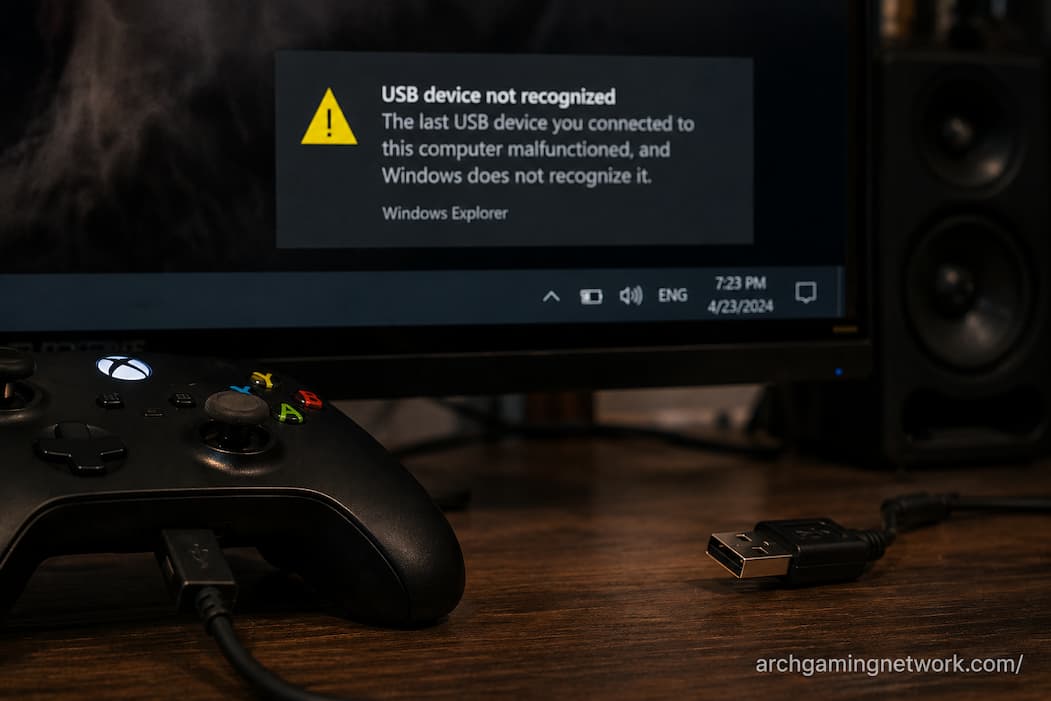
A gaming controller can suddenly stop responding, disconnect during a match, or behave as though one of its buttons has failed. The natural reaction is to suspect the controller itself, especially when the problem appears repeatedly. But USB problems can produce remarkably similar symptoms. A controller may be perfectly healthy while the connection between it and the computer is briefly dropping, resetting, or failing to provide stable communication.
This distinction matters because replacing the controller won’t solve a faulty USB port, damaged cable, unstable hub, or power-management issue. The same controller might work normally when connected to a different port or with another cable, which immediately changes the direction of the investigation.
USB problems can also be intermittent, making them harder to identify. A controller may work for an hour before disconnecting once, then reconnect immediately and appear completely normal. That doesn’t mean the earlier failure was imaginary. An unstable physical connection can recover before you have time to investigate it.
The First Test Is A Different USB Port
When a controller starts behaving strangely, moving it to another USB port is one of the simplest useful tests. Don’t just unplug and reconnect it to the same port, because that doesn’t tell you whether the original port is involved.
Try a different port directly on the computer and then use the controller under the same conditions. On a desktop PC, comparing a rear motherboard port with a front-panel port can be particularly informative because they may be connected through different internal wiring or controllers.
If the controller becomes reliable immediately after changing ports, don’t conclude that the controller is faulty. The original port, its physical connection, or the way that particular USB controller handles the device may be contributing to the problem.
What A Port Comparison Can Tell You
| Result | More likely explanation |
|---|---|
| Controller fails on one port but works elsewhere | Port or port-specific connection issue |
| Controller fails on every port | Cable, controller, driver, or broader USB problem |
| Front ports fail but rear ports work | Front-panel connection or wiring |
| Controller works directly but not through a hub | Hub, power, or hub compatibility |
| Several USB devices disconnect | Broader USB or system issue |
This simple comparison can eliminate several possibilities before you start changing drivers or controller settings.
The USB Cable Can Be The Weak Link
A USB cable can look completely normal and still cause intermittent controller problems. Internal conductors can become damaged from repeated bending, twisting, or pulling, particularly near the connector where the cable experiences the most movement.
The symptoms can be confusing because the controller may continue receiving power while data communication becomes unreliable. LEDs can remain illuminated, and Windows may briefly continue showing the device even though button inputs stop working.
If the controller uses a detachable USB cable, test it with another known-good data-capable cable. This last point matters because some USB cables are designed primarily for charging and may not provide the data connection required by a controller.
Don’t judge a replacement cable solely by whether it physically fits. USB connectors can be mechanically compatible while the cable itself differs in capability.
A Controller Can Receive Power Without Sending Reliable Data
One of the easiest assumptions to make is that a controller must have a good USB connection because its lights are on. Power and data are related but not identical parts of the USB connection.
A damaged cable or unstable connection can provide enough power for the controller’s LEDs while the data link repeatedly fails. From the player’s perspective, this can look like the controller has frozen.
If the controller remains illuminated but stops responding in games, test whether Windows still recognizes it at the same time. If Windows also loses the device, investigate the USB connection rather than focusing immediately on game configuration.
This is especially useful when the controller reconnects by itself a few seconds later. Automatic recovery is a strong clue that the connection was interrupted rather than that a physical button suddenly stopped working.
USB Hubs Add Another Point Of Failure
Connecting a controller through a USB hub can be convenient, particularly when a desktop has limited accessible ports. However, the hub becomes another component between the controller and the computer.
A hub can introduce problems related to power availability, compatibility, cable quality, or its own connection to the PC. Not every issue is caused by insufficient power, either. A hub can simply behave differently from a direct motherboard connection under certain workloads.
For troubleshooting, connect the controller directly to the computer rather than through the hub. Keep the same controller and cable and test the same game.
If the problem disappears, you’ve narrowed the issue considerably. The controller itself is less suspicious, while the hub, its cable, its power arrangement, or its interaction with the USB controller becomes more relevant.
Front-Panel USB Ports Can Behave Differently
Desktop cases commonly provide USB ports on the front or top panel, but those ports rely on internal cables connecting them to the motherboard.
A loose internal connection, damaged front-panel cable, or port-specific problem can therefore affect the front ports without affecting the rear motherboard ports.
If a controller disconnects only when connected to a front-panel port, test a rear USB port. If the rear connection remains stable over several gaming sessions, the front-panel connection deserves attention.
This is another reason not to replace the controller immediately. A controller that works perfectly through a rear port but repeatedly disconnects through one front port is providing strong evidence against a general controller failure.
Windows Can Temporarily Reset A USB Device
A USB device can disappear and reappear in Windows when its connection is interrupted or its device stack is reset. From a game player’s perspective, that can look like a controller failure because the game suddenly stops receiving input.
The game may not recover gracefully even after Windows reconnects the controller. Some games detect the controller only during startup or don’t handle a device disappearing and returning particularly well.
If the controller works again after restarting the game, that doesn’t necessarily mean the game caused the original problem. The USB connection may have briefly disappeared first, leaving the game in an unexpected input state.
Watching whether Windows makes the familiar device-disconnect sound when the controller stops responding can provide another useful clue.
Power Management Can Affect USB Behavior
Windows includes power-management features intended to reduce unnecessary power consumption. Depending on the hardware and configuration, USB devices or hubs may be affected by these settings.
This becomes more interesting when the controller works normally during active play but disconnects after periods of inactivity, when the computer wakes from sleep, or under particular power states.
If the symptom follows a repeatable power-related pattern, inspect the relevant USB device and power-management settings rather than changing unrelated Windows options.
Don’t disable every USB power-saving feature simply because the controller disconnected once. The goal is to identify whether power management actually matches the symptom before making a permanent configuration change.
Several USB Devices Failing Together Changes The Diagnosis
If your controller is the only device that disconnects, the controller, cable or its specific USB connection deserves attention.
If your keyboard, mouse, external storage and controller are all occasionally disappearing, the problem is probably broader.
Multiple devices failing together can point toward a USB controller issue, motherboard problem, unstable hub, driver problem or power-related condition. The exact cause depends on the pattern.
For example, if every device connected through one hub fails while devices connected directly to the motherboard remain stable, the hub becomes a strong suspect. If devices across different USB ports fail simultaneously, the investigation should move further toward the system level.
Check Whether The Controller Appears In Windows
When the controller stops working, check whether Windows still sees it. This can be more informative than immediately reopening the game.
If Windows continues to recognize the controller and input-testing software still sees button presses, the problem may be inside the game or its input layer. If the controller disappears from Windows at exactly the moment the inputs stop, the USB connection becomes much more suspicious.
This distinction is particularly useful for intermittent failures because it tells you whether the device actually left the operating system or whether the game simply stopped processing its inputs.
A Useful Three-Way Test
Try the controller in three situations:
- Windows detects it and receives input: investigate the game or input software.
- Windows detects it but input stops: investigate the controller, cable, and USB communication.
- Windows loses the device entirely: investigate the USB connection, port, hub, driver, or power behavior.
The test doesn’t identify the exact faulty component by itself, but it tells you which layer deserves attention.
USB Selective Suspend Is Not Automatically The Culprit
People often attribute controller issues to USB power-saving features, but this shouldn’t be the first thing you check.
If the controller disconnects only after a period of inactivity, there is likely a power management issue. If the controller disconnects randomly during gameplay when the cable or port is physically stressed, the physical connections require further investigation.
Similarly, if the controller works in one port but not another, you do not need to change system-level power settings until you have identified the difference between the two ports.
While identifying possible causes is part of troubleshooting, it is often more effective to list some common solutions found online.
Physical Movement May Indicate a Poor Connection
Controller cables often move during gameplay. Gently pulling, twisting, or squeezing the cable near the connector can reveal a poor connection.
If the controller disconnects when you move the cable near the connector, do not use that cable for gaming. Repeated movement can worsen the situation.
Do not intentionally pull or bend the cable to reproduce the issue. If the controller loses connection during normal movement, that in itself is a useful clue.
A sound cable should not force the player to hold the controller at a specific angle to maintain the connection.
Test the Same Controller on Another Computer
Connecting the controller to another computer helps determine whether the problem lies with the controller itself or the computer’s USB port. If the controller still loses its connection in the same way on another computer—using a cable you know works—suspect an issue with the controller or the cable itself.
If the controller works fine on other computers but not on your primary computer, check the original computer’s USB ports, hub, drivers, and power supply.
If every port on your primary computer seems to have the same problem, this is a very useful diagnostic step. It prevents you from simply replacing the controller when the issue is actually that one specific computer cannot communicate with it properly.
USB 2.0 And USB 3.x Can Behave Differently
A computer may have multiple USB ports connected to different controllers, or they may behave differently with certain devices. For game controllers, raw USB bandwidth is usually not the primary bottleneck, as the volume of input data is very small compared to that of storage devices.
However, the design of the ports, hubs, and other related hardware can still affect reliability.
If your computer has multiple types of USB ports, comparing them can be helpful. This isn’t to say that USB 3.x is *always* better than USB 2.0, but rather to see if the controller performs differently depending on the connection method used.
When troubleshooting, a stable, functional port is generally more valuable than chasing theoretical maximum USB speeds that the controller does not actually require.
Driver Updates Should Come After Basic Tests
USB and chipset drivers affect device compatibility, but they are not the first things you should update when a controller stops working.
Start by checking physical connections—such as switching ports, swapping cables, or connecting directly instead of using a hub. These tests are quick and reversible.
If the problem persists across different ports and connections, it is advisable to check for available updates for Windows and the motherboard/chipset drivers. For chipset-related drivers, consult the official support resources provided by your computer or motherboard manufacturer.
Do not install “USB driver updates” from unknown sources. These merely add an extra software layer without resolving the underlying issue.
When The Problem Only Happens In One Game
If the controller loses connection across all applications, the issue lies with the USB port. This differs from a situation where the controller works and is recognized in Windows but fails to respond in a specific game.
The game itself may have issues with controller support, the input layer, or device handling. Other factors—such as Steam Input, controller mapping software, or other applications—can also affect responsiveness within the game.
Before updating the USB driver, try playing other games or testing the controller with a different application. If everything else works correctly, focus on troubleshooting the controller configuration for the specific game in question.
This approach prevents an input issue specific to one game from escalating into unnecessary system-wide troubleshooting.
A Short Diagnostic Routine Can Save A Lot Of Time
If the controller appears faulty, start by simplifying the setup as much as possible. Connect it directly to the computer, use a reliable cable, try different USB ports, and test it outside of any games.
If the problem persists, reconnect the original cable, port, or USB hub one by one. The component that resolves the issue is likely the culprit.
Regardless of the port or cable used, if the problem remains, try testing the controller on another computer. This helps determine more accurately whether the controller itself is defective.
It is important to change only one variable at a time. If you try different cables and ports, reinstall drivers, and switch games simultaneously, it becomes difficult to pinpoint the exact cause.
The Controller May Be Fine
An unresponsive controller does not necessarily mean the controller itself is damaged. USB issues and controller issues can look very similar and are easily confused, especially if the connection drops only intermittently.
The best approach is to replace the physical cable rather than immediately altering the software. Try different USB ports, replace detachable cables with reliable ones, avoid using USB hubs, and observe the controller’s performance on Windows systems and in games.
If the issue is linked to a specific port, cable, or USB hub, you may have found a more precise explanation. If the controller disconnects completely from the Windows system, check the USB connection and its operation at the system level. If only one game fails to work properly while the Windows system continues to receive input, the USB connection is likely fine; the problem probably lies with how the game processes input.
A faulty USB connection does not necessarily mean the controller itself is defective. You should evaluate the controller’s performance across different connections and systems. Understanding the difference between these two scenarios can prevent you from mistakenly assuming the controller is fine—or replacing it—when there is actually a fundamental issue involving both the controller and your computer.
Frequently Asked Questions
Can a faulty USB port make the controller appear defective?
Yes. The controller itself might be fine, but the port could be unstable, causing the data connection to drop. One of the quickest ways to check this is by using a different, directly connected USB port.
Why do the indicator lights on my controller stay on after it stops working?
Even if the data connection is interrupted, the USB connection still provides power. Therefore, the indicator lights on the controller do not prove that the USB data connection is working correctly.
Can a USB hub cause the controller to lose its connection?
Yes. Hubs provide extra connection points and can cause compatibility, power, or connection issues. Rule out the hub as a factor by testing the controller directly on your computer.
How can I determine whether the problem lies with the controller or the computer?
Try connecting the controller to different USB ports using a reliable cable. If possible, test the controller on another computer. If the controller works on other computers but not yours, check your computer’s USB cable before replacing the controller.
Should I reinstall the USB driver if the controller stops working?
Don’t do that right away. First, try different ports, cables, and direct connections. Troubleshooting drivers is more appropriate when the issue involves physical connections or multiple USB devices.