
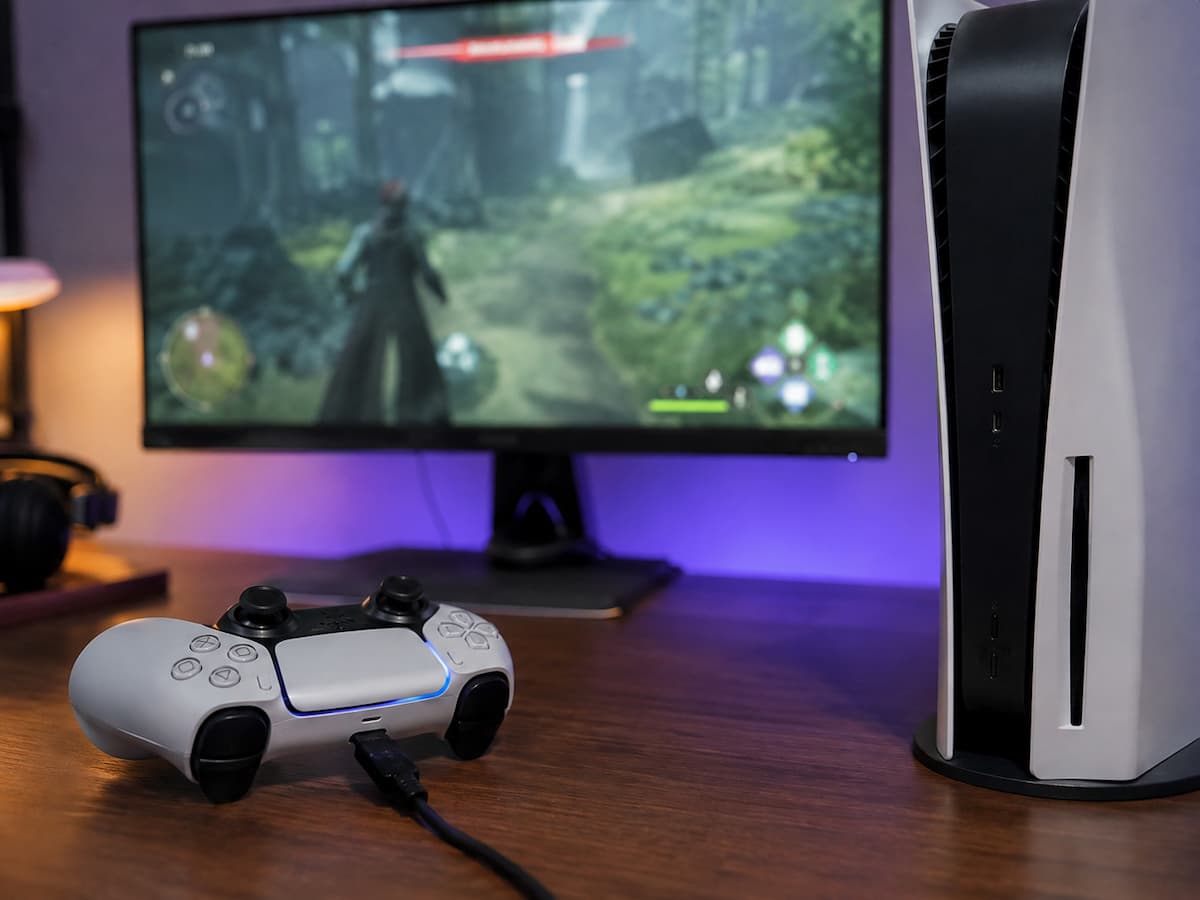
A controller that connects successfully but stops responding once a game starts can be one of the more confusing input problems on a PC. Windows may show the device as connected, the controller may light up normally, and another application may even recognize button presses. Then the game launches and suddenly none of the inputs seem to work. Pressing buttons produces nothing, the analog sticks stop moving the character, or the controller works briefly before becoming unresponsive. Because the operating system clearly recognizes the device, you might be tempted to assume that the game itself is broken. Sometimes that is true, but the problem can occur at several different layers between the physical controller and the game’s input system.
A controller can be connected correctly while the game is listening to a different input device, using an incompatible input mode, receiving input through another software layer, or switching control schemes when another device becomes active. Wireless controllers can introduce another category of problems because a connection can remain established even when communication becomes unreliable. A useful way to troubleshoot this situation is to separate the connection from the input. First determine whether Windows can still see actual button and stick activity. Then determine whether the game is receiving that input and whether another application is intercepting or translating it.
A Connected Controller Is Not Necessarily a Working Controller
The first important distinction is between being connected and being recognized as an active input device. A controller can appear under Windows’ connected devices while the game receives no usable input from it. The operating system may know that the hardware exists, but the game still has to communicate with it through a supported input interface.
This explains why reconnecting the controller sometimes appears to fix the problem without actually addressing the cause. Reconnecting the controller can reset the device, change which input interface the game exposes, or cause the game to detect it again. If the same problem returns whenever a particular game launches, the connection itself may not be the real issue.
Before you change game settings, test the controller outside the game. Windows provides ways to inspect connected game controllers and verify whether buttons and analog axes are registering. If the controller responds correctly there but stops working only after the game launches, you have already narrowed the problem considerably. The physical connection is probably not the first thing to investigate. Attention should instead shift toward the game’s input handling, controller mode, software overlays, and competing devices.
Check the Controller Before Blaming the Game
Start with a simple test that does not involve the affected game. Open Windows’ controller testing interface or another trusted controller diagnostic tool and press several buttons. Move both analog sticks and test the triggers if the controller has them. Do not test only one button because partial failures can be misleading.
If some inputs fail outside the game, the problem may involve the controller, connection, driver, wireless communication, or hardware itself. If every input registers correctly until the game launches, the problem is much more likely to involve software or configuration. This distinction saves considerable time. There is little benefit in changing a game’s control settings if the controller itself is already failing at the operating-system level. Likewise, reinstalling drivers may be unnecessary when the device consistently works outside one specific title.
Testing before changing anything also gives you a baseline. If the controller works correctly before launching the game and becomes unresponsive afterward, repeat the test after closing the game. If the controller immediately starts responding again, that behavior strongly suggests that the game or software running alongside it is affecting input.
Another Input Device May Be Taking Control
PC games often support keyboards, mice, multiple controllers, racing wheels, flight sticks, and other input devices simultaneously. Some games automatically choose one active controller or switch input modes depending on which device sends the most recent input.
This can create an unusual situation where the controller is technically connected but the game is listening to something else. A second controller, USB device, steering wheel, virtual gamepad, or even certain remapping software can complicate device selection. Disconnect unnecessary input devices and launch the game with only the controller you actually want to use. If the controller suddenly works, reconnect devices one at a time to identify the conflict.
This is especially useful when a game behaves differently based on which USB devices you connect during startup. Some titles assign player slots or controller identities when they launch, so connecting another device afterward may not produce the same result as having it connected from the beginning.
Controller Support Can Depend on the Input API
Modern controllers can communicate with games through different input systems. A controller may expose itself using one interface while a particular game expects another. Software platforms can also translate one controller format into another so that games receive a compatible input signal.
This is one reason a controller can work perfectly in one game but fail in another without any hardware problem. The important point is that controller compatibility is not determined solely by the physical connector or wireless technology. A USB connection only describes how the device communicates with the computer at a physical level. The game still needs to understand the controller’s input format.
If the game provides a controller compatibility option, check whether it expects a particular controller mode. Some titles may offer native support for certain controller families, while others depend on a compatibility layer supplied by the gaming platform or another application. Avoid running several input translators simultaneously. If one program is converting the controller’s inputs while another program attempts to convert them again, the game may receive duplicated, missing, or conflicting inputs.
Steam Input and Similar Compatibility Layers Can Change Behavior
If a platform provides controller configuration or input translation when launching the game, that layer deserves attention. Such systems can map controller inputs to the format expected by a game, which is particularly useful when a title does not natively support a specific controller.
However, a configuration can also become the source of unexpected behavior. A custom layout may have disabled buttons, assigned inputs incorrectly, or caused the game to receive keyboard-style commands instead of native controller input. If the controller works in other games but not one particular title, check the game’s controller configuration within the platform. Try the recommended or default configuration before experimenting with a custom layout.
If the game has its native controller support, determine whether the platform’s input layer is necessary. In some cases, allowing the game to communicate with the controller directly works better. In others, the compatibility layer is what makes the controller functional in the first place. The correct configuration is therefore game-dependent rather than universal.
The Game May Have Switched to Keyboard and Mouse Input
Some games automatically change their active input mode based on the most recent device used. If you touch the mouse or keyboard after launching the game, the interface may switch from controller prompts to keyboard prompts. In certain titles, that transition can also affect how input is interpreted. This does not necessarily mean the controller has disconnected.
Try moving the controller’s analog stick or pressing a button after leaving the mouse and keyboard alone for a moment. Watch whether the game’s interface changes back to controller prompts. If it does, the controller is probably being recognized, but the game is dynamically switching input modes.
Other games allow both input methods simultaneously, while some handle them less gracefully. This behavior can also vary between menus and gameplay. A controller may work in the game’s menus but appear inactive once a different control scheme becomes active.
Controller Profiles Can Override the Expected Inputs
Controller configuration software can store profiles for individual games. These profiles may remap buttons, change sensitivity, create macros, alter stick behavior, or convert controller input into keyboard and mouse commands.
A profile that worked for another game may be applied automatically to the current title and create unexpected results. For example, the physical controller can remain fully responsive while its buttons are mapped to actions that the game does not recognize.
If you use controller customization software, inspect the profile associated with the affected game. Temporarily returning to a default configuration can help determine whether custom mappings are responsible. This is another reason not to immediately reinstall the controller driver. If the hardware works correctly outside the game, the problem may simply be a software profile sending the wrong inputs.
Wireless Controllers Need a Different Kind of Troubleshooting
Wireless connectivity can make the problem more difficult because the controller may appear connected while communication is intermittent. A controller can remain listed as connected even when packets are being lost or the wireless connection has become unreliable.
If the problem occurs only with wireless use, test the controller through a wired connection if the controller supports one. This creates a useful comparison. If the controller works reliably over USB but stops responding wirelessly, investigate the wireless connection rather than the game’s basic controller support.
For Bluetooth devices, interference, distance, power management, and competing Bluetooth devices can affect reliability. For controllers using a dedicated wireless receiver, receiver placement and USB interference can also matter. A wired test is particularly valuable because it removes several variables at once. It does not prove that the game is completely free of input issues, but it can quickly reveal whether wireless communication is part of the problem.
USB Connection Problems Can Look Like Game Input Problems
A controller that disconnects and reconnects rapidly may appear to stop responding inside the game even though the game itself has not crashed. Windows may recover the device, while the game fails to reacquire it correctly.
Try another USB port if you are using a wired controller. Avoid unnecessary hubs while testing, particularly if the controller is connected through a hub shared with several other devices. If the controller consistently works when connected directly but fails through a particular hub, the connection path deserves investigation.
Also watch what happens outside the game when the problem occurs. If Windows repeatedly plays device disconnect and reconnect sounds, or the controller disappears and reappears in the system, you have evidence of a connection-level problem. If Windows sees the controller continuously and its inputs remain functional outside the game, focus your troubleshooting elsewhere.
Background Software Can Capture Controller Input
Input-related applications sometimes monitor controller events before the game receives them. Remapping utilities, overlays, remote-control applications, accessibility software, recording tools, and other background programs can potentially affect how input is delivered.
The safest diagnostic approach is to identify which programs are running alongside the game rather than shutting down unrelated Windows services indiscriminately. If the controller works after a clean restart but fails when you open a particular application, you have a useful lead. Disable or reconfigure that application’s controller-related features rather than making broad changes to the operating system.
This is particularly important when using multiple pieces of controller software. Running several programs that all attempt to manage the same controller can create conflicts that are difficult to diagnose because each program may report the device as functioning normally.
The Game May Have Its Own Controller Setting
Some games include an explicit controller toggle, input-device selector, or control scheme setting. Others allow the player to choose between keyboard and mouse and controller input. If the game has such an option, verify that the controller is actually selected.
Also check whether the game has separate control settings for menus and gameplay. A title can sometimes recognize controller input in one part of its interface while another input mode remains active elsewhere.
If the game provides a controller test screen, use it. If button presses register in the test screen but not during gameplay, the controller hardware and basic game input detection are probably functioning. The problem may instead involve key bindings, control profiles, or a particular gameplay mode.
Updating Everything at Once Is Not a Good Troubleshooting Strategy
When a controller stops responding, it is tempting to update the controller firmware, graphics driver, Windows, launcher, game, and every related utility simultaneously. That can make the situation harder to diagnose because you will not know which change affected the problem.
Start with the simplest variables. Test the controller outside the game. Disconnect unnecessary input devices. Verify the game’s controller configuration. Compare wired and wireless behavior if possible. Then investigate input translation software and drivers if the evidence points in that direction.
Updates can be useful when there is a known compatibility problem, but they should be performed deliberately. If a problem began immediately after an update, that timing can be more useful than simply installing another update and hoping it disappears.
When the Controller Works Until Gameplay Begins
A controller that works perfectly in the game’s menus but stops responding once gameplay starts presents a particularly useful clue. The basic controller connection is probably functioning because the game is already receiving input in at least one part of its interface. The issue may involve a gameplay-specific control profile, player assignment, input mapping, or software conflict that becomes active when the game changes modes.
Verify whether the problem occurs in every game mode. If the controller works in single-player but fails in multiplayer, for example, the issue may be related to how that mode handles player assignment or input devices. If it stops responding only after a cutscene or loading transition, the game may be failing to restore controller focus after changing states.
These patterns are much more useful than simply saying that “the controller doesn’t work.” Reproducing the exact point where input disappears can help identify which software component is responsible.
When the Controller Stops Responding After Alt-Tabbing
Switching away from a game and returning to it can sometimes affect input focus. The game may no longer have exclusive control of the controller or may fail to reacquire the device correctly after returning from another application.
If the problem consistently appears after Alt-Tabbing, test whether the controller remains functional when you never leave the game window. If it does, focus handling becomes a stronger suspect.
Changing from exclusive fullscreen to borderless windowed mode can sometimes alter how applications behave when focus changes, although this is not a universal solution. The game’s own support documentation is the best source for known input-focus issues.
Conclusion
A controller that connects but no longer responds in the game does not necessarily indicate a hardware fault. The controller may still be connected to Windows, but the game cannot process the input. Alternatively, the device may have been switched to another device, an incorrect profile may have been applied, or there may be a conflict with the controller’s compatibility layer.
The most effective way to troubleshoot is to look from the outside in. First, check if the controller recognizes button and joystick movements outside the game. Next, determine if the problem occurs in one or multiple games, if other input devices are attempting to control the controller, and if wired and wireless connections behave differently.
Next, verify the game’s controller configuration and any software that converts or remapps controller input. Avoid running multiple input management tools unnecessarily and do not change multiple drivers and applications simultaneously without reason.
The most important thing is to determine where the input is missing. If Windows is no longer receiving input, please check the connection or the device. If Windows still receives input but the game is unresponsive, check the game’s input system and compatibility layer. If the controller works correctly in the menu but not during gameplay, verify game-specific profiles, player settings, and game state behavior. Once you find the cause, troubleshooting becomes much easier.
FAQs
1. Why does my controller connect but not work in the game?
The fact that Windows recognizes a controller does not guarantee that the game will receive the input. The game may use a different input interface, other controllers may have higher priority, the compatibility layer may be misconfigured, or controller support may be disabled.
2. Why does my controller work correctly in Windows but not in the game?
If the buttons respond outside the game, the physical controller and the basic connection are likely working correctly. Check the game’s controller settings, input mode, controller profile, and any software that translates controller input.
3. Why does my controller stop working after the game has started?
Some games change the input mode or select the active controller upon startup. Other connected controllers, virtual gamepads, button mapping software, or incorrect controller profiles can all cause the game to use a different input source.
4. Why does my gamepad work fine in the menu but not while playing?
This usually indicates that the game can process the gamepad input but that the settings change after the game starts. Check the game-specific control settings, player assignments, profiles, and whether the problem only occurs in a specific game mode.
5. Can Steam Input cause problems with the gamepad?
Yes, that depends on the game and the gamepad configuration. Steam Input can translate gamepad commands for compatibility, but incorrect layouts or conflicts with native gamepad support can cause unexpected behavior. When troubleshooting, try the game’s recommended or default gamepad configuration.