
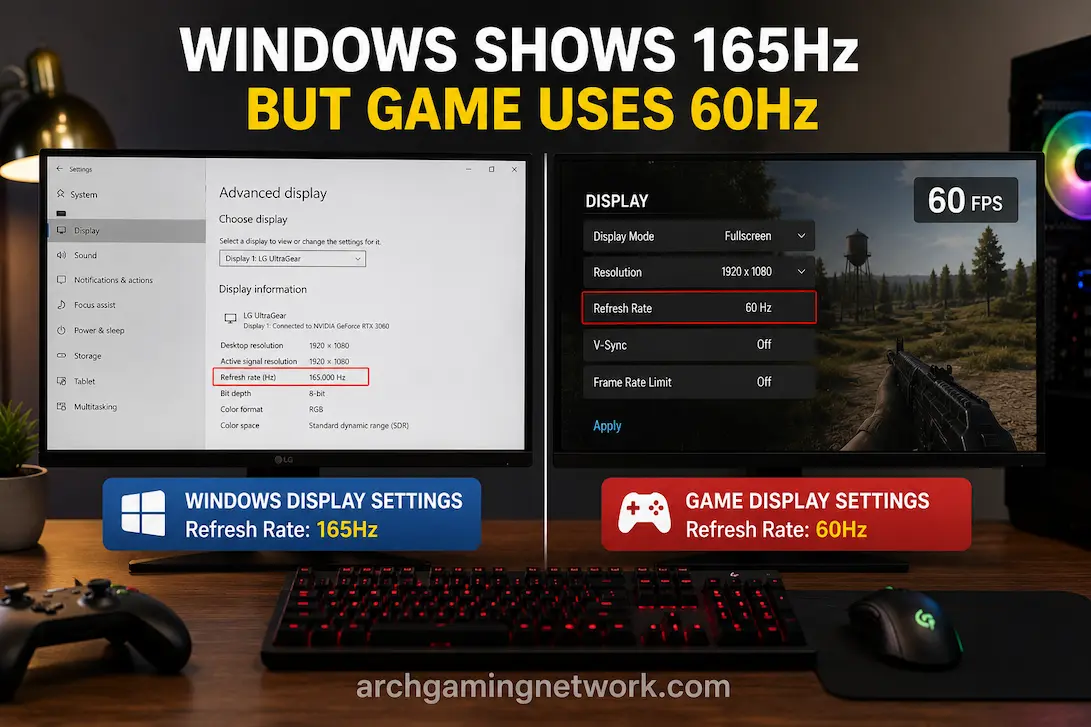
Seeing 165Hz or 240Hz selected in Windows does not necessarily mean a game will use that same refresh rate. A game can report 60Hz while Windows is set to 165Hz, or it can offer only a few refresh-rate options even though the monitor supports much more. In other cases, the numbers appear different because the game is producing fewer frames than the display can refresh.
That distinction is important because refresh rate and frame rate describe different things. Windows controls the display mode available to the desktop, while a game can request its own display mode and impose its own limits. Multiple monitors, fullscreen modes, graphics drivers, cables, and variable-refresh technologies can add another layer of complexity.
Before changing drivers or replacing cables, it helps to establish exactly which number is different and what that number represents.
First, Separate The Three Numbers You’re Looking At
Suppose Windows says your monitor is running at 165Hz, while a game appears to be running at 90 FPS. That isn’t necessarily a problem.
The 165Hz figure describes how frequently the monitor can refresh under its current configuration. The 90 FPS figure describes how many frames the game is producing. The game can produce 90 frames per second while the monitor remains configured for 165Hz.
The situation is different if the game’s own display menu says 60Hz and only offers 60Hz, while Windows offers 165Hz. Now the display mode requested or exposed to the game is genuinely different.
A quick distinction is:
| Where The Number Appears | What It Usually Represents |
|---|---|
| Windows Display Settings | Configured display refresh rate |
| Game Display Settings | Refresh rate available or selected for the game |
| FPS Counter | Frames the game is producing |
| Monitor’s On-Screen Display | Information reported by the monitor about its current signal |
These values can legitimately be different.
The first diagnostic question should therefore be:
Is the game actually using a lower refresh rate, or is it simply producing fewer frames?
That one distinction can prevent a lot of unnecessary troubleshooting.
When The Game Really Is Set To A Lower Refresh Rate
If Windows is configured for 165Hz but the game’s display menu is set to 60Hz, the game may simply be using its own saved configuration.
Many PC games have separate settings for:
- Resolution
- Refresh rate
- Display mode
- Monitor
- V-Sync
- Frame-rate limit
Open the game’s display or graphics settings and look for a refresh-rate option.
If 165Hz is available, select it and apply the change. Some games require a restart before the new display mode becomes active.
Don’t assume that changing Windows automatically changes every game. Games can maintain their display configuration, particularly after a monitor change or a previous resolution adjustment.
If the game doesn’t offer the higher refresh rate at all, however, there’s more to investigate.
A Second Monitor Can Quietly Cause The Mismatch
Multiple-display setups are one of the easiest ways to end up with apparently contradictory refresh-rate settings.
Imagine a system with:
- Main gaming monitor: 165Hz
- Secondary monitor: 60Hz
Windows can correctly show 165Hz for the first display while a game launches on the second one.
The game may then show 60Hz as the refresh rate because it isn’t using the display you thought it was.
Check whether the game’s settings allow you to choose a monitor. If they do, please ensure that the intended display is selected.
You can also move the game to the other monitor temporarily and compare the available refresh-rate options. If the game’s choices change with the display, you’ve learned something useful without changing any drivers.
This is particularly worth checking after:
- Adding a second monitor
- Replacing an old monitor
- Changing the primary display in Windows
- Reconnecting display cables
- Using a dock or adapter
- Switching between a laptop’s internal screen and an external monitor
Fullscreen Isn’t Always Equivalent To Borderless
A game’s display mode can affect which display modes it exposes.
Depending on the game and system, you may encounter:
Exclusive fullscreen
The game requests a particular display mode directly.
Borderless fullscreen
The game operates within a Windows-managed desktop display environment.
Windowed mode
The game runs inside a normal desktop window.
These modes don’t necessarily expose identical refresh-rate choices.
If 165Hz is available in one mode but not another, switch modes temporarily and compare the results. You don’t have to permanently use whichever mode happens to expose the higher number. The test helps determine whether the display mode is part of the problem.
A game that reports 60Hz in one mode and 165Hz in another is giving you useful diagnostic information: the monitor itself may be perfectly capable of the higher refresh rate.
Windows May Be Using The Right Setting While The Active Signal Is Different
Windows provides more than one piece of display information.
Go to:
Settings → System → Display → Advanced display
Select the monitor you’re investigating.
Depending on your Windows version, graphics hardware, and monitor, this area can show information such as the current refresh rate and active signal mode.
This is more useful than repeatedly looking at the basic refresh-rate dropdown.
For example, if you believe the monitor should be operating at 165Hz but the active signal information indicates something different, the next step may involve the connection, resolution, graphics driver, or monitor configuration.
The terminology and information available can vary between systems, so don’t worry if your screen doesn’t look identical to another PC shown in an online guide.
Resolution Can Change The Refresh Rates Available
A monitor’s maximum refresh rate isn’t necessarily available at every resolution.
A display might support:
- 165Hz at one resolution
- 144Hz at another
- 60Hz under a different signal configuration
The exact combinations depend on the monitor, graphics hardware, connection standard and other display requirements.
This becomes particularly relevant when Windows and the game use different resolutions.
For example, Windows may be configured for the monitor’s native resolution at 165Hz, while the game is using another resolution that exposes fewer refresh-rate choices.
Instead of assuming that the game is ignoring Windows, compare:
Windows resolution + refresh rate
with
Game resolution + available refresh rates
If the higher refresh rate disappears only when the game’s resolution changes, you’ve narrowed down the cause considerably.
The Cable Matters, But Don’t Blame It Immediately
DisplayPort and HDMI connections can support different combinations of resolution and refresh rate depending on their capabilities.
The relevant factors include:
- Monitor input
- Graphics-card output
- Connection standard
- Cable capability
- Resolution
- Required signal bandwidth
If your monitor supports 240Hz but the game only offers 60Hz or 120Hz, the connection is worth investigating.
But buying a new cable should not be the first reaction.
First determine whether the same high refresh rate is available in Windows using the same resolution and connection. If Windows can already run the display at the expected refresh rate, the cable is less likely to be the reason that one particular game is reporting a lower value.
At that point, the game’s configuration or display mode becomes a more interesting suspect.
V-Sync And FPS Limits Create A Different Kind Of Mismatch
This is where refresh-rate troubleshooting often goes off track.
Suppose you have:
Windows: 165Hz
Game: 165Hz
FPS: 60
The game may still be using a 165Hz display mode.
A frame-rate limit can prevent the game from producing more than 60 frames per second. V-Sync can also influence frame presentation and, depending on the configuration, limit the effective frame rate.
Look for settings such as:
- Maximum FPS
- Frame-rate limit
- V-Sync
- Background FPS limit
- Menu FPS limit
- Battery FPS limit
If the game is configured for 165Hz but locked to 60 FPS, changing Windows to 240Hz isn’t going to make the game produce 240 frames per second.
The display and the game are simply operating at different measurements.
Variable Refresh Rate Makes The Numbers Even Less Intuitive
Features such as AMD FreeSync and NVIDIA G-SYNC Compatible can dynamically adjust display refresh behavior according to the game’s frame output.
A monitor might be configured for 165Hz while its refresh behavior changes according to the number of frames being delivered.
That doesn’t mean Windows has permanently changed the monitor to a lower refresh rate.
Instead, there is a difference between:
- The display’s configured capability
- The game’s frame output
- The display’s current refresh behavior
This is why a monitor’s on-screen information, Windows’ settings, and a game’s FPS counter may not always show the same number.
A Useful Test: Change One Thing And Watch What Happens
Rather than changing five settings at once, use the discrepancy itself as a diagnostic clue.
Start with the game open.
Note:
- Monitor selected by the game
- Resolution
- Refresh-rate setting
- FPS
- Display mode
- V-Sync status
- Frame-rate limit
Then change one variable.
For example, if the game is set to 60Hz, switch it to 165Hz if that option is available.
Restart the game if required.
Then check the result again.
If the game now reports 165Hz and performance behaves as expected, you’ve identified the cause.
If 165Hz isn’t available in the game at all, move to the next question: why doesn’t the game see the same display mode that Windows sees?
That leads to a much more useful troubleshooting path than repeatedly changing unrelated settings.
When The Higher Refresh Rate Isn’t Available Inside The Game
If Windows offers 165Hz but the game offers only 60Hz or 120Hz, work through the possibilities in roughly this order:
- Check which monitor the game is using.
- Compare the game’s resolution with Windows’ resolution.
- Test fullscreen and borderless modes.
- Check whether the monitor supports the desired combination of resolution and refresh rate.
- Check the physical connection and available ports.
- Restart the game after changing the Windows display configuration.
- Check the graphics driver’s application settings.
- Only then investigate driver problems.
This order is useful because the earlier checks are quick and reversible.
There’s little reason to reinstall a graphics driver if the game is simply running on a 60Hz secondary monitor.
Laptop Users Have Another Variable To Consider
Gaming laptops can make display behavior more complicated because the integrated and dedicated GPUs may both be involved.
Some laptops route the internal screen through the integrated graphics while the dedicated GPU handles the game’s rendering. Others provide a hardware MUX switch or different graphics modes that change this arrangement.
External displays can also behave differently depending on which port is used.
So if the laptop’s internal screen operates at 165Hz but an external display appears limited to 60Hz, don’t immediately conclude that Windows or the dedicated GPU is malfunctioning.
Check the laptop’s specifications, the monitor’s supported modes, and the specific port being used.
If the manufacturer provides a graphics-mode utility, its current setting may also be relevant.
Don’t Confuse A Refresh-Rate Problem With A Performance Problem
This is probably the most important diagnostic distinction in the entire issue.
Imagine Windows is set to 165Hz, the game is also set to 165Hz, but the game runs at 72 FPS.
The monitor is not necessarily operating incorrectly.
The game is simply producing 72 frames per second.
Now consider a different situation:
Windows: 165Hz
Game: 60Hz
FPS: 60
Here, the game is actually configured for a lower refresh rate.
And consider a third:
Windows: 165Hz
Game: only offers 60Hz
FPS: varies between 60 and 100
That points toward a display-mode/configuration problem rather than simply a 60 FPS cap.
The numbers become much more useful when you interpret them together instead of looking at one figure in isolation.
What If Windows Itself Suddenly Drops To A Lower Refresh Rate?
That’s a slightly different problem.
If Windows used to offer 165Hz and now only offers 60Hz, investigate the system-level display configuration first.
Check:
- Whether the correct monitor is selected
- Whether the resolution changed
- Whether Windows has changed the display mode
- Whether the graphics driver is functioning correctly
- Whether the connection or adapter has changed
- Whether a dock or converter is involved
- Whether the monitor is connected to a different port
If the high refresh rate is completely missing from Windows, there’s little point troubleshooting an individual game first.
The operating system needs to recognize the desired display mode before the game can reliably use it.
Frequently Asked Questions
Can a game run at 60 FPS on a 165Hz monitor?
Yes. The monitor can remain configured at 165Hz while the game produces only 60 frames per second. Refresh rate and FPS measure different things.
Why does my game say 60Hz when Windows says 165Hz?
The game may have its own refresh-rate setting, be running on another monitor, use a different display mode or resolution, or fail to expose the same display modes that Windows currently offers.
Conclusion
A Windows setting of 165Hz doesn’t guarantee that every game will select 165Hz, but it also doesn’t mean that a game running at 90 FPS is somehow operating the monitor at 90Hz.
Start by separating display refresh rate, game-selected refresh rate and actual FPS. Once those three values are clear, check the game’s monitor selection, resolution, display mode and frame limits before moving into cables or driver troubleshooting.
If the game genuinely cannot see a refresh rate that Windows supports, the investigation becomes more specific: determine whether the game is using the wrong monitor, a different resolution, a different display mode, or a connection that doesn’t support the desired combination.
That approach is much more useful than simply forcing every available setting to its highest number. It identifies where the discrepancy occurs first, which makes the eventual fix far less likely to be guesswork.