
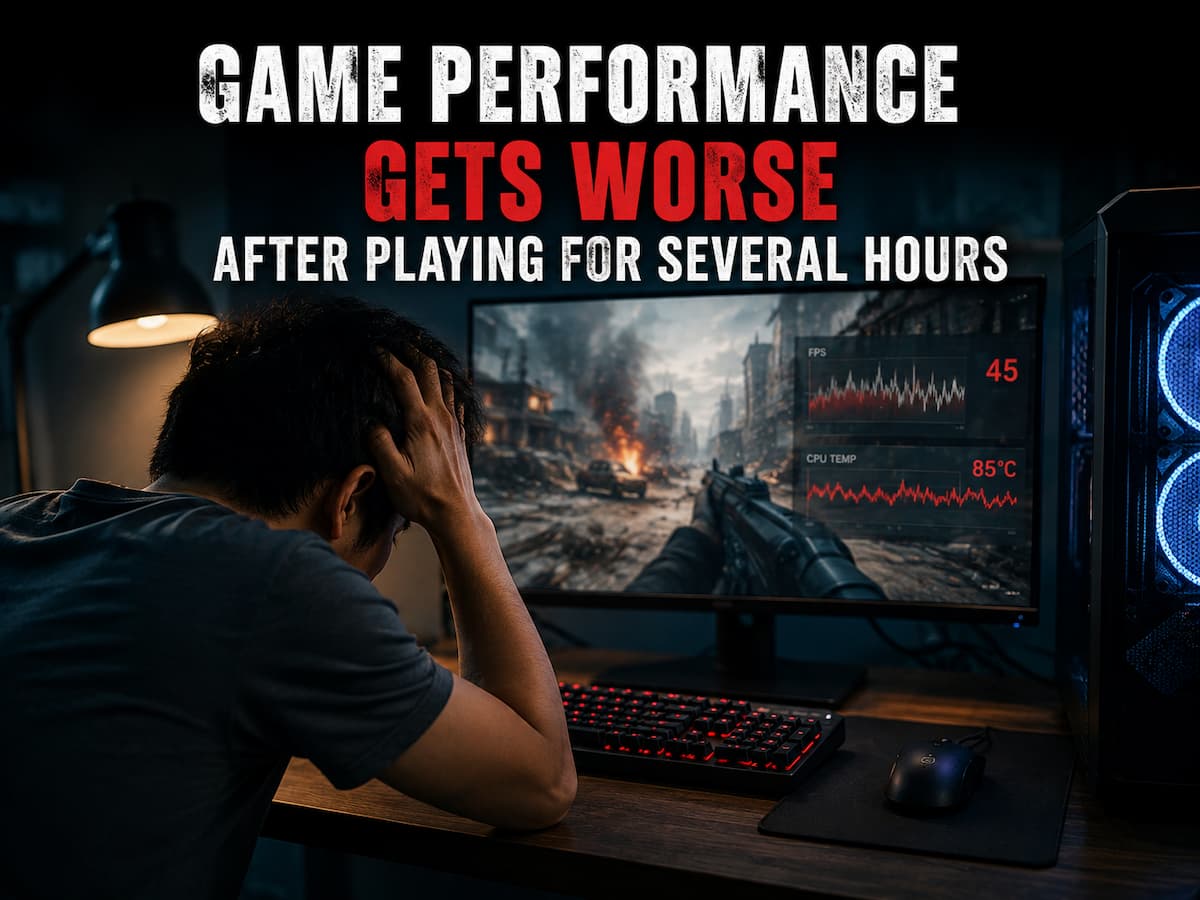
When performance gets worse over time, the problem is not always that the computer is too slow. Something may be changing while the game is running. Temperatures can rise, memory usage can grow, background programs can become active, or the game itself may gradually accumulate data that it fails to release properly. The timing of the problem is an important clue. A computer that struggles immediately needs to be investigated differently from one that performs well for two or three hours before slowing down.
Why Time Can Change Game Performance
A PC is not always under the same conditions throughout a gaming session. Components warm up, applications continue running in the background, and the game may load more areas, textures, objects, and data as you play. Some of these changes are normal and harmless. Others can gradually reduce performance until the difference becomes noticeable.
The first step is to compare how the game behaves at the beginning of a session with how it behaves later. That pattern can provide more useful information than looking at a single FPS number.
Rising Temperatures Can Reduce Performance
Heat is one possible reason performance declines during a long gaming session. CPUs and GPUs produce significant heat under load, and cooling systems must continuously move that heat away. If temperatures rise beyond what the hardware can comfortably handle, the component may reduce its operating speed to control heat. This is commonly known as thermal throttling.
A system can appear completely normal during the first 20 minutes and then behave differently after the case, cooler, and surrounding components have had time to warm up. Monitoring temperatures and clock speeds at the beginning and near the end of a long session can help identify this pattern. If temperatures rise while clock speeds fall and FPS drops at the same time, cooling deserves closer attention.
Memory Usage Can Slowly Increase
Games use system memory and graphics memory to store textures, game-world information, audio, and other data needed during play. Normally, memory that is no longer needed should be released or managed efficiently. Sometimes a game continues using more memory as a session becomes longer. This may be caused by a memory leak or another problem with resource management.
If available memory becomes limited, the operating system may need to move data between RAM and storage. That can lead to stuttering, longer pauses, and reduced responsiveness. A useful clue is what happens after restarting the game. If memory usage returns to normal and performance immediately improves, the problem may be related to how the game manages resources over time.
VRAM Problems Can Look Similar
Graphics memory, often called VRAM, can also become a problem during long sessions. High-resolution textures, detailed environments, and demanding visual effects can require a large amount of graphics memory. If a game reaches the practical limits of available VRAM, performance may become inconsistent. Stuttering can become more frequent as the system struggles to manage graphics data.
Lowering texture quality may help when VRAM pressure is the real problem, even if lowering resolution produces only a small FPS improvement. This phenomenon is one reason why different graphics settings affect performance in different ways. Resolution mainly changes pixel-processing workload, while texture settings can have a stronger effect on memory usage.
Background Programs Can Become More Active
A game is rarely the only program doing work on a computer. Browsers, cloud synchronization tools, update services, security software, overlays, and recording applications can all use system resources.
Some background tasks may become active only after the computer has been running for a while. An update download or scheduled scan can suddenly compete with the game for CPU time, memory, storage activity, or internet bandwidth. If the slowdown happens at unpredictable times rather than gradually, check whether another program becomes active when the stutter begins.
Some Problems Are Specific to the Game
If one game consistently becomes slower after several hours while other demanding games remain stable, the game itself may be part of the problem. Large open-world games are especially complicated because they constantly load and remove data as the player moves through the environment. Problems with memory management, asset streaming, or background processing can become more noticeable during extended sessions.
Restarting the game may temporarily clear accumulated data and restore normal performance. That does not necessarily mean your hardware needs an upgrade. Checking official patch notes and known issues can be useful when the problem appears after a recent update or is widely reported by other players.
How to Test What Is Changing During a Long Session
The most useful method is to compare the system under similar conditions. Record the game’s FPS, temperatures, clock speeds, RAM usage, VRAM usage, and GPU utilization shortly after launching the game.
Check the same information again when performance worsens. A change that matches the slowdown is often more useful than guessing based on hardware specifications.
| What Changes Over Time | Possible Explanation |
|---|---|
| Temperatures rise and clock speeds fall | Thermal throttling or cooling limitations |
| RAM usage continues increasing | Memory leak or increasing memory pressure |
| VRAM usage remains near its limit | Graphics memory pressure |
| Another program begins using resources | Background activity or scheduled task |
| Restarting the game restores performance | Game-side resource or session-related problem |
Simple Steps That Can Prevent Long-Session Slowdowns
Ensure the computer has adequate airflow and that dust does not heavily block the fans and heatsinks. A cooling problem can become much more obvious during long sessions than during a short benchmark. Before starting a demanding game, close any programs you don’t need. This reduces unnecessary memory use and lowers the chance of background activity interfering with performance.
Keep enough free storage space available for the operating system and games to work normally. Storage problems may not always reduce average FPS, but they can contribute to stuttering and loading interruptions. If performance consistently declines after several hours and immediately improves after restarting the game, taking a break and relaunching may be a practical temporary solution while waiting for a patch or investigating the underlying cause.
Conclusion
When game performance gets worse after several hours, the fact that it started smoothly is an important clue. Something is changing during the session, and finding that change is usually more useful than immediately lowering graphics settings or planning a hardware upgrade.
Heat, memory usage, VRAM pressure, background activity, and game-specific problems can all create gradual performance loss. Monitoring the system at the beginning and end of a session can reveal patterns that are impossible to see from average FPS alone.
A restart may temporarily solve the problem, but repeated slowdowns are worth investigating. Once you know what changes over time, you can focus on the actual cause instead of treating every performance problem as a sign that your PC is no longer powerful enough.
FAQs
1. Why does my game run smoothly at first but then start to stutter after a few hours?
The causes could be increased temperature, increased memory or VRAM usage, running background programs, or resource management issues within the game itself. Comparing system performance before and after the stuttering can help identify potential causes.
2. Can overheating cause a slow drop in frame rate?
Yes. If the CPU or GPU overheats, they may lower their clock frequency to regulate the temperature. This can lead to performance degradation during prolonged use under high load.
3. Why does restarting the game solve the problem?
Restarting the game can clear saved data from the last gaming session and normalize memory usage. If performance repeatedly improves after restarting, the problem may be related to prolonged gaming.
4. Can prolonged gaming damage my computer?
If your computer operates within safe temperature and power limits, normal, prolonged gaming sessions will not cause damage. However, if your computer constantly overheats, it should be checked, as this can reduce performance and cause unnecessary strain on the components.
5. If prolonged gaming causes lag, should I upgrade my memory?
If your system is indeed running low on memory, adding RAM can help, but it does not solve all lag issues that occur after long gaming sessions. Check your current memory usage before deciding to upgrade your hardware.