
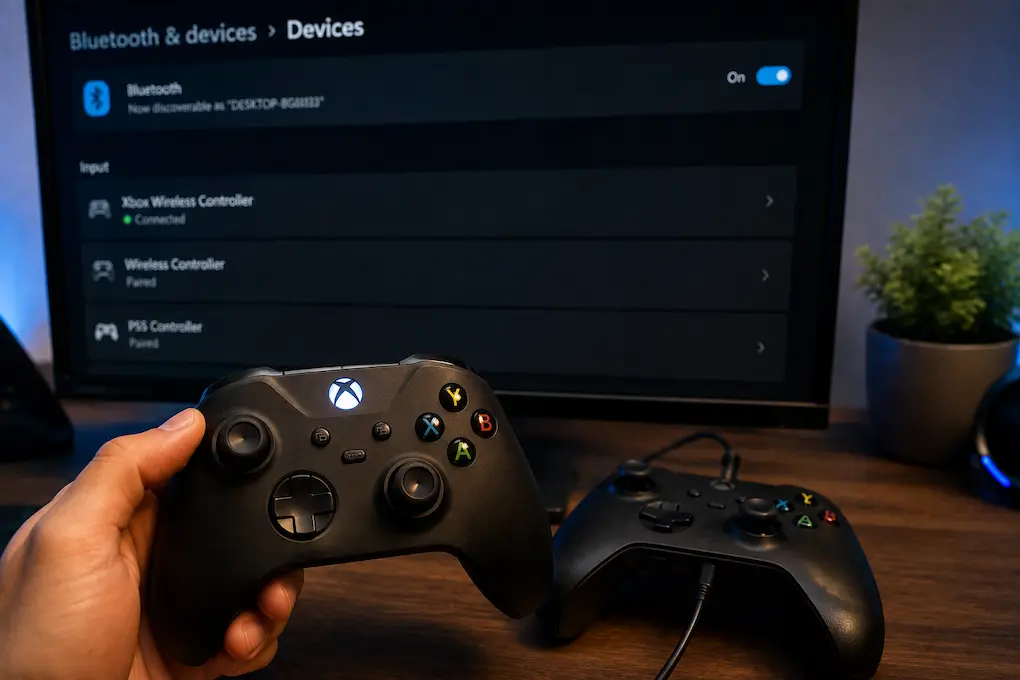
If a gamepad works perfectly via USB but suffers from input loss, interruptions, or sluggish response times over Bluetooth, this provides a useful diagnostic clue. The gamepad itself may not be the source of the problem. Since wired and wireless connections utilize different communication channels, issues affecting the Bluetooth connection can still arise even if all buttons, triggers, and joysticks function correctly via a wired connection. This distinction is particularly important when the gamepad works fine in Windows, in other games, or passes basic input tests, yet becomes unstable upon switching to wireless mode. Rather than viewing the situation as a general gamepad malfunction, it is better to analyze what happens after the cable is disconnected.
Bluetooth connectivity introduces numerous variables absent from a direct USB connection. The computer must maintain a wireless link, Windows must manage the Bluetooth device, the gamepad must operate wirelessly, and the environment can impact signal quality. The Bluetooth adapter itself can also be a factor—especially on desktop PCs, where small USB adapters might be obstructed by metal casings or located near other wireless devices. Once you understand these differences, the wired connection becomes valuable evidence rather than a temporary workaround.
Use the Wired Connection as a Reference Point
A common mistake is testing a controller’s wireless connection under one set of conditions before testing it under entirely different ones. A more accurate comparison uses the same game, controller, and conditions, changing only the connection method. If the controller responds when connected via USB but buttons fail to respond when connected via Bluetooth, the likelihood of a fault within the wireless channel increases significantly.
Note the actual differences between the two modes. A complete loss of connection is distinct from an occasional unresponsive button or excessive input latency. If the controller stays connected but briefly drops some inputs, the issue may be a Bluetooth communication problem. If the controller frequently disconnects from the Windows system, issues involving the adapter, pairing status, power management, or drivers become particularly relevant. Distinguishing between these scenarios helps avoid confusion amidst the many unrelated troubleshooting steps.
| Symptom | More useful area to investigate |
|---|---|
| USB works, Bluetooth disconnects completely | Pairing, adapter, power management |
| Bluetooth stays connected but misses inputs | Signal quality, interference, wireless handling |
| Bluetooth works in Windows but not one game | Game input support or input software |
| Several Bluetooth devices have problems | Adapter or Windows Bluetooth stack |
| Only this controller has Bluetooth problems | Controller firmware or compatibility |
The point of this comparison isn’t to prove immediately that the Bluetooth adapter is defective. It simply narrows the investigation. If the same controller remains completely reliable over a cable for hours, repeatedly replacing drivers or changing the game’s graphics settings is unlikely to be the best starting point.
A Connected Bluetooth Device Can Still Have A Poor Link
Windows showing the controller as Connected doesn’t guarantee that the wireless communication is healthy. Bluetooth can remain paired while communication becomes inconsistent, particularly when the controller is farther away from the computer or when other wireless activity is present. This can produce symptoms that are subtle enough to be mistaken for a game’s input system. A character may stop responding for a moment, a button press may occasionally be ignored, or an analog stick may appear to react slightly later than expected.
Try using the controller close to the computer or Bluetooth receiver and compare the behavior with your normal gaming position. If the problem becomes noticeably less frequent at short range, that is useful evidence. You can also pay attention to whether the problem becomes worse when the controller is behind furniture, under a desk, or on the opposite side of the room from the Bluetooth adapter. The purpose isn’t to suggest that Bluetooth should only work at very short distances, but to determine whether signal quality is contributing to the symptoms.
Things That Can Affect The Wireless Link
A weak or inconsistent Bluetooth connection can be influenced by several environmental factors, including:
- Distance between the controller and Bluetooth receiver
- Metal surfaces or computer cases blocking the adapter
- Several nearby Bluetooth devices
- Heavy 2.4 GHz wireless activity
- Poorly positioned USB Bluetooth adapters
- Older or incompatible Bluetooth hardware
You don’t need to change all of these at once. Moving the controller closer to the receiver is a simple test because it changes the signal conditions without modifying Windows or the game.
The Bluetooth Adapter Deserves More Attention On Desktop PCs
Desktop computers are particularly interesting because Bluetooth isn’t always built directly into the motherboard. Some systems use a small USB Bluetooth adapter, while others rely on antennas connected to the motherboard’s wireless hardware. The physical position of that hardware can have a surprisingly large effect on a controller that otherwise appears to be paired correctly.
A USB adapter hidden behind a metal computer case isn’t necessarily going to perform as well as one positioned where its radio has a clearer path to the controller. Nearby USB equipment can also make the area around the adapter more crowded. If your adapter is plugged directly into the rear of the PC and the controller is being used several feet away, temporarily repositioning the adapter with a short USB extension can provide a useful test without buying anything.
If the controller becomes substantially more reliable after moving the adapter, that points toward the wireless environment rather than the controller’s buttons or the game’s input configuration. If there is no difference at all, you can move on without assuming that adapter placement was responsible.
2.4 GHz Wi-Fi Can Complicate A Marginal Connection
Bluetooth and 2.4 GHz Wi-Fi operate in nearby radio territory, so a busy wireless environment can sometimes make a marginal Bluetooth connection more noticeable. This doesn’t mean that normal Wi-Fi use should automatically cause controller problems. Modern hardware is designed to coexist, and many systems handle both without any noticeable interference.
The useful question is whether your controller’s behavior changes under different network conditions. If the controller becomes less reliable while the computer is heavily using a 2.4 GHz wireless connection but behaves normally when the PC is connected through Ethernet, you’ve discovered something worth investigating. You can make the comparison without permanently changing your network setup.
This is particularly relevant if the controller problem is intermittent rather than absolute. A controller that never connects points toward a different class of problem than one that works for twenty minutes and then starts missing occasional inputs during periods of heavy wireless activity.
Re-Pair The Controller Instead Of Simply Reconnecting It
Bluetooth pairing information can become stale after changes to Windows, Bluetooth hardware, controller firmware, or the computer’s wireless configuration. Simply turning Bluetooth off and back on doesn’t always create a genuinely fresh connection because the existing device relationship remains stored.
If the controller connects but behaves strangely, remove its Bluetooth entry from Windows and pair it again. Put the controller into its pairing mode according to the manufacturer’s instructions, remove the existing device from Settings → Bluetooth & devices, and then add it again as a new device.
After completing the pairing process, test the controller before launching the game. This matters because it separates a Bluetooth connection problem from a game-specific input problem. If the controller is already missing inputs in Windows, there’s little reason to investigate the game’s controller settings yet.
What A Fresh Pairing Can Tell You
A new pairing is useful mainly because of the information it provides. If the controller suddenly becomes reliable, the old pairing information may have been involved. If nothing changes, you can largely rule out a simple stale pairing as the explanation and move on to the adapter, wireless environment, firmware, or software layer.
Controller Firmware Is Another Wireless-Specific Variable
A controller can behave normally through USB while its Bluetooth implementation has a separate problem. Manufacturers sometimes release firmware updates that improve wireless stability, compatibility, or behavior with newer operating systems and games.
If the controller manufacturer provides official software for checking firmware, look at the current version and compare it with the manufacturer’s latest release. This is particularly worthwhile if Bluetooth problems began after a Windows update, after using the controller with another device, or after a major controller-software update.
Don’t install firmware from unofficial sources simply because a forum post recommends it. Controller models can have several hardware revisions that look similar but require different firmware. Use the manufacturer’s own utility or documentation, and ensure that the update specifically applies to your model.
When The Controller Works In Windows But Fails In One Game
This situation points in a different direction. If Windows detects the controller correctly, the buttons respond normally in a controller-testing screen, and several other games recognize it over Bluetooth, the Bluetooth connection itself is probably not the only thing worth investigating.
Some games have their controller support, while others depend on an input translation layer. A title may support a controller through USB but handle its Bluetooth mode differently. Steam Input and other controller-mapping software can add another layer between the physical device and the game, which sometimes changes how inputs are presented.
Before changing Windows Bluetooth settings, check the affected game’s controller options and determine whether it supports the controller natively. If the game has its own input mode, controller profile, or Steam Input configuration, test the available modes one at a time rather than changing several simultaneously.
Input Software Can Become The Middleman
Controller utilities, remapping applications, and platform-level input systems can all affect what a game receives from a physical controller. Such software can be helpful when a game doesn’t natively support a particular device, but it can also make troubleshooting difficult because the controller may appear healthy at the Windows level while the game receives translated or incomplete input.
If the problem occurs only after launching a particular game, temporarily close unnecessary controller-mapping utilities and compare the result. Steam users can also check whether Steam Input or the game’s native controller support handles the game’s input configuration.
The objective isn’t to declare one input system “better.” It is to determine whether the controller’s Bluetooth input is reaching the game directly or being modified by another application first. Once you know that, troubleshooting becomes much more targeted.
Power Management Can Explain Random Disconnects
Intermittent Bluetooth problems can sometimes involve Windows power-management behavior, especially when the controller works normally at first and then becomes unavailable after a period of inactivity. The exact settings available depend on the Bluetooth hardware and its driver, so you can’t change one universal option on every computer.
If the controller repeatedly disappears and reconnects rather than merely missing an occasional input, inspect the Bluetooth device and adapter settings in Windows. Look for power-management options for the adapter or device, especially if the problem occurs after the computer has been idle or the controller has not been used for a while.
Avoid changing unrelated Windows power settings simply because a controller is wireless. The symptom should justify the setting you’re investigating. A controller that disconnects after inactivity provides a much stronger reason to examine power management than one that merely feels slightly delayed during gameplay.
Multiple Bluetooth Devices Can Make Troubleshooting Harder
A gaming PC may have a Bluetooth headset, keyboard, mouse, controller and phone connected at the same time. Normally this can work flawlessly, but it makes diagnosis harder when one device behaves unpredictably.
For a controlled test, temporarily disconnect Bluetooth devices that aren’t needed for gaming and then use the controller normally. If its behavior improves, reconnect the other devices one at a time and check whether the symptoms return.
This doesn’t mean another device is literally “taking” the controller’s connection. Bluetooth manages multiple devices through its communication system. The useful finding is simply that reducing the number of active wireless connections changes the controller’s reliability, which gives you a direction for further investigation.
If the Same Problem Occurs in All Bluetooth Games
If the controller performs poorly across all games but works fine via USB, focus on the Bluetooth layer rather than specific game settings. Test on Windows, re-pair the controller, verify the adapter’s location, look for firmware updates, and see if distance affects performance.
If multiple Bluetooth devices on the same computer have connection issues or behave abnormally, the Bluetooth adapter or the Windows Bluetooth stack is likely the culprit. If all other Bluetooth devices work perfectly except for this controller, please check the controller’s compatibility or firmware.
If a second controller is available, use it for comparison. If another Bluetooth controller works well on the same computer, it is less likely that the computer’s Bluetooth system is completely faulty. If both controllers show similar issues, check the shared Bluetooth hardware and software.
Simple Diagnostic Steps Eliminate Guesswork
The most effective troubleshooting method is to address each issue with a specific test. First, establish a wired connection to verify that the controller responds correctly. Next, test Bluetooth close to the receiver, as this isolates the wireless signal environment. Then, re-pair the controller and test it outside of games. If the problem persists, verify the firmware and the Bluetooth adapter. If Windows recognizes the controller correctly but a specific game does not, verify the game’s controller settings and any input mapping software. If the issue occurs in all games, focus on checking Bluetooth and the Windows system rather than reinstalling individual games.
This step also avoids a common mistake: making five changes at once and assuming the last one solves the problem. Controlled testing might seem slower, but it yields more information about the cause of the discrepancy.
Frequently Asked Questions
Why does my controller work perfectly via USB but not via Bluetooth?
USB and Bluetooth use separate communication channels. If the USB connection frequently causes issues, check the Bluetooth connection, the adapter, pairing data, wireless interference, power management, and the controller firmware before concluding that the controller is defective.
Will moving the Bluetooth adapter enhance the controller’s input?
Possibly. If the adapter sits beneath a metal casing or near other devices, it can affect wireless signal transmission. Moving the adapter to a more open location can help effectively diagnose the issue.
Should I disconnect and reconnect my controller?
Yes, you should disconnect and reconnect the controller if it connects, but the connection is unstable. Re-pairing clears old Bluetooth connection data and allows for a clean test before you adjust more complex settings.
Why does Bluetooth work well in Windows but not in some games?
The game might handle Bluetooth controllers differently, potentially not supporting the device or using an input layer like Steam Input. If other games work fine, first check the controller configuration for the game that is causing issues.
Does Bluetooth functionality depend on the controller firmware?
Possibly. Firmware updates can improve wireless stability and compatibility. Check the controller manufacturer’s official support software for updates suitable for your model.