
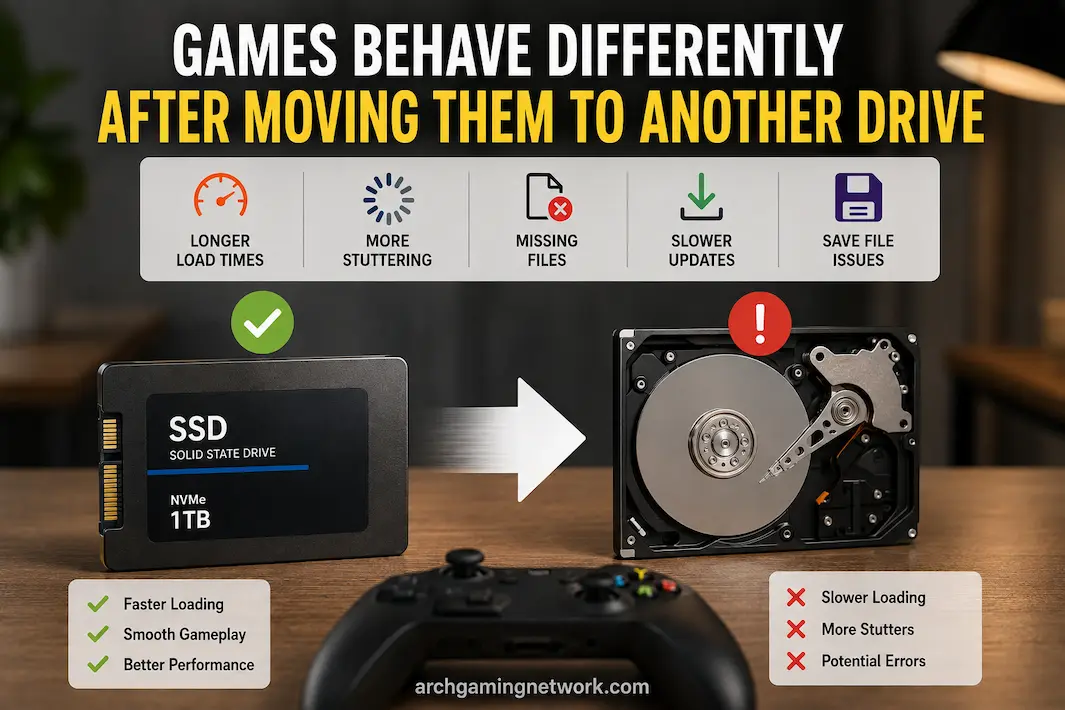
Moving a game from one hard drive to another might seem like a simple storage operation, and often, it is. However, some games exhibit issues after the move: longer load times, stuttering, trouble locating save files, extended update times, or games that formerly worked fine suddenly reporting missing files. These differences are particularly noticeable when moving a game between a solid-state drive (SSD) and a hard disk drive (HDD), or between two SSDs with differing performance levels.
It is important to note that moving the installation files does not automatically alter the game’s code or graphics settings. What does change is the storage location of the game files and how the operating system, the launcher, and the game itself access them. This affects loading behavior and can sometimes reveal issues that were not apparent on the original storage drive.
Before concluding that the game itself is corrupted, it is crucial to distinguish between changes related to storage and problems caused by the launcher, permissions, configuration files, or the condition of the hard drive.
The Type Of Drive Can Change How A Game Behaves
Not all storage devices handle game loading in the same way. NVMe SSDs, SATA SSDs, and HDDs can all store the same game, but their response times during repeated file access can differ drastically.
Modern games typically load thousands of individual assets instead of reading a single large file. As the player moves through the game world, the engine may request textures, models, audio files, shaders, maps, and other data. Faster hard drives can process these requests more quickly, whereas slower drives may take longer to deliver these resources.
This is particularly noticeable in games that require loading resources as the player moves around. Consequently, replacing the hard drive—even without changing the game’s graphics settings—can lead to longer load times, textures suddenly popping in, delays in loading resources, or occasional stuttering.
However, this does not necessarily mean the new hard drive is defective; the game may simply be interacting with a storage device that has different performance characteristics.
Moving Between SSDs Can Still Make A Difference
It is easy to assume that two SSDs should deliver the same gaming performance simply because they are both classified as solid-state drives. In reality, however, their sustained write speeds, random access performance, controller design, thermal characteristics, and available space can vary significantly.
For many games, these differences are barely noticeable. A game primarily limited by the CPU or GPU will not suddenly see a significant performance boost, even after migrating to a faster SSD.
Other games rely more heavily on storage responsiveness, especially when dynamically loading large scenes. In these cases, a faster or less burdened hard drive can reduce loading delays and make resource streaming more stable.
A truly effective comparison, therefore, is not merely between SSDs, but rather involves looking at a specific game’s performance under varying hard drive workloads.
An SSD That Is Nearly Full Can Behave Differently
Available space is another factor worth considering after the migration. An SSD does not need to be full for storage performance or system operation to be affected. As available space decreases, so does the space utilized by internal drive management processes and temporary files used by Windows and applications.
The specific impact varies depending on the drive and the workload, so there is no fixed percentage at which all SSDs suddenly slow down. However, if a game is moved to a drive that is already heavily utilized, it is essential to check the remaining space.
Check the drive in File Explorer → This PC to see how much free space remains.
If the new drive has little available space while the old drive has plenty, the difference in available space may be more significant than the fact that the game itself was moved.
Game Launchers Need To Know Where The Files Went
A common problem after moving a game is that the launcher still expects the installation to exist in its previous location.
Steam, Epic Games Launcher, Xbox and other platforms maintain information about installed games and their library locations. If files are moved manually instead of using the launcher’s own transfer or library-management process, the launcher may no longer have a reliable record of where the installation resides.
This can lead to messages such as:
- Install instead of Play
- Missing files
- Download required
- Game not found
- Update unavailable
- Installation needs repair
The files themselves may still be perfectly intact.
If the launcher doesn’t recognize the new location, avoid immediately downloading the entire game again. First check whether the launcher provides a way to add or locate an existing installation.
The exact procedure differs between platforms, but the principle is the same: the launcher needs to associate the existing files with its current library location.
Verification Can Tell You More Than A Reinstallation
If the launcher recognizes the game but the game behaves differently after being moved, file verification is often a better diagnostic step than deleting everything.
A verification process compares the installed files against what the launcher expects and can identify missing or damaged data.
If verification finds no problems, that is useful evidence. It means the basic game installation is probably intact, so you can investigate storage performance, permissions, configuration, or the launcher itself instead.
If verification repeatedly replaces files after the move, however, the problem deserves more attention. A damaged file could be a one-time issue, but repeated corruption can point toward a broader storage or system problem.
The Drive Letter Can Matter More Than Expected
Windows assigns drive letters such as C:, D:, or E: to storage volumes. When a game moves from one location to another, its path can change along with the drive.
Most modern launchers handle this properly when a game is moved through their supported tools. Problems can occur when configuration files, shortcuts, mods, scripts, or third-party tools still point to the old path.
For example, a game might now be installed at:
D:\Games\ExampleGame
while an external utility still expects:
C:\Games\ExampleGame
The game itself may launch normally, but the utility could fail to find configuration files, mods, screenshots, or other resources.
This is especially relevant for heavily customized games where several programs interact with the installation directory.
Save Files Usually Aren’t Inside The Game Folder
Moving the installation doesn’t necessarily move your saved games.
Many PC games store saves somewhere else, such as a Windows user profile directory or a cloud-synchronization service. That means moving the game’s main installation to another drive shouldn’t automatically move those saves.
This can create a confusing situation where the game is successfully moved, but the player expects the save files to have moved with it.
If saves appear to be missing after the move, don’t immediately assume the new drive lost them. Check whether the game uses:
- Local save storage
- Cloud synchronization
- A launcher-specific save system
- A separate user-profile directory
The location varies by game, so the important thing is to determine where that particular game stores its saves.
Also be cautious about manually moving save files. Creating a backup first is safer than experimenting with the only copy of an important save.
Mods Can Break After A Drive Change
Games with mods deserve separate attention because the installation path can be part of the mod configuration.
A mod manager may have been configured to look at the old drive. Mod loaders, custom scripts and configuration utilities can also store absolute paths rather than automatically discovering the new location.
The result can be strange: the unmodified game works normally, but launching with mods produces crashes, missing assets, error messages, or unexpected behavior.
If the game was heavily modified before the move, test the unmodified installation first.
If the game works normally without modifications, the storage move may have exposed a path or mod-manager configuration problem rather than damaging the game itself.
Permissions Can Change When Files Move
Windows file permissions and ownership can sometimes become relevant when files are copied between drives, particularly if the destination has different security settings or the game is being accessed through another user account.
A game might launch but fail when attempting to create or modify files.
Typical symptoms include:
- Settings not being saved
- Configuration resetting after every launch
- Logs failing to appear
- Updates failing
- Mods unable to create files
- Save operations producing errors
This can be confusing because the game may have enough permission to read its files but not enough permission to write where it needs to.
If the game repeatedly forgets settings after being moved, check whether its required configuration or save location is writable before assuming the graphics settings themselves are broken.
Moving A Game Can Expose A Drive Problem
Sometimes the move isn’t the cause of the new behavior. The new drive itself may have a problem.
A drive can appear normal during ordinary desktop use while struggling under sustained gaming workloads. Long loading operations, large updates, asset streaming and repeated file access can expose problems that aren’t obvious when browsing documents.
Pay attention to whether other applications on the same drive are also behaving strangely.
If multiple games experience unusual loading behavior after being installed on the same drive, the storage device becomes a more interesting suspect.
You can also check Windows’ storage information and the drive manufacturer’s health-monitoring utility where available. If the drive reports warnings, abnormal temperatures, errors or rapidly deteriorating health, don’t treat the problem as merely a game configuration issue.
Thermal Throttling Can Affect Some SSDs
Fast NVMe SSDs can generate significant heat during sustained workloads.
A drive may perform normally during short operations but reduce its speed when temperatures rise. The effect depends heavily on the particular SSD, its controller, cooling arrangement and workload.
This is more likely to matter during large installations, updates, file transfers or other sustained operations than during every moment of ordinary gameplay.
If a game behaves normally shortly after startup but develops longer loading pauses after extended activity, storage temperature is one possible factor worth investigating.
However, don’t assume that every stutter after moving a game is thermal throttling. GPU, CPU, shader compilation and game-engine behavior can produce similar symptoms.
The New Drive May Have A Different File System Or Configuration
Most ordinary Windows gaming installations use NTFS, but storage volumes can have different configurations.
If a game is moved to an unusual storage setup, external drive, removable device, network location, or another operating environment, behavior can become less predictable.
External drives introduce additional variables such as:
- USB connection speed
- Power management
- Disconnects
- USB hubs
- Enclosure limitations
- Sleep behavior
A game installed on an internal SSD and the same game installed on a USB-connected external drive aren’t equivalent simply because both are called “storage.”
If the problem began immediately after moving the game to external storage, the connection itself deserves attention.
A Better Way To Compare The Old And New Drives
If you’re trying to determine whether the drive is actually responsible, don’t rely solely on how the game “feels.”
Use the same section of the game and compare similar situations.
For example, record the time needed to reach a saved location, note whether textures appear late, and watch whether the game pauses when entering areas with many new assets.
Keep the game’s graphics settings, resolution and frame-rate limit unchanged.
Then compare the behavior on the old and new drives if both installations are available.
This doesn’t require an elaborate benchmark. The objective is simply to avoid changing several variables simultaneously.
If the game performs differently only after being moved while all other settings remain the same, the storage path becomes a stronger candidate.
What The Symptoms Can Tell You
Different symptoms point toward different areas of investigation.
| What Changed After The Move | More Likely Areas To Check |
|---|---|
| Longer loading times | Drive performance, connection, free space |
| Texture or asset streaming delays | Storage responsiveness, game settings |
| Launcher cannot find game | Library path or installation registration |
| Saves missing | Save location or cloud synchronization |
| Mods stopped working | Mod manager paths and configuration |
| Settings don’t persist | File permissions or configuration location |
| Repeated file corruption | Drive health, installation or system issues |
| Problems only on external drive | USB connection, power management, enclosure |
| Stuttering during asset loading | Storage performance or game streaming behavior |
These aren’t definitive diagnoses. They’re starting points that help prevent random troubleshooting.
When Moving The Game Shouldn’t Affect Performance Much
Also, do not overestimate the impact of a hard drive upgrade.
During gameplay, the frame rate depends largely on CPU and GPU performance. Even moving the program to a high-performance solid-state drive (SSD) might not significantly—or even at all—alter the average frame rate.
It is quite possible for the frame rate to remain relatively constant while load times increase.
If the frame rate drops drastically after moving the game from one modern SSD to another, the storage location may not be the sole cause. When switching storage devices, check for changes in other system settings, drivers, background processes, power settings, or game settings.
Swapping storage devices changes the environment, but this is not the root cause of every subsequent change.
Conclusion
If a game malfunctions after being moved, check the storage device. However, the impact of switching storage devices extends far beyond simply changing the file location. Launchers may need to learn new library paths, mods might still be referencing old folders, and save files could be stored in different directories.
Hard drive characteristics also matter. Replacing a mechanical hard drive with a solid-state drive (SSD) significantly affects load times and file transfer speeds, whereas swapping between two SSDs might not make a significant difference. Available space, connection type, temperature, and drive health also influence performance under specific workloads. The best approach is to pinpoint exactly what has changed, rather than assuming that moving the game is the cause of the problem. If load times increase, check the condition of your storage devices. Check the launcher’s library paths to see if any downloaded files are missing. If save files or mods are missing, check their storage locations and settings.
This will turn a general complaint—such as “The game feels different after moving it”—into a series of specific issues that can be checked one by one.