
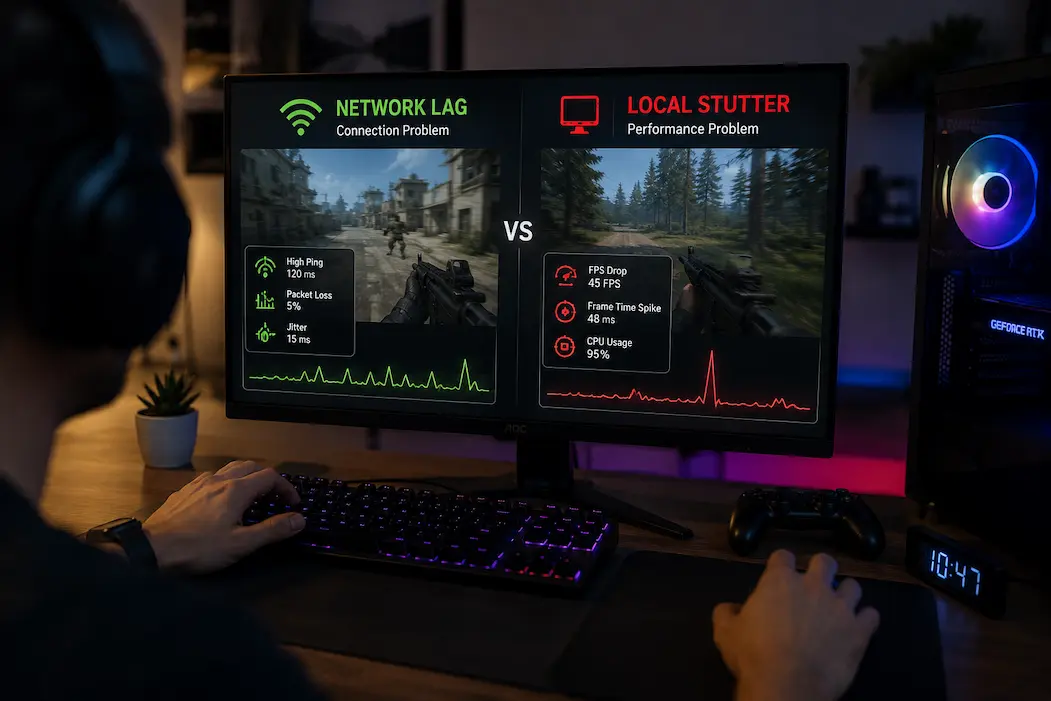
A game can suddenly feel slow, unresponsive, or strangely delayed for several entirely different reasons, and online games make the distinction especially difficult. A player may describe almost any interruption as “lag,” even when the actual problem is a frame-time spike, CPU workload, GPU pressure, packet loss, unstable latency, or a problem on the game server. Two very different problems can therefore produce symptoms that feel almost identical for a few seconds. The useful part is that they usually leave different clues once you look at what the computer and connection are doing at the same time.
The first step is to avoid changing settings before identifying what kind of interruption is occurring. Lowering texture quality or resolution can help when the computer cannot render frames quickly enough, but it cannot repair packet loss or an unstable route to a game server. Likewise, restarting a router won’t solve a local frame-time spike caused by a CPU-heavy process or a graphics workload. The objective isn’t to prove that either the computer or the network is responsible immediately. It is to collect enough evidence to separate the two possibilities.
A practical diagnosis comes from comparing frame delivery with network behavior at the exact moment the problem occurs. If the frame-time graph spikes while latency remains stable, that points in one direction. If the game keeps rendering smoothly, but ping or packet loss suddenly changes, that points somewhere else. When both change together, we need to investigate the situation a little more rather than automatically blaming either side.
Why Network Lag And Stutter Are So Easy To Confuse
Network problems can make an online game appear to freeze even when the computer is rendering normally. Other players might stop moving, your actions may take longer to register, or characters may suddenly jump to new positions when the connection catches up. Because the player experiences the issue as a delay, it is easy to assume that the computer has stopped producing frames. In reality, the game may still be rendering the same scene smoothly while waiting for information from the server.
Local performance stutter behaves differently because the computer itself is having difficulty maintaining consistent frame delivery. The camera may hitch, animations can visibly pause, and the entire image can momentarily become uneven. A frame-time graph will often show a spike during the interruption because one or more frames took considerably longer to produce than the surrounding frames. The network connection can remain perfectly stable during this event because the problem is occurring inside the local rendering or processing pipeline.
The distinction becomes clearer when you pay attention to what continues functioning during the interruption. If camera movement remains smooth while other players freeze or actions fail to register, network behavior deserves closer attention. If the entire image visibly hitches, especially in a demanding scene, local performance becomes more suspicious. These clues aren’t absolute because different games handle networking and rendering differently, but they provide a useful starting point.
A Quick Symptom Comparison
| Observation | Network issue more likely | A local performance issue more likely |
|---|---|---|
| Other players suddenly jump or teleport | Yes | Less likely |
| Camera movement visibly hitches | Less typical | Common |
| Frame-time spike | Usually not the primary sign | Common |
| Ping suddenly rises | Common | Not expected |
| Packet loss appears | Common | Not expected |
| Offline gameplay has the same stutter | Unlikely | Strong clue |
| FPS suddenly drops | Not necessarily | Common |
| A network warning appears | Possible | No |
| The problem occurs only on one server | Possible | Unlikely |
These clues should be treated as evidence rather than automatic diagnoses. An online game can have unusual engine behavior, server-side problems can create strange symptoms, and local background activity can sometimes affect network responsiveness as well. The point is to identify which measurements deserve closer attention instead of assuming that every form of “lag” means the same thing.
Start By Watching The Image Itself
One of the simplest observations is to ask whether the rendered image actually stops moving smoothly. If the camera itself becomes jerky, animation pauses, or the entire scene appears to freeze for a fraction of a second, a local performance issue becomes more plausible. This is especially useful when the problem occurs during graphically demanding moments, when entering a new area, or when a large number of objects suddenly appear on screen.
A network problem can feel like a freeze without necessarily interrupting the rendering process. Your character might stop responding to server information while the camera continues moving smoothly, or other players may remain stationary until several updates arrive at once. In that situation, the game can continue producing frames normally even though the online world appears to have stopped. Looking at the visual behavior separately from the gameplay behavior can therefore provide an early clue.
Try deliberately moving the camera when the problem happens if the game allows it. If the camera remains smooth but online entities behave strangely, investigate the network side first. If the camera itself visibly hitches at exactly the same moment, check local frame time and hardware measurements. This isn’t a perfect diagnostic because games implement camera movement differently, but it is a useful real-time observation that requires no configuration changes.
Frame Time Is Particularly Useful Here
Frame time measures how long the computer takes to produce individual frames. A game averaging 120 FPS might normally produce frames roughly every 8.3 milliseconds, but one frame could suddenly take 40 or 60 milliseconds. That longer frame can create a visible hitch even though the average FPS over the entire session remains high. This is why an FPS counter alone can sometimes make a serious local stutter look less important than it actually is.
If the problem is local, the frame-time graph may show a significant spike at the exact moment you see the hitch. The next step is then to compare that spike with CPU activity, GPU utilization, temperatures, clock speeds, storage activity, or other relevant measurements. A network problem by itself normally doesn’t create a frame-time spike simply because the server has responded slowly.
The timing is more important than the absolute number. If you see a large frame-time spike every time the game visibly hitches, you have evidence that the computer’s frame-delivery pipeline is involved. When players stop moving and the ping suddenly rises, while the frame-time graph remains relatively stable, this indicates that communication with the server is the likely cause.
Ping Does Not Tell The Whole Network Story
Ping is useful because it gives you an indication of network latency, but a single ping number doesn’t describe the complete quality of an online connection. A connection can have an average latency that looks perfectly acceptable while still experiencing short periods of packet loss or sudden latency variation. Those brief changes can be enough to affect a competitive game even though the long-term average remains low.
For example, a connection that normally sits around 30 milliseconds can feel inconsistent if it occasionally jumps above 120 milliseconds, even with a reasonable average. The game may receive information later than expected, causing movement corrections, delayed actions, or other unusual behavior. If those changes happen at the same time as the symptom, they become much more useful evidence than simply knowing that your normal ping is 30 milliseconds.
This is why network diagnosis should look at latency, variation, and packet delivery, rather than treating ping as a single health score. If the game provides a network graph or statistics panel, leave it visible while reproducing the problem. If the game doesn’t provide useful information, other network monitoring methods can help establish whether the connection changes during the interruption.
Measurements Worth Watching
- Latency: Shows the communication delay to the relevant endpoint.
- Jitter: Shows how much latency changes over time.
- Packet loss: Indicates whether packets are being lost or failing to reach their destination.
- Server information: Helps identify whether the problem is isolated to one server or region.
- Connection consistency: Shows whether the problem occurs repeatedly under similar network conditions.
None of these measurements needs to be perfect for every test. Even a simple observation such as “latency jumps every time the problem occurs” can provide more useful information than changing several graphics settings and hoping the issue disappears.
Packet Loss Can Feel Like A Performance Stutter
Packet loss can be particularly confusing because its symptoms depend on how the game handles missing network information. A game may stop updating other players correctly, delay actions, correct your position after a short interval, or suddenly move several objects when communication resumes. To the player, this can feel like the game has frozen for a moment, even though the local computer has continued rendering.
The visual result varies considerably between games. Some use prediction and interpolation to hide small network interruptions, while others expose them much more clearly. In a fast competitive game, even a short interruption can be obvious because players expect movement and actions to happen continuously. In another game, the engine might disguise the same network event, making it appear only as a subtle movement correction.
The important distinction is that packet loss doesn’t necessarily reduce the computer’s rendering capability. You can have a stable frame rate and still experience severe online disruption. If the FPS remains steady, frame time remains consistent, and packet-loss statistics change when the problem occurs, the network becomes a much stronger suspect than the graphics settings.
Jitter Can Matter Even When Ping Looks Fine
A stable connection isn’t simply one with a low ping. It is also one where that latency remains reasonably consistent. Jitter describes variation in latency, and high variation can make an online game behave unpredictably even when the average ping doesn’t appear alarming.
Imagine two players with an average latency of 40 milliseconds. One has a connection that stays close to 40 milliseconds throughout the match, while the other repeatedly moves between 20 and 100 milliseconds. Their average values might look similar over a long period, but the second connection is much more likely to produce inconsistent online behavior.
This is why a network graph can sometimes tell you more than a static ping number. If latency repeatedly rises at the exact moments where other players freeze or your actions become delayed, the pattern is meaningful. If latency remains stable while frame time jumps instead, spending hours adjusting the router may not address the actual problem.
Look For Repeated Patterns
A useful test is to identify whether the interruption happens randomly or follows a recognizable pattern. If the connection experiences a latency jump every few seconds, something recurring may be affecting the network. If the problem appears only when a specific server is under heavy activity, the server or route may be more relevant.
Likewise, if the problem appears only while another device is performing a large download or upload, local network congestion becomes a possibility. The important point is to look for a relationship between the symptom and the network event rather than assuming that the presence of an online connection makes the internet responsible.
GPU And CPU monitoring can confirm local stutter.
When the game itself appears to hitch, monitoring the hardware at the same time can help determine whether the computer is struggling. A GPU limitation may produce high GPU utilization and increased frame times, while a CPU-side limitation can occur when an important game thread becomes heavily loaded even though total CPU usage remains well below 100%.
This is why overall CPU usage should not be used as the only indicator. A game may depend heavily on one or two threads while other cores remain comparatively idle. Similarly, a GPU doesn’t necessarily need to show a particular utilization percentage to prove that it is or isn’t responsible. What matters is how the measurements change when the actual stutter occurs.
Temperature and clock speed can also matter during longer sessions. If the game runs smoothly at first and becomes less consistent after extended play, compare the frame-time behavior with CPU and GPU temperatures and operating frequencies. A thermal or power-related performance change can create symptoms that players sometimes mistakenly attribute to an unstable internet connection.
Compare The Measurements At The Same Moment
| Measurement | Local stutter | Network problem |
|---|---|---|
| Frame time | Often spikes | Usually remains stable |
| FPS | May fall | Can remain unchanged |
| GPU utilization | May change | Usually unrelated |
| CPU activity | May change | Usually unrelated |
| Ping | Usually stable | May spike |
| Packet loss | Usually stable | May increase |
| Jitter | Usually stable | May increase |
| Other players | Usually normal | May freeze or jump |
The most useful evidence comes from measurements that change at the same time as the symptom. A high GPU utilization number recorded several minutes before the stutter doesn’t explain the stutter nearly as well as a GPU behavior change that occurs at the exact moment of the frame-time spike.
An Offline Test Can Remove The Network Variable
If the game has a suitable offline or training mode, it can provide a useful comparison. The goal isn’t to recreate the online match perfectly. Instead, you’re checking whether the same local rendering workload can produce a similar visual interruption without relying on a remote server.
If the game produces the same camera hitching and frame-time spikes offline, the network becomes a much weaker explanation. The problem may involve the GPU, CPU, storage, memory, drivers, background software, or the game engine itself. An offline test is particularly useful when the online symptom has been described only as “stuttering” without any clear network measurements.
The opposite result is also informative. If local gameplay is smooth but the problem appears repeatedly during online sessions, network conditions deserve more attention. That still doesn’t prove your home internet is responsible because server-side or routing problems remain possible, but it narrows the investigation considerably.
The Server Can Be Responsible Too
Your internet connection isn’t the only network component involved in an online game. Data may pass through your local network, internet service provider, routing infrastructure, and the game server before the relevant information reaches its destination. A problem somewhere along that path can create symptoms even when your computer and home router are functioning normally.
Server-side problems can be particularly confusing because they may resemble local connection problems. Several players in the same match might suddenly experience delayed actions, players jumping around, or unusual movement corrections. If people in the same session report the same issue at approximately the same time, that is valuable evidence that the problem may not be specific to your computer.
Trying another server or region can sometimes provide a useful comparison. If one server behaves poorly while another remains stable under otherwise similar conditions, the difference gives you a reason to investigate the server or network route rather than immediately changing your graphics configuration.
Compare Different Network Situations
Where the game allows it, useful comparisons include the following:
- Another server in the same region.
- Another available server region.
- A private or local match.
- Another online game using a different server infrastructure.
- An offline mode using similar graphics settings.
You don’t need to perform every test. Choose comparisons that remove or change one variable while keeping the rest of the system as similar as possible.
Background Activity Can Affect Both Sides
Sometimes a problem appears to be both network-related and local because another process is affecting the computer or connection at the same time. A large download can increase network activity, while CPU-intensive software can create frame-time spikes. Recording software, cloud synchronization, system updates, and other background processes can also change the conditions during a gaming session.
This makes timing particularly important. Suppose a file download begins, network latency increases, and the game starts behaving strangely. That doesn’t automatically mean the game itself is broken. Similarly, if a background process consumes CPU resources while the frame-time graph spikes, the internet may have nothing to do with the problem.
Try reproducing the issue under consistent background conditions. If you normally have a browser, cloud synchronization application, or download running, temporarily remove the obvious variable for a controlled comparison. You aren’t trying to create a perfectly sterile computer; you’re simply checking whether an external activity changes the symptom.
Input Delay Can Blur The Difference Further
Delayed input is another symptom that can be difficult to classify. Pressing a button and seeing the expected action happen later can result from network communication, local rendering delay, display synchronization, CPU workload, or an input-device issue.
The context provides useful clues. If the same controller or keyboard responds normally in offline gameplay but actions feel delayed only during an online match, network conditions become more relevant. If input feels delayed across several games, including offline ones, investigate local input and display behavior instead.
A frame-time graph can also help. If input feels delayed at the same time as significant frame-time spikes, local performance may be contributing. If frame delivery remains stable while online actions are delayed, network behavior deserves more attention.
Don’t Use Graphics Settings As A Universal Lag Fix
Lowering graphics settings is a reasonable response to a local rendering problem, but it isn’t a general solution for every kind of gaming “lag.” If the evidence shows that packet loss or unstable latency is responsible, reducing shadows, textures, or reflections won’t improve the connection between your computer and the server.
The same principle applies in the other direction. Changing Wi-Fi settings or restarting the router won’t make a GPU render a demanding scene faster. If frame time is spiking while network measurements remain stable, the troubleshooting effort should move toward the local system instead.
This is why identifying the symptom before changing settings saves time. The goal is not to try every common gaming fix. It is to apply the smallest change that addresses the evidence you actually have.
Build A Timeline When The Problem Is Intermittent
Intermittent problems are often difficult to diagnose because they disappear before you can inspect them. A simple timeline can make the event much easier to understand. Record or observe the relevant measurements and note what changes immediately before and during the interruption.
For example, a pattern such as stable frame time → latency spike → other players freeze → latency returns to normal points toward a network event. A different pattern such as stable ping → frame-time spike → camera hitches → FPS drops points toward local performance.
If both frame time and network measurements change at the same moment, don’t force the issue into one category. Look for another event that could be affecting both, such as a background process, bandwidth-heavy activity, server behavior, or a game-engine event triggered by network activity.
A Simple Evidence Log
| Moment | Frame time | FPS | Ping | Packet loss | What you noticed |
|---|---|---|---|---|---|
| Normal play | Stable | Normal | Stable | None | Everything responsive |
| During problem | Spike/Stable | Drop/Stable | Change/Stable | Change/None | Note exact symptom |
| After problem | Returns | Returns | Returns | Clears | Compare recovery |
Even a few observations like these can be more useful than repeatedly reinstalling drivers or changing graphics presets without knowing what you’re trying to test.
A Practical Diagnostic Sequence
Start by reproducing the problem under conditions that you can repeat. Keep the game’s graphics settings unchanged and enable whatever FPS, frame-time, and network statistics the game provides. When the interruption happens, first observe whether the actual image becomes uneven or whether online information is simply delayed.
If the image visibly hitches, examine frame time and compare it with CPU and GPU activity. If frame time remains stable while ping, jitter, or packet loss changes, investigate the network side. If the problem affects other players simultaneously, consider the server or route rather than assuming the issue is inside your PC.
If the evidence remains ambiguous, remove one variable at a time. Try a suitable offline mode, another server, another game, or a controlled session without bandwidth-heavy background activity. Each comparison should answer a specific question. You don’t need to perform every possible troubleshooting step when the evidence has already pointed strongly toward one side.
Diagnose The Type Of Lag Before Trying To Fix It
Although the term ‘lag’ is useful in everyday conversation, it is not an accurate description of the problem. Local performance lag means that the computer is struggling to deliver sufficient frames or process the game. Network latency can cause delays, instability, or data loss between the game client and the server. Server-side issues can resemble local performance lag or network latency.
The simplest way to distinguish between these two scenarios is to observe the system when the problem occurs. Frame times, FPS, and CPU and GPU behavior reflPing values, jitter, and packet loss rates describe network conditions.itter, and packet loss rates. If one set of metrics changes while another remains constant, the problem becomes clearer.
Do not start by lowering graphics settings or replacing network equipment. First, reproduce the symptoms of the problem, observe the changes, and then perform controlled tests to rule out a possible cause. If the game runs well but online entities stop responding, check the network or the server. If the entire screen stutters but network metrics are stable, check local performance. The question “Why is my game stuttering?” is not sufficient; ask the question, “What changes occurred at the exact moment the lag occurred?” If you can answer this question, diagnosing network latency and local performance lag becomes much easier.
FAQs
1. Can network lag cause a frame-time spike?
Network activity does not normally create a frame-time spike simply because latency increases. However, individual games can process network events in different ways, so unusual engine behavior is possible. If frame time spikes consistently with the symptom, investigate the local performance pipeline rather than assuming the network is solely responsible.
2. How can I tell whether high ping or low FPS is causing the problem?
Watch both measurements during the interruption. If FPS drops and frame time spikes while ping remains stable, local performance is more likely. If FPS and frame time remain stable while ping or packet loss changes, the network is more likely to be involved.
3. Can packet loss happen even with a fast internet connection?
Yes. Internet speed and connection stability are different characteristics. A connection can have high download and upload speeds while still experiencing packet loss, jitter, or unstable routing that affects online games.
4. Why do other players sometimes teleport when I am lagging?
The game may temporarily stop receiving current position updates and then correct the displayed positions when newer information arrives. This is a common type of symptom associated with network disruption, although server-side issues can produce similar behavior.
5. Should I test another game if I suspect network lag?
It can be useful, especially if the second game uses different servers or networking infrastructure. If several unrelated online games show similar network symptoms, the issue is more likely to involve your connection or network path than one game’s graphics configuration.
6. Can a game server cause lag when my internet is working normally?
Yes. Server load, routing problems, and other infrastructure issues can affect online responsiveness without there being anything wrong with your local hardware or internet connection. Comparing different servers or regions can help identify this possibility.