
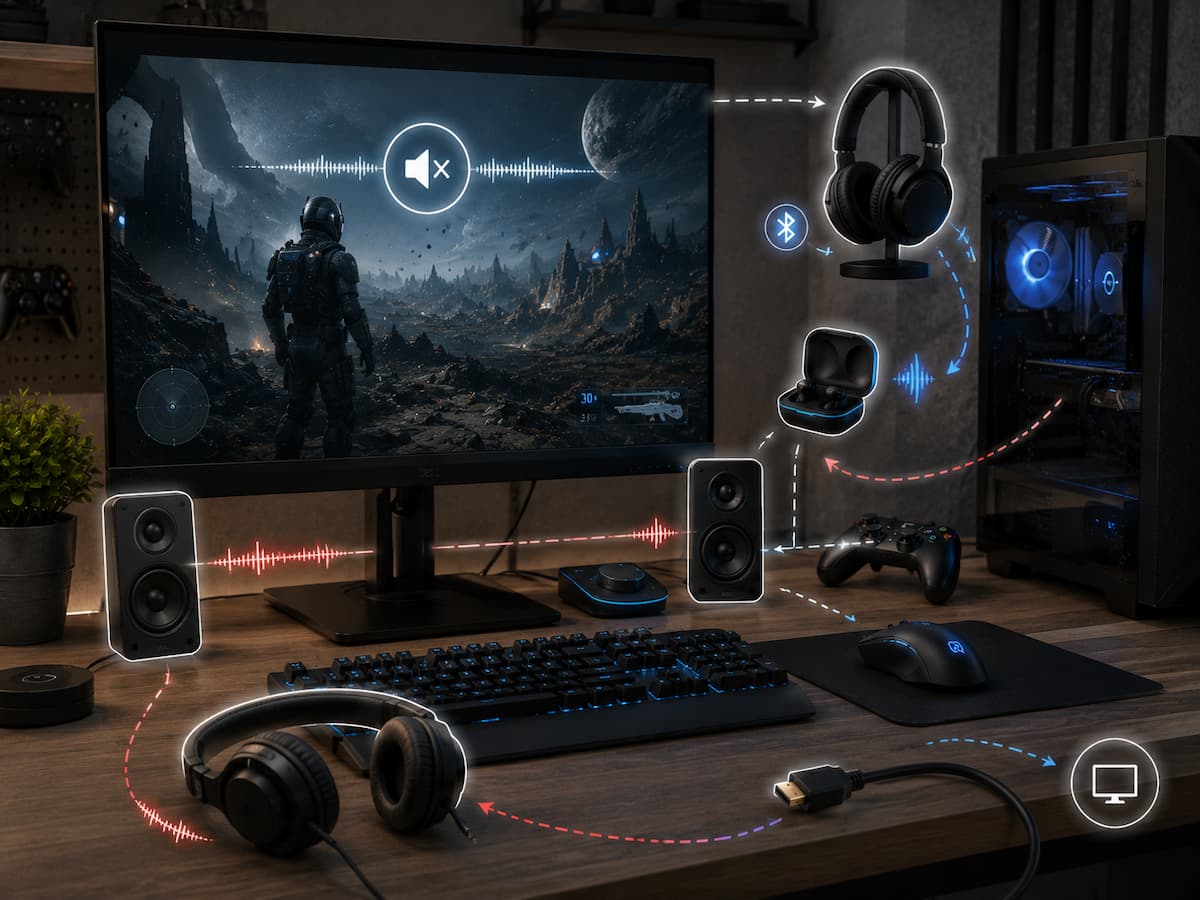
Multiple audio devices can be used on modern PCs. A computer may see motherboard audio, USB headphones, an HDMI or DisplayPort monitor, a wireless headset, a controller with an audio interface, and software-created virtual devices. Games transition between devices differently than Windows. Some follow the OS’s default device, while others recall the prior output.
This post explains why that discrepancy occurs and how you fix it without reinstalling drivers or altering dozens of settings. Learn how to identify the device receiving game audio, check volume and application-specific settings, deal with Bluetooth and HDMI audio, and tell if the problem is a game or Windows.
Why Switching Devices Silences Games
This problem usually occurs when the game and Windows disagree on sound routing. Imagine your PC uses USB headphones. Unplug and connect speakers. Windows defaults to speakers, but the game can use the old headphones. The game keeps making sound, but it’s sent somewhere else. The contrary is possible. If you connect a monitor via HDMI, Windows may use its built-in audio as the default output. The game continues to use that device, even though you wanted to use your desktop speakers. The player thinks the game has lost sound, yet the audio is still being output.
Several audio gadgets make this frequent. Windows can run several playback devices, and applications can use different outputs. The game may be connected to another device while a website uses your speakers and a voice-chat app uses your headset. Why is my game broken? It should not be the first troubleshooting inquiry. Should be “Where is the game sending audio?” That little shift in perspective can prevent much troubleshooting.
Check Windows Device
Windows is the quickest way to verify that the newly connected device is receiving audio. Check the output device by clicking the taskbar sound icon. Windows recognizes new headphones, speakers, monitors, and other devices. Do more than see the device name. Check your device’s audio by playing a video or other sound source. The physical connection and basic output path should work if Windows audio is working.
Select the proper device and test the game again if Windows sends sound to the wrong one. Multiple monitors, USB audio hardware, and virtual audio software might cause similar device names. Checking for muted devices is also helpful. A device can be selected correctly but have no loudness. Check the speaker’s and headphones’ volume controls because Windows cannot fix a lowered volume. Before changing game settings, ensure the new device plays Windows audio. General audio problems are distinguished from game-specific output problems.
Individual Game Volume Check
Windows controls application volume separately from system volume. This means one game can be silenced while your speakers operate fine. While the game is running, open Windows’ volume mixer and find it in the current apps. Check loudness and output. Application output devices might sometimes differ from the system default on current Windows editions, which is relevant when switching between headphones, speakers, monitors, and other audio hardware.
Your game may have been allocated to USB headphones. The game’s output assignment stays on the old device when you switch to HDMI speakers. Windows can play music and films on the new speakers while the game is quiet. Change the game’s output device in the volume mixer to fix this quickly. Make sure the game is running and sounding before inspecting the mixer if it doesn’t appear. Volume mixer parameters are independent from game audio settings. Checking one site may not show the issue because both can affect the result.
View the Game’s Audio Settings
PC games often have audio controls and let you choose a playback device. If you recently changed hardware, visit the game’s audio settings and seek for output, audio, playback, headphones, speakers, or surround setup. Switch the game to your current device if it’s set to an unconnected one. When you regularly transfer devices, a game’s “Default” option may operate better because it follows the operating system’s output.
Try not to assume that “Default” is best. Some games have poor device switching and require a specific device. If adjusting the setting doesn’t fix sound, close and relaunch the game. In-game audio sliders should also be checked. Music, effects, speech, master volume, voice chat, and cinematic audio may be controlled separately. A category can be muted when everything else is functioning properly
As HDMI or DisplayPort Changes Output
HDMI and DisplayPort can convey sound and video; therefore, connecting or detaching a display can change audio unexpectedly. Windows may include an audio device as a playback option if it finds an audio-capable display. This scenario can cause the player to lose desktop speaker sound when connecting a second monitor. Nothing’s failed necessarily. The operating system may have chosen the display as the new output.
Check the sound output list after connecting or unplugging a monitor. Revert to your preferred speakers or headphones if the device has your display or graphics output name. Display audio can also vary depending on whether it has speakers or headphones. A display can act as an audio device even if its hardware is silent. This aspect is especially easy to overlook in multi-monitor gaming setups. Try each HDMI device instead of assuming the first is the right output.
Switching Headphones/Speakers
Headphones and speakers switch easily, but the result relies on how they’re connected. Wireless headphones produce a separate audio device, but motherboard audio jack-connected analog headphones may be handled differently. USB headsets often have audio hardware. Windows may quickly switch outputs when you disconnect one. When you plug it back in, Windows may see it as a new device.
Some games only initialize their audio system at startup. If the game were running when you changed the output, it may use the old device until startup. Closing the game before switching devices can avoid issues. Changing devices before beginning the game cleans it up if you frequently switch between headphones and speakers. A key clue is whether the problem occurs only when switching devices while the game is active. This suggests that the game may not handle live audio-device updates properly, rather than indicating a problem with the audio driver.
Bluetooth Headsets Cause Issues
Windows may access many audio modes on Bluetooth headsets. A higher-quality stereo playback mode and a microphone mode may be available depending on the device and system setup. When an app engages the headset microphone, Windows or the app may change Bluetooth audio mode. It can cause a rapid change in sound quality, volume, or game audio loss.
This is especially obvious in games with voice chat. Windows uses a distinct Bluetooth profile if the game activates the microphone while sending audio. If game audio loses only when voice chat is activated, try the headset without the microphone. If the audio returns, it may be the Bluetooth audio mode, not the game being mute. Because they don’t employ Bluetooth audio profiles, wired or USB headphones can sometimes bypass these restrictions.
USB Audio Devices and Controllers
A controller with a headphone jack can be used as an audio device. Even though you wanted to play with a gamepad, connecting it adds another output to Windows. With the controller as the output, game sound can be routed through the headphones. Without headphones, you may not hear.
Others can behave like USB devices. Playback devices include capture devices, docking stations, webcams, professional audio interfaces, and virtual audio software. As you connect more devices, it’s crucial to examine the selected output instead of believing Windows will always choose the one you want. If audio disappears soon after connecting a controller or USB device, detach it and test the game again. Check Windows output selection and application-specific audio routing if sound returns.
Exclusive Mode and Audio Apps
Some Windows audio apps can require device exclusivity. Another program may have trouble using the device in some settings. This can affect music software, communication apps, recording tools, virtual audio mixers, and other audio hardware-interacting programs.
Close any other program and test the game again if audio stops only when it does. If the problem goes away, you have more evidence than reinstalling the audio driver. Apps can also build virtual playback devices. While beneficial for streaming and recording, these can confuse audio routing. Before changing anything, identify the applications that generated multiple unusual Windows outputs. Keeping the audio route simple simplifies debugging during normal games. You don’t need to remove virtual devices, but you should know which one the game uses.
When Audio Drivers Cause Trouble
If switching devices causes audio issues across multiple apps, the issue may go deeper than the game. Audio drivers allow Windows to interface with hardware, and issues can affect several apps. Make sure Windows audio, browser videos, music apps, and games work. If only one game loses audio, the driver is less suspicious. After switching devices, verify the Windows audio device and driver if all apps go silent.
Driver issues can also arise following Windows updates, motherboard firmware modifications, graphics driver changes, or audio software installations. HDMI and DisplayPort audio is often delivered by graphics hardware; therefore, a graphics driver may be essential even if the problem is sound. Instead of downloading driver downloads from unapproved websites, use the device manufacturer’s or Windows’ supported update processes. That timing may justify evaluating the known-good configuration if the device performed correctly before a recent driver upgrade.
Why Game Restarts Matter
Some games only select their audio device at sound system startup. Changing from headphones to speakers while the game is underway may cause it to broadcast audio to the old device. Windows may detect a device change, but the game may not update its audio configuration. Starting the game again initialises it and lets it detect the specified output.
Testing this remedy is easy because it doesn’t change drivers, files, or system settings. Shut down the game, pick the correct Windows output, then launch it again. Remember that behaviour if sound returns after restarting. The game’s device switching may be the issue. Switching audio devices before playing the game may be more reliable than switching them during play.
A Simple Way to Determine Cause
The fastest way to debug is to ask if the device works and if the game knows where to transmit audio. Try the new headphones, speakers, monitor, or output with Windows sound or video. If nothing sounds, check the device, connection, driver, mute state, and Windows output settings. If other apps have sound but the game doesn’t, open the Windows volume mixer and game audio settings. Volume and output device should be checked. Once the output is accurate, restart the game.
Check whether microphone or voice-chat activation alters audio mode if the problem only occurs with Bluetooth. Check whether HDMI or DisplayPort audio is the default output if it happens after connecting a monitor. If all apps are affected, investigate Windows audio and drivers. This approach is better than reinstalling the game because it identifies the modified audio chain.
| What You Notice | Most Useful First Check |
|---|---|
| Windows has no sound either | Output device, mute state, connection, and driver |
| Windows has sound but the game does not | Game settings and Windows volume mixer |
| Sound disappears after connecting a monitor | HDMI or DisplayPort output selection |
| Sound disappears after connecting a controller | Controller audio device selection |
| Bluetooth sound changes when voice chat starts | Bluetooth microphone and playback mode |
| Sound returns after restarting the game | Game’s device-detection behavior |
| Several applications lose sound | Windows audio system or driver |
Troubleshooting Mistakes to Avoid
Audio problems encourage people to change many settings at once. That makes it difficult to understand what actually fixed the problem. If the sound disappears after switching devices, start with the output selection rather than immediately reinstalling the audio driver.
Do not download unofficial audio drivers simply because a website claims they will improve gaming performance. Audio drivers are hardware-specific, and the wrong package can create additional problems.
There is also little reason to disable every audio enhancement or Windows service without evidence that one of them is responsible. Advanced settings can matter in specific situations, but they should come after the basic output path has been confirmed.
Another common mistake is testing only the game. If you do not know whether Windows itself has working audio, you cannot tell whether the game is the source of the problem. Always compare the game’s behavior with at least one ordinary audio application.
Finally, remember that changing devices while the game is running can be the trigger. If the game repeatedly loses sound after live device switching but works correctly after a fresh launch, that is useful information rather than something to ignore.
Conclusion
After switching devices, game audio may disappear, but it’s often a mismatch between Windows and the game’s device. Modern computers can have several playback devices, and attaching a monitor, headset, controller, or USB attachment can change audio paths without warning.
Following the game’s audio path to the hardware is preferable. Check Windows’ selected output, the game’s volume and audio settings, and application-specific routing in the volume mixer to make sure the new device works outside the game. Check the device that caused the issue if it started after connecting.
Despite appearances, game restarts are crucial. Some games only detect the correct output on launch and don’t smoothly handle audio-device changes. Microphone use changes audio mode on Bluetooth headsets, thus they need extra care. Only start driver troubleshooting when evidence suggests it. Using a meticulous method makes it easier to avoid unnecessary adjustments and to identify whether the problem lies with Windows, the game, the connection, or the device.
FAQs
1. Does switching audio devices during a game cause issues?
Yes. Some games take time to recognise Windows playback device changes. Game play can resume on the same device. This happens often while switching between USB headsets, Bluetooth devices, HDMI audio, and motherboard audio. Close the game, pick the right Windows output, then launch it again if a live device change disables sound.
2. Bluetooth audio stops during game voice chat. Why?
Bluetooth headsets use multiple audio styles based on microphone status. Windows or the application may switch to microphone input and playback mode during voice conversation. Depending on the headset and system, this may affect audio quality or behavior. Try the game without voice chat. A Bluetooth microphone and playback setup are clues if audio returns.
3. Should I reinstall audio drivers?
Not necessarily. If only one game has lost audio and Windows and other apps operate, replacing drivers may not be optimal. Start with the game’s output device and Windows volume mixer. Driver troubleshooting is needed when many apps lose sound, the audio device disappears, or a driver or Windows update caused the issue.
4. Why does restarting the game fix sound?
Many games start their audio system. If you switch headphones, speakers, or outputs, the game may use the old device until restarted. The game detects the audio environment again after restarting. If this always restores sound, try picking your desired output before beginning the game and see if it automatically follows the Windows default device.
5. What should I examine first if game audio stops?
Start with the simplest audio chain component. Make sure Windows is utilising your desired device and that audio works. Check the game’s volume and output options, then Windows volume mixer. Check if a monitor, controller, Bluetooth headset, or USB audio device you recently connected becomes the default output. If these basic checks fail, try driver troubleshooting.