
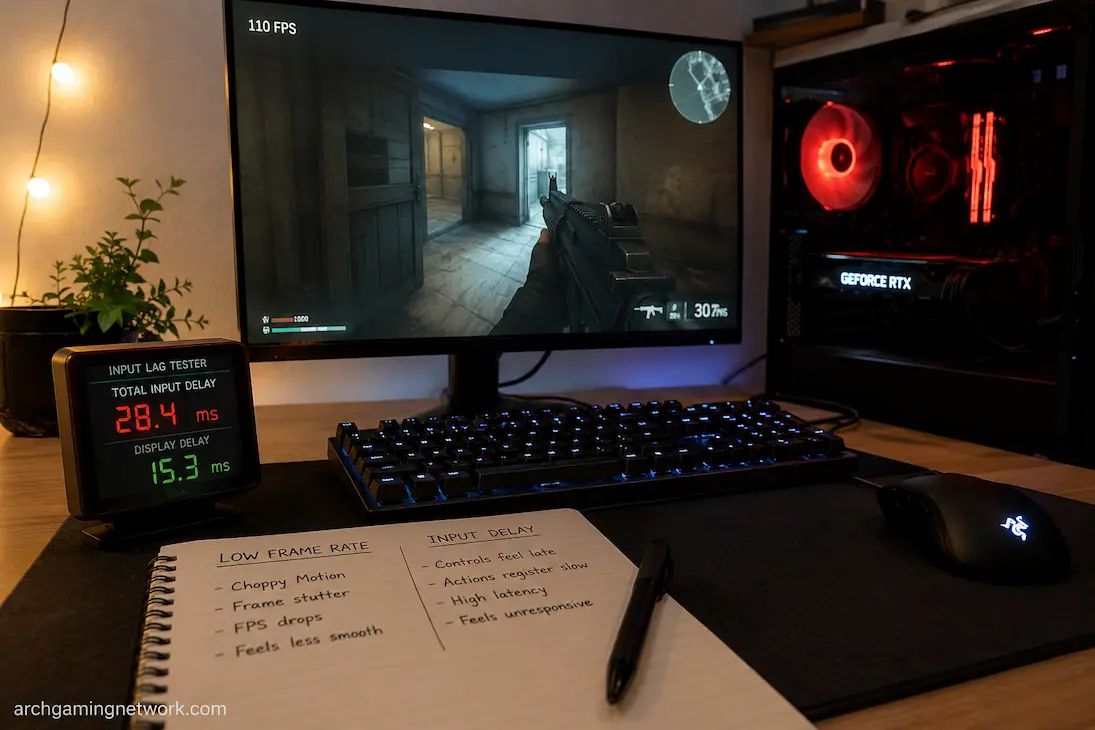
Some games, even with sharp graphics, can feel choppy; others, even with smooth controls, can still stutter. Although both are referred to as “latency,” they are different issues. Input lag refers to the time interval between a player’s action and the game’s response, whereas a low frame rate means the computer is generating fewer frames. Because different problems can occur simultaneously, it is easy to locate the faulty component during troubleshooting.
The solutions differ, making it crucial to distinguish between the two. Lowering graphics settings can improve a low frame rate by reducing the load on the GPU or CPU, but it may not resolve input lag. However, changing display modes, synchronization, or input settings can affect responsiveness without impacting the frame rate. Before making adjustments, you should determine whether the game is struggling to generate frames or is simply slow to respond to actions.
Good diagnostics go beyond just the frame rate counter. Pay attention to image fluidity, the game’s responsiveness to repeated input, and whether rendering load affects latency. By distinguishing these observations, it becomes easier to detect input lag and low frame rates.
Low Frame Rates Affect The Motion You See
A computer’s frame rate refers to the number of frames generated over a certain period. This technology generates one frame every 16.7 milliseconds, which corresponds to 60 FPS. At 30 FPS, the frame interval is 33.3 milliseconds. A lower frame rate, therefore, means a lower refresh rate, resulting in less smooth camera movements, animations, and other actions.
Frame transfer is the main problem. If the GPU or CPU cannot generate frames fast enough, the number of frames displayed in the game will decrease. Even if your controller, mouse, or keyboard works properly, it will still be affected. The mouse can move and the camera can react, but the game actually transmits fewer frames, resulting in less smooth action. Due to the low frame rate, controls can feel less responsive. A lower frame rate means there is less chance that input information is rendered in new frames. This does not mean that all games with a low frame rate have the same input latency, but it does explain why a game with 25 or 30 FPS can feel slower than a game with 100 FPS.
FPS And Frame Time Are Closely Connected
| Frame rate | Approximate frame time |
|---|---|
| 30 FPS | 33.3 ms |
| 60 FPS | 16.7 ms |
| 90 FPS | 11.1 ms |
| 120 FPS | 8.3 ms |
| 144 FPS | 6.9 ms |
| 240 FPS | 4.2 ms |
These numbers describe frame production intervals, not the complete end-to-end input latency of a game. Display processing, the game’s input pipeline, synchronization technology, and other factors can add additional delay.
Input Delay Is About Responsiveness
Input delay is concerned with something different: how long it takes for a physical action to become visible or otherwise register in the game. You press a mouse button, move a stick, or press a keyboard key, and there is a period before the game responds. Some amount of delay exists in every digital system. The useful question is whether that delay is large enough to notice and whether a particular part of the system introduces it.
For example, you might have a game running at a steady 120 FPS but still feel that aiming is slightly delayed. In that situation, the problem isn’t necessarily low frame rate. Display latency, synchronization settings, the input device, the game’s rendering queue, wireless communication, or other parts of the pipeline may be contributing. This is why simply looking at FPS cannot tell you whether a game feels responsive.
A Game Can Have High FPS And Still Feel Delayed
A high FPS number is generally helpful for responsiveness, but it isn’t a guarantee of low input delay. A game can render at a high average frame rate while other parts of the input-to-display pipeline introduce additional latency.
Consider a game that stays around 144 FPS but uses a synchronization configuration that causes frames to wait under certain conditions. The FPS counter can still look excellent while the controls feel less immediate than expected. Likewise, a wireless controller with unstable communication can create delayed inputs even though the computer is rendering the game smoothly.
The opposite can happen too. A game running at a modest frame rate can still respond predictably to controls, even though its motion isn’t particularly smooth. That is why it is useful to separate responsiveness from smoothness when describing the problem.
Ask Two Different Questions
When diagnosing the experience, ask:
- Does the image move smoothly? This points toward frame rate and frame-time behavior.
- Does the game respond quickly when I provide input? This points toward responsiveness and input latency.
The answers can be different. A game can be smooth but delayed, rough but relatively immediate, or both smooth and responsive.
Low FPS and input delay can exist together.
The distinction becomes harder when the computer is genuinely struggling to maintain a high frame rate. A GPU operating at its limit can produce low FPS while the game also feels less responsive. In this situation, one might conclude that “low FPS is input delay,” but the two are still separate characteristics of the experience.
If you lower a demanding graphics setting and FPS rises substantially while controls also feel more immediate, you have evidence that the rendering workload was contributing to the overall experience. However, that doesn’t prove that graphics load was the only source of latency.
For example, a game might rise from 45 FPS to 75 FPS after reducing a demanding setting and feel noticeably better. If the game still feels delayed afterward, another part of the input or display pipeline may be involved. Improving frame rate can remove one contributor without eliminating every source of delay.
Frame-Time Spikes Are Different From Consistently Low FPS
Not every performance problem appears as a permanently low FPS number. A game can average 100 FPS and still feel unpleasant if it periodically takes much longer to produce individual frames. Suppose most frames arrive in around 10 milliseconds, but occasional frames take 50 or 80 milliseconds. The average FPS might still look respectable, yet those individual interruptions can create visible hitches. This is usually described as “stutter” rather than simply low FPS.
That distinction matters when someone says, “My FPS is high, but the game feels delayed.” The problem may actually be inconsistent frame delivery rather than sustained low frame rate. A frame-time graph can reveal the issue much more clearly than an average FPS counter.
Look At The Shape Of Performance
A stable 60 FPS experience and a game that alternates between 100 FPS and severe frame-time spikes can feel entirely unique. If the graph is relatively consistent, investigate responsiveness separately if controls still feel delayed. If the graph contains large spikes, investigate CPU workload, GPU workload, asset streaming, shader compilation, background processes, or other local causes of stutter. The number on the FPS counter is only one part of the picture.
Graphics Settings Can Help Identify A Rendering Limit
If you suspect that low FPS is responsible for the poor experience, change a graphics setting that meaningfully affects rendering workload and compare the result in the same scene.
Reducing resolution is particularly useful because it changes the number of pixels the GPU has to process. If FPS rises substantially and frame-time behavior improves, the GPU’s rendering workload was likely important. You can then investigate other graphics options rather than reducing everything indiscriminately.
If changing several GPU-heavy settings barely affects performance, the limitation may lie elsewhere. CPU workload, game-engine behavior, simulation complexity, or another system constraint could be involved. The important part is to use the graphics change as a diagnostic test, not simply as a generic optimization trick.
Input Delay Requires A Different Investigation
When FPS and frame time are reasonably stable but controls still feel slow, look at the parts of the system responsible for input and display responsiveness. The controller or mouse can be one source. Wireless devices introduce communication between the device and receiver, while wired devices generally remove that particular wireless link. A faulty device, connection issue, or unusual polling behavior can also affect responsiveness.
Display behavior matters as well. The monitor or television has its own processing characteristics, and some display modes introduce more processing than others. Features designed to improve image processing can sometimes affect responsiveness depending on the device and configuration. The game itself can also contribute through its input handling, rendering queue, and synchronization behavior.
Synchronization Settings Can Change Responsiveness
Technologies such as V-Sync and variable refresh rate can affect how frames are delivered to the display. Their behavior depends on the game, monitor, GPU, and configuration, so there isn’t a single setting that is always best for every situation.
A useful test is to change one synchronization-related option at a time while keeping the rest of the configuration unchanged. Then reproduce the same movement or gameplay scenario and compare how the controls feel. Don’t judge the result based solely on FPS. If the frame rate remains similar but the game feels noticeably more or less immediate, that suggests the change affected the presentation or synchronization path rather than simply increasing rendering performance.
Avoid Changing Everything At Once
If you simultaneously change V-Sync, frame-rate limits, display mode, and graphics quality, you won’t know which change affected responsiveness. Instead, record the original configuration and test one relevant variable at a time. This follows the same principle used for other gaming diagnostics: make a controlled change and observe the specific result.
Frame Rate Limits Can Be Useful For Testing
A frame-rate limit can help determine whether the system is struggling at its current target or whether a synchronization configuration behaves differently at a lower, more stable frame rate.
For example, if a game constantly fluctuates around a target and produces inconsistent frame times, a reasonable frame-rate cap may create a more stable workload. Whether that improves responsiveness depends on the game and display setup, so it should be tested rather than assumed. A cap is not automatically a cure for input delay. It is simply another controlled variable that can help identify how the game’s rendering behavior changes under a more consistent workload.
Don’t Use FPS As A Substitute For Measuring Responsiveness
FPS is easy to display, which makes it tempting to use as a universal measurement. But it answers only one question: how frequently frames are being produced over the measured period. It doesn’t tell you exactly how long a physical input takes to reach the game, how long the game waits before processing that input, how long rendering takes, or how quickly the display presents the finished frame.
Professional latency testing can measure these stages more directly, but most players don’t need specialized equipment to perform useful troubleshooting. A combination of frame-time behavior, controlled settings changes, and repeatable input tests can still establish whether low FPS is the main problem. The goal isn’t to obtain a perfect latency measurement. It’s to avoid confusing one type of problem with another.
A Simple Way To Test The Difference
Start with a repeatable situation where you can move the camera, aim, or perform another action that makes responsiveness easy to notice. Record the FPS and frame-time behavior without changing the current settings.
Next, reduce a graphics setting that should affect GPU workload and repeat the same test. If the frame rate rises substantially and the visual motion becomes smoother, you have evidence of a local rendering limitation. If the game remains smooth but the controls still feel delayed, investigate input- and display-related factors separately You can also test a synchronization or frame-rate-limit setting independently. If responsiveness changes while FPS remains broadly similar, that tells you the problem isn’t explained by frame rate alone.
What The Results Suggest
| Test result | More likely explanation |
|---|---|
| FPS is consistently low | Rendering or processing limitation |
| FPS is high but frame time spikes | Stutter or inconsistent frame delivery |
| FPS improves and controls feel better | Low performance was contributing |
| FPS stays stable but controls feel delayed | Input/display/rendering latency |
| Different controller changes responsiveness | Input device or connection |
| Synchronization changes affect responsiveness | Display/rendering pipeline |
| Offline and online responses differ | The network may be contributing |
These aren’t absolute diagnoses, but they provide a logical direction for further testing.
Don’t Confuse Smoothness With Responsiveness
Smoothness is about how smoothly the motion is shown, and responsiveness is about how swiftly the system reacts to the player’s movements. They impact one another but are not identical. A game that runs at 30 FPS can respond to an input with no discernible processing latency but nonetheless seem substantially less fluid. What can be an incredibly smooth game at 144 FPS can also feel sluggish due to its sync, render, or display configuration.
This difference is especially crucial in competitive games, because players can more easily perceive slight differences in responsiveness. It is also handy in single-player games where a player may otherwise waste time lowering graphics quality when the underlying issue is elsewhere in the input-to-display chain. The more important question is not simply “How much FPS am I getting?” It’s, “Is the game pumping out frames at a steady rate, and does it react when I tell it to?”
Diagnose Individually Responsiveness and Performance
Low frame rates and input latency can overlap. Yet considering them as the same problem makes troubleshooting excessively complicated. Low FPS mostly shows how often the computer generates frames, whereas input latency is about how fast the system responds to an action. Another issue with frame-time spikes is that they can cause a game to feel inconsistent, even when the average FPS appears high.
First watch the game, then change settings. If the motion is uneven and frame time is high all the time, check local performance. If the game plays well but the actions are laggy, check the input device, sync settings, display behavior, and other aspects of the input-to-display path.
Test individually if the two symptoms occur together. Try toggling one graphics setting to see whether the rendering performance improves and then test a related responsiveness level without affecting the graphics workload at the same time. A higher FPS can improve a game feel but doesn’t automatically explain why the controls feel behind. Treating smoothness and responsiveness as separate metrics makes it much easier to narrow down the underlying source of the problem.
FAQs
1. Do low FPS result in delayed controls?
Yep. At lower frame rates, the game’s frames are generated less frequently, which might make the controls feel less responsive. But that’s not to say that every instance of input latency is caused by low FPS.
2. Why is my game smooth yet I still have input delay?
If frame rate and frame-time behavior are stable, explore synchronization settings, the display, the input device, the game’s input setup, and other aspects of the rendering pipeline rather than thinking the GPU is too slow.
3. Does input lag equal stuttering?
No. Stuttering usually indicates the frames are not delivered at a steady rate and some frames take a lot longer than others. Input delay is the time between an input and the ensuing response. Stuttering and input lag can occur together, but they are different concerns.
4. Can a controller induce input lag while maintaining a high FPS?
Yes. Even if the game is running fine, a controller or its connection can cause responsiveness issues. Testing another controller or connection can help isolate that possibility.