
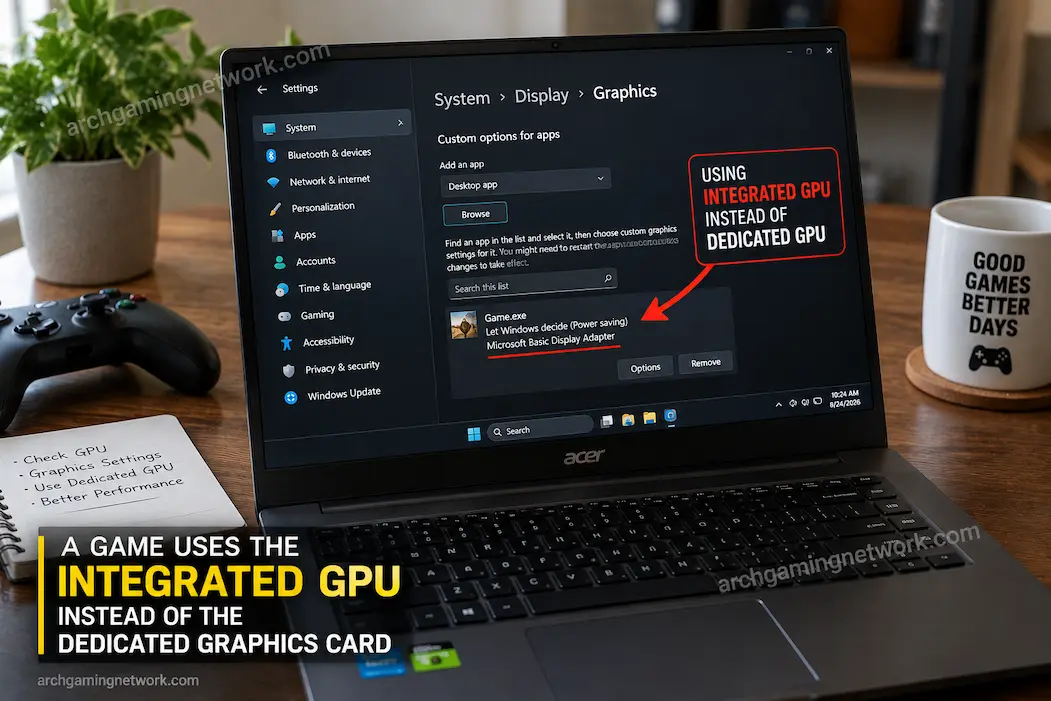
A PC game can sometimes launch on the integrated graphics built into the processor even when a dedicated NVIDIA or AMD graphics card is installed. The result is usually obvious: unusually low frame rates, poor graphics performance, high frame-time spikes, or a game that suddenly behaves as though the computer has much weaker hardware than it actually does. In some cases, the problem is not that Windows has entirely ignored the dedicated GPU. The game may simply be associated with the wrong graphics processor, while another application continues using the dedicated card normally.
This can be confusing because the dedicated GPU may appear perfectly healthy in Device Manager or its control software. The game can also launch without displaying an error, making it straightforward to assume that the graphics card itself has a problem. Before changing drivers or reinstalling the game, it is worth confirming which GPU the game is actually using and then working through the settings that determine that choice.
Start by confirming which GPU the game is using
The first step should be observation rather than changing settings. A performance problem that looks like an integrated-GPU issue can have other causes, so it is useful to verify the hardware being used while the game is running.
On Windows, Task Manager can provide a quick indication. Open it with Ctrl + Shift + Esc, then look under the Processes or Performance sections while the game is active. Depending on your Windows version and configuration, you may see GPU activity associated with the game and identify which GPU engine is in use.
For a clearer picture, open the Performance tab and look at the individual GPU entries. A system with both integrated and dedicated graphics may show something such as GPU 0 and GPU 1. The exact numbering isn’t important by itself. What matters is identifying which entry corresponds to the integrated graphics and which represents the dedicated card.
You can also watch utilization while moving around inside the game. If the integrated GPU is heavily loaded while the dedicated GPU remains mostly idle, that is a useful clue. However, don’t treat utilization alone as absolute proof. A dedicated GPU sitting at low utilization can also be normal if the game is limited by the CPU, capped at a particular frame rate, sitting in a menu, or otherwise not demanding much graphics processing.
A quick verification checklist
Before changing anything, check:
- Which GPUs Windows detects
- Which GPU is the integrated graphics processor
- Which GPU is the dedicated graphics card
- Which GPU shows activity while the game is running
- Whether the game’s frame rate changes significantly between different graphics settings
- Whether another application is using the dedicated GPU normally
This prevents you from fixing the wrong problem.
Why Windows may choose the integrated GPU
Modern laptops and some desktop configurations are designed to use more than one graphics processor. The integrated GPU can handle ordinary desktop work while the dedicated GPU takes over for demanding applications. This arrangement can reduce power consumption and heat, particularly on battery-powered systems.
Windows therefore doesn’t necessarily treat the dedicated GPU as the default processor for every application.
Graphics preferences can be assigned on a per-application basis. If a game has previously been configured to use the integrated GPU, Windows may continue following that preference. A Windows update, driver change, game installation, or graphics configuration change can also alter how an application is associated with the available GPUs.
There are additional complications on laptops. Some systems route the internal display through the integrated graphics even while the dedicated GPU performs the actual rendering. This means the physical display connection and the GPU doing the rendering aren’t always the same thing.
That is one reason simply looking at which GPU is connected to the screen isn’t enough to diagnose the problem.
Set the game to use the high-performance GPU in Windows
If you have confirmed that the game is using the wrong processor, Windows provides a per-application graphics preference.
Open Settings → System → Display → Graphics. Depending on your Windows version, you can add the affected game as a desktop application or select it from the applications already listed there.
After adding the game’s executable, select it and open its Options. You should see graphics-performance choices that determine which GPU Windows should prefer for that application.
Select the option corresponding to the High performance GPU and save the setting.
The important part is identifying the actual executable used by the game. A launcher and the game itself may be separate programs. Setting the launcher to high performance does not necessarily guarantee that the game’s executable receives the same preference.
This matters particularly for games launched through platforms that first open a separate launcher before starting the actual game.
After changing the preference, completely close the game and launch it again. Then verify GPU activity rather than assuming the setting worked.
The game’s own settings can also matter
Some games provide their own graphics-processor selection or rendering options. If one exists, it may override or interact with operating-system preferences depending on the game and driver environment.
Look through the game’s display, graphics, advanced graphics, or rendering settings for an option referring to:
- GPU
- graphics adapter
- display adapter
- rendering device
- graphics processor
Not every game exposes such an option. Don’t worry if you cannot find one.
If the game identifies a specific graphics adapter, compare the name shown there with the dedicated GPU installed in the computer.
This is particularly useful when the computer has two graphics processors with similar-looking names. Knowing the exact adapter selected can eliminate a lot of guesswork.
NVIDIA and AMD software can provide another clue
If the system uses an NVIDIA or AMD dedicated GPU, its driver software may also contain application-specific settings.
For NVIDIA systems, application profiles have historically provided ways to associate individual programs with particular graphics processors and performance settings. AMD systems similarly provide application-level graphics controls through their driver software.
The exact menus and names can change as driver software evolves, so avoid relying on an old tutorial that shows a completely different interface. The principle remains the same: locate the game as an application and check whether a per-game graphics preference is forcing it toward integrated graphics.
If you make a change here, restart the game before judging the result.
There’s little benefit in changing Windows, driver software, BIOS settings, and game settings simultaneously. If several variables change at once, you won’t know which one actually resolved the problem.
A laptop’s power mode can complicate the situation
Power management is another reason a laptop might behave differently depending on whether it is plugged in.
Some systems use more conservative graphics behavior on battery power. Windows power settings, manufacturer-specific utilities, and GPU driver policies can all influence performance.
If the game uses the dedicated GPU while plugged in but switches behavior when running on battery, that pattern is important evidence.
Test the game under the same power condition each time. A useful comparison is:
Plugged in → launch game → observe GPU usage
then:
Battery → launch game → observe GPU usage
If the problem only occurs on battery power, the graphics-selection setting may not be the primary issue. Power management could be intentionally changing how the hardware operates.
This is also why a laptop that performs normally at a desk can appear dramatically slower when taken away from its charger.
The display connection can change the diagnosis
On desktop computers, the physical display connection deserves attention.
If a desktop has a dedicated graphics card installed, the monitor should generally be connected to the outputs on that graphics card when you want the dedicated GPU to drive the display directly. If the monitor is connected to a motherboard video output instead, the system may use the processor’s integrated graphics for display output.
This doesn’t mean every game will necessarily render entirely on the integrated GPU. Modern systems can use more complicated rendering paths. But an unexpected motherboard connection is worth checking because it can change how graphics are routed.
Before moving cables, shut down the computer and identify the ports carefully. Dedicated graphics cards typically have their own HDMI or DisplayPort outputs positioned lower on the rear of a desktop case, while motherboard video outputs are normally grouped with the other motherboard I/O ports.
On laptops, you generally don’t have this physical choice for the built-in display. External monitors can be different, however, because some laptop ports are wired through different graphics paths.
Don’t mistake low dedicated-GPU usage for the wrong-GPU problem
This is one of the easiest mistakes to make.
Suppose a game is running at 35 FPS and Task Manager shows the dedicated GPU at only 20 percent usage. It might be tempting to conclude:
“The game isn’t using my graphics card.”
But low GPU utilization doesn’t prove that.
The game could be CPU-limited. One processor core might be heavily loaded while overall CPU usage appears moderate because other cores are relatively idle. A frame-rate cap could also prevent the GPU from working harder.
Similarly, V-Sync or another synchronization mechanism can deliberately prevent the GPU from rendering additional frames once a target has been reached.
The more useful question is not simply “Is my GPU being used?”
It is:
“Which GPU is rendering the game, and is that GPU the component limiting performance?”
Those are two different questions.
What if the dedicated GPU isn’t detected at all?
If Windows doesn’t detect the dedicated graphics card, this is no longer primarily an application-selection problem.
Check Device Manager → Display adapters and see whether the dedicated GPU appears.
If it is missing, disabled, showing an error, or behaving unexpectedly, investigate that problem separately before changing the game’s graphics preference.
Possible causes can include:
- Driver problems
- A disabled device
- Recent hardware changes
- Windows or driver updates
- Laptop manufacturer graphics software
- Hardware connection problems on desktop systems
- BIOS or firmware configuration
If the dedicated GPU is completely absent from Windows, telling an individual game to use it won’t solve the underlying detection problem.
BIOS settings aren’t the first thing to change
You may find guides recommending BIOS changes whenever integrated graphics are involved. That is usually not the first step worth taking for this particular problem.
Modern systems can be designed to use both GPUs, especially laptops. Disabling integrated graphics without understanding how the machine’s display path works can create additional problems.
For a desktop where the dedicated GPU is functioning normally, start with the operating system, game, driver and display connection.
For a laptop, be especially cautious about disabling integrated graphics. The internal display may depend on it even when the dedicated GPU handles demanding games.
If the setting doesn’t fix the problem
If you selected the high-performance GPU and the game still appears to use integrated graphics, work backward through the evidence.
First, confirm that you’re monitoring the correct executable. Some games launch multiple processes, and the visible launcher may not be the process doing the actual rendering.
Next, check whether the dedicated GPU is actually recognized by Windows. Then look at the game’s own graphics settings and the GPU driver’s application profile.
If the game uses the dedicated GPU but performance remains poor, stop treating GPU selection as the problem. At that point, investigate CPU limitations, thermal throttling, memory pressure, VRAM usage, frame caps, resolution, driver behavior and other performance factors.
This distinction saves time because “the wrong GPU is being used” and “the right GPU is performing poorly” require completely different troubleshooting paths.
A simple way to confirm the fix
After making a change, don’t judge success from a single frame-rate number.
Run the same section of the game under similar conditions and compare:
| Check | Before | After |
|---|---|---|
| GPU being used | Integrated / Dedicated | Integrated / Dedicated |
| GPU utilization | Observe | Observe |
| Frame rate | Record | Record |
| Frame-time behavior | Observe | Observe |
| CPU utilization | Observe | Observe |
| VRAM usage | Observe | Observe |
| Game resolution/settings | Keep consistent | Keep consistent |
Keeping the test conditions similar makes the comparison much more meaningful.
If the dedicated GPU is now clearly rendering the game and performance improves substantially, the original diagnosis was probably correct.
If the dedicated GPU was already rendering the game before the change, then the graphics-selection theory wasn’t the real explanation.
If the Problem Isn’t the Choice of GPU
From a gamer’s perspective, many situations look very similar.
If a game runs slowly, it could be due to an excessively high resolution, CPU threads hindering frame generation, GPU overheating, a low frame rate, or the game loading shaders.
Even with the right dedicated graphics card, a laptop might run slowly due to thermal or power limitations.
That is why looking only at the GPU’s name isn’t enough.
Identifying which GPU is handling the rendering, understanding the role of each key component, and determining whether addressing the suspected cause actually resolves the issue can help pinpoint the root problem.
Conclusion
When a game uses integrated graphics instead of a dedicated graphics card, ensure the game is functioning correctly before updating drivers or changing BIOS settings. You can start by checking the graphics settings for specific applications in Windows, then the game’s graphics settings, and finally the dedicated graphics card driver. The laptop’s power consumption and the way you connect the desktop monitor can also affect graphics routing. Most importantly: do not assume that using integrated graphics is the same as having no graphics card at all. Even with the correct graphics card, a game can still perform poorly for other reasons.
Knowing which engine the game uses makes it easier to pinpoint the issue. If you have already selected a dedicated graphics card and it is working normally, it is best to focus on resolving the current performance issue rather than forcing a graphics setting that isn’t the actual cause of the problem.