
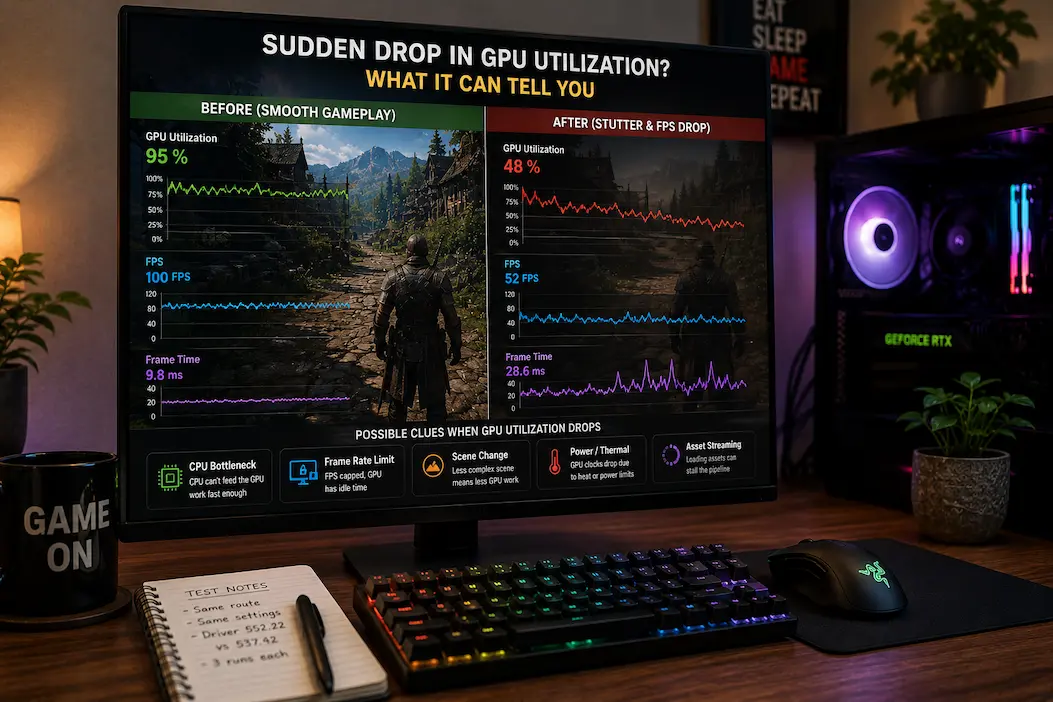
If GPU usage suddenly drops from full load to an extremely low level, there might be an issue. This is particularly relevant when the game starts to stutter or the frame rate drops. Focusing solely on usage figures might lead you to believe the graphics card is faulty, but this doesn’t tell you whether the card is stalled, waiting on other tasks, or simply reducing its workload due to scene changes. For instance, a drop in usage from 95% to 50% does not always indicate a driver issue or hardware failure.
The moment the drop occurs is more telling than the figure itself. If the frame rate drops alongside the decrease in GPU usage, there may be factors preventing the graphics card from picking up tasks more quickly. If the frame rate remains high despite the lower usage, the change is likely normal. Thus, the same figure could indicate normal operation in one situation and a performance issue in another.
Instead of asking, “Why isn’t my GPU usage at 99%?”, it is better to ask, “What changes when GPU usage drops?” By simultaneously monitoring frame time, CPU activity, clock speed, temperature, power consumption, and the game environment, seemingly abnormal values can be interpreted as more useful diagnostic signals.
High GPU Utilization Is Not A Target
Many gamers believe that GPU usage should hover around 100% while playing. However, this “normal” usage can appear abnormal when you expect the game to run smoothly. GPU usage merely reflects how busy the graphics processor is at a given moment; it is neither a standard for measuring game performance nor a target that every game must reach. Even when a game runs smoothly, simple scenes may not require much GPU effort. Menus, loading screens, indoor scenes, games with low frame rates, and visually simple scenes can all result in low GPU usage. Some graphics cards are so fast that they complete rendering tasks quickly enough to become bottlenecked by other system components.
What really matters is the relationship between GPU usage and actual performance. If the game’s frame rate meets expectations and frame times remain consistent, low GPU utilization does not necessarily need to be addressed. The situation becomes more interesting when utilization fluctuates rapidly and a recurring issue arises.
Read The Numbers Together
| GPU behavior | Other observation | What it may suggest |
|---|---|---|
| High utilization + stable FPS | Game runs normally | GPU is being used effectively |
| Low utilization + high FPS | No visible issue | Often normal |
| Low utilization + low FPS | Performance has fallen | Check CPU, frame limit or workload |
| Sudden utilization drop + frame-time spike | Visible stutter | GPU may be waiting for another process |
| Low utilization + low GPU clock | Performance also falls | Check power, temperature or clock behavior |
| Utilization drops when FPS is capped | Stable frame delivery | Often expected |
None of these combinations proves a diagnosis on its own. They simply tell you what deserves closer inspection.
The First Clue Is The Timing
A sudden utilization change is most useful when it happens at a predictable point. If GPU usage drops every time you enter a particular area and the game also stutters, there may be something about that scene that changes the workload.
For example, an open-world game might require substantial rendering work while you’re looking across a large city. As you enter a narrow interior, GPU utilization could fall dramatically because there are fewer objects and effects to render. That change would be completely normal if FPS remains stable. If the game instead becomes slower at exactly the same moment, the reason for the lower GPU workload becomes more interesting.
Try to establish whether the utilization drop happens before, during or after the performance problem. A graph showing the sequence can be more informative than looking at a single percentage on an overlay.
Ask What Changed At The Same Time
When GPU utilization falls, check whether any of these also change:
- FPS
- Frame time
- CPU usage or individual core activity
- GPU clock speed
- GPU temperature
- VRAM usage
- Power consumption
- Game scene or camera direction
- Loading or asset streaming activity
The goal isn’t to monitor everything forever. Start with the measurements most relevant to the symptom and add others only if the initial evidence points in that direction.
A CPU Limit Can Leave The GPU Waiting
One of the most useful explanations for low GPU utilization during poor performance is a CPU limitation. The GPU cannot render frames that the CPU hasn’t prepared or submitted. If the game engine is busy processing simulation, physics, AI, draw calls or other work, the graphics card may have periods where it simply has less work available.
This can produce a confusing result: FPS is lower than expected, but GPU utilization is also lower. A player may conclude that the GPU is underperforming because it isn’t near full utilization, when the actual bottleneck is happening earlier in the rendering pipeline.
Total CPU utilization can also be misleading. A game may depend heavily on one or two CPU threads while other cores remain relatively quiet. Seeing 40% total CPU usage doesn’t automatically rule out a processor-side limitation.
Look At CPU Activity Alongside GPU Usage
If GPU utilization drops and one CPU thread becomes heavily loaded at the same time, that is a useful clue. It becomes even stronger if the pattern repeats in CPU-heavy areas such as large crowds, complex simulations or scenes with many objects.
This doesn’t mean every low-GPU situation is a CPU bottleneck. It simply gives you a reason to investigate the CPU before changing graphics settings.
A Frame-Rate Limit Can Explain The Drop
A sudden GPU utilization decrease can be completely intentional when the game reaches a frame-rate limit. If the system only needs to produce 60 frames per second and the GPU can produce those frames comfortably, it doesn’t need to operate at maximum capacity.
The same thing can happen with synchronization technologies or a display refresh-rate limit. Once the rendering pipeline reaches the configured target, the GPU may spend more time waiting than it would when trying to render as many frames as possible.
This is why GPU utilization should always be interpreted alongside the current FPS target. A graphics card running at 55% utilization while delivering a stable 60 FPS may be behaving exactly as intended.
If you remove the frame-rate limit for a controlled test and GPU utilization rises while FPS increases, you have strong evidence that the previous utilization drop was caused by the cap rather than a hardware problem.
GPU Clocks Can Reveal A Different Problem
Utilization tells you how busy the GPU is, but it doesn’t tell you everything about how the GPU is operating. A sudden reduction in clock speed can change performance even if the utilization percentage looks confusing.
If the GPU becomes less busy at the same time that its clock drops significantly, investigate temperature, power limits and the system’s power-management behavior. A graphics card that is operating normally under one workload may behave differently under another, particularly if temperatures or power conditions change.
However, don’t interpret every clock fluctuation as throttling. Modern GPUs constantly adjust their clocks according to workload, temperature, power and other conditions. A lower clock during a less demanding scene can be completely normal.
The useful clue is a performance change that consistently follows an unexpected clock reduction.
Useful GPU Measurements
| Measurement | What it helps explain |
|---|---|
| Utilization | How busy the GPU is |
| Core clock | Operating frequency |
| Temperature | Thermal conditions |
| Power draw | Power-related behavior |
| VRAM usage | Memory demand |
| Fan speed | Cooling response |
| FPS | Overall rendering result |
| Frame time | Consistency of frame delivery |
Looking at several measurements together is much more reliable than diagnosing the card from utilization alone.
Temperature Can Change The Meaning Of The Drop
Temperature is another piece of context that can matter when utilization changes after extended gameplay. If a game runs normally for several minutes and then performance gradually deteriorates, compare GPU temperature and clock behavior with the utilization graph.
A graphics card may reduce its operating frequency when thermal or power conditions require it. The resulting performance behavior can look different from a simple workload change. If utilization, clock speed and temperature all change together while FPS declines, thermal behavior deserves investigation.
On the other hand, a temperature increase by itself doesn’t prove that the GPU is throttling. Modern graphics cards are designed to operate across a range of temperatures, and their clocks naturally change as conditions change.
Look for a repeatable relationship between temperature, clock speed and performance rather than reacting to one temperature reading.
VRAM Pressure Can Create A Misleading Pattern
GPU utilization and VRAM usage describe different things. A graphics card can have substantial VRAM allocated while its processing units are not fully occupied, and a sudden change in memory activity can affect performance without producing a simple “GPU at 99%” pattern.
If a game starts stuttering when entering new areas, look at VRAM usage and frame time alongside GPU utilization. Asset streaming can introduce temporary workloads that involve storage, system memory, CPU processing and VRAM management.
Texture quality is particularly relevant when investigating memory pressure. Lowering textures by one step and repeating the same route can show whether the memory footprint changes and whether the stutter improves.
If the utilization drop disappears but the actual stutter remains unchanged, the GPU percentage may have been a symptom rather than the cause.
Asset Streaming Can Interrupt The Rendering Pipeline
Open-world games frequently load assets as the player moves through the environment. During these moments, the game may be busy retrieving data from storage, decompressing it, preparing objects or performing other engine work.
The GPU can have less work available during part of that process, causing utilization to fall. If the CPU or storage subsystem is busy handling the incoming data, the graphics card may simply be waiting.
This is one reason a sudden GPU utilization drop can be useful even when the GPU itself isn’t at fault. It tells you that the graphics processor is no longer the part of the system doing most of the work at that particular moment.
If the drop consistently happens when entering new areas, compare storage activity, frame time and CPU behavior before blaming the graphics card.
Background Processes Can Interrupt GPU Work
A background application can also change GPU behavior, although the exact effect depends on what the application is doing. Recording software, browser hardware acceleration, overlays, monitoring tools and other GPU-using applications can occasionally compete for resources or change scheduling behavior.
More commonly, a background CPU or storage task can indirectly leave the GPU waiting. For example, if another process temporarily consumes CPU resources that the game needs, the game may submit work less consistently and GPU utilization can fall.
This is why reproducibility matters. If closing a particular background application consistently removes the utilization drop and associated stutter, you have stronger evidence than simply noticing that utilization looked low once.
Don’t Judge The Problem From One Graph
A utilization graph is most useful when you can compare it with what the game was doing at the same time. A single screenshot showing “GPU 45%” doesn’t contain enough information to explain why the number is low.
A graph showing GPU utilization falling from 95% to 45%, FPS dropping from 100 to 55, frame time spiking, one CPU thread becoming heavily loaded and the player entering a busy area tells a much more complete story.
Likewise, GPU utilization falling from 90% to 50% while FPS stays locked at 60 and frame time remains stable suggests an entirely different situation.
The number is the clue. The surrounding measurements provide the context.
Reproduce The Drop Instead Of Chasing It Randomly
If the utilization change happens only occasionally, try to find the situation that triggers it. Does it occur after playing for 30 minutes? When entering one particular area? During a specific type of combat? When opening a menu? After changing resolution? When the frame rate reaches a particular limit?
Once you identify a repeatable trigger, make one controlled change and test it again.
For example, if the drop happens when entering a new area, repeat the same route with the texture setting reduced by one step. If nothing changes, restore it and investigate CPU or storage behavior. This is much more informative than changing the entire graphics preset and losing track of which variable affected the result.
A Small Testing Record Helps
| Test | GPU utilization | FPS | Frame time | Other observation |
|---|---|---|---|---|
| Original | High → Low | Drops | Spike | Problem appears |
| Lower textures | High → Low | Similar drop | Similar spike | Little change |
| Background apps closed | More stable | Improves | Smoother | Possible interference |
| Frame cap removed | Higher | Increases | Stable | Cap was limiting GPU |
The values above are only examples. The useful part is recording the relationship between the measurements.
When Low GPU Utilization Is Actually Good News
The most valuable insight regarding a drop in GPU load is that the graphics card itself might be functioning correctly. If performance remains steady, the GPU’s workload naturally decreases.
Even with a lower frame rate, a reduced load can help pinpoint the issue. When a game runs slowly and the GPU isn’t fully utilized, identifying the cause of the reduced workload is essential. This could be a CPU issue, a frame rate cap, synchronization problems, memory activity, the game engine’s mechanics, or other factors.
This approach is more useful than simply assuming the GPU is faulty because of the low load.
In a proper diagnostic process, a drop in load is a clue, not a definitive conclusion.
Conclusion
If GPU load suddenly drops, it might initially look like a graphics card problem, but the figure itself doesn’t necessarily indicate the actual issue. The GPU might reduce its workload due to scene changes, hitting the game’s maximum frame rate, or a temporary slowdown elsewhere in the system.
The events occurring before and after the frame rate drop provide the most useful information. If the frame rate and frame interval remain constant, there is likely no problem. If the frame rate drops and the frame interval increases, check the CPU and GPU frequencies, temperatures, memory activity, VRAM usage, and the scene itself. If this trend persists, you are dealing with a genuine issue rather than just a set of suspicious numbers.
There is no need to force 99% GPU usage simply because a monitoring application reports low utilization. The goal isn’t maximum load, but predictable efficiency. If GPU usage is only 50% and the frame rate remains steady, the GPU is likely functioning normally.
A sudden drop in usage on its own doesn’t tell us anything useful. That is the moment the GPU stops working as expected. Once you understand the cause of the change, the usage graph ceases to be a source of concern and becomes a troubleshooting tool.
Frequently Asked Questions
Should I lower GPU usage while gaming?
Not necessarily. Low GPU usage is normal when the game has frame rate limits, the scene is simple, or other system components are slowing down performance. It is more concerning when GPU usage suddenly drops and frame rate (FPS) issues occur.
Why does GPU usage drop when the frame rate drops?
The CPU, storage, or game engine might be slow to send tasks to the GPU. Alternatively, the game might have issues that slow down frame delivery. This slowdown is often due to lower CPU speed, though it isn’t the only possible cause.
Should my GPU always run at 99% usage while gaming?
Absolutely not. It is normal for the GPU to be under heavy load when reaching its performance limits. Conversely, GPU load usually decreases when the system’s frame rate hits a limit or when performance bottlenecks lie with other components.
Should I be concerned about a slow CPU if my GPU usage is low?
Yes, possibly. If GPU usage drops while CPU threads are heavily loaded—resulting in a drop in frame rate—the CPU is likely limiting game performance. Total CPU usage alone is insufficient to prove this assertion.