
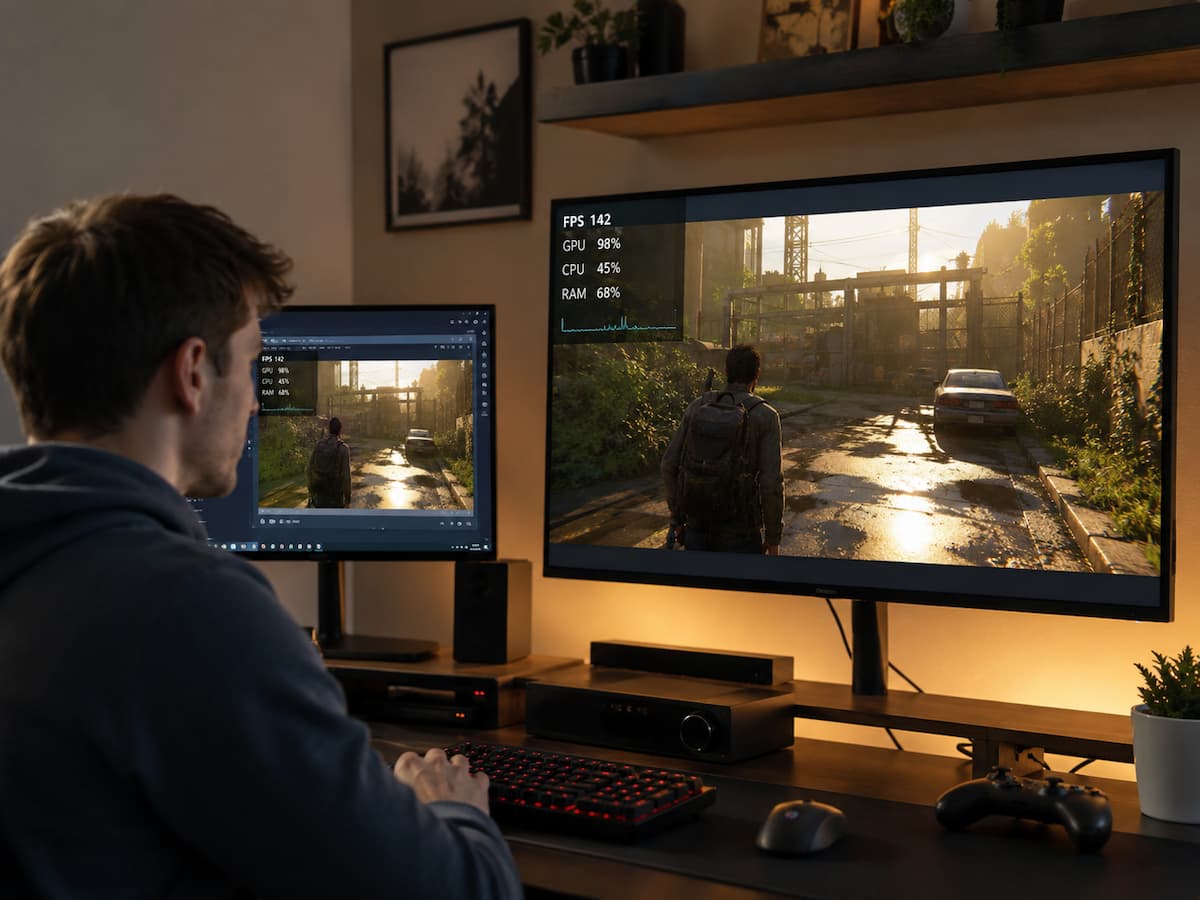
This guide explains what happens in each mode, why performance can change, which problems are related to FPS and which are really about frame pacing or latency, and how to test the modes properly. You will also learn when fullscreen is useful, when borderless windowed mode makes more sense, and what to check when switching modes suddenly fixes or creates a performance problem.
The Three Display Modes You Need to Understand
Before comparing performance, it helps to understand that “fullscreen” and “windowed” are not always two simple choices. Many PC games provide three practical modes: exclusive fullscreen, borderless windowed, and regular windowed mode.
| Mode | Basic Behavior | Typical Advantage |
|---|---|---|
| Exclusive fullscreen | The game takes control of the display output more directly | Can offer predictable presentation and low latency in some setups |
| Borderless windowed | The game fills the screen but remains a Windows-managed window | Fast desktop switching and convenient multitasking |
| Windowed | The game occupies only part of the desktop | Easy access to other applications and flexible sizing |
The exact behavior depends on the game, Windows version, graphics API, GPU driver, display configuration, and settings. That is why two computers can show entirely different performance differences when switching between the same modes.
There is also an important historical issue. Older PC gaming advice often treats exclusive fullscreen as fundamentally different from borderless windowed mode. On modern Windows systems, that distinction can be less dramatic in some situations because Windows can apply optimizations to compatible windowed games.
What Happens in Exclusive Fullscreen
In exclusive fullscreen, the game can obtain more direct control over the display configuration than a normal desktop window. The operating system does not necessarily have to treat the game as another ordinary window that shares the desktop composition process in the same way. This can be beneficial for certain workloads. Historically, competitive players have often preferred exclusive fullscreen because it provides a more direct presentation path and predictable control over display settings. It can also make it easier for a game to use a display mode that differs from the normal Windows desktop configuration.
However, exclusive fullscreen is not automatically faster on every modern PC. Windows graphics architecture has evolved, and newer versions of Windows can optimize certain windowed games. Some games may also implement their presentation techniques that reduce the practical difference between exclusive and borderless modes.
Exclusive fullscreen can still be useful when a particular game behaves better in that mode. If frame pacing improves, input latency decreases, or a synchronization feature works more reliably, the difference can be meaningful even if the average FPS changes by only a few frames. Do not choose a display mode solely because someone says it is always faster. Test the actual game on your actual hardware.
How Borderless Windowed Mode Works
Borderless windowed mode makes the game appear fullscreen, but it does not behave exactly like an exclusive fullscreen application. The game uses a window that covers the desktop, usually at the monitor’s native resolution. One major benefit is convenience. Switching to another application is generally smoother because Windows continues managing the desktop rather than changing display ownership in the same way as an exclusive full-screen application.
Borderless mode is particularly useful for players who frequently use a second monitor, monitor chat applications, watch streams, or switch between games and other programs. It also avoids the visible resizing or display-mode transitions that some older games experience when leaving exclusive fullscreen.
The trade-off is that the presentation path can differ from exclusive fullscreen, although the practical performance gap may be minimal on modern systems. Windows’ newer optimizations for compatible windowed games can further reduce the difference. If borderless mode produces the same FPS and frame-time behavior as exclusive fullscreen, its convenience is likely worth keeping. If one mode produces noticeable stutters or latency changes, however, that is a useful diagnostic clue.
What Changes in Regular Windowed Mode
Regular windowed mode is different because the game shares the desktop with other visible windows. Windows must manage the game window as part of the desktop environment, including its position, size, and relationship to other applications.
A small game window can also change the rendering workload dramatically. If the game runs at a lower resolution, the GPU may have far fewer pixels to process. That can create a large FPS increase, but windowed mode itself does not necessarily cause the improvement. It may simply be the result of rendering fewer pixels.
This is an important testing mistake. If fullscreen runs at 2560×1440 while windowed mode runs at 1280×720, you are not comparing display modes fairly. You are comparing two different rendering workloads. For a meaningful comparison, use the same resolution and graphics settings where the game allows it. If the window is smaller, remember that the actual rendered resolution may still differ depending on the game’s scaling behavior.
Why FPS Can Change Between Modes
FPS can change because the graphics pipeline and desktop presentation behavior can change. But the size of the difference depends heavily on the game and system. In some games, fullscreen and borderless performance may be nearly identical. In others, the difference can be noticeable. A game that interacts poorly with the desktop compositor, overlays, synchronization, or a particular graphics API may respond differently when its presentation mode changes.
GPU workload is another factor. If windowed mode uses a smaller rendering resolution, the GPU may have more headroom. Conversely, a borderless game running at the full native resolution can have essentially the same pixel workload as fullscreen.
| Change | What It Can Affect |
|---|---|
| Different resolution | GPU rendering workload |
| Different refresh rate | Frame presentation and synchronization |
| Different V-Sync behavior | FPS limits and frame pacing |
| Desktop composition | How frames are presented |
| VRR compatibility | Variable refresh behavior |
| Overlays | Additional software interaction |
Therefore, saying “windowed mode costs 10 percent performance” or “fullscreen gives exactly 5 percent more FPS” is misleading. There is no universal performance penalty.
Frame Pacing Can Matter More Than Average FPS
One of the biggest reasons users notice a difference between display modes is frame pacing. Average FPS tells you how many frames are produced over a period of time, but it does not tell you whether those frames arrive evenly.
Imagine two situations. In the first, a game delivers frames at roughly consistent intervals. In the second, it delivers most frames quickly but occasionally pauses for a longer frame. Both situations can have similar average FPS, yet the second one feels much less smooth.
Switching between fullscreen and windowed modes can change how frames are presented to the display. If one mode produces more consistent frame delivery, it may feel substantially better even when the benchmark difference is small. When testing display modes, do not look only at average FPS. If possible, compare frame-time graphs and watch for repeated spikes or uneven frame delivery. This is especially important for games with fast camera movement. Uneven frame pacing becomes easier to notice when the entire scene is moving quickly across the screen.
Input Latency and Display Responsiveness
Performance is not only about how many frames the system produces. The time between an input and the visible response also matters. Display presentation is part of that chain. A game processes input, updates its simulation, prepares a frame, renders it, and eventually presents the image to the display. Synchronization and buffering can affect how long that process takes.
Exclusive fullscreen has historically been associated with lower latency in certain configurations because of its more direct display path. However, modern Windows features and game-specific presentation systems can narrow the practical difference.
If you play a competitive game, the best test is not simply to compare FPS. Pay attention to whether mouse movement feels immediate and whether the game remains consistent during rapid camera movements. A mode that produces slightly lower benchmark FPS but feels more responsive may be preferable to one with a higher number but worse frame pacing or latency.
VRR, V-Sync, and Refresh Rate Behavior
Variable refresh rate, or VRR, allows a compatible display to adjust its refresh timing to better match the game’s frame output. Technologies such as AMD FreeSync and NVIDIA G-SYNC are common examples.
V-Sync is different. It coordinates frame presentation with the display’s refresh cycle and can prevent certain forms of tearing, but its behavior depends on the game’s implementation, display, driver, and other settings.
Changing display modes can affect how these features behave. If fullscreen feels smooth but borderless mode produces tearing or unusual frame pacing, check the monitor’s VRR status, Windows display settings, in-game V-sync setting, and graphics driver configuration.
| Feature | What to Check | Why It Matters |
|---|---|---|
| Refresh rate | Windows and in-game values | Determines available display refresh speed |
| VRR | Whether it remains active | Can improve smoothness at changing FPS |
| V-Sync | Game and driver settings | Can alter frame pacing and latency |
| Frame limit | In-game or driver cap | Controls maximum frame output |
Do not change all of these settings simultaneously. If you want to find the cause of a difference, change one setting and test again.
Overlays and Background Desktop Activity
Windowed games can coexist closely with the Windows desktop and other applications. That is convenient, but it also means more opportunities for software interaction. Game overlays, browser windows, recording tools, messaging applications, and monitoring utilities can all interact with the display environment.
This does not mean overlays are inherently harmful. Millions of systems use them without noticeable performance problems. However, if a game behaves differently only in windowed or borderless mode, temporarily disabling unnecessary overlays can be a useful diagnostic step.
Recording software is another factor. Capturing the screen can add GPU, CPU, memory, and storage work. A game that is already close to a performance limit may respond differently when it shares the desktop with recording or streaming software. When troubleshooting, use a clean test. Close unnecessary applications and disable optional overlays temporarily. If the problem disappears, re-enable features one at a time until you identify the interaction.
Windows Optimizations for Windowed Games
Modern Windows includes features designed to improve the performance and presentation behavior of compatible games running in windowed and borderless modes. Microsoft describes “Optimizations for windowed games” as a feature intended to improve performance for compatible DirectX 10 and DirectX 11 games running in windowed and borderless windowed modes. Microsoft also notes that the feature can reduce frame latency and enable features such as Auto HDR and variable refresh rate on supported systems.
This is one reason to treat older advice about windowed mode carefully. The behavior of Windows today is not identical to the behavior of older Windows versions. If you are troubleshooting a specific game, Windows provides per-game options for these optimizations. If a title performs unexpectedly after changing display modes, check whether the relevant Windows setting is enabled or disabled for that game. Windows’ windowed-game optimization is not a guarantee that every game will perform better. Compatibility varies, and testing the actual title is still the most reliable approach.
Multiple Monitors and Mixed Display Settings
Multiple-monitor setups can complicate display behavior. A gaming monitor might run at 144 Hz, while a second monitor operates at 60 Hz. The displays may also use different resolutions, scaling levels, HDR settings, or variable refresh capabilities.
Modern Windows versions handle multi-monitor workloads much better than older systems, but certain applications and presentation paths can still behave differently depending on the configuration.
If a game suddenly stutters in borderless mode while a video is playing on another monitor, test the game with the second monitor’s activity reduced. Do not assume that the second display is automatically responsible, but use it as a variable in your troubleshooting process. Also check whether the game is actually running at the intended refresh rate. A display can support a high refresh rate while Windows or the game is configured to use a lower one.
How to Test Fullscreen Versus Windowed Mode
The most reliable comparison uses controlled conditions. Switching between modes and immediately judging which one “feels faster” can be useful as a first impression, but it does not tell you why the difference exists.
A Fair Testing Method
- Use the same game version for both tests.
- Use the same resolution.
- Use the same graphics preset.
- Keep V-Sync settings consistent unless they are specifically being tested.
- Keep the same frame-rate limit.
- Use the same monitor and refresh rate.
- Close unnecessary background programs.
- Test the same scene or repeatable route.
- Record average FPS and frame-time behavior.
- Repeat each test more than once.
Do not use a menu benchmark for one mode and actual gameplay for another. Menus often have different rendering workloads and may not represent real gameplay performance. A useful comparison table can look like this:
| Test | Fullscreen | Borderless | Windowed |
|---|---|---|---|
| Average FPS | Record result | Record result | Record result |
| Frame-time consistency | Observe | Observe | Observe |
| Input response | Observe | Observe | Observe |
| VRR behavior | Check | Check | Check |
| Stutters | Count/observe | Count/observe | Count/observe |
What to Do When One Mode Performs Worse
If one display mode performs noticeably worse, start with the simplest variables. Confirm the resolution and refresh rate. Then check V-Sync, VRR, frame limits, overlays, and Windows’ windowed-game optimization settings.
If borderless mode performs poorly while exclusive fullscreen is smooth, test the game with unnecessary overlays disabled. Then verify that Windows and the game are using the correct display and refresh rate.
If fullscreen performs poorly but borderless mode is smooth, there may be a compatibility issue with the game’s exclusive presentation path. In that situation, there is little reason to force fullscreen simply because it is traditionally considered the “faster” option. If regular windowed mode performs differently from borderless mode, check whether the game is rendering at a different resolution. This is one of the easiest explanations to overlook.
Quick Troubleshooting Checklist
- Confirm the same resolution.
- Confirm the same refresh rate.
- Check V-Sync.
- Check VRR or Adaptive-Sync behavior.
- Check frame-rate limits.
- Temporarily disable unnecessary overlays.
- Check Windows windowed game optimization settings.
- Test with the second monitor, temporarily simplified if using multiple displays.
- Compare frame times rather than FPS alone.
- Test the same scene repeatedly.
Most importantly, do not change ten settings at once. If you do, you may fix the problem without learning what caused it.
Conclusion
Full-screen and windowed modes differ not only in appearance. They influence the game’s interaction with Windows, image quality, synchronization, overlays, and the frame rendering process. Therefore, the experience in both modes can sometimes differ drastically, even with the same graphics settings.
In some games, especially where latency or visual quality is crucial, the exclusive full-screen mode can still offer advantages. However, borderless windowed mode has become much more powerful on modern Windows systems, significantly facilitating multitasking and the use of multiple monitors. Performance differences in normal windowed mode may simply be due to the fact that the game is rendered at a different resolution.
When comparing different modes, pay attention to statistics other than the average frame rate (FPS). Check frame time stability, input responsiveness, variable refresh rate (VRR) performance, refresh rate, vertical synchronization (V-Sync), and stuttering frequency. Ensure consistent test conditions to ensure that you are actually comparing different display modes and not accidentally different resolutions or settings. No single display mode works for all PC games. The most effective approach is to test different modes in the games you actually play and keep the configuration that offers the smoothest, most responsive, and most stable experience.
FAQs
1. Is full-screen mode always faster than windowed mode?
Not necessarily. While full-screen mode can have an advantage in some games and configurations, modern Windows systems optimize for compatible windowed and borderless windowed modes. For some games, the performance difference between the different modes is negligible, while for others it is noticeable. The end result depends on the game engine, the graphics API, the Windows version, the drivers, the synchronization settings, and the display configuration. The best choice is the mode that offers the most stable frame rate and responsiveness on your specific system.
2. Why does the frame rate drop after switching to windowed mode?
First, check if the game is being displayed at the same resolution. Smaller windows can sometimes improve performance because fewer pixels are displayed, while other window configurations can lead to different rendering effects. Background applications and overlays can also have an impact. If the resolution, graphics settings, refresh rate, and background activity are the same, a persistent difference may be related to the game’s rendering path or how Windows processes that specific application.
3. Is ‘borderless full screen’ mode slower than ‘exclusive full screen’ mode?
Possibly, but not in all cases. Modern versions of Windows include optimizations for compatible games in windowed mode, reducing the difference between ‘borderless’ and ‘exclusive full-screen’ modes. Some games perform almost identically in both modes. Other games may show differences in latency, frame synchronization, or sync. If you cannot detect a significant difference in your own tests, the convenience of ‘borderless’ mode may be a more practical choice.
4. Why does windowed mode sometimes feel smoother, even with comparable frame rates (FPS)?
This difference may be related to frame synchronization rather than the average frame rate. Both modes can produce similar frame rates, but the frame rendering intervals differ. Synchronization, variable refresh rate (VRR), the Windows rendering path, and the game’s rendering behavior all affect smoothness. Therefore, frame time graphs can sometimes reveal issues that frame rate counters cannot detect. If a particular mode feels smoother, compare the consistency of the frame times, not just the average.
5. Does windowed mode increase input latency?
In some cases it does, but the actual difference depends on the game, the Windows version, the graphics API, the synchronization settings, and the rendering path. Exclusive fullscreen mode often has a latency advantage in specific situations, but modern Windows optimizations can reduce the latency difference for compatible games. If you are concerned about input latency, test both modes with the same frame limits, V-Sync configuration, refresh rate, and graphics settings, rather than relying on general rules.