
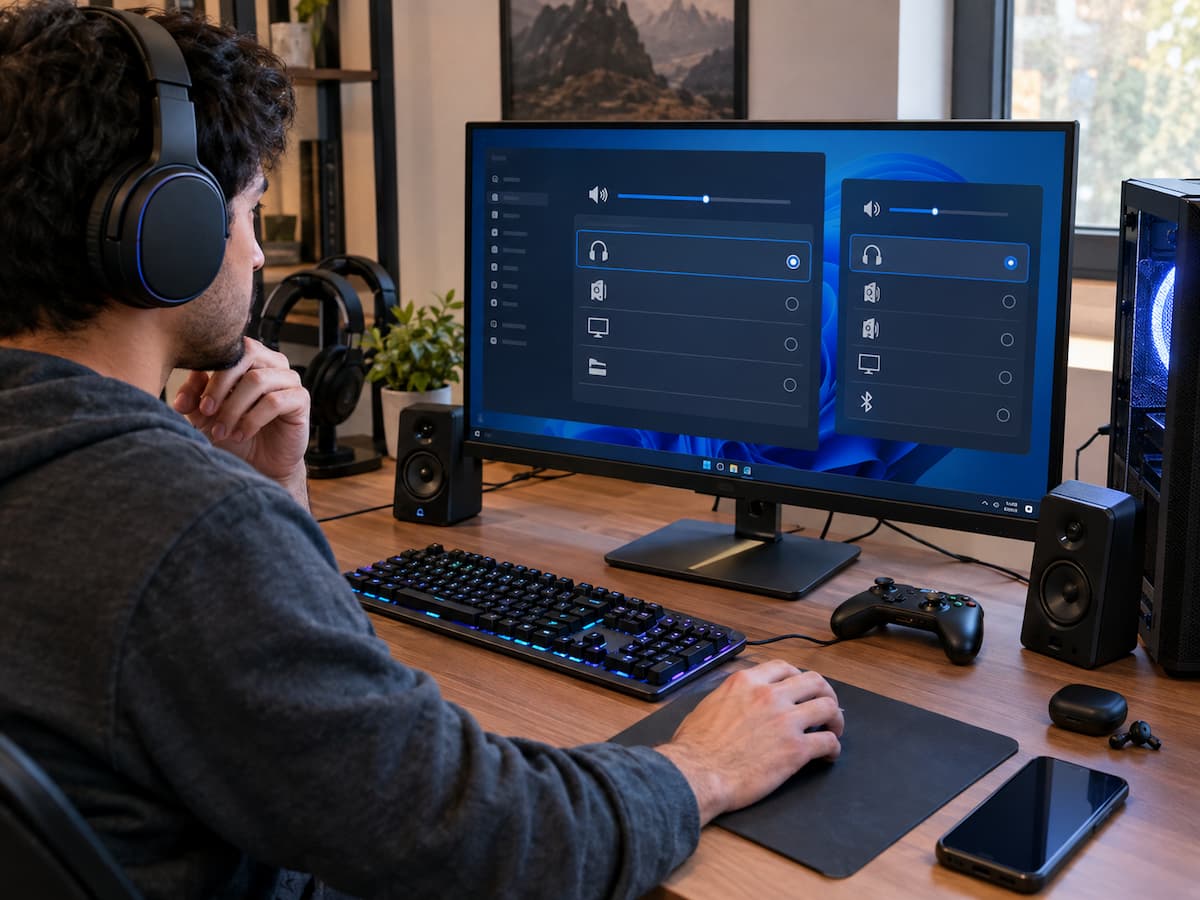
A game may suddenly play through your monitor instead of your headset. Voice chat might use one microphone while game sound comes through another device. Occasionally Windows shows the correct device as the default output, yet a particular game continues using something different. These problems can be confusing because the hardware may be working perfectly.
The way Windows, the game, and individual applications select audio devices often causes the issue. Some games remember the device that was selected when they started, while others follow the operating system’s current settings. Windows can also assign different output devices to individual applications. This guide explains why multiple audio devices can cause confusing game output selection and provides a practical way to identify and fix the problem without changing settings unnecessarily.
Why Multiple Audio Devices Cause Confusion
The biggest problem with having several audio devices is that the device you expect a game to use is not always the device the game actually uses.
For example, imagine a PC connected to a monitor through HDMI, a USB gaming headset, and a wireless controller. Windows may detect all three as possible audio outputs. If the monitor becomes the default device, a newly launched game may send its sound through the monitor even though you normally use the headset.
There can also be more than one level of audio selection. The operating system has its own default output, while a game may have a separate audio-output setting. Windows can also remember an application-specific output assignment.
| Audio selection level | What it controls |
|---|---|
| Windows default | The general system audio output |
| Application settings | The device is assigned to an individual programme. |
| Game settings | The output selected inside the game |
| Hardware controls | Headset, monitor, controller, or receiver behaviour |
Because these settings can interact, changing one setting may not immediately solve the problem.
How Windows Chooses the Default Audio Device
Windows allows users to choose an audio output device for normal system playback. Depending on the version of Windows and the installed drivers, you may see several entries that appear similar.
A USB headset might appear alongside your monitor’s HDMI audio device, motherboard audio output, wireless headphones, and a controller audio interface. The important point is that the default device is not necessarily the only device available. A game can sometimes use its own selected device or an application-specific Windows assignment instead.
Check the basic output first.
- Open Windows sound settings.
- Look at the current output device.
- Play a normal system sound or another audio source.
- Confirm that sound reaches the device you expect.
- Then launch the game and check whether its behaviour matches.
If Windows is using the wrong device, please address that before adjusting more complicated game settings. This gives you a known starting point.
Tip: When troubleshooting, change one audio setting at a time. If you change Windows, the game, drivers, and headset software simultaneously, it becomes difficult to know what actually fixed the problem.
Check the Game’s Own Audio Settings
Many games have their own audio configuration menu. Depending on the game, you may find an option called output device, audio device, playback device, voice output, or something similar.
Some games simply follow the operating system’s default output. Others allow you to select a specific device. This distinction matters when you connect several audio devices.
If a game has an explicit output-device option, check it before assuming there is a hardware problem.
Look for these settings.
- Master output device
- Speaker output
- Headphone output
- Voice chat output
- Voice chat input
- Audio mode
- Default device or system default
Some games may also require a restart after an output device is changed. If the game continues using the previous device, completely close it and launch it again.
This is especially useful when you connected a headset after the game was already running.
Check Windows Application Volume Settings
Windows can manage audio on a per-application basis. This means two programs can potentially use different output devices at the same time.
For example, your game might be assigned to a headset while a music application uses desktop speakers. This can be useful, but it can also create confusion when you forget that an application has a separate audio assignment. If a game refuses to follow your normal Windows output, check the application’s audio settings in Windows.
A useful troubleshooting sequence
- Start the game and check that it is producing audio.
- Open Windows sound settings.
- Find the application-specific volume or mixer controls.
- Locate the game.
- Check which output device is assigned to it.
- Change it to the desired device if necessary.
- Test the game again.
This phenomenon can explain situations where other applications behave normally but one game consistently chooses the wrong output.
Why USB and Wireless Headsets Can Change Selection
USB and wireless headsets are convenient because they often appear to the computer as their own audio devices. However, that also means connecting, disconnecting, waking, or reconnecting the headset can change the available device list.
A USB headset may disappear when unplugged and return when connected again. A wireless headset may reconnect after Windows has already started. Depending on the system and software involved, the headset may not automatically become the output used by every application.
Gaming software can add another layer. Some headset manufacturers provide software that manages profiles, microphone settings, virtual surround features, or separate communication channels.
When reconnecting a headset causes trouble
First confirm that Windows recognises the headset. Then verify the general output device and the game’s output selection. If the headset appears correctly but only one game has a problem, the game’s saved audio configuration is a more likely place to investigate.
Common mistake: Assuming that reconnecting a headset automatically forces every running application to switch to it. Applications that were already open may continue using their previous audio device.
The Monitor Audio Problem
HDMI and DisplayPort connections can carry audio as well as video. This means a monitor or television can appear in Windows as an audio output even when you normally think of it only as a display.
This can create a common gaming problem. You connect a gaming monitor, Windows detects its audio device, and the monitor becomes available as another playback option. A game may then send sound to the display instead of the headset.
The monitor might not have built-in speakers at all. In some setups, audio can still be routed through the display connection and become visible as an output device.
How to identify the problem
If the game suddenly becomes silent after connecting a new monitor, check Windows’ available output devices. Look for the display’s audio entry and compare it with your headset or speakers. If changing back to the headset restores sound, you have likely found an output-selection problem rather than a broken headset.
Controllers and Other Hidden Audio Devices
Game controllers can sometimes provide audio-related hardware, particularly when they support headsets. Once connected, the controller may appear as another audio device.
This can make the output list much longer than expected. Other devices can also add audio endpoints, including webcams, docking stations, virtual audio software, capture hardware, Bluetooth adapters, and some graphics-related display connections.
You do not necessarily need to remove these devices. The important thing is to recognise that they exist and understand which one you actually want to use.
| Device | Why it may appear |
|---|---|
| Monitor | HDMI or DisplayPort audio |
| Controller | Headset or communication support |
| Webcam | Built-in microphone or audio hardware |
| Docking station | Additional audio connection |
| Bluetooth headset | Wireless playback and communication |
| Virtual audio device | Audio routing or recording software |
Understanding Exclusive Audio Settings
Windows audio devices can have settings that allow applications to take exclusive control of an audio device. The behaviour can vary depending on the application and driver.
Such behaviour is not automatically a problem. However, if one program takes control of a device and another application behaves strangely, exclusive-access settings may be worth checking.
Before changing advanced settings, test the simpler possibilities first. Confirm the selected output, application routing, game configuration, and physical connections. If a particular game consistently loses sound when another application starts using the same device, investigate whether exclusive-mode behaviour is involved.
Best practice: Do not change advanced audio settings simply because they sound technical. Change them when you have a specific symptom that the setting could reasonably explain.
Bluetooth Headsets and Multiple Profiles
Bluetooth audio can introduce another layer of confusion because compatible devices may provide different audio functions for normal playback and communication.
A headset may expose a higher-quality playback mode and another mode intended for two-way communication. The exact behaviour depends on the Bluetooth device, Windows configuration, drivers, and supported profiles.
This issue can become noticeable when a game starts voice chat. You may hear a change in sound quality, or Windows may show more than one related audio entry. If this happens, check both the playback and microphone selections. A game may have separate controls for game audio and voice communication.
Check both sides of the headset.
- Confirm the intended playback device.
- Confirm the intended microphone.
- Check the game’s voice-chat output separately if available.
- Check Windows’ application-specific audio routing.
- Reconnect the headset if the device state appears incorrect.
If normal game audio works but voice chat causes a change, focus your troubleshooting on the communication configuration rather than the speakers themselves.
A Step-by-Step Troubleshooting Process
When a game uses the wrong audio output, avoid randomly changing settings. A structured process is faster and makes the cause easier to identify.
Step 1: Test Windows audio.
Play another sound and confirm which device produces it. If the normal Windows audio is directed to the incorrect device, please address that issue first.
Step 2: Check the game’s output setting.
Open the game’s audio menu. If a specific output device is selected, verify that it is still connected and available.
Step 3: Check application routing
Look at Windows’ application-specific volume and output settings. Make sure the game has not been assigned to another device.
Step 4: Restart the game.
Close the game completely and start it again. Some applications detect audio devices only when they launch.
Step 5: Disconnect unnecessary audio devices temporarily
If several devices are available, disconnect or disable only the ones you do not need for testing. This can help determine whether the game is selecting an unexpected endpoint.
Step 6: Test another application
Play audio through another game or application. If everything else works correctly, the issue is more likely specific to the affected game.
Step 7: Check drivers and device software
If the device repeatedly disappears, reconnects incorrectly, or produces errors across several applications, investigate the audio driver, headset firmware, or related device software.
Step 8: Recheck after changes
Once the problem is fixed, reconnect your normal devices one at a time. This helps identify whether a particular device causes the selection to change.
| Symptom | First thing to check |
|---|---|
| The game uses monitor speakers. | Windows default and game output |
| Only one game has no sound. | Game and application-specific settings |
| The headset disappears. | USB/Bluetooth connection and drivers |
| Sound changes when voice chat starts. | Communication device/profile |
| Several identical devices appear. | Drivers, virtual audio software, or connected hardware |
Preventing Audio Selection Problems
Once your audio setup works correctly, a few habits can reduce future problems.
- Record which device you normally use for game audio.
- Close games before disconnecting important audio hardware when practical.
- Check output settings after adding a new monitor or audio device.
- Avoid installing unnecessary virtual audio devices.
- Keep device drivers and related software maintained.
- Use clear device names when your software allows it.
- Examine application-specific audio routing when one program behaves differently.
You can also simplify your setup during troubleshooting. If you normally have five possible playback devices but only need one, temporarily reducing the number of choices makes it easier to identify what the game is doing.
Tip: If your setup changes frequently, make a quick note of your preferred Windows output, game output, microphone, and communication device. This makes future troubleshooting much easier.
When the Device Itself May Be the Problem
Not every audio problem arises from output selection. If a headset produces no sound in any application, disappears repeatedly, crackles, disconnects, or is not detected correctly, the hardware or its driver may need attention.
Test the device with another application before assuming the game is responsible. If the same problem appears everywhere, focus on the device connection, driver, firmware, physical cable, USB port, Bluetooth connection, or other relevant hardware component.
For USB equipment, trying another suitable USB port can help identify a connection problem. For wireless devices, checking battery level, pairing status, and interference may be useful. The key is to separate an application-specific problem from a system-wide problem. That distinction prevents you from changing game settings when the actual issue is outside the game.
Conclusion
Connecting multiple audio devices to a gaming PC is convenient, but it can also make selecting the right output confusing. Monitors, headphones, controllers, Bluetooth devices, webcams, or virtual audio tools can all serve as potential output devices for game audio.
The most effective approach is to check the signal path step by step. First, check your Windows system settings, then the game’s settings, and finally the application’s specific routing settings. If the issue affects multiple applications, check your drivers or hardware.
You usually don’t need to change every audio setting at once. By identifying which device the game is actually using and comparing it with your Windows settings, you can pinpoint the problem and avoid creating new issues. A clear, organised audio setup also aids in future troubleshooting. Once you know which devices you prefer for playback and communication, it is easier to detect and correct unexpected changes.
FAQs
1. Why is my game using my monitor instead of my headphones?
Your monitor may appear as an audio output device via HDMI or DisplayPort. If Windows or the game selects this device, the audio is sent to the monitor rather than your headphones. First, check the default audio output in Windows, then open the game’s audio settings and look for the specific output device option. Windows can also assign different audio outputs to different applications. If only one game is having issues, check the volume settings for that specific game.
2. Why do I have sound everywhere except in one game?
If other applications are working correctly, the issue likely lies with the game’s audio configuration or the application-level audio routing in Windows. Check the output device selected within the game to ensure it isn’t assigned to a disconnected or unavailable device. Restarting the game may also help, as some games detect available audio devices only at startup rather than continuously.
3. Does a game controller change my game’s audio output?
Yes. Some game controllers offer audio connectivity or communication features and may appear as an audio device once connected. If you recently connected a game controller and the game is using a different output, check the available Windows audio devices and the game’s audio configuration. You don’t necessarily need to disconnect the controller; just ensure that your preferred headset or speakers are still selected as the output device.
4. Why does the sound on my Bluetooth headset change when I use voice chat?
Bluetooth headsets support various audio functions for playback and two-way communication. Depending on your headset and Windows configuration, starting voice communication can change the audio mode in use. Check your game’s microphone and voice output settings, as well as the communication device selected by Windows. If the change only occurs when starting voice chat, focus your troubleshooting on the communication configuration rather than assuming the headset is faulty.
5. Should I disable audio devices I never use?
No, you don’t have to. Having multiple available devices isn’t necessarily harmful. However, temporarily removing unnecessary options can simplify troubleshooting. If a game repeatedly selects the wrong device, reducing the number of available output devices can help determine which one it chooses. It is best to permanently disable devices you recognise but do not actually need, as other applications might rely on them later.