
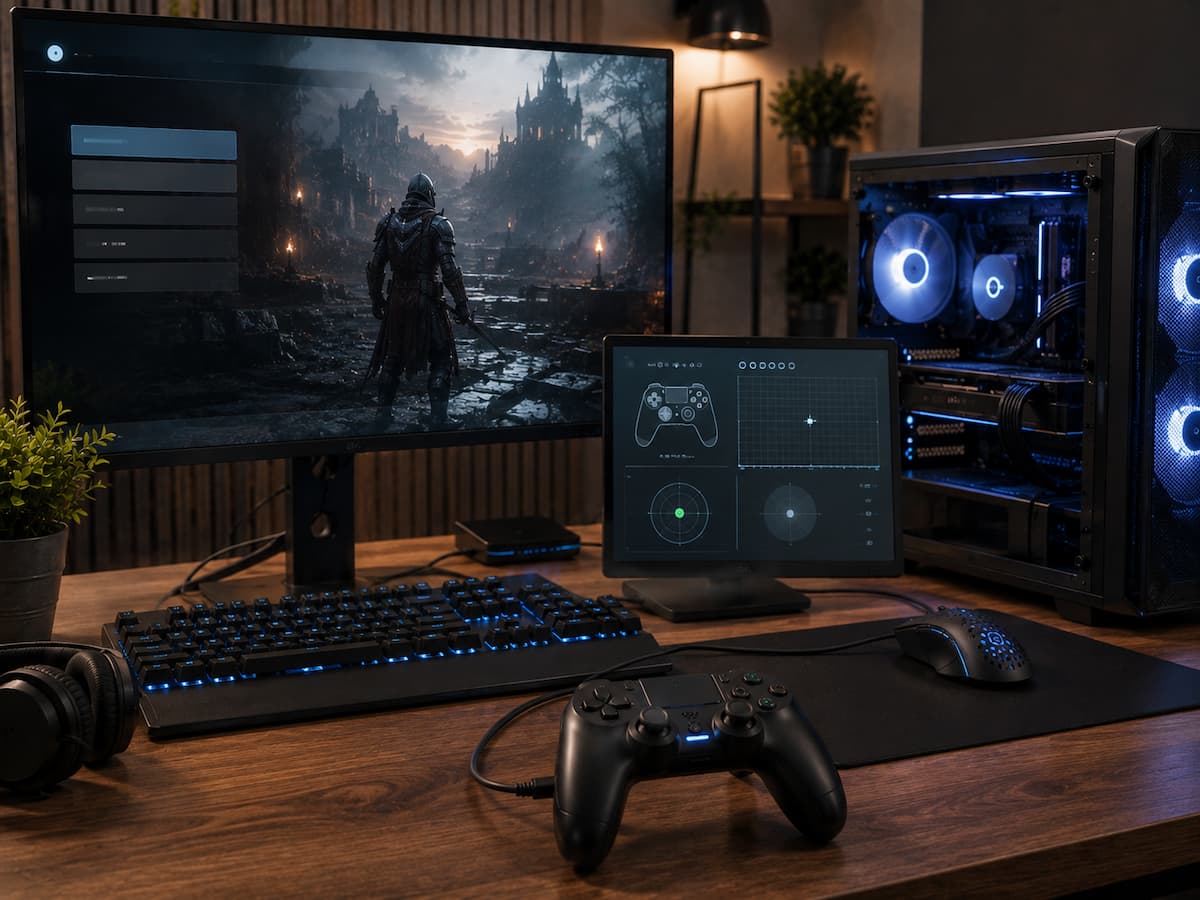
This situation is frustrating because it makes the controller look broken when it may be working perfectly. The problem can come from how the game detects input, which controller API it expects, another input device taking priority, or software translating controller signals before the game receives them. That distinction matters. If the controller works everywhere else, replacing it should usually be one of the last things you consider. A few targeted checks can often reveal whether the problem is with the game, its settings, or the way another program is handling controller input.
Start by Separating a Controller Problem From a Game Problem
The first useful clue is whether the controller works outside the affected game. Test it in the operating system’s controller settings or with another game that you know supports controllers. If the sticks, triggers, and buttons respond normally elsewhere, the basic hardware connection is probably not the main problem. You can then focus on the specific game’s input configuration instead of reinstalling drivers or buying another controller.
There is one exception. A controller can have a problem that only appears under certain conditions, such as a faulty trigger or inconsistent wireless connection. Test several controls rather than checking only one button.
The Game May Be Looking for a Different Type of Controller Input
Modern PC games can receive controller input through different software interfaces. A game may be designed primarily around one input standard while your controller, driver, or translation software presents it in another form.
This is especially common when using controllers that do not match the input format expected by the game. The controller can work perfectly in Windows and in games that support its input method, yet it may remain invisible to a game expecting a different interface. This phenomenon is why two games installed on the same computer can behave completely differently with the same controller. The hardware has not changed. The way each game communicates with the controller has changed.
Controller Support Can Depend on the Game’s Configuration
Some games include their own controller settings, while others rely heavily on the platform or launcher handling input. A controller may therefore be detected correctly but assigned incorrectly, disabled, or replaced by another input configuration.
Look through the game’s controls menu and confirm that controller input is enabled. If the game provides separate keyboard, mouse, and controller profiles, make sure the controller profile is actually active. Do not assume that seeing controller icons on the game’s menu proves everything is configured correctly. Some games display controller prompts while still failing to accept input from a particular device.
Another Program May Be Taking Control of the Input
Controller software can sometimes sit between the physical device and the game. Remapping tools, controller utilities, platform overlays, accessibility software, and other input programs can create virtual controllers or change how button presses appear. This can cause a strange situation where the operating system sees both a physical controller and a virtual version of it. A game may then select the wrong device or receive conflicting input.
If you use controller-mapping software, temporarily disabling it is a useful diagnostic step. Do not change several programs at once. Disable one layer, launch the game, and test again to see what affected the result. If a controller works normally until a remapping or overlay application starts, investigate the software layer before blaming the physical controller.
Wireless Connections Add Another Layer
A wireless controller can appear connected while still having an unreliable connection. Windows may continue showing the device even when communication is occasionally interrupted. If the controller fails only in one game, wireless interference is not the first thing to suspect. Still, testing the same controller through a USB cable can quickly remove wireless communication from the list of possible causes.
If the wired connection works but wireless does not, check the controller’s battery level, Bluetooth connection, and nearby devices that could interfere with the connection. The exact cause depends on the controller and wireless hardware.
Steam and Other Launchers Can Change Controller Behavior
Game launchers sometimes provide their own controller-handling features. These systems can translate controller input, apply layouts, or create virtual input devices for games that need them. That can be helpful when a game does not natively support a particular controller. However, it can also create conflicts if the game already handles the controller correctly on its own.
If a game is launched through a platform with controller configuration options, test it with those options enabled and disabled as appropriate. The goal is to determine whether the launcher is helping the game recognize the controller or interfering with an input method that was already working. Keep in mind that the correct configuration varies between games. There is no single launcher setting that fixes every controller problem.
Check for Simple Input Conflicts Before Reinstalling Anything
A surprising number of controller problems come from connecting another device. A racing wheel, flight stick, arcade controller, second gamepad, or even a virtual controller can change how a game selects its primary input device.
Disconnect unnecessary controllers and USB input devices, then restart the affected game. Some games detect available controllers only when they start, so reconnecting a device while the game is already running may not be enough. Also check whether the game is currently focused. If another window or overlay has captured input, controller presses may appear to do nothing even though the device itself is functioning.
What to Do When the Controller Works in Menus but Not During Gameplay
This is a slightly different problem. If the controller works in the game’s menus but stops responding once gameplay begins, basic controller detection is probably working. First, check the game’s control bindings. A profile may have been changed, reset, or assigned to the wrong device. Some games also allow different control schemes for menus and gameplay.
If only certain buttons fail, check whether they work in another game. A trigger or stick that behaves strangely everywhere may indicate a hardware issue, while a complete loss of gameplay controls in only one title points more strongly toward configuration or software.
When a Game Update Suddenly Breaks Controller Support
Controller problems can appear after a game update even when nothing has changed on your PC. Updates can modify input handling, configuration files, controller support, or compatibility with third-party software. If the controller worked yesterday and stopped immediately after a game update, avoid changing your entire system before checking the game’s recent updates and known issues.
Official patch notes, support pages, and community reports can help establish whether other players are experiencing the same problem. If many users report identical behavior after the same update, the issue is much less likely to be a defective controller sitting on your desk.
A Practical Troubleshooting Order
Start with the least disruptive checks. Confirm the controller works in another application, restart the affected game, disconnect unnecessary input devices, and verify the game’s controller settings.
Next, investigate software layers. Check launcher controller configuration, remapping utilities, overlays, and virtual controller software. If necessary, test the game with those tools temporarily disabled. Only after those checks should you move toward driver troubleshooting or reinstalling software. Reinstalling everything at the beginning can erase useful clues and create additional configuration problems.
| What You Observe | Where to Look First |
|---|---|
| The controller works in other games | Game settings and input compatibility |
| Only some buttons fail in one game | Control bindings or game profile |
| The game ignores multiple controllers | Game input system, launcher, or software conflict |
| The controller works with USB but not wirelessly | Bluetooth or wireless connection |
| The problem started after an update | Game patch notes and known issues |
When the Controller Is Probably Not the Problem
If the controller works well in multiple other applications, it has passed one of the most basic tests. If only one game is unresponsive, the investigation should begin with the game’s configuration and the software between the controller and the game.
Start with the basics: check the game’s control settings, remove unnecessary input devices, restart the game, and check the launcher or key mapping settings. Next, test the wired and wireless connections, if applicable. The goal is not to change all settings at once. A step-by-step troubleshooting approach makes it easier to find the exact level causing the problem and to fix the game without replacing hardware that has been working fine all along.
FAQs
1. Why does my controller function properly in Windows but not in a specific game?
The fact that Windows recognizes the controller only means that the operating system can communicate with it. The game may require a different input interface or use its own controller system, or there may be a configuration issue.
2. Do I need to reinstall the controller driver?
It is advisable to avoid reinstalling the driver immediately. If the controller works correctly in other games, reinstalling the driver may not resolve the underlying issue. First, verify the settings and input software of the game in question.
3. Can the two controllers interfere with each other?
Yes. Some games automatically select a specific controller, and multiple physical or virtual devices can lead to unpredictable selection results. Disconnecting unused devices is a quick way to test this issue.
4. Why does disabling the controller software sometimes help resolve the problem?
Controller software can translate button presses or create virtual devices. If the game already directly supports physical controllers, this extra layer of translation can sometimes cause conflicts.
5. Why does the same controller work correctly in other games?
Different games do not necessarily use the same input technologies or controller support. One game might recognize your controller immediately, while another requires a different input format or depends on the launcher configuration.