
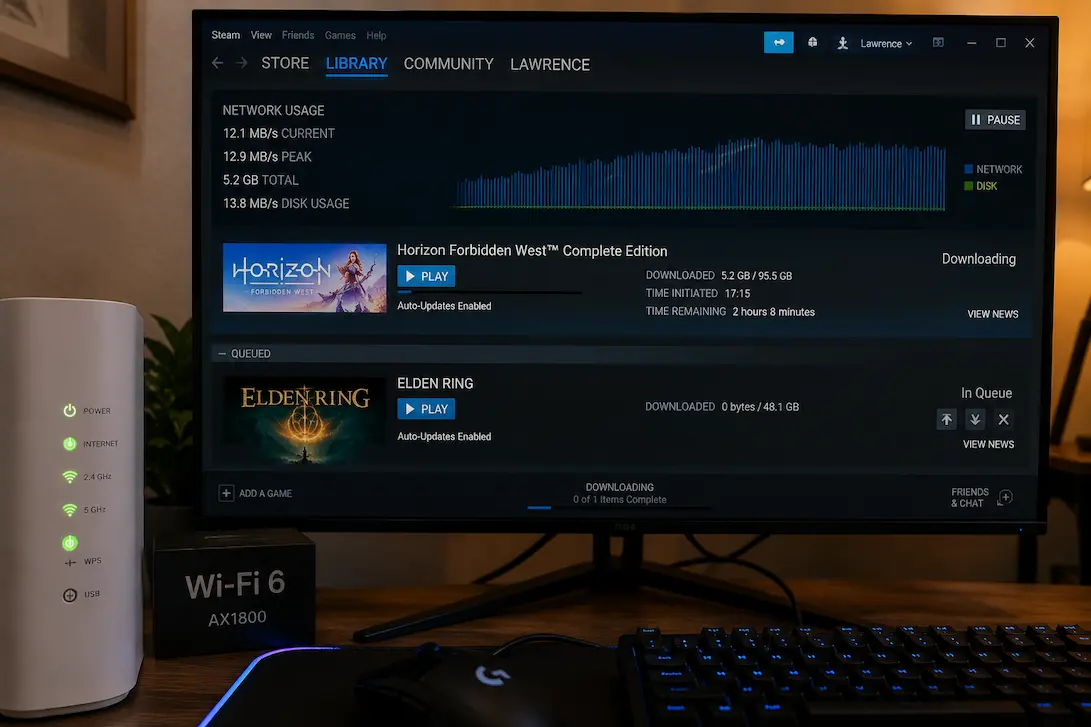
A game download can be strangely slow even when an internet connection is otherwise performing well. A speed test may report hundreds of megabits per second, websites may load instantly, and streaming services may work without buffering, yet a game launcher can sit at a fraction of the expected download speed. Sometimes the download starts quickly and then drops. In other cases, the speed keeps moving up and down throughout the installation.
That doesn’t necessarily mean the internet connection is failing. Downloading a large game involves more than moving data from the internet to the computer. The launcher has to communicate with its content servers, receive and verify files, write data to storage, decompress certain packages, and sometimes install or patch files while the download is still running. Any one of those stages can become the limiting factor.
This is why comparing the launcher directly with a speed-test result can be misleading. A fast internet connection establishes the capacity of the connection, but it doesn’t guarantee that a particular game server, launcher, storage device, or local network path will continuously use all of that capacity.
Start By Comparing The Speed, Not The Number
One common source of confusion is the difference between megabits per second (Mbps) and megabytes per second (MB/s). Internet plans and most speed tests normally display Mbps, while some launchers display MB/s. The two numbers are related, but they are not interchangeable.
For example, a connection capable of 800 Mbps has a theoretical maximum of about 100 MB/s before accounting for networking overhead and other limitations. Seeing a launcher report around 80–90 MB/s in that situation could therefore be perfectly reasonable, while expecting the launcher to show “800 MB/s” would be a unit misunderstanding.
A quick comparison can help:
| Internet speed | Theoretical maximum in MB/s |
|---|---|
| 100 Mbps | About 12.5 MB/s |
| 300 Mbps | About 37.5 MB/s |
| 500 Mbps | About 62.5 MB/s |
| 1 Gbps | About 125 MB/s |
| 2 Gbps | About 250 MB/s |
These are theoretical conversions rather than guaranteed download speeds. Protocol overhead, server limitations, Wi-Fi conditions and the storage device can all reduce the actual figure.
The Game Server May Be The Limiting Factor
A speed test doesn’t download the game from the same infrastructure used by your launcher. It typically selects a nearby test server designed to measure your connection’s available throughput. A game launcher, on the other hand, may be retrieving files from a content-delivery network or distribution server that is handling large numbers of users.
If the game service is busy, your download can slow down even though your connection has plenty of unused capacity. This is particularly noticeable when a major game update launches and thousands or millions of players begin downloading the same files.
There isn’t much you can do locally if the server is genuinely limiting the transfer. However, comparing the same connection with another launcher or downloading at a different time can help establish whether the slowdown is specific to the game’s distribution service.
Signs That The Server May Be Responsible
A server-side limitation becomes more plausible when the following pattern appears:
- Other downloads reach normal speeds.
- Your internet speed tests remain consistent.
- Only one game launcher is unusually slow.
- Download speed changes significantly at different times of day.
- Other users are reporting similar slowdowns for the same service.
If those conditions match what you’re seeing, changing DNS servers or reinstalling your network driver is unlikely to suddenly create more capacity on the game’s distribution network.
Your Launcher May Be Doing More Than Downloading
A game download isn’t always a simple continuous transfer. Modern launchers can download compressed data, unpack it, verify files, apply patches and write the resulting data to disk while the process continues.
This can make the reported network speed fall even when your internet connection is capable of much more.
For example, the launcher might download a large package quickly and then pause the network transfer while it processes that package. During that period, storage or CPU activity can remain high while the network graph drops sharply.
This behavior can look like an unstable internet connection if you’re watching only the download-speed number. Looking at Task Manager → Performance can provide a clearer picture. If disk usage or CPU activity rises whenever network throughput falls, the bottleneck may be local processing rather than the internet connection itself.
Your Storage Drive Can Become The Bottleneck
Large modern games can put substantial pressure on storage during installation and updates. The launcher may be writing downloaded data while simultaneously unpacking or modifying existing files.
A fast NVMe SSD can generally handle this workload more comfortably than an older mechanical hard drive, but even a modern SSD can slow down during sustained writes. Available free space, drive temperature, background activity and the specific workload all matter.
If the download speed repeatedly drops while the destination drive is near 100% active time, storage deserves attention.
This is particularly noticeable during updates that don’t simply append new files. Some launchers may need to rewrite large existing game files, meaning a relatively small network download can trigger substantial disk activity.
A Nearly Full SSD Can Behave Differently
Storage performance can change when a drive has very little free space available. Modern SSDs rely on spare capacity for internal management, and installation workloads can become less predictable when the drive is heavily occupied.
You don’t need to keep an enormous amount of unused storage purely because a game launcher recommends it, but leaving some reasonable free capacity is useful for both the operating system and applications.
If the game is being installed onto a drive with only a small amount of space remaining, check whether freeing storage changes installation behavior. This is especially relevant if downloads are fast initially but slow dramatically during installation or patching.
The important point is that download speed and installation speed are not necessarily the same thing. A launcher can have enough network bandwidth available while being unable to process the incoming data quickly enough.
Wi-Fi Can Be Fast Without Being Consistent
A Wi-Fi connection can produce an excellent speed-test result and still perform poorly during a long game download. Speed tests are relatively short, while a large game can require sustained traffic for an extended period.
Signal strength, interference, distance from the router, channel congestion, and the capabilities of the Wi-Fi adapter can all influence sustained throughput.
If possible, compare the download using Ethernet. You don’t need to permanently switch your setup. The wired connection is simply a useful diagnostic baseline.
If Ethernet produces a much more stable download while Wi-Fi repeatedly fluctuates, the internet service itself may not be the problem. The wireless link between your computer and router becomes a much more likely place to investigate.
Other Devices Can Consume Your Available Bandwidth
A fast internet connection is shared capacity. Another person streaming high-resolution video, a phone synchronizing photos, a cloud-storage application uploading files, or another computer downloading an update can all reduce the bandwidth available to your game launcher.
This can be particularly difficult to notice when the connection is fast enough that normal browsing still feels instant.
Check your router’s connected devices if the slowdown appears unexpectedly. On the computer itself, Windows Task Manager can show applications using network bandwidth. Cloud-storage applications such as file synchronization tools are worth checking because they can remain active in the background for long periods without being obvious.
If the game download becomes faster after another large transfer finishes, that provides strong evidence that the available bandwidth was being shared.
Background Applications Can Interfere With The Download
Windows and other software can generate network traffic without appearing as an obvious download window. Cloud synchronization, system updates, browser downloads, game launchers running in the background, and backup applications can all compete for bandwidth.
Some applications also consume disk resources while they’re transferring data. A cloud-sync program writing thousands of files to the same drive where you’re installing a game can therefore create both network and storage contention.
Before troubleshooting the router or reinstalling drivers, check Task Manager for unusually high network, CPU, or disk activity. You don’t necessarily need to close every background process. Look for something that is clearly consuming significant resources and compare the game download with that activity stopped.
Check The Launcher’s Download Settings
Some game launchers provide bandwidth limits, download schedules, or options that restrict downloads while games are running.
A forgotten bandwidth limit can make a fast internet connection appear slow. This is especially easy to overlook if the limit was enabled months earlier when you were trying to prevent game downloads from affecting other household devices.
Look through the launcher’s download or network settings and check for options related to throttling, bandwidth limits, scheduled downloads and downloads while applications are running.
If the launcher has a regional server or content-server setting, you can also check whether changing it is officially supported. Avoid repeatedly switching regions without a reason, because the nearest-looking server isn’t necessarily the one that provides the best performance.
VPNs And Proxies Can Reduce Download Performance
A VPN adds another network path between your computer and the game service. Depending on the VPN provider, server location, routing and current load, this can reduce throughput or increase latency.
If your game downloads normally without the VPN but become consistently slower when it is active, the difference is worth investigating.
You can temporarily disconnect the VPN and compare the download speed under similar conditions. If the speed improves substantially, the VPN route rather than your underlying internet connection may be responsible.
The same principle applies to certain proxy configurations and network-filtering applications. Don’t change several network settings at once; isolate the additional network layer first.
DNS Usually Isn’t The Main Speed Problem
Changing DNS servers is often suggested whenever something online feels slow, but DNS generally isn’t responsible for sustained download throughput after the connection to the content server has already been established.
DNS helps translate a domain name into an IP address. Once the launcher has connected to the appropriate service, the actual transfer speed depends on many other factors.
Changing DNS can occasionally affect which content server or network endpoint you reach, depending on how the service uses geographic routing, but it shouldn’t be the first thing you change when a game download is consistently slow.
If the download speed is low for the entire transfer, investigate the server, launcher, network path and local resources before treating DNS as the primary explanation.
Restarting The Launcher Can Sometimes Reveal A Temporary Problem
A launcher can occasionally end up with a temporary connection issue, especially after waking the computer, changing networks or resuming a paused download.
Completely closing the launcher and reopening it can establish a fresh connection. If the launcher continues to report unusually low speeds, compare it with another download rather than repeatedly restarting it.
If only the launcher remains slow while other services perform normally, the problem is less likely to be your general internet connection.
This is a small step, but it is useful because it doesn’t change any permanent configuration. You’re simply testing whether the current download session is behaving differently from a newly established one.
Do Not Confuse Installation with Downloading
One of the key differences between the two is whether the launcher is waiting for a network connection or processing information locally.
If the download speed graph frequently spikes and then drops sharply to near zero, the launcher may be switching between downloading and processing. Check whether CPU or disk activity remains high during periods of lower download speeds.
If network activity is idle but the disk drive is busy, the launcher may be applying or decompressing files. If both CPU and disk activity are low and network usage remains low, server or connection issues are likely the cause.
This distinction is particularly important during major game updates, as the amount of data written to the disk can be much larger than the amount received from the internet.
When Only One Launcher is Experiencing Issues
If Steam downloads quickly while another game launcher on the same computer remains slow, the network connection is likely not the sole cause.
Distribution networks, servers, and download methods vary by platform. While one service might have a good connection covering your location, other services could be experiencing regional issues or network congestion.
Since this method utilizes largely the same computer, router, and internet connection, it is likely one of the most effective testing methods.
If multiple, unrelated launchers are running slowly, check your local network and your ISP connection. If only one service is experiencing issues, carefully investigate the platform’s servers, configuration, and actual service status.
Effective Methods for Identifying Bottlenecks
You do not need to adjust every network setting to determine the cause of slow game downloads. First, determine whether the launcher displays the download speed in MB/s or Mbps, and then compare this figure to your connection’s maximum potential speed. Next, closely monitor Task Manager during the download process to see if disk or CPU usage spikes when network speeds drop.
If your computer has sufficient CPU and disk resources but network speeds remain slow, consider using a different launcher or download service. If other components are performing well, the issue likely lies with the game’s content server or the launcher itself.
Check if other devices are using the connection. If multiple downloads are experiencing slowdowns, compare Ethernet and Wi-Fi connections. If the Ethernet connection is stable but the Wi-Fi connection is not, investigate your wireless setup. If both are slow, look into your router, Internet Service Provider (ISP), or the server.
This approach breaks down the common issue of “slow download speeds” into a series of specific questions, each helping to rule out a category of potential causes.
Frequently Asked Questions
My internet speed test shows high speeds, so why is the game downloading so slowly?
An internet speed test measures the connection speed to the test server, not the server hosting the game content. Additionally, factors such as the launcher’s server, storage media, CPU performance, Wi-Fi connection, or download settings can all limit download speeds.
Does a solid-state drive (SSD) slow down game download speeds?
Yes, it can. If the launcher is downloading, decompressing, and installing files simultaneously, storage performance can become a bottleneck. A useful indicator is that disk activity is often high when network speeds drop.
Should I switch DNS servers to speed up game downloads?
Generally, switching DNS servers is not recommended as a first step. While long-term download speeds depend more on the content server, network routing, available bandwidth, and local processing power, the primary function of DNS is managing name resolution.
Why does my download start fast but then slow down?
The launcher may download data quickly at first but then slow down while processing, verifying, or writing files. Server congestion or changes in network conditions can also cause this.
Will my game download faster via Ethernet than via Wi-Fi?
If Wi-Fi is the bottleneck, downloading via Ethernet can be faster. Ethernet serves as a useful point of comparison because it eliminates radio interference and issues with wireless signal quality.